
There are many reasons to change one or more colours in your image. For example, you may want to bring out your subject with a pop of colour. Or maybe you want to create contrasting colours. Or maybe you like one colour better than another. Whatever your reason, Adobe Photoshop makes it easy to replace one colour with another.
One way to replace a colour is to use the Replace Color tool. But there are a couple of other ways to do it. This easy step-by-step guide will help you replace a colour in Photoshop.
Adobe Photoshop Colour Replacement Brush Tool Tutorial
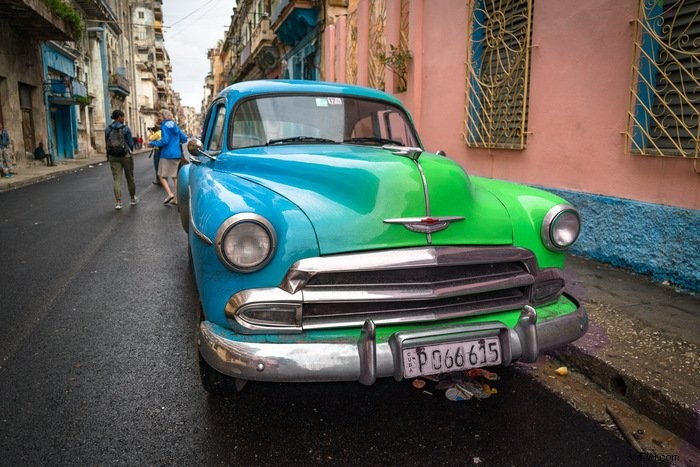
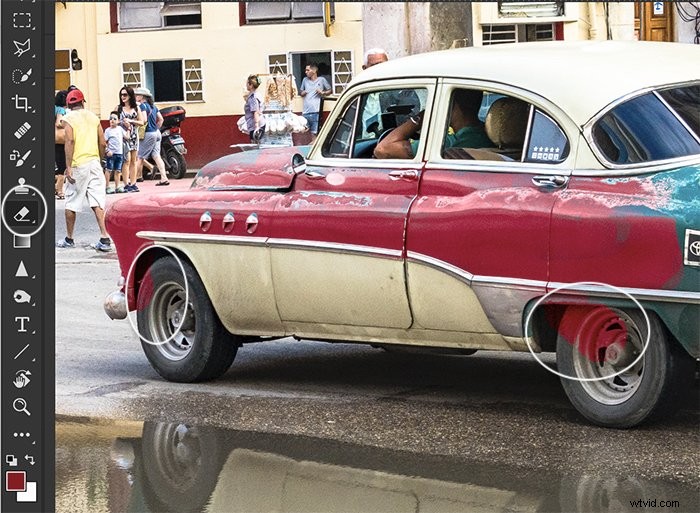
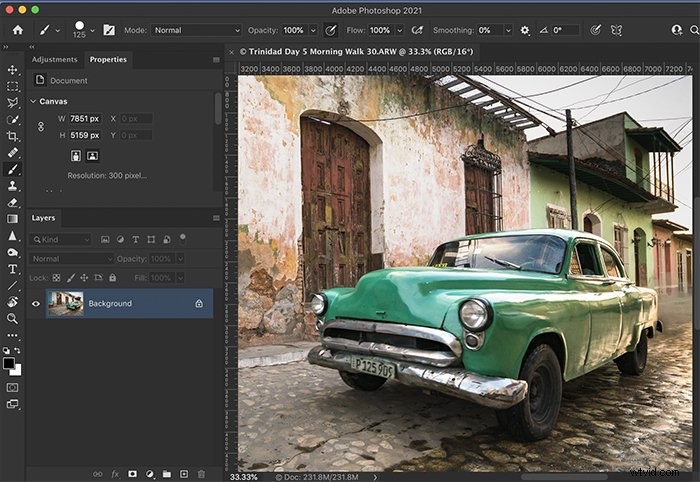
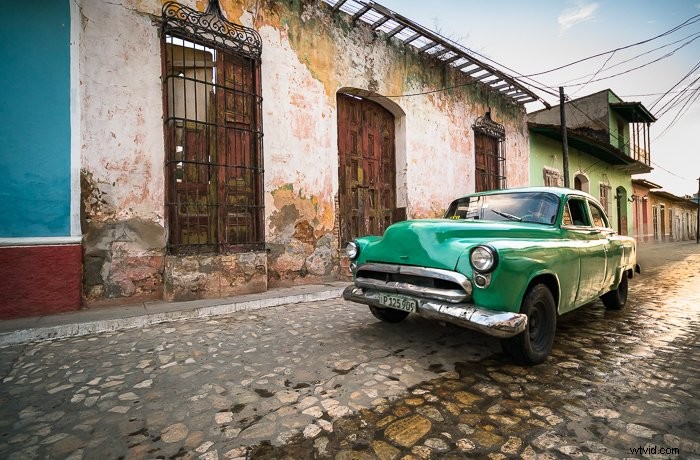
One of the easiest ways to change colour in Photoshop is to brush a new colour over the original one. So, using the Color Replacement tool, let’s change this dull, green car into a bright red one.
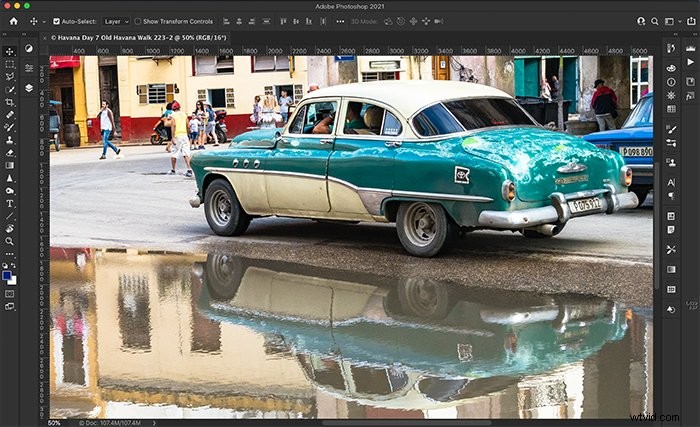
Step 1: Open the Image in Photoshop
Step 2: Duplicate the Background Layer
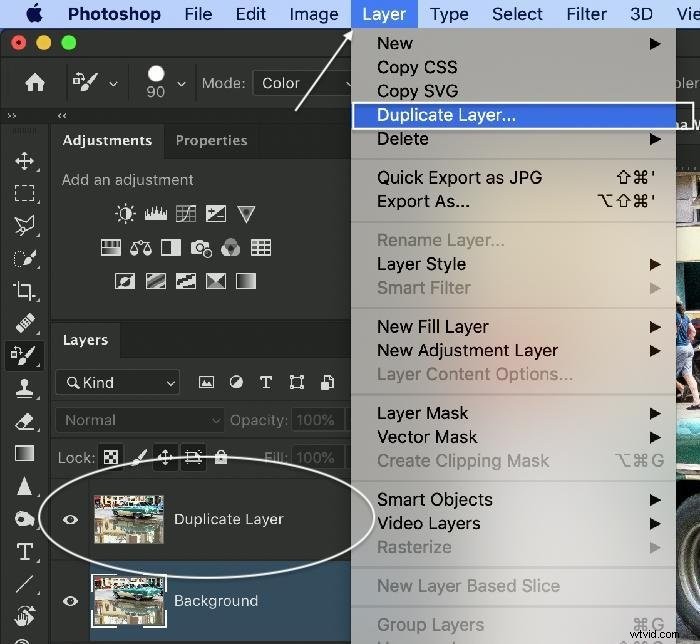
The Colour Replacement tool changes your original image. Duplicating the background layer makes the tool non-destructive. You can turn off the colour if you change your mind. To create a duplicate layer, go to the Layer drop-down menu and select Layer > Duplicate Layer.
Step 3: Select the Colour Replacement Tool
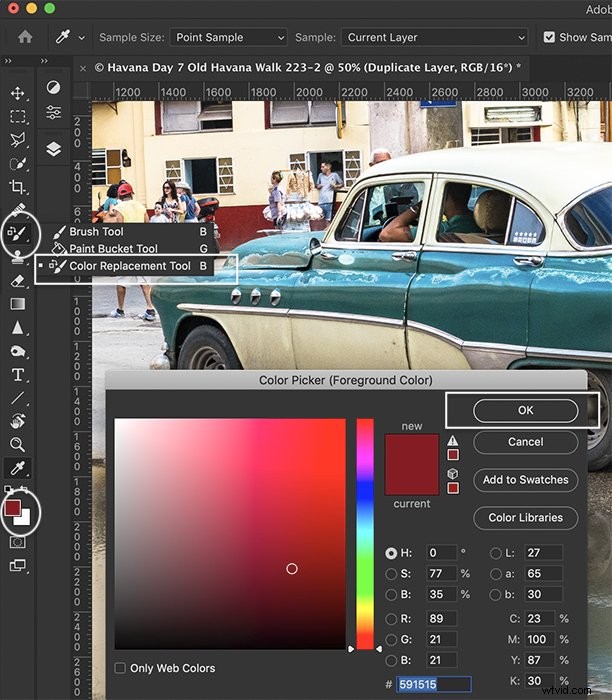
With the duplicate layer highlighted, go to the toolbar, and select the Colour Replacement tool. It may be grouped with other brush tools. Then, click the foreground colour icon near the bottom of the toolbar to choose a new colour. Click OK.
Step 4: Brush on the New Colour
Paint the new colour over the original. Keep the + in the middle of the brush on the original colour. The Find Edges selection in the options bar will help keep the new colour contained. If you make a mistake, select Undo (Ctrl or ⌘Z) or switch to the eraser tool and erase the colour. You may need to go over an area a couple of times.
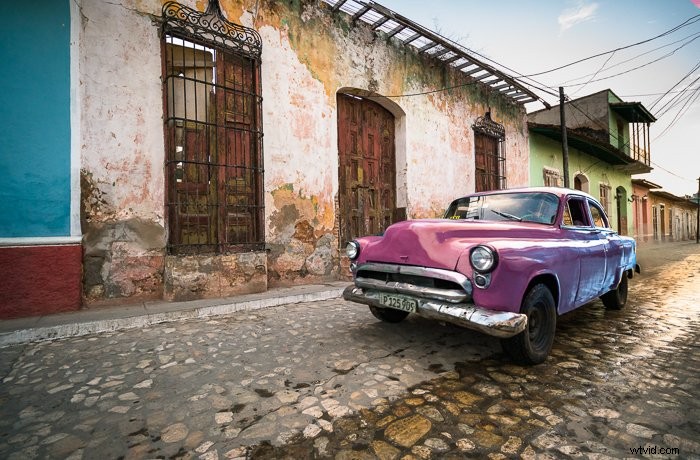
Compare the image before and after the colour change.
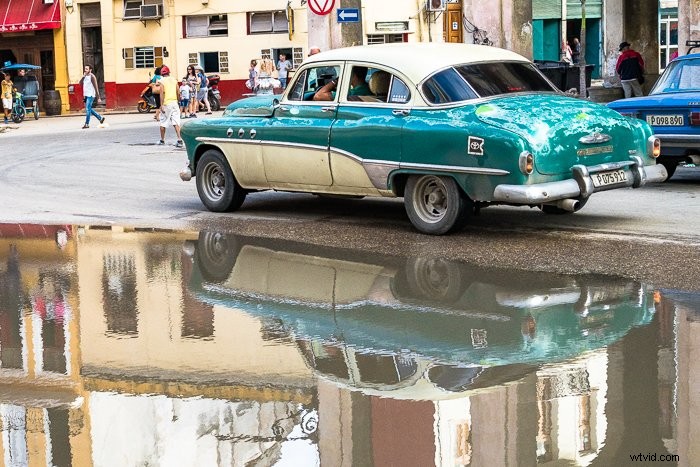
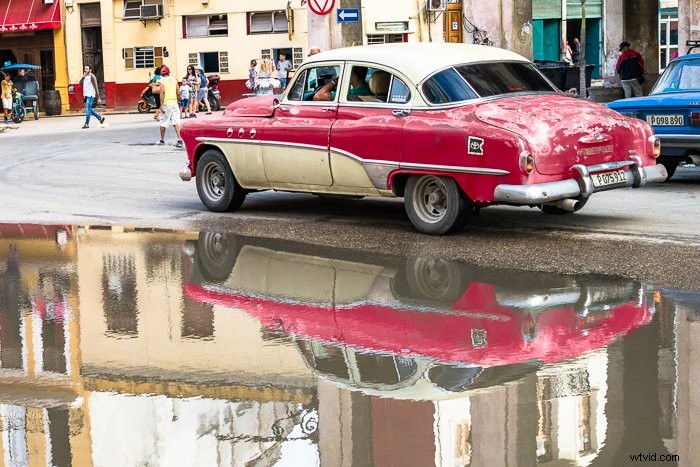
This method is easy to understand, but it may not be precise enough for your needs. Notice that the shades of colour are difficult to control in the reflection. If you lose the fine gradations in the colour, you should try the Replace Colour tool.
How to Use the Photoshop Replace Colour Tool
In addition to the Colour Replacement Brush tool, Photoshop has a Replace Colour tool. As you might’ve guessed from the name, the latter replaces one colour with another.
Step 1: Open the Image in Photoshop
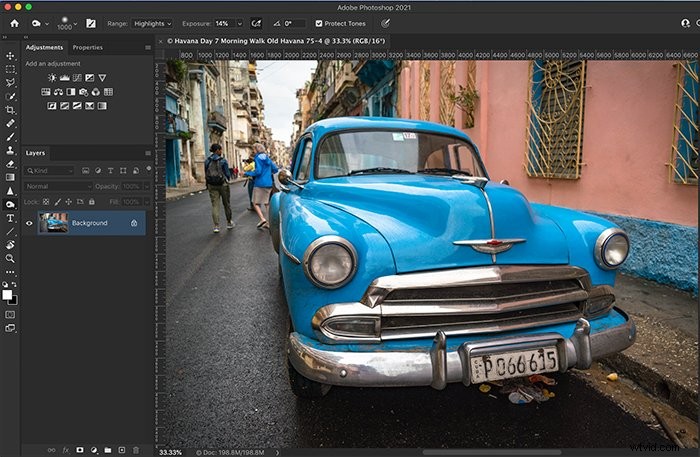
Step 2: Duplicate the Background Layer
Using the Replace Colour tool changes your original image. Duplicating your background layer makes the tool non-destructive. You can turn off the colour change if you decide you don’t want it. Right-click on the background layer and select Layer > Duplicate Layer.
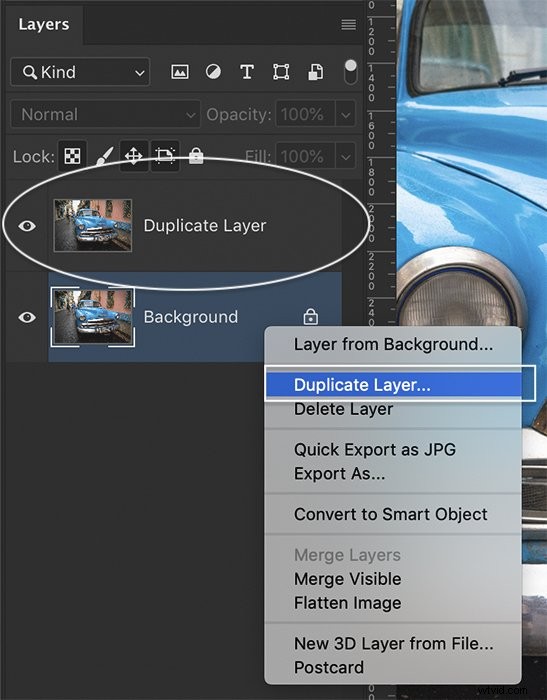
Step 3: Open the Replace Colour Tool Dialogue Box
Highlight the duplicated layer. Open the Replace Colour dialogue box by going to the Image drop-down menu and selecting Image > Adjustments > Replace Color.
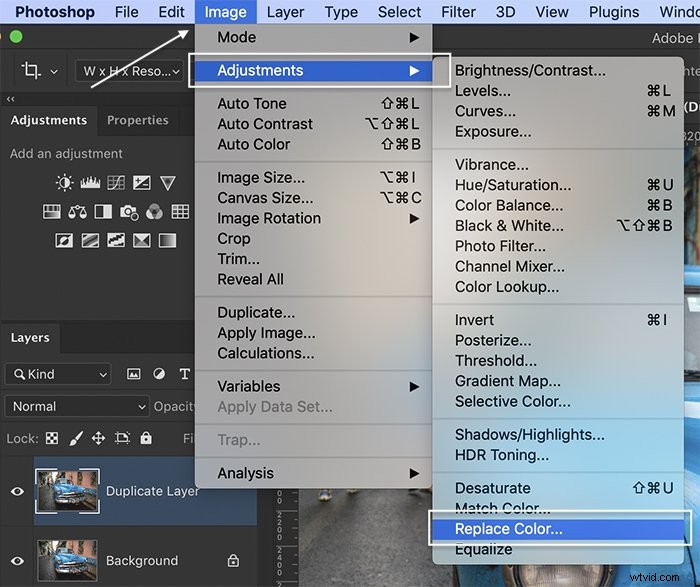
Step 4: Select the Colour You Want to Replace
In the Replace Colour tool dialogue box, use the eyedropper tool to select the colour you want to replace. In most pictures, there are gradations of the colour present. Click on the purest example of the colour. Then, use the + eyedropper to add lighter and darker shades.
If you want Photoshop to select only colours around the area you have selected, check the box next to Localised Colour Clusters. The fuzziness slider makes the range of colours selected more or less specific.
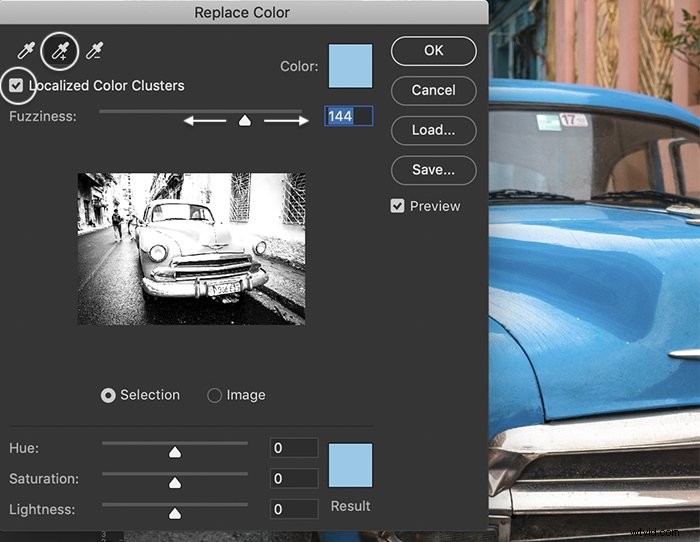
Step 5: Change the Colour
Use the Hue slider to choose a new colour. Based on the results, you may need to adjust your selection to include more hues. Use the eyedropper + tool to click on areas that you want to add to your colour change. Do not worry if other colours in your image also change. In the next step, we will remove unwanted colour changes.
Move the Saturation and Lightness sliders to adjust the colour. When you are happy with the new colour, click OK.
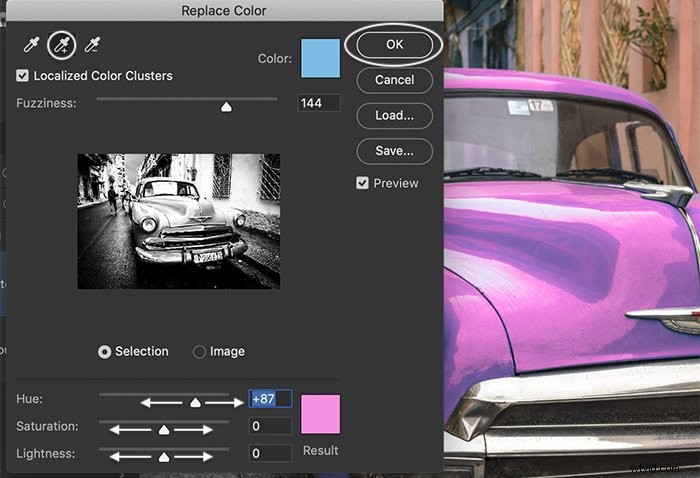
Step 6: Remove Unwanted Colour Changes With a Layer Mask
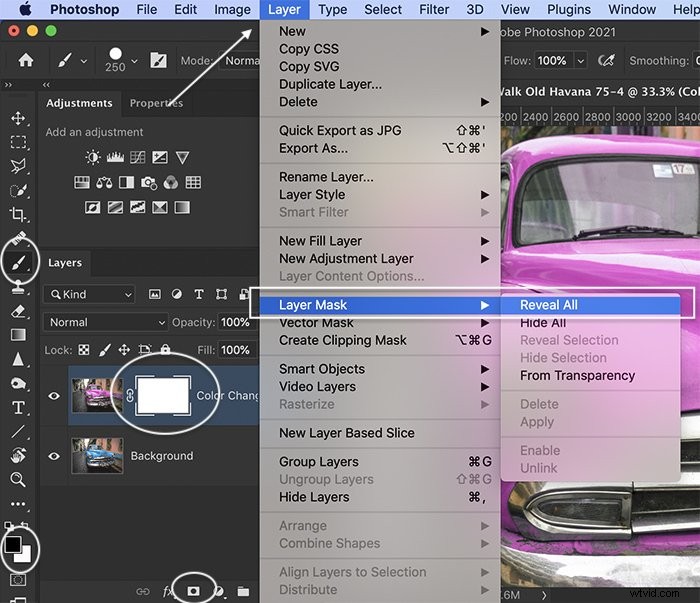
On the duplicate layer, add a layer mask. To do this, click the mask icon at the bottom of the Layers panel or go to the Layer drop-down menu and choose Layer > Layer Mask > Reveal All.
Click on the mask. Using a black paintbrush, paint over the areas of your image where you do not want the colour to change. If you make a mistake, change to a white paintbrush to reveal the colour change.
Compare the image before and after the colour change. The woman’s blue jacket and the blue painted wall also turned pink when the colour was changed. Using the mask, we returned these back to their original colour.
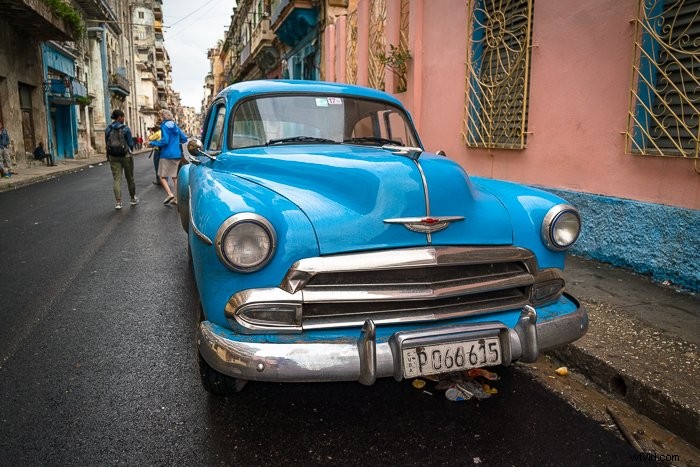
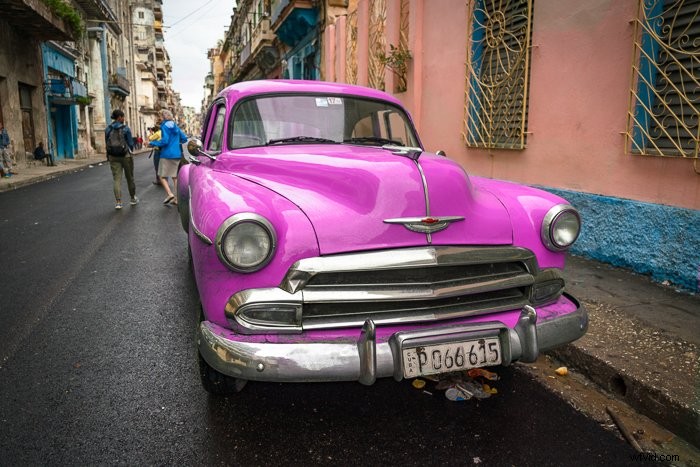
The Replace Colour tool works fine. But there are a couple of drawbacks to using this method. If you forget to add a duplicate layer, then your original image is changed. Also, you cannot go back to adjust the colours once you apply the change.
How to Use Hue/Saturation Adjustment Layers to Change Colours
The Hue/Saturation adjustment tool lets you change colours in your image. It is just as easy to use as the Replace Color tool. But it is non-destructive and lets you re-adjust colours at any time.
Step 1: Open the Image in Photoshop
Step 2: Add Hue/Saturation adjustment layer
Add a Hue/Saturation adjustment layer in Photoshop. Either click on the Hue/Saturation icon in the adjustments panel. Or open the Layer drop-down menu and choose Layer > New Adjustment Layer > Hue/Saturation.
When you add adjustment layers, a couple of things happen. A new layer appears in the layers panel above your original image. The adjustment layer icon appears next to a white mask. Also, a new Properties panel opens with hue and saturation adjustments.
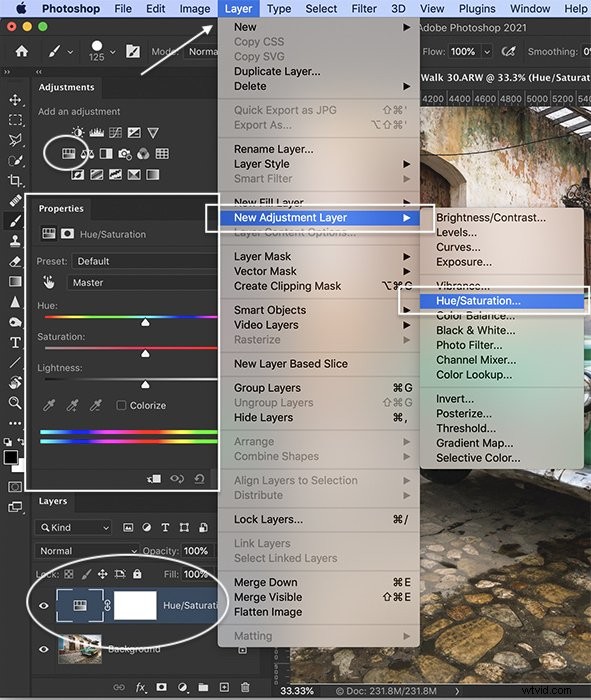
Step 3: Select the Colour You Want to Change
Click the hand tool in the Hue/Saturation properties panel. This opens the eyedropper tool. Click on the colour you want to change. Notice that the sliders at the bottom of the panel now show a grey area with tabs on either end. This is the range of colours that will be affected. You can add to the colour range by dragging the tabs out. Or you can use the eyedropper + tool to click on more colours.
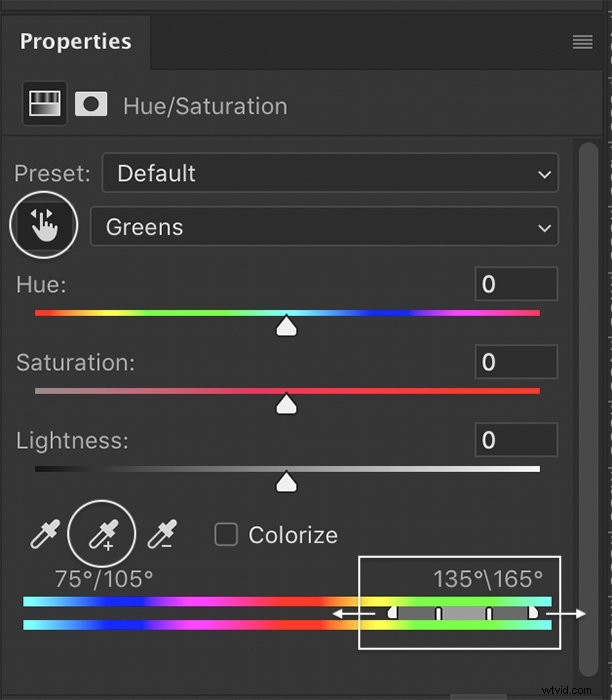
Step 4: Change the Colour
Use the Hue slider to change the colour. Do not worry if other colours in your image change. You will fine-tune the details in the next step. Use the Saturation slider to increase or decrease the saturation and the Lightness slider to make the colour darker or brighter.
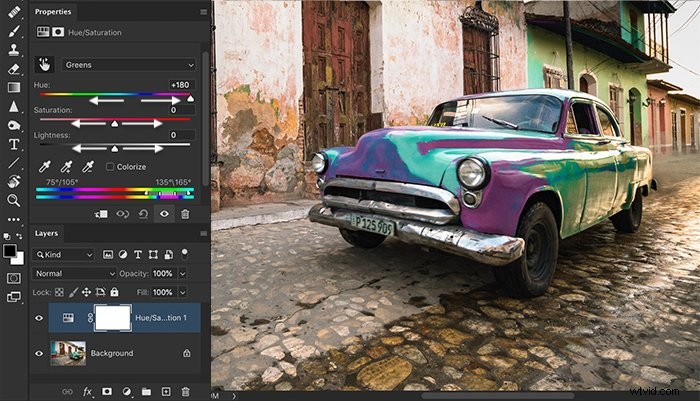
Step 5: Remove Unwanted Colour Changes With a Layer Mask
Select the white mask layer in the Hue/Saturation layer and a black paintbrush. Paint over the areas of your image where you do not want the colour to change. If you make a mistake, change to a white paintbrush to reveal the colour change.
You can use selection tools, like the Object Selection tool or Quick Select, to help define edges. If you have not used these select tools before, start with our article “12 Photoshop Selection Tools You Need to Know About“.
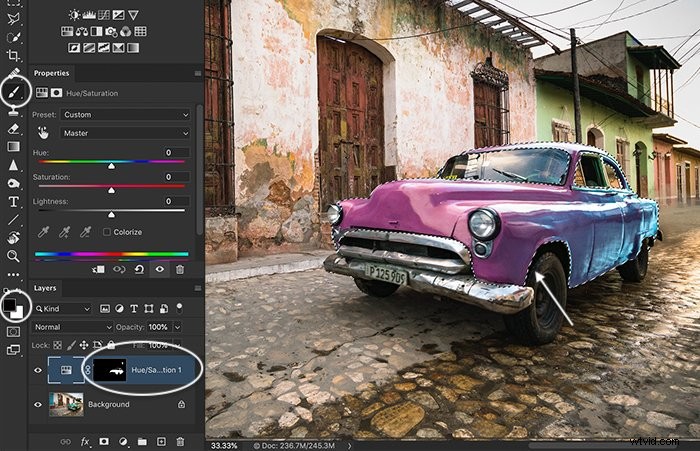
If you want to change the results later, using the Hue/Saturation adjustment layer means you can go back and change the colours.
Compare the image before and after the colour change. Now the pink colour stands out from the background.
Conclusion
There are three main ways to replace a colour in Adobe Photoshop. You can use the Color Replacement brush tool, the Replace Color tool, or the Hue/Saturation adjustment tool. All get the job done. But the Hue/Saturation adjustment tool is the most flexible.
If you want to learn how to make stunning images with Photoshop, check out our Magical Photography Spellbook.