
Are you moving your business online? You’re probably noticing the huge amount of possibilities? From blogs to Instagram; from banners to thumbnails – you need to keep editing your images to fit your every need. Fortunately, there are some Photoshop tools to edit backgrounds that come to the rescue. Keep reading to learn how to solve some of the most common issues about backgrounds.

Photoshop tools to edit white backgrounds
There are a number of Photoshop tools to edit white backgrounds, so let’s break them down.
Curves
A white background shot seems simple, but it ‘s not so easy to achieve. You can always cut out the subject and replace the backdrop, but this can be very time-consuming even if you did it right in the photo-shoot. You still need to do some editing, and one of the best Photoshop tools to edit a backgrounds’ brightness is Curves.
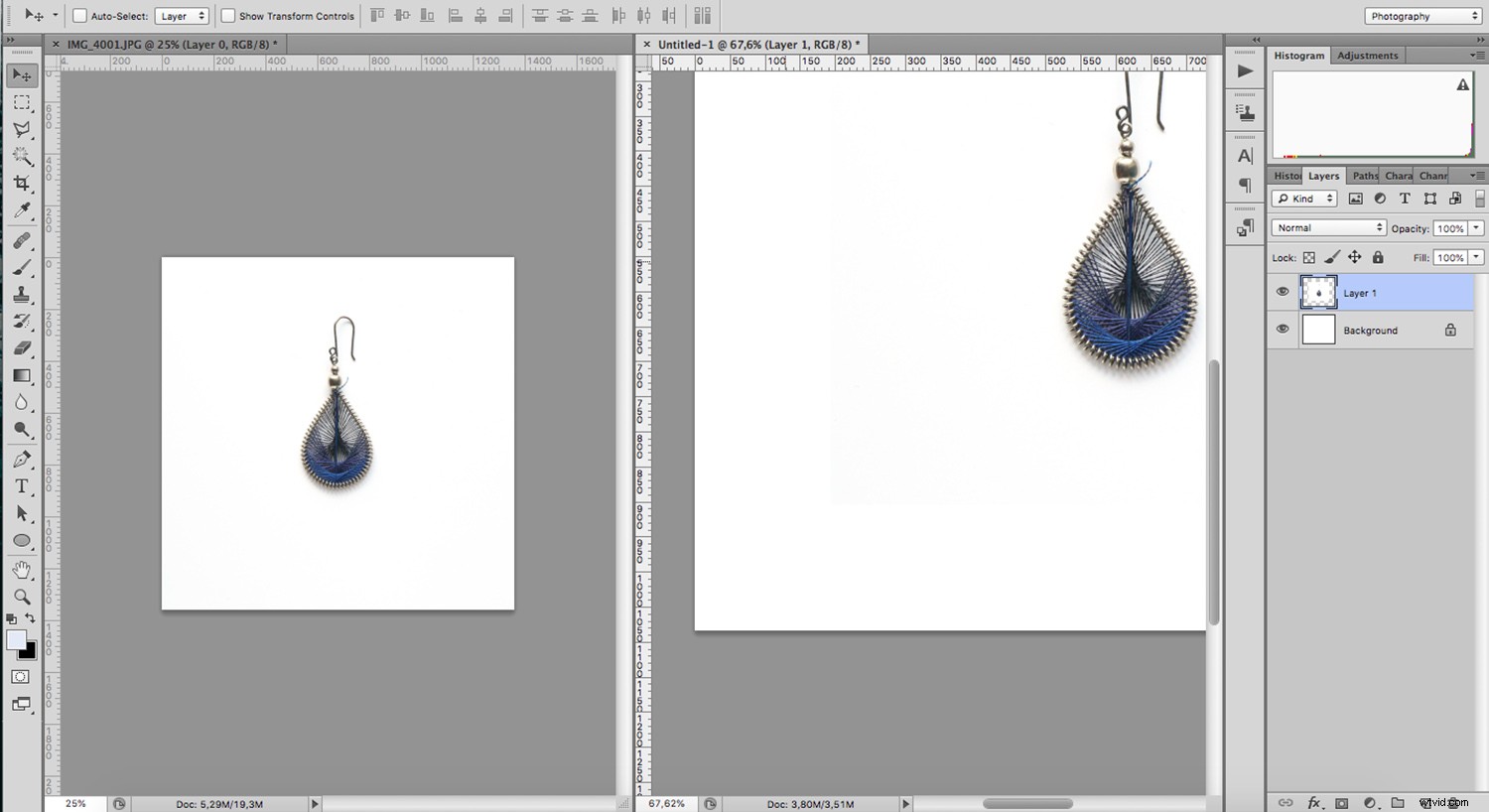
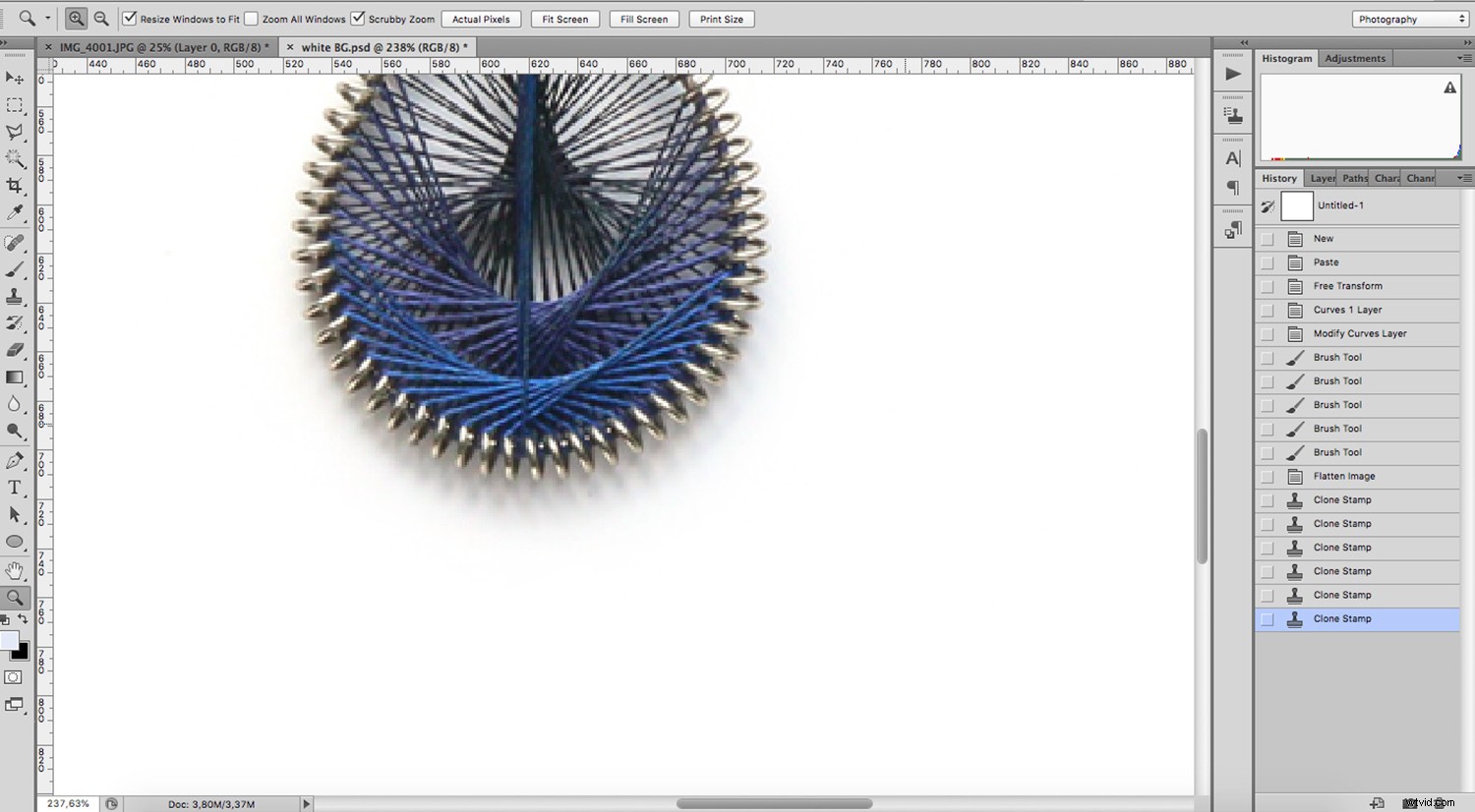
Often, despite your best efforts, your seemingly white background is not 100% white. Look at the example above. On the left, you can see the result of the photo-shoot, which appears to be okay. But, if I add a white background layer, you can see it’s not. Notice how you can see the difference in the corners. To easily fix this, you have to add a Curves Adjustment Layer.
To add a Curves adjustment, click on the Adjustments icon at the bottom of the Layer palette, denoted by a circle with black and white halves.
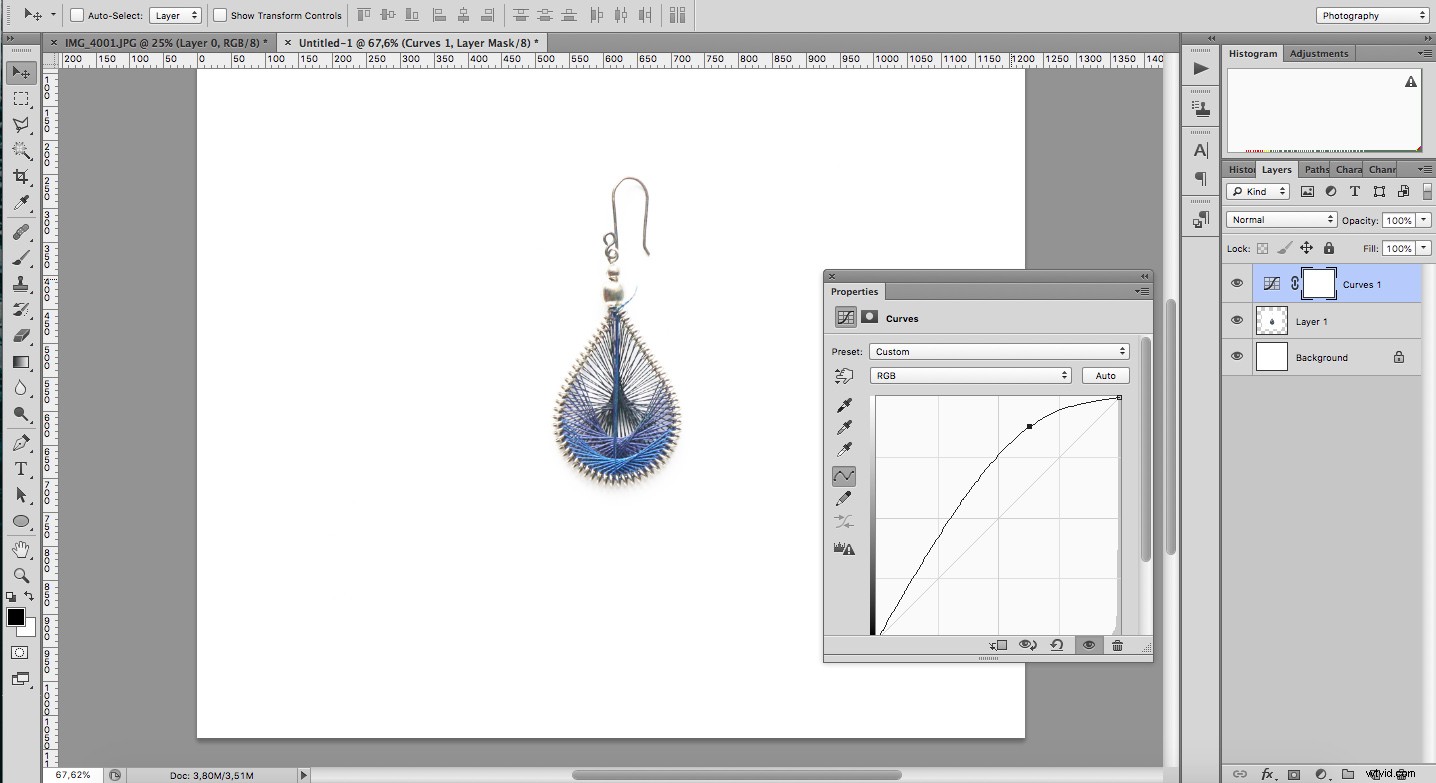
Then, lighten your image by dragging the top part of the curve. Keep going until the transition between your photo and the digital background is not visible. Don’t worry if your subject is getting too light, you’ll fix that in the next step.
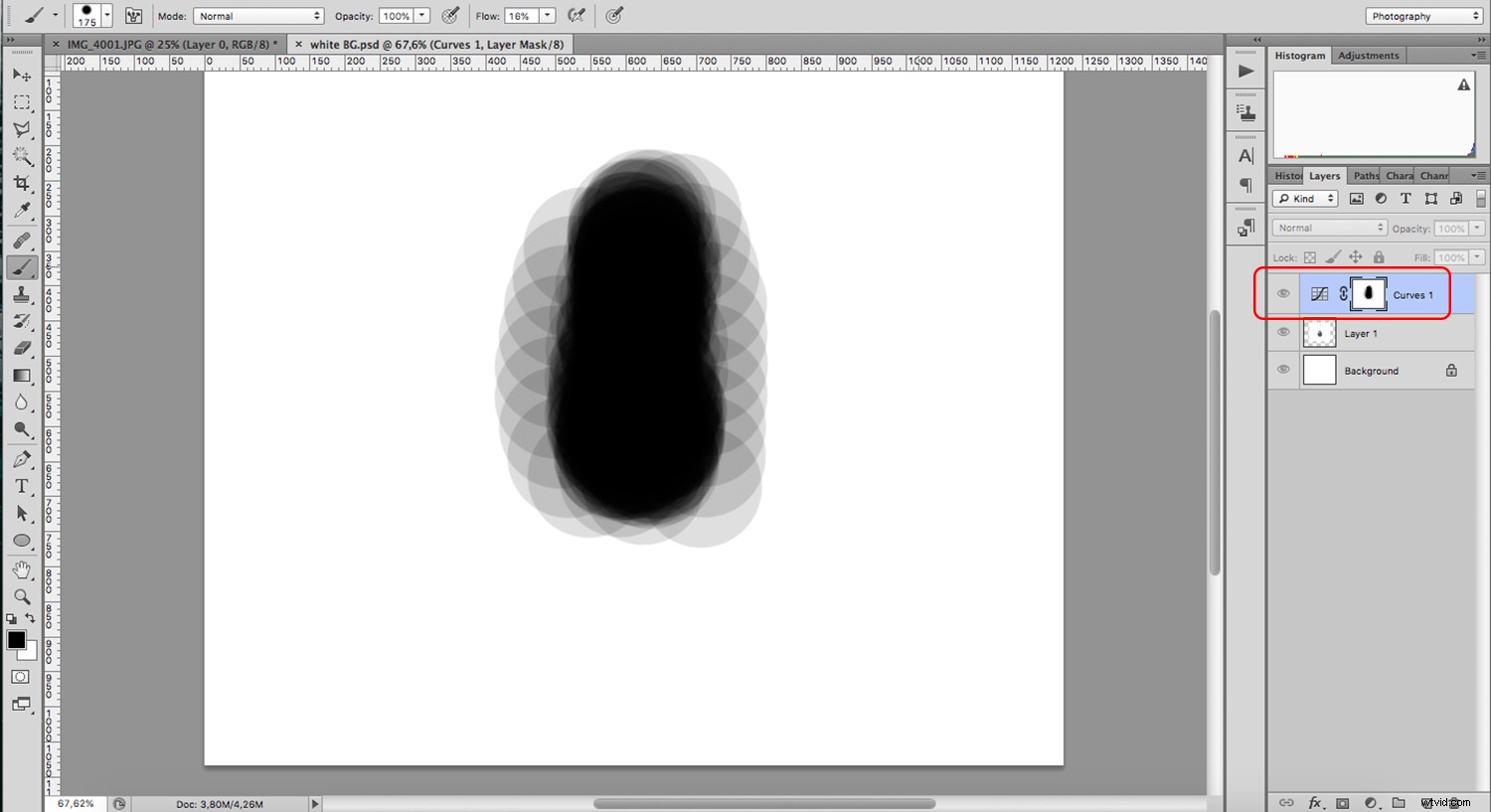
Now, grab the Brush tool, and with a soft brush at 10 or 15% flow, start painting black over your subject. This will mask out the adjustments from the curve to keep the original exposure on the subject, including its shadows.
Photoshop tools to extend backgrounds
There will be times when you also need to extend your image backgrounds. Here are some tools to help you do that.
Clone Stamp
The Clone Stamp is one of the most useful Photoshop tools to edit backgrounds. Being able to clone one part of the image to another, helps you to retouch almost anything.
You can correct any specks, dust, or scratches in your image.
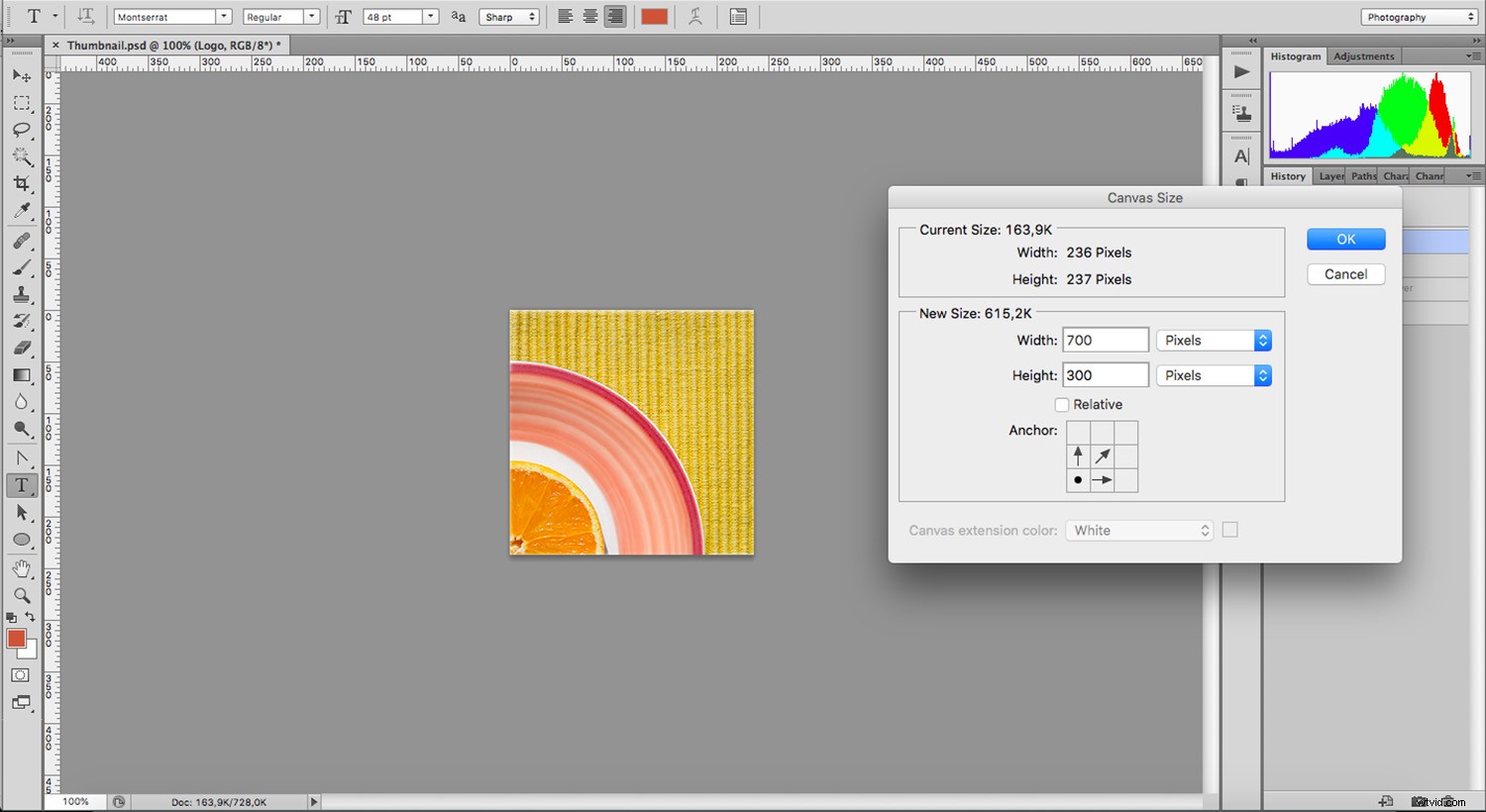
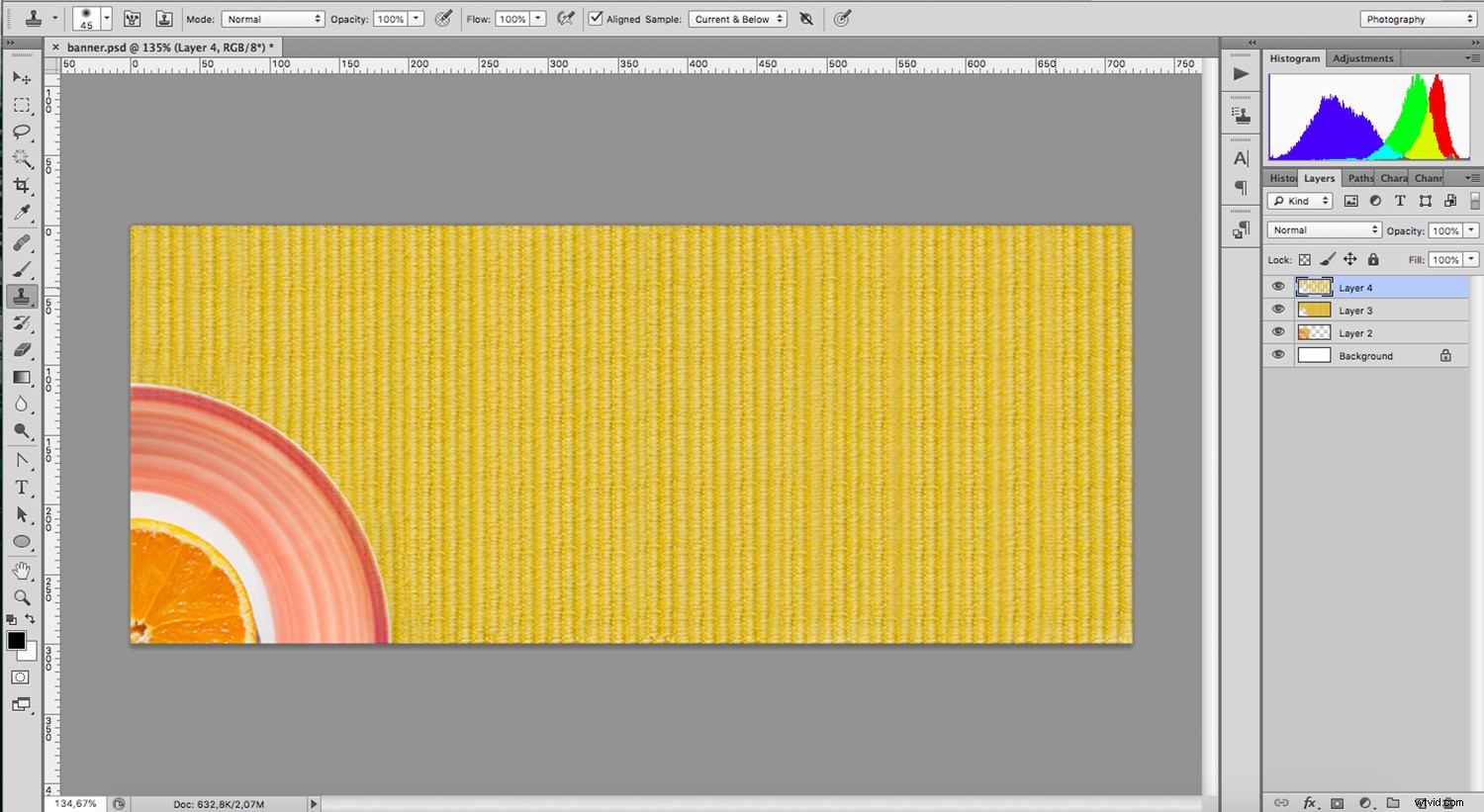
I want to show you another situation where it can come in handy too. Imagine you need to extend your background to gain some negative space. You can clone your background to cover a bigger area. First, enlarge your document by going to Menu->Image->Canvas Size and set up the new size.
Grab the Clone Stamp and take a sample from the background to start cloning. If you are working on a separate layer, make sure to set Current and Below in the options bar. If you’re working on the same layer, use “Current Layer.”
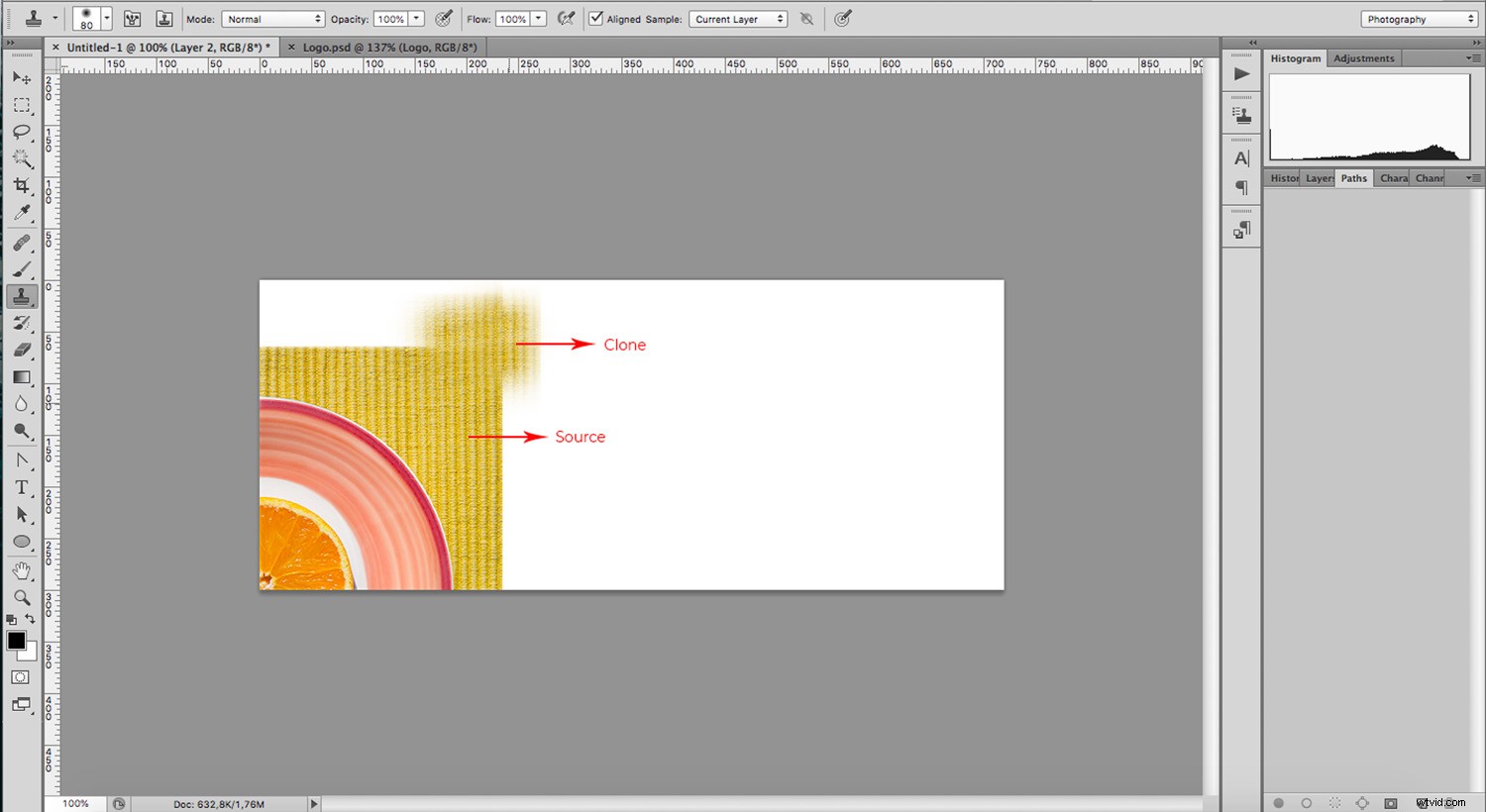
Keep going by sampling from different areas each time, that way, it’s less noticeable, and you’ll get a better result. If the area is too big for this, then the Pattern Stamp tool will be more efficient.
Pattern Stamp
First, use the Rectangular Marquee tool to select a sample of the background. Then go to Menu->Edit->Define Pattern. This will open a pop-up window where you can name and save this background as a pattern.
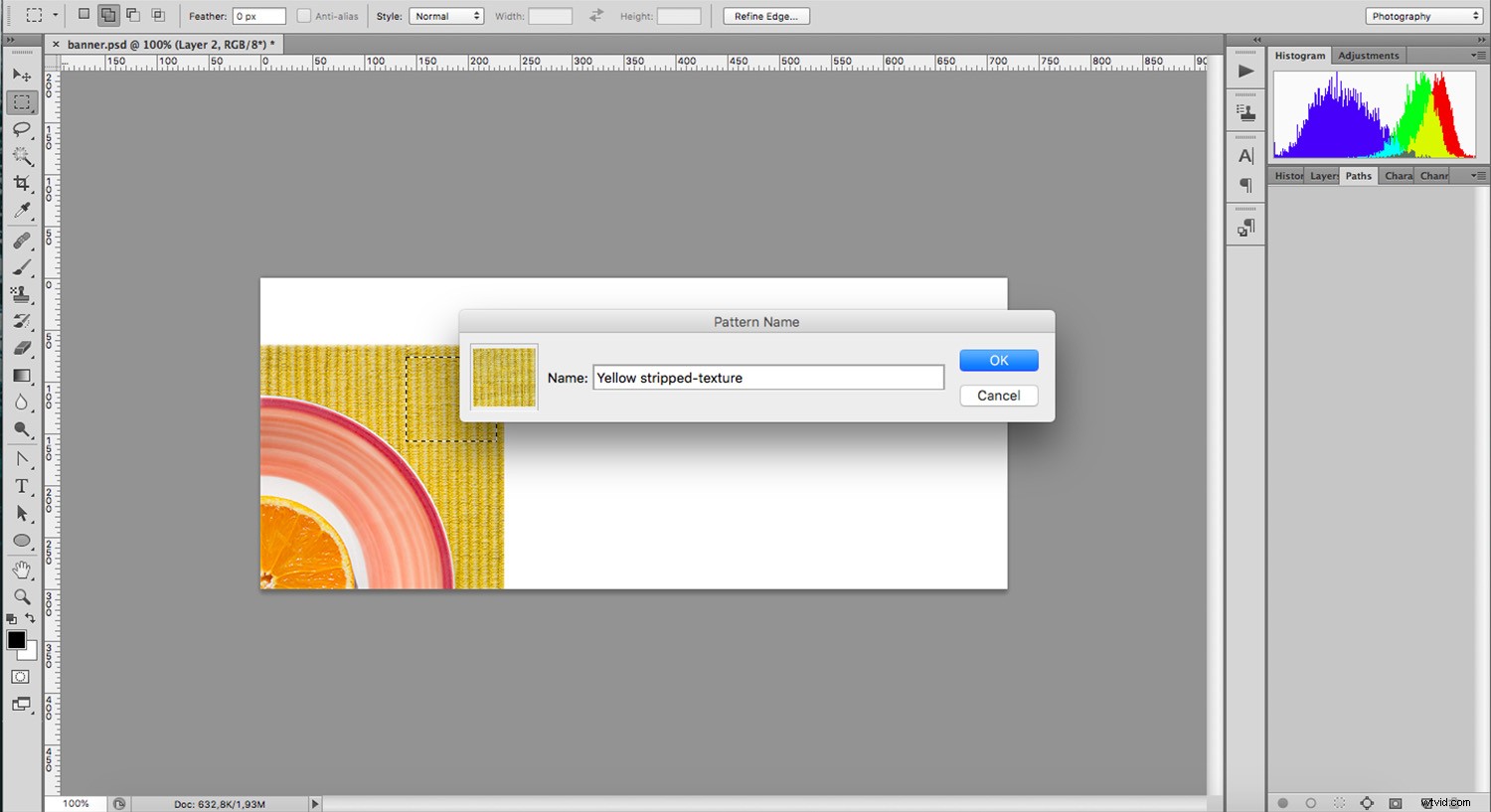
Pick the Pattern Stamp tool that you’ll find under the Clone Stamp. On the options bar, you can open the pattern menu and choose the one you just created.
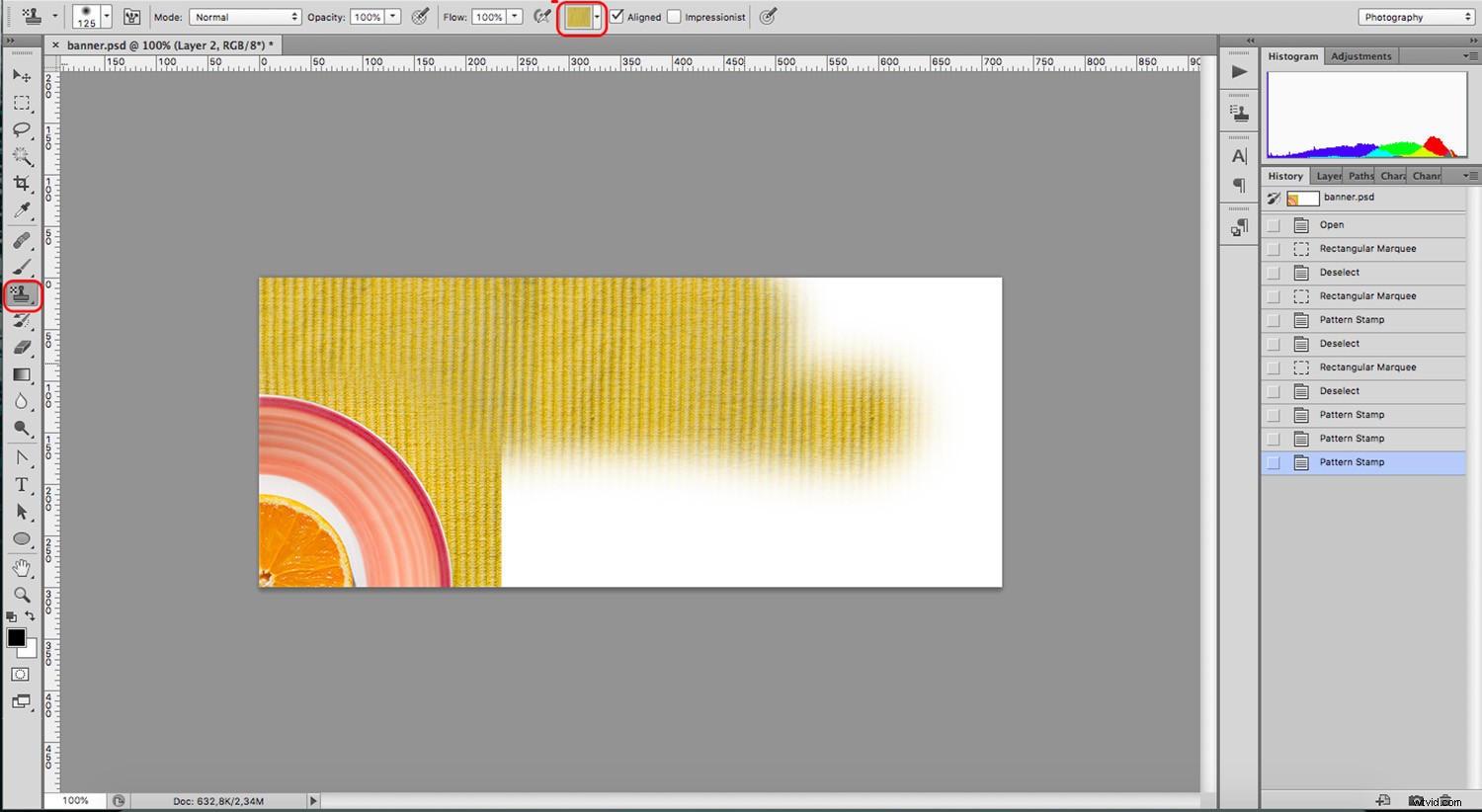
Now you just have to paint all the space you want to fill. You can adjust the size of the brush, the hardness, and flow for better results.
If the separation between stamps is noticeable, then go back to the clone stamp tool and smooth out the junctions.
Photoshop healing tools for backgrounds
Similar to the Clone Stamp is the Healing Brush, which has two variations. Unlike the clone, both of them will blend the new pixels with the existing ones. As a result, the correction is much smoother. Let’s see the difference between them.
Spot Healing Brush
The Spot Healing Brush will automatically sample the pixels it thinks are best to use as a source. It will take the texture and reproduce it while blending the color and luminosity with the pixels in the new spot.
This is really useful when you’re working on large empty areas, like textures. In most cases, I find it’s very unpredictable, and it includes pieces that don’t belong, so I don’t use it often. However, it’s a matter of finding what works best in each situation.
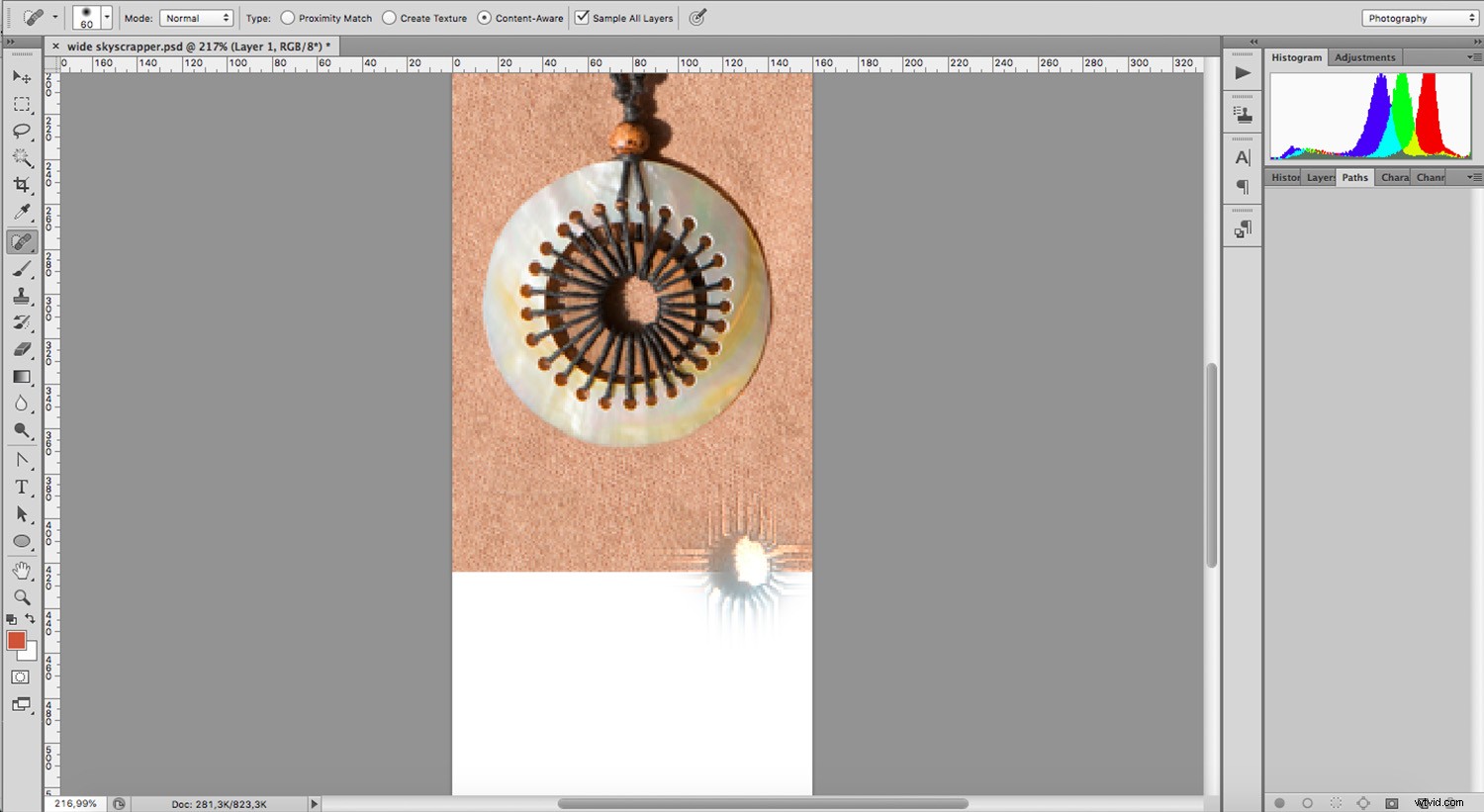
If you cancel the action by going back on your history or using the command Ctrl+Z and try again, it will give you a different result. It works better when you use a small brush and tackle small areas at a time.
If you want to cover a big space, you’ll be better off using the Healing Brush Tool.
Healing Brush
This tool is a mix between the Spot Healing Brush and the Clone Stamp. You can manually choose where to sample by clicking on the spot while holding the Alt key. Then click on the area you want to ‘heal’ and it will blend the source pixels with the current ones. This way the result will be much more uniform. Make sure that “Sampled” is marked as the Source in the Options bar.
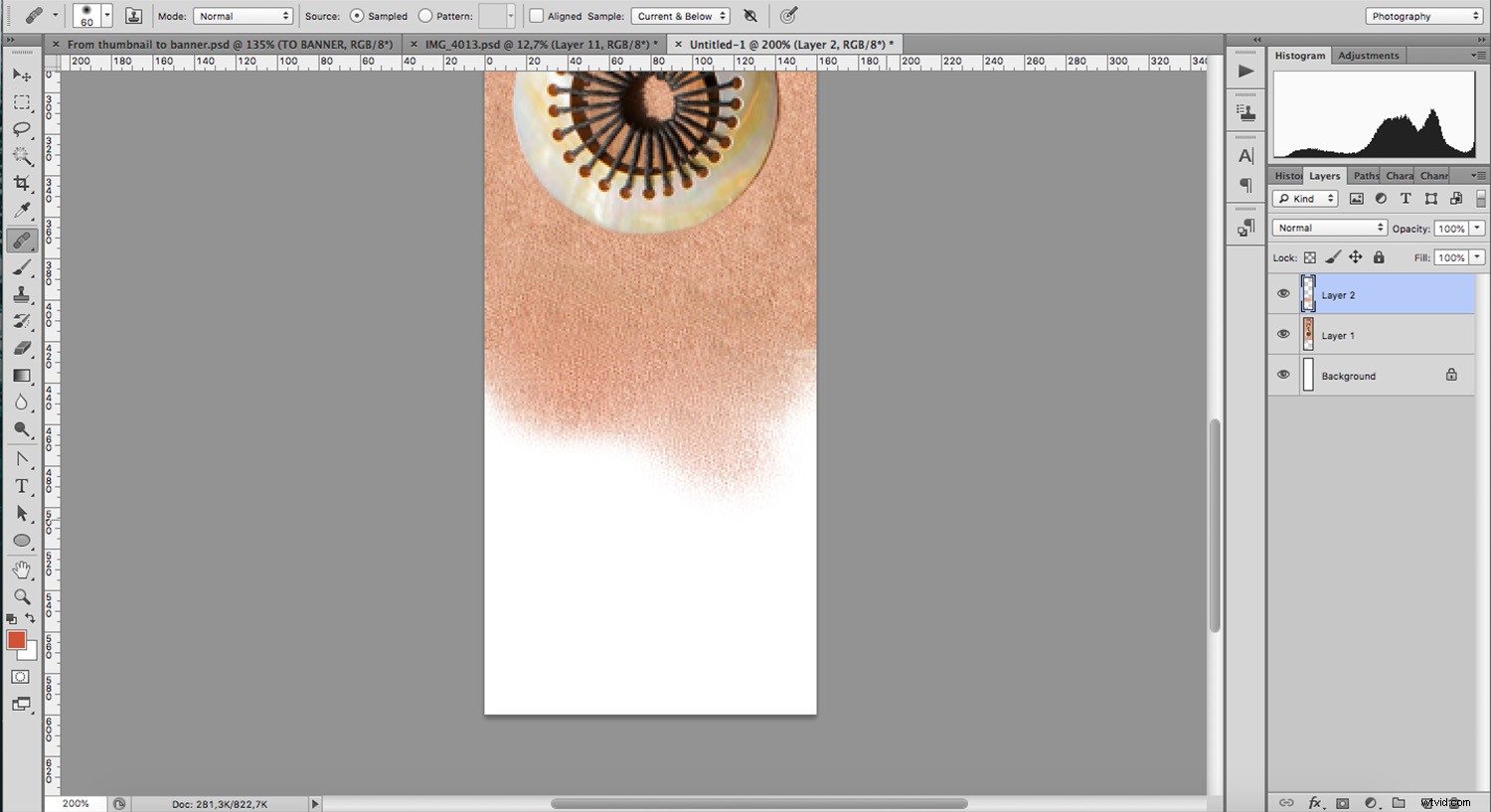
You can use this tool to extend your background or to retouch any details on it. It’s very versatile, so try it out.
Conclusion
Your background can complement, enhance, or distract from the subject, so it’s just as important and you want to give it enough attention. Whether it’s a blemish or an extension, these Photoshop tools to edit backgrounds can help you out for most of your online needs.
What is your favorite tool? Share it in the comments section!