
No matter what type of photography you create, nothing screams “snapshot” more than an off-kilter horizon. This is especially true for landscape images where sloping horizons, even if just a few degrees off, distract from all your painstaking composition and patience for the right light. Unless your viewers can tell that you’ve shot at an extreme angle on purpose, the horizons in your images need to be horizontal.

An off-kilter horizon, not a pretty sight.
If you weren’t able to get your horizon straight in camera, when you shot (because the ferry chain jerked big time right as I clicked the shutter in this shot!) you can relax – there is an easy ,and accurate way to do this in Photoshop.
The One-click Tool for Straightening the Horizon
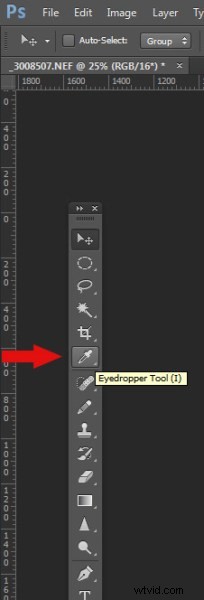
The Photoshop Toolbox palette is a wondrous and often confusing place. Just like your old grandpa’s toolbox, it contains many mysterious things, many that rarely get used. But let me introduce you to the simple Ruler Tool. What would a tool box be after all, without a ruler?
The Ruler is “conveniently” hidden in the Eyedropper fly-out menu in the Tool Box Palette.
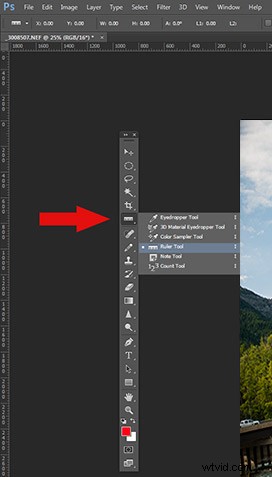
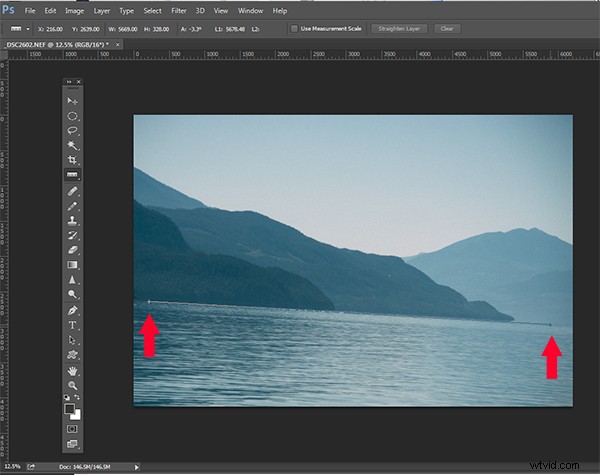
Now let’s see how easy this horizon straightening job is with the right tool. With your image open, and the Ruler Tool selected, drag the ruler along the crooked horizon.
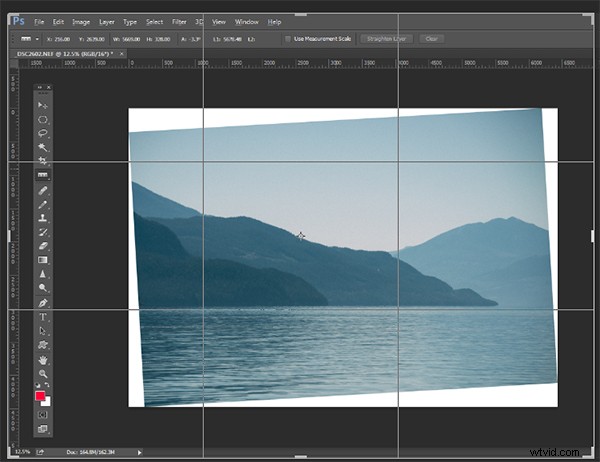
No go to the Image>Image Rotation menu and select Arbitrary. Accept the default angle and hit OK.
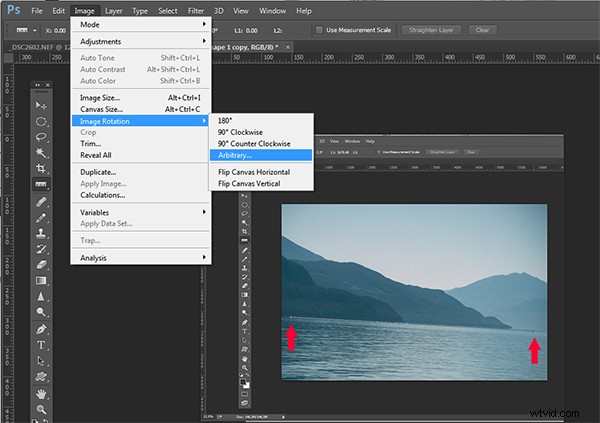
You’ll see your horizon is now straight. All you need to do now is crop.
Here’s a short video of this in action so you can see how quick and easy it is:
Have you got any other super quick methods?