REC

Recommended: Video Production, Editing & Gear Maintenance Guide

 WTVID >> WTVID >  >> Video Editing >> Adobe Photoshop

Photoshop Batch Editing: Apply Actions to Multiple Images Effortlessly

Have you ever wished that Photoshop could be as quick and easy as Lightroom at simply applying the same edit to many photos? Have you ever loved Photoshop but hated going from photo to photo applying the same action one at a time? Well wish no further because the answer is right under your nose – batch editing!

With the batch edit command in Photoshop, you can play the same action on a whole batch of opened images or even an entire folder without even needing to open the images. Now, personally I wouldn’t recommend blindly applying and saving actions to an entire folder of unopened files unless it’s something minor like a little sharpening.

So first, I open a few images I’d like to edit. I don’t usually do more than 10 at a time because I know that’s all my computer can handle without slowing down.

1. File > Automate > Batch:
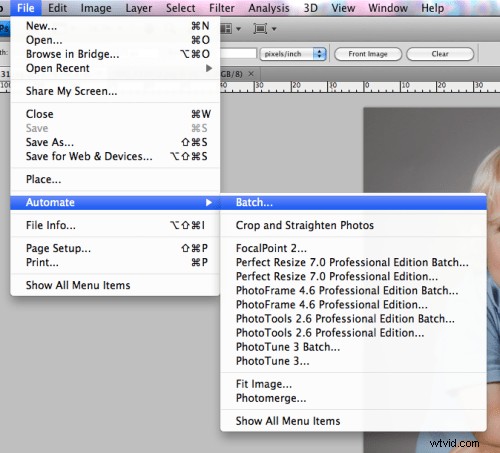
Photoshop Batch Editing: Apply Actions to Multiple Images Effortlessly

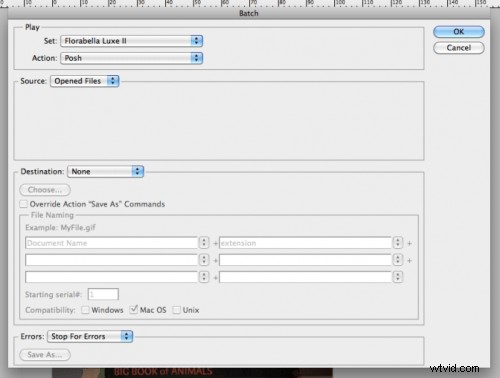
2. This is the panel that opens up:

Photoshop Batch Editing: Apply Actions to Multiple Images Effortlessly

3. First, choose what set of actions you want to use for the images and then which action from that set you want to use:

Photoshop Batch Editing: Apply Actions to Multiple Images Effortlessly

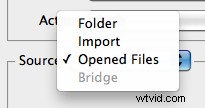
4. Now, choose whether to apply the actions to a folder of images on your computer or the images you’ve already opened in Photoshop. Personally, I open the images and apply the changed to ‘opened files’ as seen here:
Photoshop Batch Editing: Apply Actions to Multiple Images Effortlessly

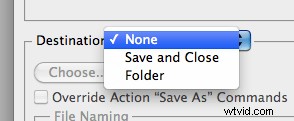
5. Now, tell it what you want to do after the actions have been played. Since I play my actions on opened images, I choose here ‘none’ which will keep the images open in Photoshop after playing the action so I can further tweak before saving.
Photoshop Batch Editing: Apply Actions to Multiple Images Effortlessly


And that’s it! Now sit back and be amazed as Photoshop does all the work!


  1. How to Batch Resize Images in Photoshop Elements: Step-by-Step Guide

  2. Photoshop for Beginners: How to Start Photo Editing and Know What to Do

  3. How to Batch Resize Images in Photoshop Elements: Step-by-Step Guide

  4. Master Non-Destructive Editing in Photoshop: Pro Techniques & Tips

  5. Master Stunning Photo Lighting in Photoshop: Pro Techniques

Adobe Photoshop
  1. Batch Resize and Edit Multiple Images in Photoshop: Step-by-Step Guide

  2. Expert Guide: How to Seamlessly Merge and Combine Images in Photoshop

  3. Master Focus Stacking for Pin-Sharp Macro Images in Photoshop: Step-by-Step Guide

  4. How to Create Professional Watermarks for Images in Photoshop and Lightroom

  5. Master Photoshop Plugins and Actions: Beginner's Guide to Efficient Photo Editing

  6. Master Photoshop Actions: Automate Tasks and Unleash Creativity

  7. Batch Resize Multiple Images in Photoshop: Image Processor Guide

  8. Photoshop Tutorial: Color Correct, Sharpen & Optimize Images for Web