
Stuck with the default iPhone wallpapers? You can now transform your lock screen into a living canvas with dynamic live wallpapers. The process is simple and can be achieved either through native settings or with trusted third‑party apps.
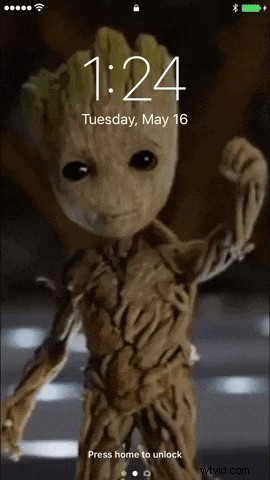
This guide highlights the best options for creating or downloading live wallpapers on iOS, along with step‑by‑step instructions for each method.
- Set a Live Photo as a Wallpaper (Step‑by‑Step)
- Create Custom Live Wallpapers with Third‑Party Apps (Step‑by‑Step)
Set a Live Photo as Your Wallpaper
If you own an iPhone, you can easily set a Live Photo as your lock screen background by following these steps:
Step 1: Open Settings
Step 2: Tap Wallpaper
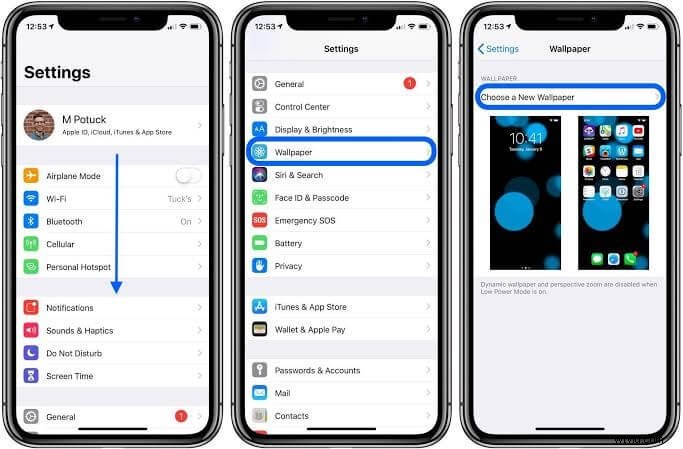
Step 3: Choose the Live Photos Album
Step 4: Select a Photo and Set It as Wallpaper
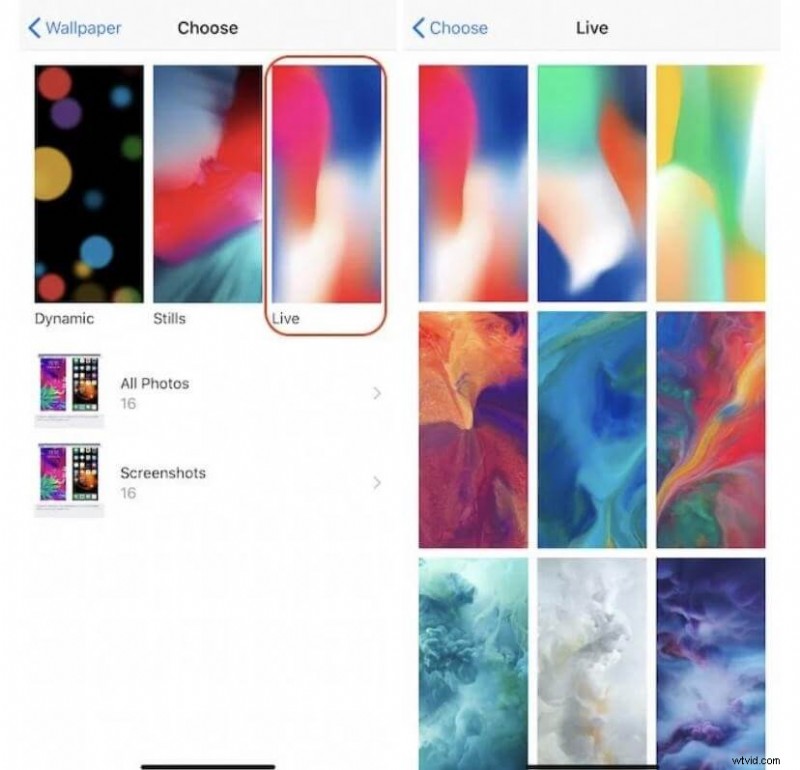
Custom Live Wallpapers via Trusted Third‑Party Apps
1. Intolive – Live Moving Wallpapers
Intolive lets you turn any video or GIF stored on your device into a stunning live wallpaper. The app is free to download; a $2.99/month subscription unlocks additional features and removes ads.
Step 1: Download Intolive from the App Store
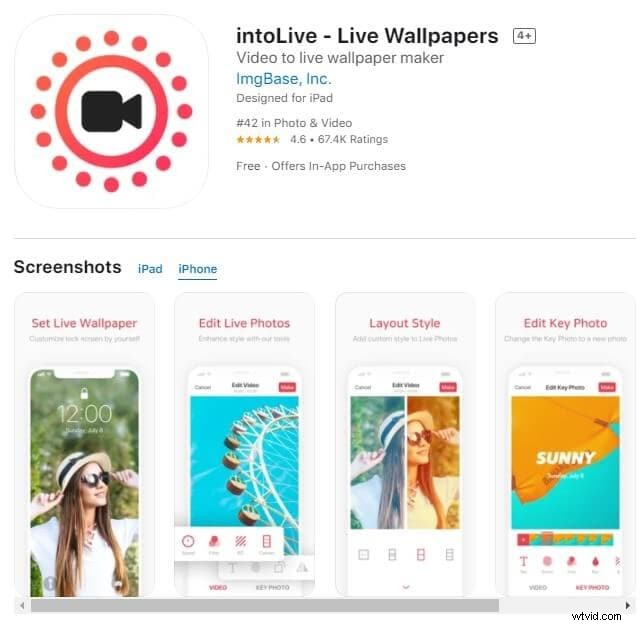
Step 2: Open the app and grant photo access
Step 3: Select the video you want to use
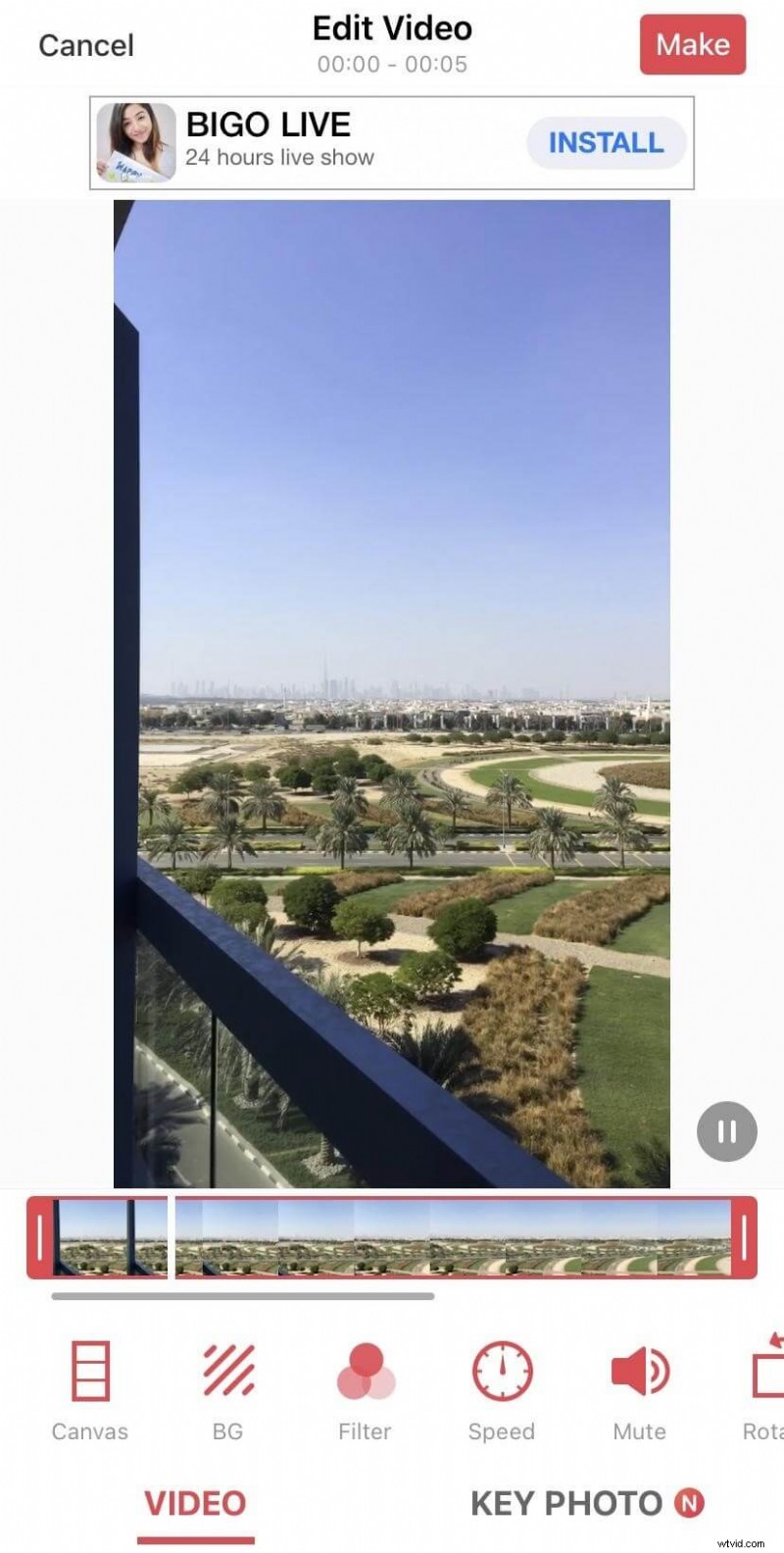
Step 4: Tap “Make” to create the live wallpaper
Step 5: Save the wallpaper to your device
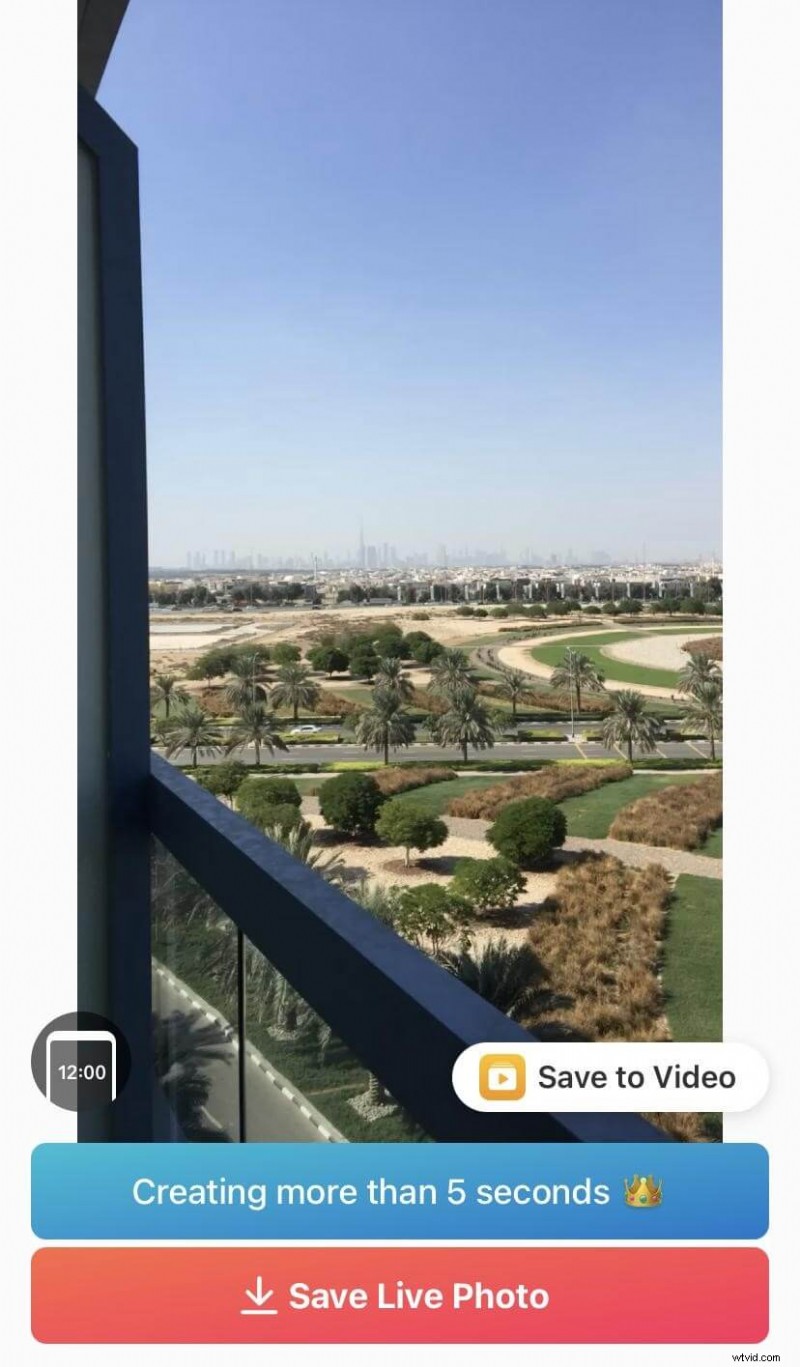
Step 6: Set the new live wallpaper via Settings
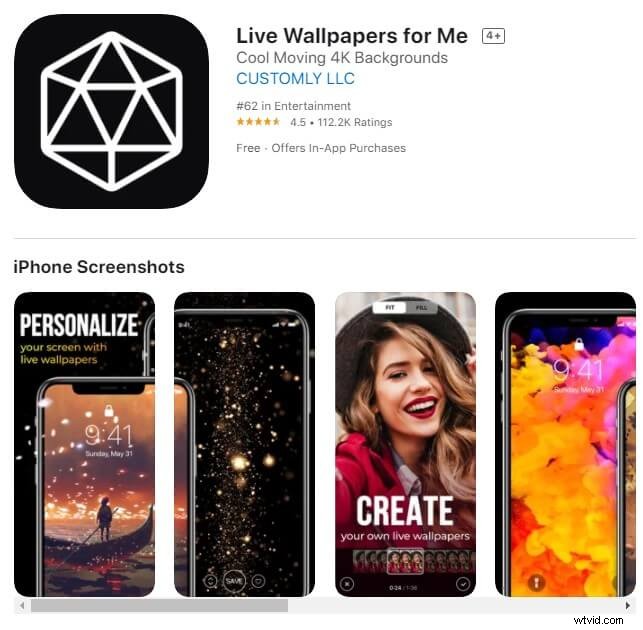
2. Live Moving Wallpapers for Me
With a vast library of 4K live wallpapers updated weekly, this app offers a curated selection across multiple categories. The app is free to download, but a $7.99/month subscription unlocks the full collection.
Step 1: Install the app
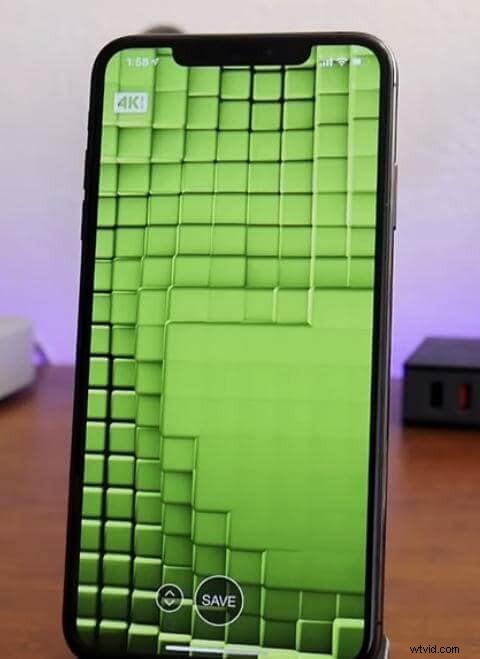
Step 2: Pick a wallpaper and save it to your device
Step 3: The wallpaper appears in your Live Photos album and can be set from there
3. Live Moving Wallpapers HD
Offering a wide range of HD backgrounds, this app allows you to download and use them directly as live wallpapers. Like the others, it is free to install but requires a $7.99/month subscription for full access.
Conclusion
The apps above represent the most reliable and feature‑rich options for turning your iPhone into a dynamic display. Choose the one that best matches your style and budget.
Instantly record, edit and share every beautiful moment in life.
Install Filmora for Mobile (formerly FilmoraGo) Now!
If you want to edit photos and videos on your phone, the iOS version of Filmora offers professional tools that elevate your content.