

Jul 14, 2025• Proven solutions
Capturing video or still images is a common activity, whether documenting a birthday party or a dance performance. Often, you may wish to capture a single frame from an ongoing video to preserve a memorable moment. Switching to photo mode disrupts the flow and risks missing that instant. This guide explains how to take photos while recording video on your iPhone, ensuring you never lose a precious frame.
How to shoot a still photo and record a video simultaneously on your iPhone
iPhone 5 and later support simultaneous photo capture during video recording. The same capability is available on iPad (4th gen) and iPod touch (6th gen).
Follow these simple steps:
- Open the Camera app.
- Switch to Video mode.
- Tap the red record button to start recording.
- To capture a still, tap the white shutter button beside the record button; the screen will flash.
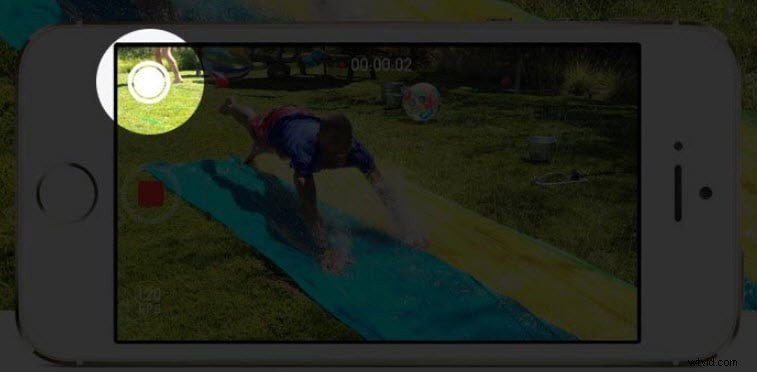
Image resource: igeeksblog.com
Drawbacks of simultaneous photo and video capture
- Unable to capture stills from a time‑lapse video.
- The resolution of photos taken while recording video matches the video’s resolution, which is lower than the camera’s native photo resolution. For example, photos taken during 4K video will be at 3840 × 2160, not 4032 × 3024. The resolution loss is even more pronounced when taking stills from slow‑motion recordings.
Although this resolution drop may be noticeable for high‑detail photography, most users find the quality sufficient for everyday use.
| iPhone Model | Standard Photo Resolution | Phone Resolution While Recording Video-1080p | Photo Resolution While Recording Video-4K | Photo Resolution While Recording Video-Slo Mo |
|---|---|---|---|---|
| iPhone 5 & 5S | 3264 × 2448 | 1280 × 720 | n/a | n/a |
| iPhone 6 series | 3264 × 2448 | 2720 × 1532 | n/a | n/a |
| iPhone SE | 4032 × 3024 | 3412 × 1920 | 3840 × 2160 | 1280 × 720 |
| iPhone 6S series | 4032 × 3024 | 3412 × 1920 | 3840 × 2160 | 1280 × 720 |
| iPhone 7 series | 4032 × 3024 | 3412 × 1920 | 3840 × 2160 | 1280 × 720 |
Extract frames from video
If you want to preserve the full resolution of your images without compromising video quality, you can extract individual frames from the recorded video after the fact.
Why Choose Wondershare Filmora?
- Supports a wide range of video formats and can extract the desired frame from any file while maintaining original quality.
- Allows direct frame extraction without hassle.
- Enables exporting and sharing projects to Vimeo, YouTube, Facebook, or local media such as mobile, DVD, or Blu‑Ray.
Watch this tutorial to learn how to extract photos from a video using Filmora:


Ollie Mattison
Ollie Mattison is a writer and a lover of all things video.
Follow @Ollie Mattison