
How to Animate Your Designs With Canva GIF
An easy yet powerful editor
Numerous effects to choose from
Detailed tutorials provided by the official channel
If you are using social media daily in 2022, you must come across GIFs and maybe wonder how to make one. GIFs are the most helpful and eye-catching advertisements that can connect you with your followers through your choices. GIFs stand in the middle of images and videos. The biggest reason we use GIFs is that it represents the story or the expression in a flash. Besides, GIFs are smaller files to load and are perfect for your mobile.
In recent years, GIFs have taken the limelight in the market. The web's most popular GIF database, GIPHY, has taken over 300 million daily active users. In 2018, Google bought the keyboard app and GIF archive to search for GIFs, Tenor. The app Tenor now has over 400 million GIF searches per day. Thus, you can realize the demand for creating GIFs is increasing now. Canva GIF is a great place to design your own GIFs.
After you create a GIF in Canva, you can use it in many fun ways in business, like promoting new sales on your products or a blog post, announcing a new webinar. In addition, you may announce your Instagram or Facebook live, share your point of view, advertise new launches, etc. In this article, we will discuss making GIFs and animating designs with GIF in Canva.
In this article
Part 1 How to Create a GIF in Canva
Canva GIF has made creating your own GIFs very easy. It is one of the best GIF makers online. The plus point of using Canva to make online GIFs is that you do not require creating an account. You can straight get to work. However, if you wish to try out their premium designs and templates, you need a subscription to their premium plan. Let us now talk about making GIF in Canva and some of its tools and features to make your GIF more eye-catching.
Follow the steps below:
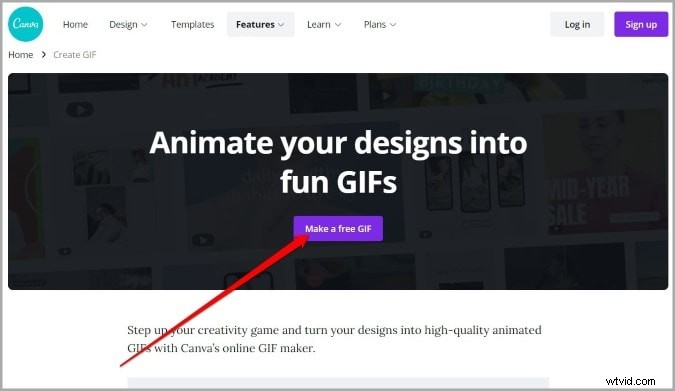
● Go to the web browser. Navigate to Canva. Open the GIF maker page on Canva. Select the "Make a free GIF" button to get started.
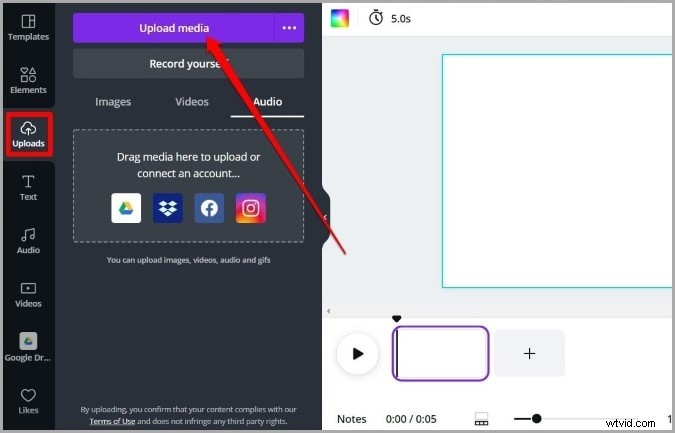
● On the left, go to the "Uploads" tab. Then, click on the "Upload media button" to add images.
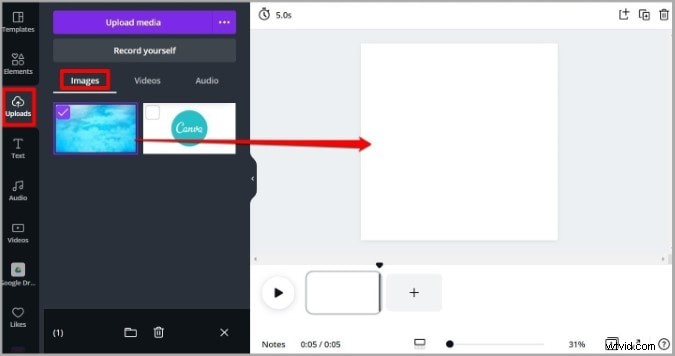
● After the images are added, they will arrive under the "Images" tab. Now you have to drag and drop the images in the GIF maker.
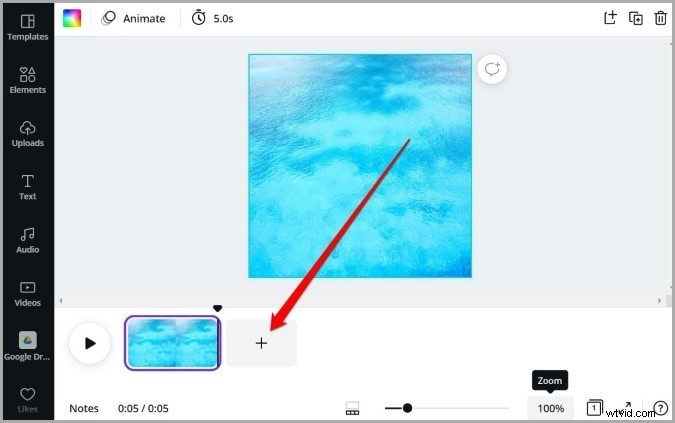
● Next, click on the "+" button in the timeline and add the next picture. You have to repeat this step if you want to add more pictures.
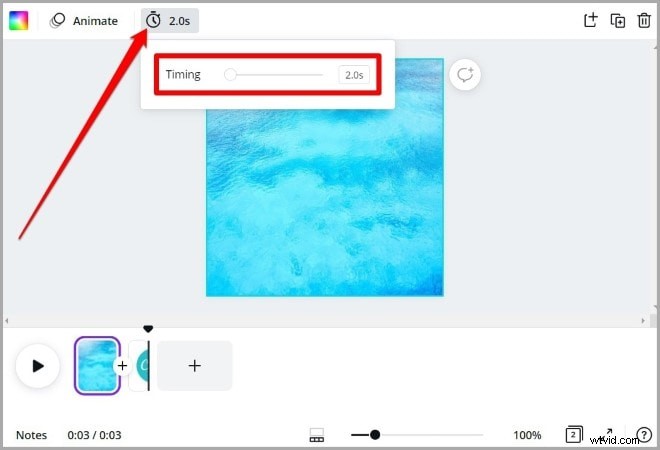
● Now click on the clock icon present in the toolbar at the top. This is for defining the "duration" for how long the image will appear in the GIF. The timer can be set anywhere from 0.1 seconds to 30 seconds.
Adding Elements:
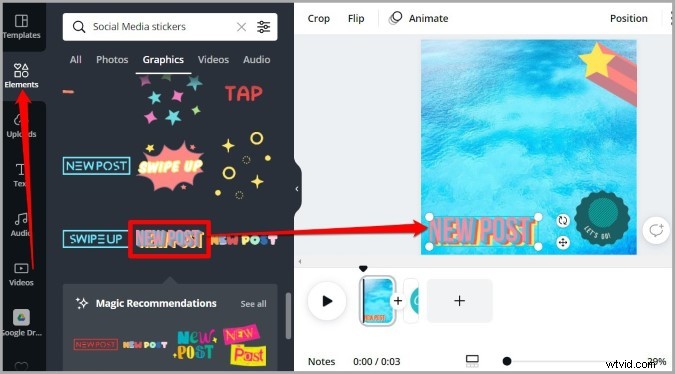
After you add the images, you need to make a GIF in Canva; you can put life into your GIF by adding multiple elements. Follow the steps to know more.
● Switch to the "Elements" tab present at the left. Now, you can explore the extensive library of Canva filled with stickers, photos, graphics, charts, etc. In addition, you can check out the "Graphics" tab for GIFs and select designs, stickers, badgers, and more of your choices.
● You have to select, drag, and drop the elements you want in your GIF. After you add them, resize, rotate, move and fit them as per your choice.
Adding Texts:
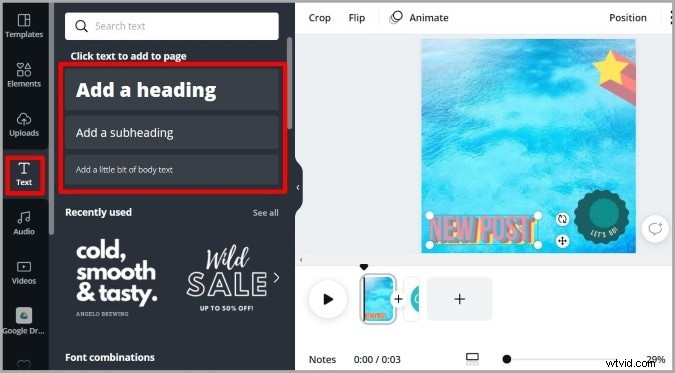
Besides graphics and stickers, you may also add text to your GIF to convey a message and make it more descriptive. Check out how.
● Click on the "Text" tab at the left. Next, select the type of texting you want, i.e., heading, sub-heading, or regular text.
● Now, you require to choose a "Text style." Canva has more than a hundred styles and designs. Select any one of them of your choice and add it to your GIF.
● After you select the style, you can edit the text inside it. Change the font size, style, color, spacing, position, and more from the toolbar at the top. You may also animate it or add more effects to it and make it eye-catching. Use all the tools and edit accordingly.
Preview and download your GIF in Canva
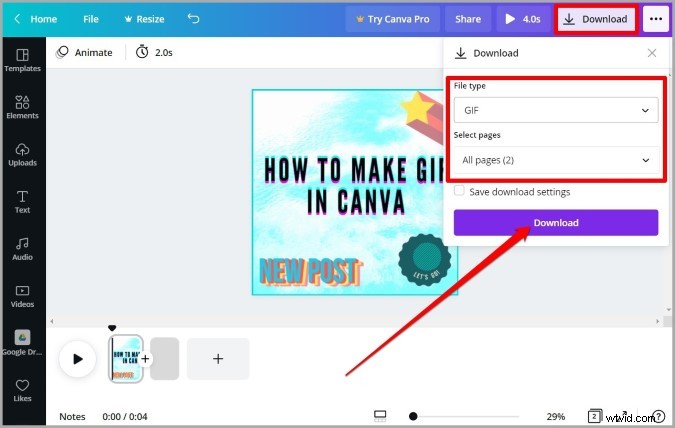
After you have edited the images, preview the GIF using the "Play" button from the timeline. If you are satisfied with the GIF, it's time to download it.
Click on the "Download button" present at the top right corner. Next, you need to go to the "File type" and select "GIF". Select all the pages that you wish to include in your GIF. Then click on the "Download" tab. Your GIF will get successfully downloaded.
Pro Tips:
Keep it simple- The more clean and simple designs and GIFs you prepare, the more effective it looks. Also, you must focus on the message you want to convey to your audience to connect better.
Design page limit- The limit to animate design is less than ten pages. So, you need to decide and design accordingly.
Posting GIFs to Facebook- For uploading GIFs to Facebook, you have to upload them on a site like gimphy.com to hose the GIF for you.
Part 1 How to Animate Your Designs With Canva GIF
As you have already seen how to make a GIF on Canva, let’s talk about animating GIFs. You can always make your designs and GIFs look more attractive and over the top. You can use Canva to animate your designs with Canva GIFs
Follow the steps to do so:
● Select your dimension
Go to your web browser open Canva. Click on "Create a design" and select "Animated Social Media". Then resize accordingly.
After you select the "Animated Social Media" template, a timer pops up. Here you can select for how long you need the frames to be. Using this function, you change the speed i.e., create faster or slower GIFs.
● Design your frames
Now you are about to design the first frame. When you have set everything, duplicate the first frame. In the second frame, you can move, replace or adjust graphics, which you want according to your choice.
● Change the speed of the slides
Next, you have to edit the timer and choose how long you want them to be going. It is present at the top of both of the graphics. The graphic will move faster if you shorten the time frame. You can select a slightly slower time frame to make the frameless distracting.
● Download
At the end, download the finished images and GIFs by selecting all the pages. Then, you can play it from the Downloads folder by simply pressing the space bar.
● Filmora
Apart from using Canva GIF maker, you can also use Wondershare Filmora Video Editor for making GIFs and videos. Filmora is considered one of the best video editing tools that can turn your videos into GIF images. Moreover, it has fabulous animation effects and texts. Filmora video editor has the following features:
Wondershare Filmora - Best Video Editor for Mac/Windows
5,481,435 people have downloaded it.
Build unique custom animations without breaking a sweat.
Focus on creating epic stories and leave the details to Filmora's auto features.
Start a creative adventure with drag & drop effects and endless possibilities.
Filmora simplifies advanced features to save you time and effort.
Filmora cuts out repetition so you can move on to your next creative breakthrough.
● Add texts, titles, and animations in just a few clicks.
● Export to GIF format or other trending video formats
● More than 300 built-in outstanding visual effects are available.
Benefits of using Filmora to create GIFs and animated videos:
● Any technical and non-technical person can handle it. In addition, it is easy to use.
● You can create GIFs here on popular video formats such as .wav, .mpeg, .wmv, .mp4, .mkv, .evo, .dat, .avi, and more. There will not be any issues present while saving.
● The best part of this software tool is that you can edit .gif files with basic editing tools like color correction, splitting, rotation, cropping, combining two or more frames, speeding up the frame motion, or slowing it down requirement.
● You can edit files with interesting elements and graphics.
Filmora is a user-friendly software that is available for installation on their official website. You can turn videos into GIFs, edit them, and download them on your system.
● Key Takeaways from This Episode →
● Canva GIF is a great platform for designing your own GIFs.
● There are various features available to create eye-catching GIFs.
● Besides, Filmora software can also be used to create GIFs out of videos.