
Lately, SRT has become a very crucial aspect of videos, especially in helping to increase its reach globally. So, for this reason, a lot of folks including content creators and many others are looking for ways to merge SRT with MP4. If you're under such a category of people, then this article has the right information you need.
There are a variety of tools that allow the merging of SRT with MP4. While some are software, others are online tools. So, to help you find the best tools to Merge SRT with MP4, we have compiled a list of the best software and online tools to merge SRT with MP4 seamlessly. Keep reading to find out what these tools are and how you can employ them to Merge SRT with MP4.
In this article
-
- Wondershare Filmora (Best Choice)
- VLC
- Subtitle Edit
- Handbrake
-
- Clideo
- Typito
- Flixier
- Veed.io
- Part 3: Hot FAQs on How to Merge SRT subtitles with MP4
Part 1: Best 4 Effective Software to Merge SRT with MP4
Firstly, let's discuss the best software to merge SRT with MP4.
Our team of technology experts took the legwork to review different software that supports merging SRT with MP4, and we've compiled a list of the best 4 effective ones that any user can always rely on. The fascinating the amazing thing is you don't need technical knowledge to employ any of these solutions. Just stick with us.
1. Wondershare Filmora (Best Choice)
Supported OS: Windows & Mac
To execute SRT with MP4 merging operation seamless, fast, and concise, you need powerful software like Wondershare Filmora.
Filmora is a popular video editing tool that boasts a wide range of functionalities for performing different types of video editing tasks. From editing SRT, including fonts, text styles, etc., to merging SRT with MP4, making, blending, speed ramping, and lots more, the tool is an absolute video editing powerhouse for any user.
Besides, Filmora comes with a very clean and intriguing user interface that makes it easy for users at all levels to navigate their way around the software without necessarily requiring any technical knowledge.
See the stepwise guide on how to use Filmora video editor to merge SRT with MP4 below;
Step1Launch the Filmora software on your PC and uae the Import button to upload the SRT file from your PC or just drag-n-drop it.
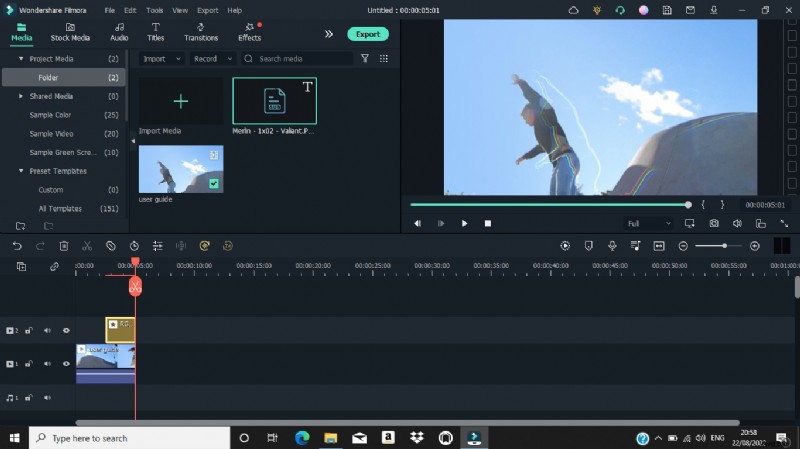
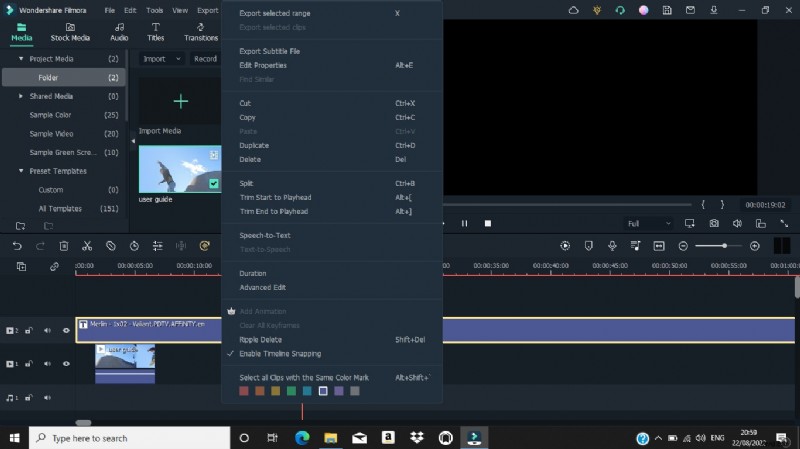
Step2Move the uploaded SRT file to the timeline and right-click on it, then select "Advanced Edit" from the pop-up list.
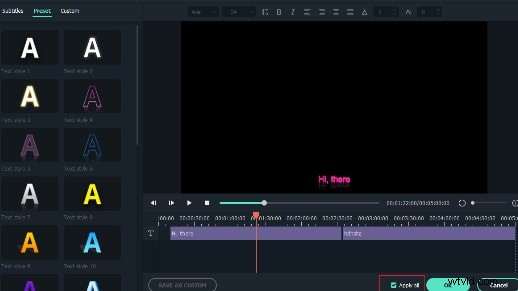
Step3Edit the SRT subtitle ranging from its time code, text, color, fonts, etc.
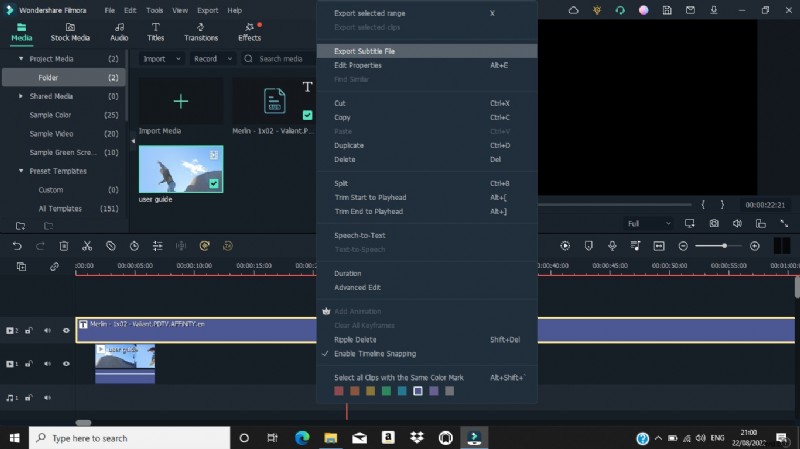
Step4Once editing is completed, navigate to the timeline of the SRT file and right-click on it, then choose "Export Subtitle file" to complete the action.
 Pros
Pros
- Boasts a very clean UI and its features are easy to employ.
- Very effective for both advanced and basic video editing operations.
- Compatible with both Mac and Windows and it doesn't compromise computer functionality.
- You need to pay to be able to access advanced editing features.
2. VLC
Supported OS: Windows & Mac
We all know VLC to be a popular free open-source program for opening video files. But do you know you can also use VLC to merge SRT with MP4? Well, you can, and the process is straightforward. However, compared to Filmora, VLC lacks advanced editing options that might be required to enhance the quality of your SRT with MP4 merging.
Follow the steps illustrated below to merge SRT with MP5 using VLC
Step1Start the MP4 video via the VLC program and click on "Media" from the top bar, then click "Open File" to upload the MP4 video that you need to merge with SRT.
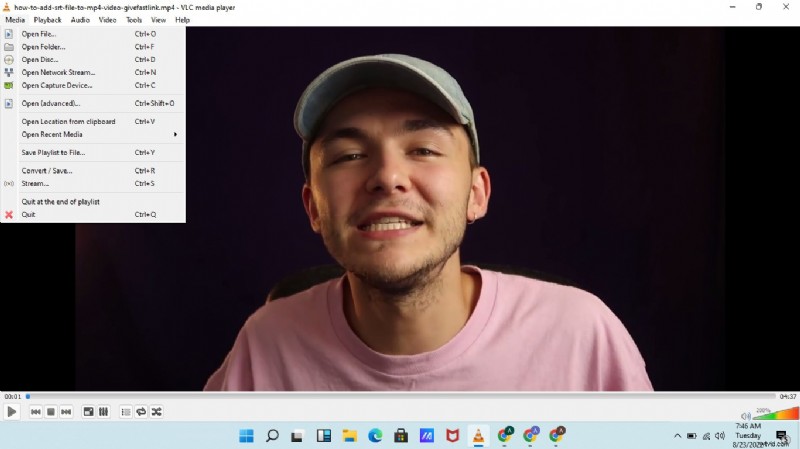
Step2Up next, click "Video" from the top bar and hover on the "Subtitle Track" option to select "Open File".

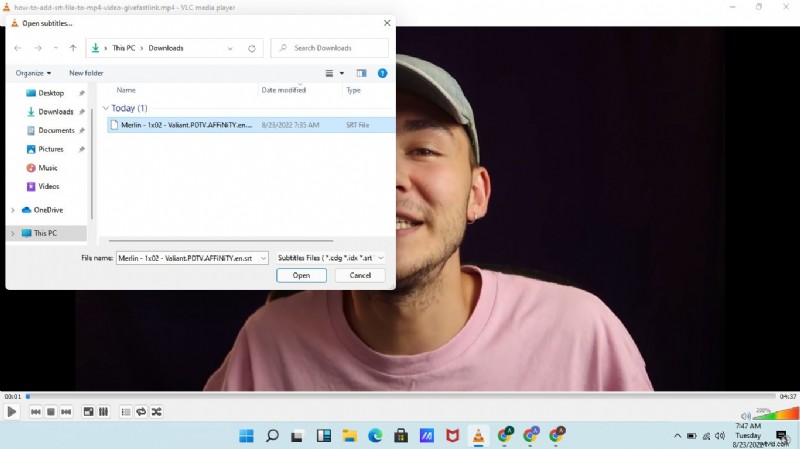
Step3Find and locate the SRT file that you want to use. Then select it and click OK to complete the operation.
 Pros
Pros
- It's 100% free.
- It's easy to operate.
- Clean and highly intuitive user interface.
- Compatible with both Mac & Windows computers.
- It doesn't support advanced editing.
- It usually lags sometimes during SRT and MP4 merging.
3. Subtitle Edit
Supported OS: Windows, Linux
The next tool is the Subtitle Edit. This software, just like the prior mentioned ones, is very effective for SRT with MP4 merging, and it's very easy to operate. With this software, you require no technical knowledge to merge SRT with MP4. Plus, it supports a wider range of cool features including splitting, editing, joining, and lots more that tick boxes all around.
See how to use Subtitle Edit software to merge SRT wing MP4 below.
Step1Download and install the latest version of Subtitle Edit on your PC.
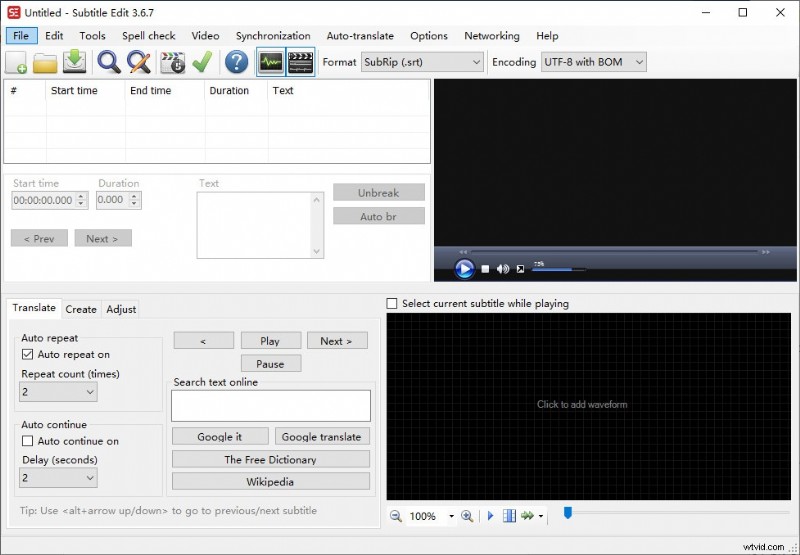
Step2Start the installed program and upload the MP4 video that you want to add SRT subtitles to.
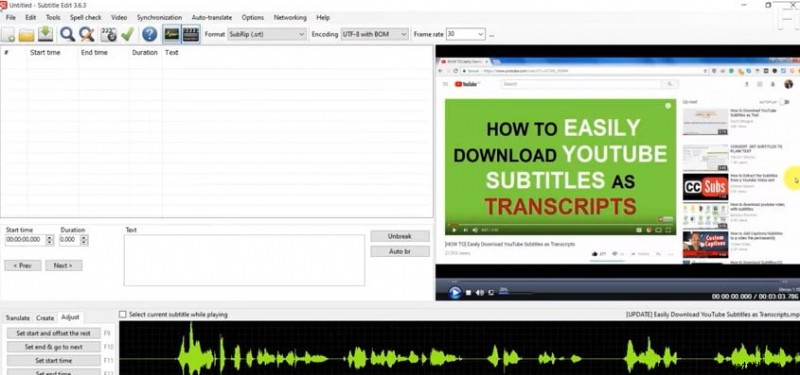
Step3Click "File" at the top-left corner and upload the SRT file that you want to add to the MP4 video.
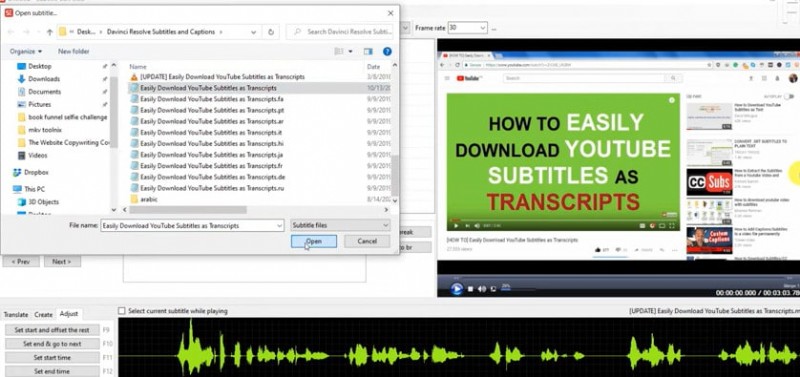
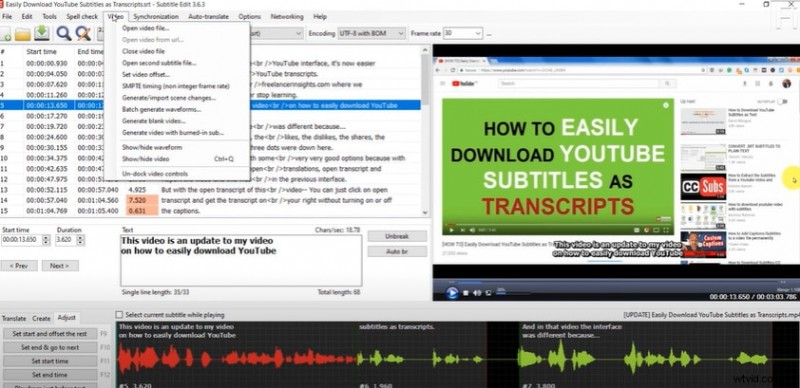
Step4Click "Video" at the top bar, then select "Generate video with burned-in subtitle" from the pop-up list.
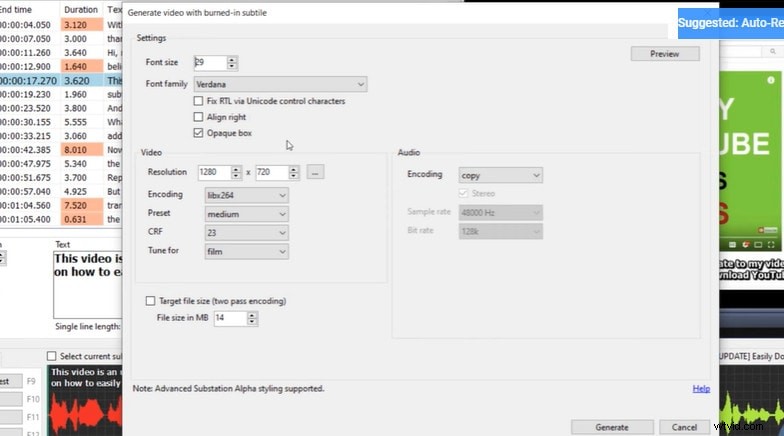
Step5Up next, edit the Subtitle settings in the pop-up that appears on your screen. Then click "Generate", select where you want to save the file output, and click "Save" to start adding the SRT subtitles to ti MP4 video instantly.
 Pros
Pros
- Supports a wide range of formats.
- Allows translation of SRT text from one language to another.
- The software comes with an error correction system.
- The software interface is confusing.
- It doesn't support customization functionality.
4. Handbrake
Supported OS: Windows, Mac, & Linux
Last but not least software that can be used to merge SRT with MP4 is Handbrake. Although this software is portrayed to be a video conversion tool, it can also come in handy to merge SRT with MP4. Besides, just like VLC, it's 100% free to use and it can be used on both Mac and Windows computers. So, you don't have to pay any dime to utilize it or worry about it's compatibility.
Here is how to use Handbrake to merge SRT with MP4 below;
Step1Download and install the Handbrake software on your Mac or Windows PC. Then use the "Source" button at the top left corner of the screen to upload the MP4 file that you want to add SRT to.
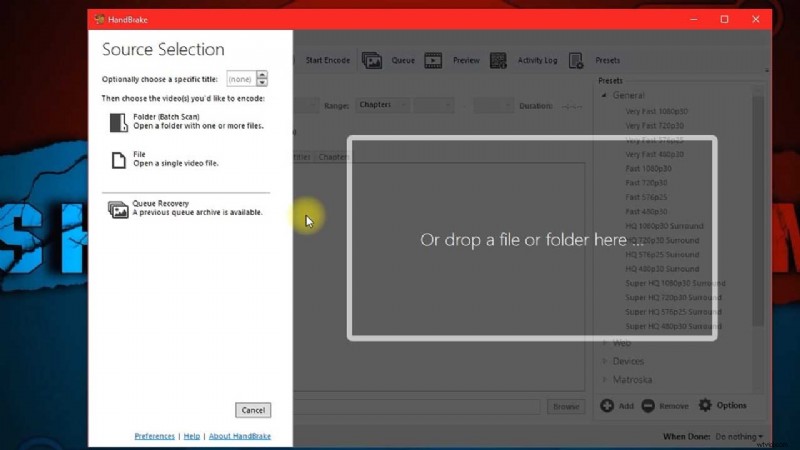
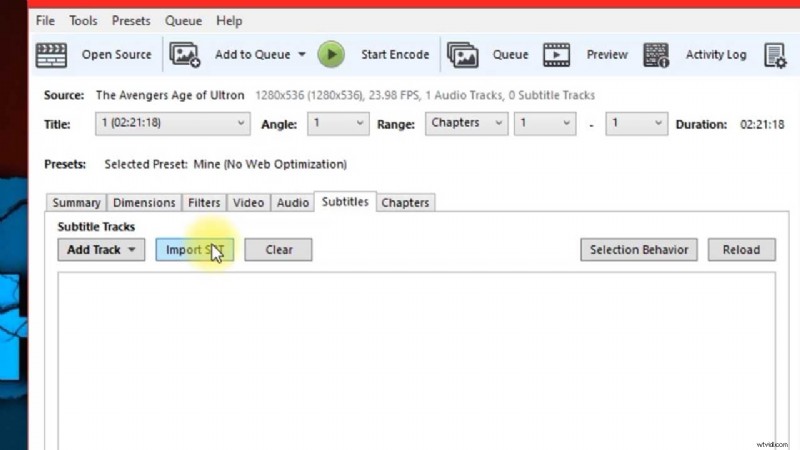
Step2Locate and click on "Subtitles", then select the "Import SRT" option to upload the SRT file that you want to merge with MP4.
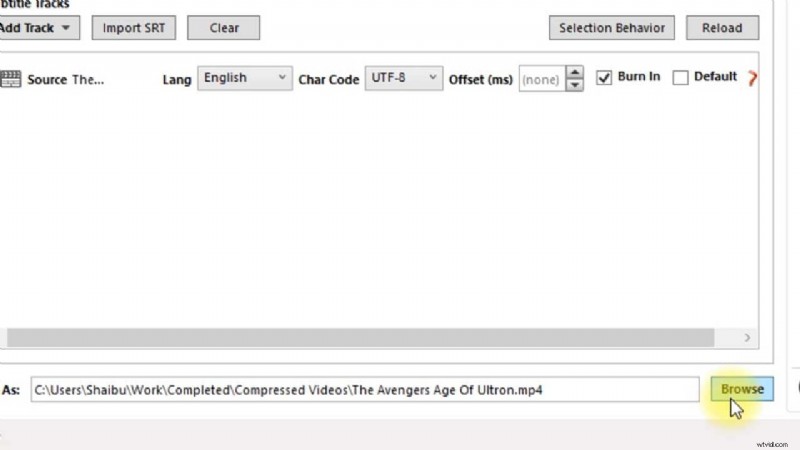
Step3Once you import the SRT file, tick the checkbox next to BURN IN. Then, use the "Browse" button to select a location where you want the merged file to be saved.
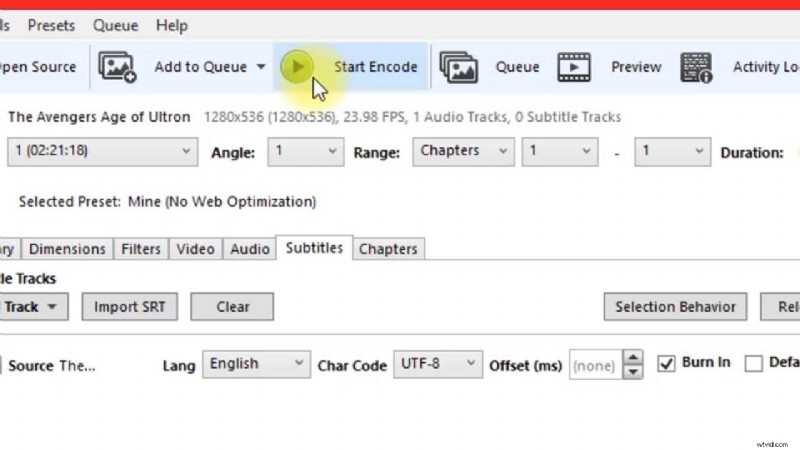
Step4Afterward, click "Start Encode" at the top side to start merging SRT with MP4.
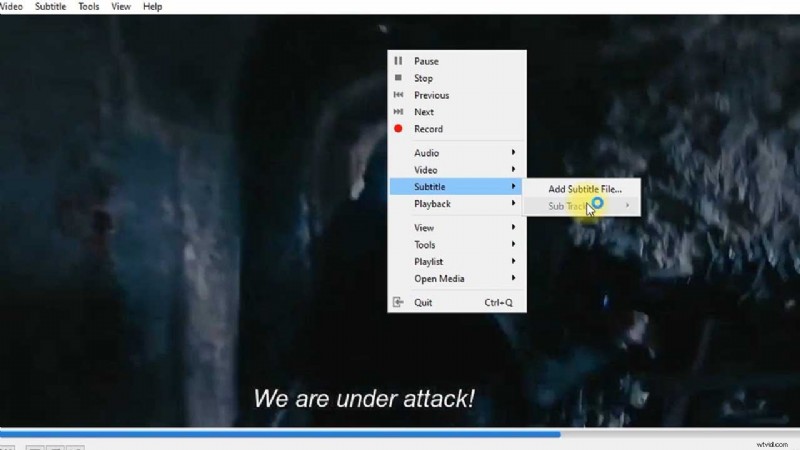
Step5The SRT with MP4 merging will begin. But it'll take some time to get completed. Then you can play the video to see the output of the process.
 Pros
Pros
- it's compatible with Mac, Windows, and Linux systems.
- It can be used to convert files from one format to another.
- it's free software. All you just have to to is to install it on your PC.
- It is quite slow to merge SRT with MP4.
- The software usually lags during SRT with MP4 merging operation.
Part 2: Merge SRT with Videos in MP4 format by 4 Online FREE Tools
If you don't want to use software to merge SRT with MP4, there are several online free tools that you can use to carry out the operation. However, not all online tools have all it takes to merge SRT with MP4 with high qualities. Plus, you need stable internet for online tools to work smoothly.
We've discussed some trustworthy online free tools for SRT with MP4 merging below.
1. Clideo
Clideo is a small but mighty free online tool that utilizes modern technology to merge SRT with MP4. The tool allows users at all levels including folks with no professional video editing experience to easily add SRT to MP4 files without hassles. All you just need is to make sure you have a stable internet connection to make it work smoothly.
The steps below explain how to merge SRT with MP4 using Clideo;
Step1Visit Clideo official website > Use the "Choose File" button to upload the MP4 file that you want to add SRT.
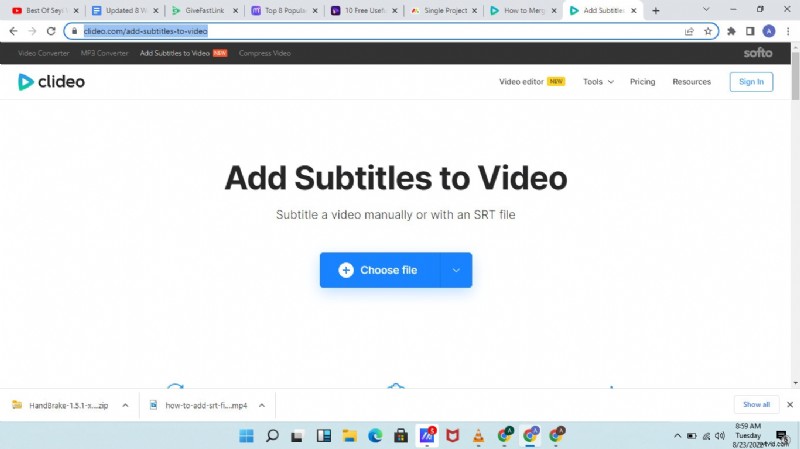
Step2Click on "Upload SRT" to upload the SRT file that you want to merge with your MP4 video.
Step3Once you've successfully added the SRT file, play your video to preview the subtitle. Then, use the "Export" button to save the file output on your PC.
 Pros
Pros
- It doesn't require the installation of software.
- You can merge as many SRT with MP4 files totally for free.
- It can be used on any device including mobile devices
- The file upload process is slow.
- You must be connected to a stable internet network to be able to merge SRT with MP4.
- You need to pay to enjoy unlimited SRT with MP4 merging.
2. Typito
Typito is another effective online tool that's capable of merging SRT with MP4 efficiently. And all it takes is just a few clicks. Besides, it supports over 20 video formats and it can not only be used to merge SRT with MP4 but can also be used to create an SRT file for MP4 videos seamlessly.
See the steps below to learn how to use Typito to merge SRT with MP4;
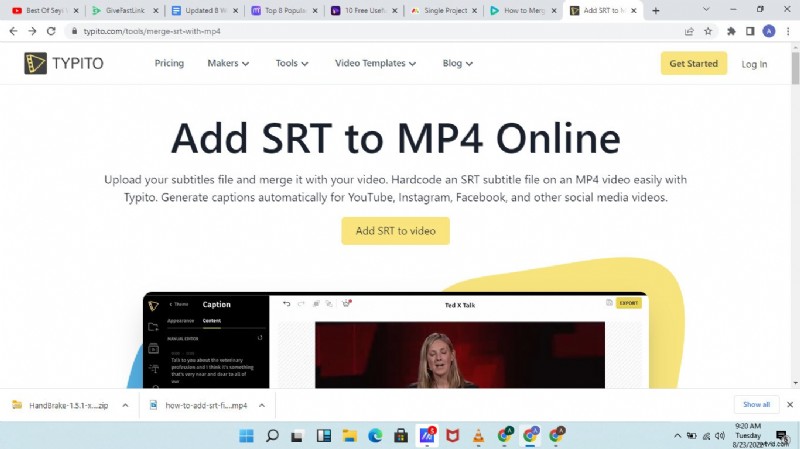
Step1Visit Typito official website and click on the "Add SRT To Video" to upload the MP4 video you want to merge with SRT.
Step2Navigate to the left side of the screen and click on "Caption". Then, select "Content" and click on "Upload File" to add the SRT file.
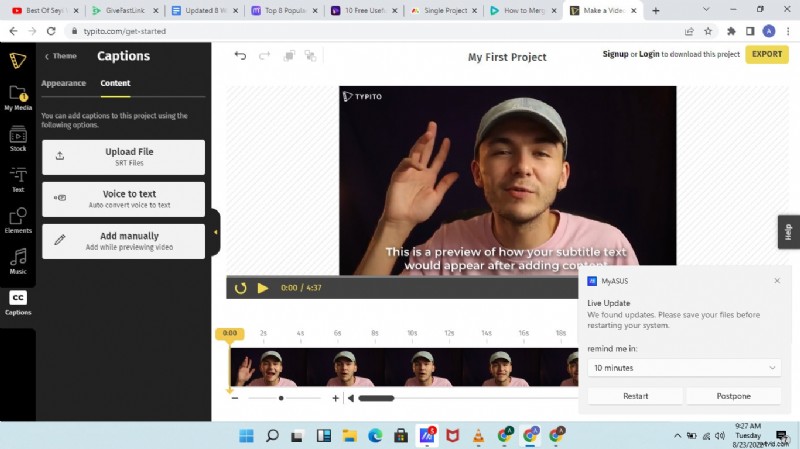
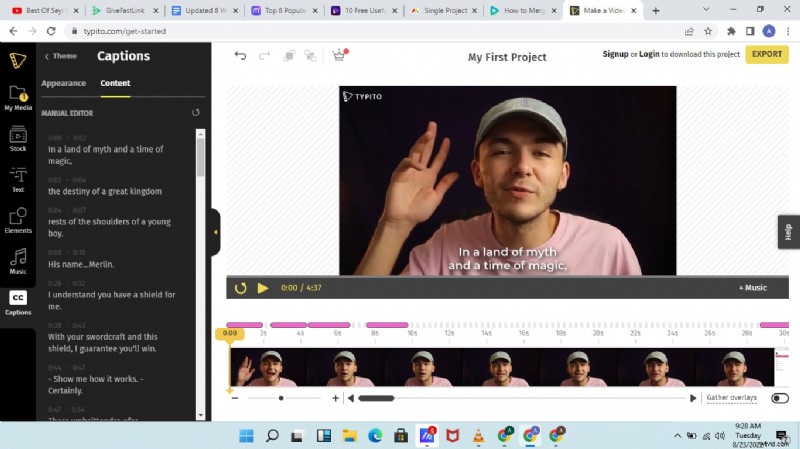
Step3Play the video to preview the subtitle. Then use the "Export" button at the top right corner to upload the file output to your PC storage.
 Pros
Pros
- Allows editing of subtitle text like fonts, color, etc.
- You can utilize the tool to create an SRT file for different social media platforms.
- Supports different varieties of video formats.
- It won't work if your internet network is not stable.
- The interface is quite confusing.
- You need to upgrade from the free version to be able to export the merged SRT and MP4 file or perform unlimited SRT merging.
3. Flixier
Another free online tool that allows adding of SRT to MP4 in a clean interface is Flixier. it's a simple online tool, and it does SRT with MP4 merging operation so efficiently that it doesn't compromise the output of the merged file. Moreover, besides merging SRT with MP4, Flixier also allows the automatic addition of SRT to subtitles, customization of SRT, and lots more SRT file editing tools that can be very helpful in different situations.
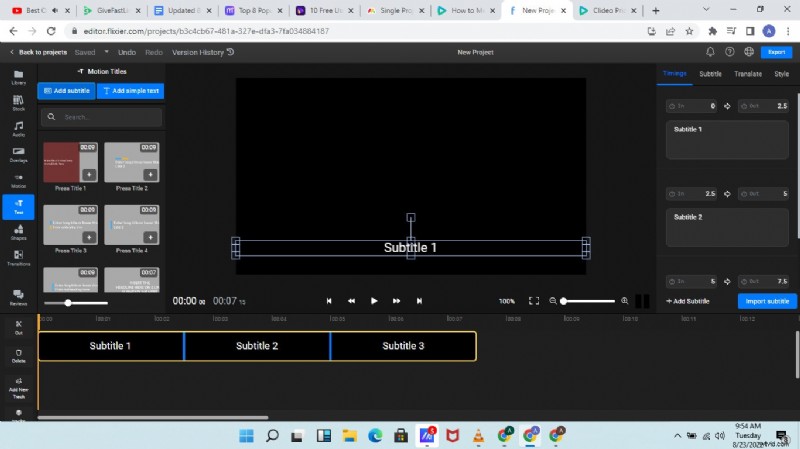
Step1Visit the "Flixier" website > click "Import" and upload the MP4 file that you want to merge with SRT. You can either upload from your device, dropbox, google drive, etc.
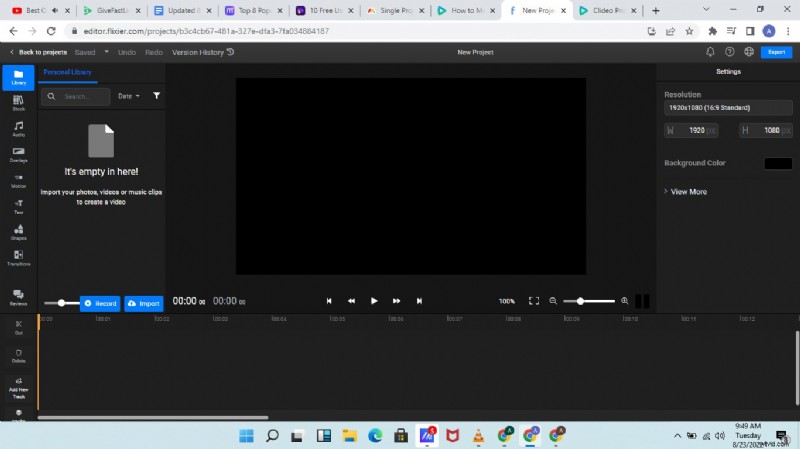
Step2Click on "Text" from the left-hand side of the tool"s interface, then select "Add Subtitle" and click "Import" from the right side of the page to upload the SRT file that you want to merge with MP4.
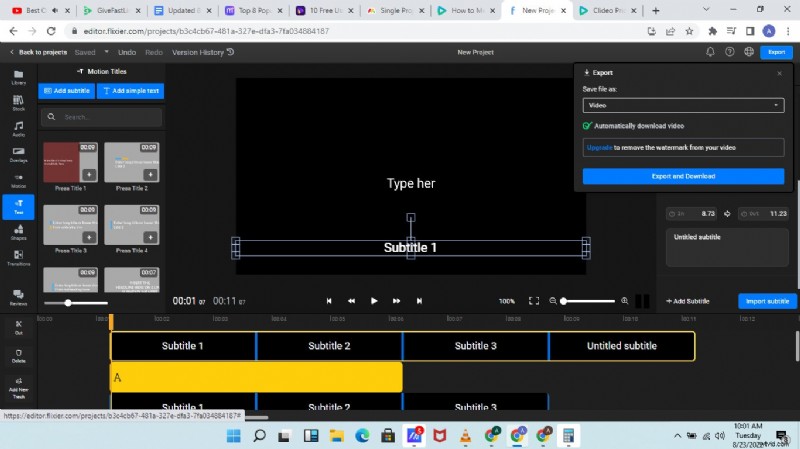
Step3After you've imported the SRT file, play your video, then edit as per requirement and use the "Export" button at the top right corner to download the merged SRT and MP4 file to your PC.
Pros
- File upload is faster compared to the prior mentioned online tools.
- You don"t necessarily need to download software to be able to use the tool.
- It supports some helpful editing features for editing the video file.
- It doesn't work with some SRT files.
- It requires a learning curve.
- You need to upgrade to this paid version to merge SRT with MP4 unlimitedly.
4. Veed.io
Veed.io is a popular online tool that offers a wide range of functionalities, and SRT with MP4 merging is one of them. Unlike the previously mentioned online tools, Veed.io supports a wide range of subtitle formats, making it easy for you not only to merge SRT with MP4 but also merge subtitles in other formats with MP4. Just follow the steps outlined below to carry out the SRT with MP4 merging using Veed.io;
Step1Open Veed.io SRT to MP4 merger on your browser > click on "Choose File" and upload the MP4 file that you want to add SRT.
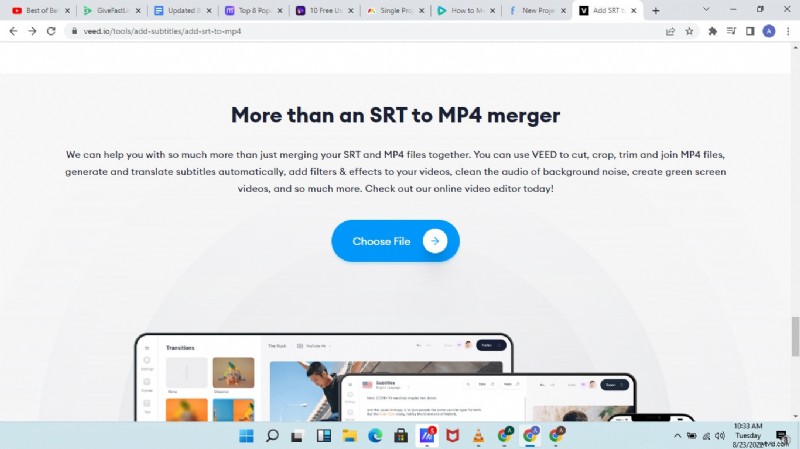
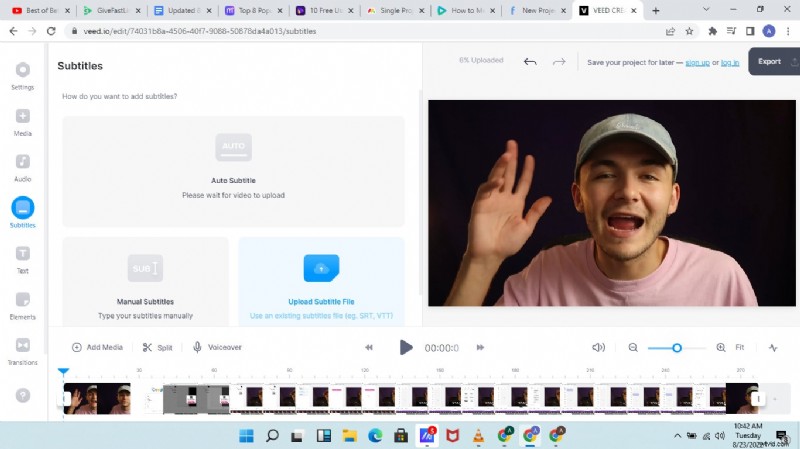
Step2Once you upload the MP4 file, you"ll notice three options - that is; Auto Subtitles, Manual Subtitles, and Upload Subtitles. Just select "Upload Subtitles".
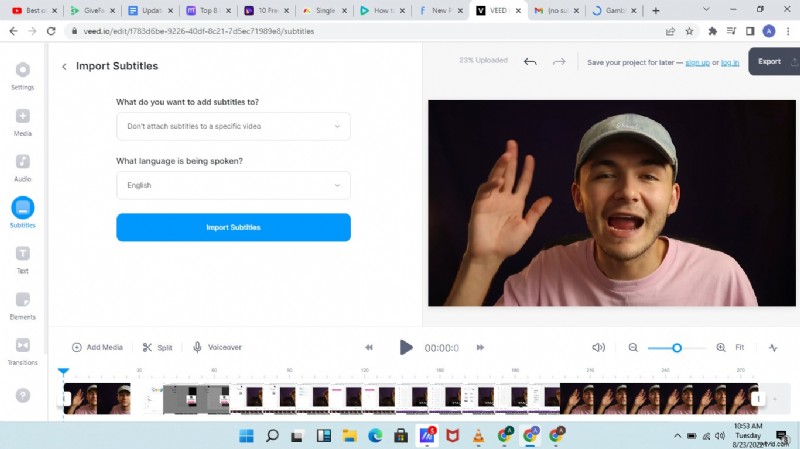
Step3Click "Import" to upload the SRT file.
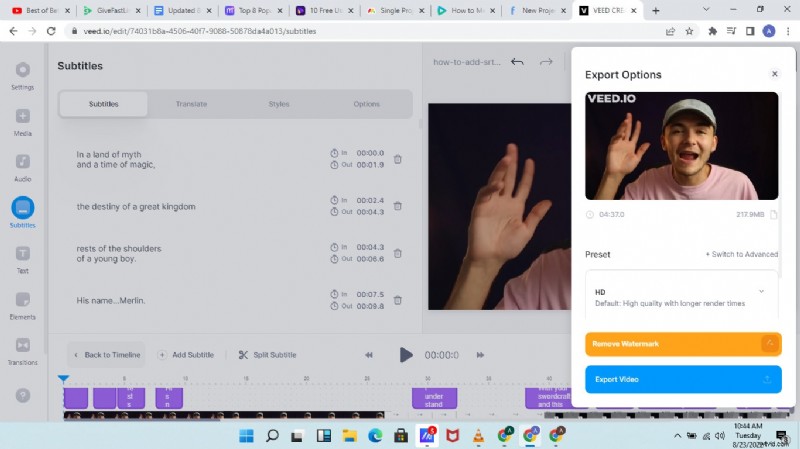
Step4Finally preview the merged SRT and MP4 file and save the file output to your PC using the "Export" button at the top right side.
 Pros
Pros
- Allows automatic or manual addition of subtitles to MP4.
- Edit video with subtitles using simple editing tools.
- Translate subtitles from one language to another.
- File output has watermark.
- It cannot work if you're not connected to the internet.
Hot FAQs on How to Merge SRT subtitles with MP4
-
Can MP4 have multiple subtitles?
You cannot merge more than one SRT file into an MP4 video. So, no, MP4 cannot have multiple subtitles.
-
How do I open SRT files on Windows 10?
To open SRT files on Windows is not a difficult task. You have to do the following:
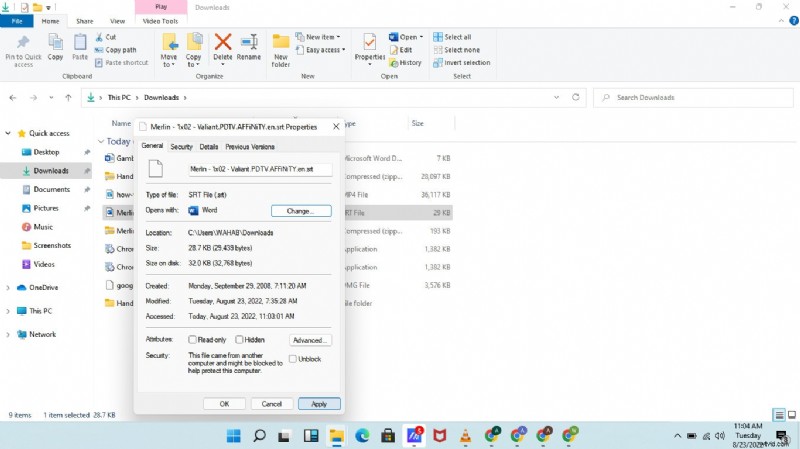
1. Find and locate the SRT file you want to open on your Windows PC. Then right-click on it and select "Properties".
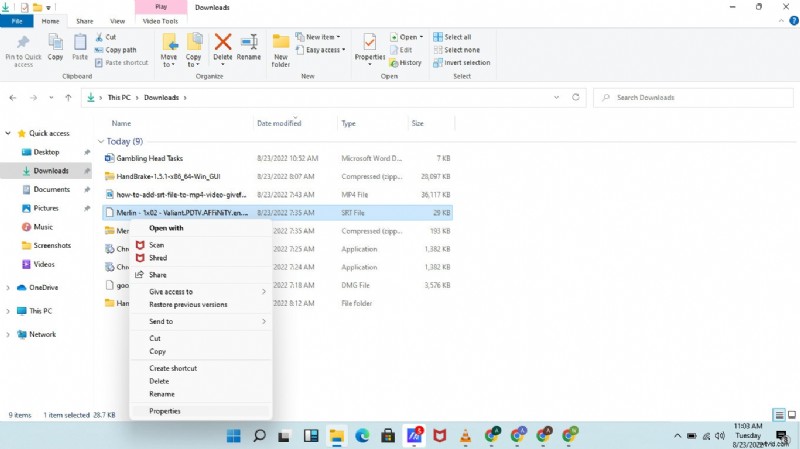
2. Select "General" and click "Change".

3. Click on "More Apps" from the pop-up, then select "Word" or Notepad and click OK.
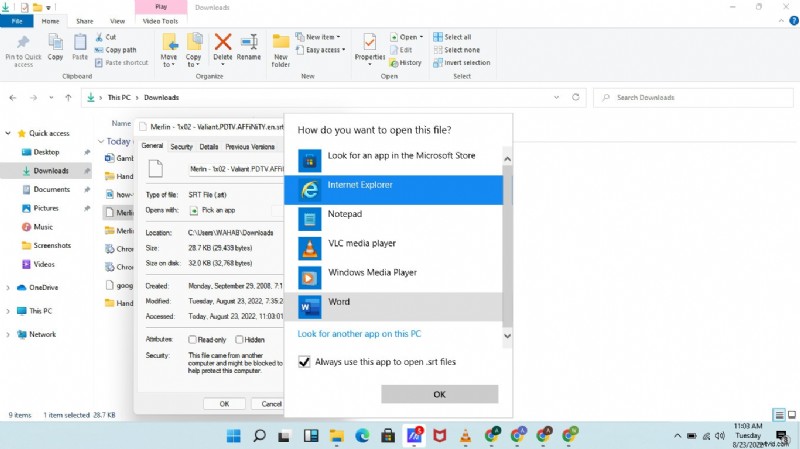
4. Finally, click "Apply", then navigate to your SRT file and double-click on it to complete the operation.
-
How to add SRT to MP4 with Windows Media Player?
It's easy to add SRT to MP4 with a Windows media player. All you just have to do is to:
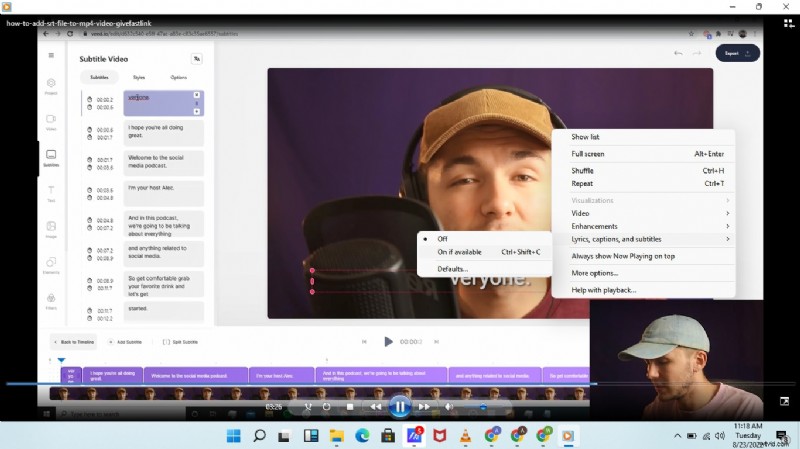
1. Open your MP4 video with Windows Media Player.
Right-click on any part of the video screen > select Lyrics, captions, and subtitles, and click on On if available.
Final Words
Merging SRT with MP4 is not a difficult task especially when you have the right software or online tool to help you perform the task at your fingertips. In the article above, we’ve introduced all the reliable software and online free tools that support SRT with MP4 merging, their pros and cons, and how to use them to help you choose easily which tool suits your requirements to merge SRT with MP4. However, if you’re contemplating on which of them is the best, we advise you use Wondershare Filmora software as it's safer to use and it has all you might need for not just SRT with MP4 merging but also for executing advanced video editing operations handily.