
In today’s smartphone‑centric era, anyone can capture video, but shaky footage remains a common hurdle. Fortunately, a range of free stabilization programs can turn rough clips into smooth, professional‑looking videos—without costing a dime.
Whether you’re a hobbyist filming family moments or a budget‑conscious content creator, the right tool can elevate your footage dramatically. Below is a detailed guide to the eight best free video stabilization options available in 2026, each chosen for ease of use, robust features, and proven performance.
In this article
What Is Video Stabilization?
Video stabilization is a post‑production technique that reduces or eliminates unwanted camera shake. By analyzing frame‑to‑frame motion and applying corrective transformations, these tools deliver smoother, more viewer‑friendly footage.
Free stabilization software employs a variety of algorithms—ranging from simple frame averaging to advanced planar tracking—to identify shake patterns and restore steadiness.
The goal is simple: make your videos feel natural and polished, improving engagement and watchability.
How to Choose the Best Software to Stabilize Video?
When selecting a stabilization tool, consider the following criteria:
- Intuitive interface and minimal learning curve.
- Cross‑platform support and compatibility with common file formats.
- Fast processing times, especially for high‑resolution footage.
- Additional editing features (effects, transitions, audio tools).
- Retention of video quality after stabilization.
- Customizable settings for fine‑tuning.
- Regular updates and active community support.
Top 8 Best Free Video Stabilization Software To Try!
Below is a comparison table summarizing each program’s key attributes. All options are free to use (though some offer paid upgrades for extra features).
| Software | Platform | Ease of Use | Features | Stabilization Quality | Software Rating |
| Wondershare Filmora | Windows, Mac | High | Excellent | Very Good | 4.5 /5 (GetApp) |
| VideoStudio Ultimate | Windows | Medium | Good | Good | 4.2 (Capterra) |
| Movavi Video Editor | Windows, Mac | High | Very Good | Good | 4.4 /5 (Capterra) |
| Arcsoft Video Stabilizer | Windows | Medium | Basic | Good | Not rated yet |
| Final Cut Pro | Mac | Advanced | Excellent | Excellent | 4.4 /5 (G2) |
| Beecut | Windows, Mac, Mobile | High | Good | Good | 4.2 /5 (G2) |
| VSDC Video Editor | Windows | High | Good | Good | 4.5 /5 (Capterra) |
| VideoProc | Windows, Mac | High | Very Good | Very Good | 4.3 /5 (GetApp) |
We’ll now dive into each program’s standout features and workflow.
#1 Wondershare Filmora (Recommended)
Wondershare Filmora offers a powerful yet accessible stabilization solution, combining AI‑driven smoothing with professional planar tracking for complex footage.
Solution 1: AI Stabilization (Quick Fixes)
Ideal for everyday shaky clips, Filmora’s AI tool applies real‑time analysis and adjustment with minimal user input.
1. Launch Filmora and create a new project. Import your footage.
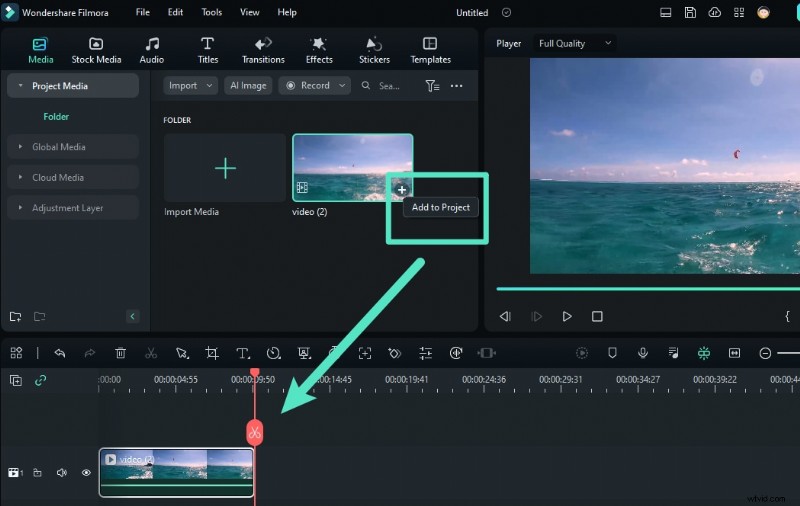
2. Right‑click the clip in the timeline, select Stabilization from the AI Tools menu.
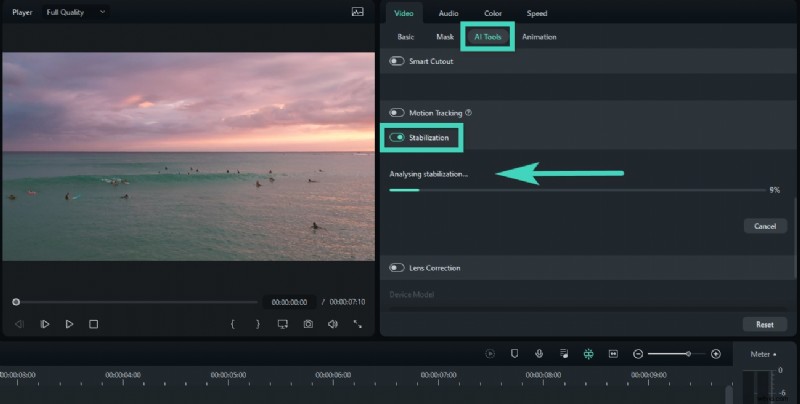
3. Adjust the smoothness slider in the preview panel until satisfied.
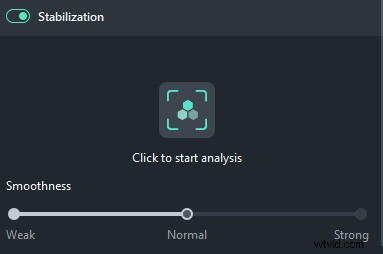
4. Apply the effect, then continue editing or export.
Solution 2: Mocha Filmora (Advanced Stabilization)
For shots with significant movement—long walks, handheld pans—Filmora integrates the industry‑grade Boris FX Mocha engine, enabling planar tracking for natural‑looking stability.
Step 1: Add Mocha Filmora Effect
Navigate to Effects > Boris FX and drag Mocha Filmora onto your clip.
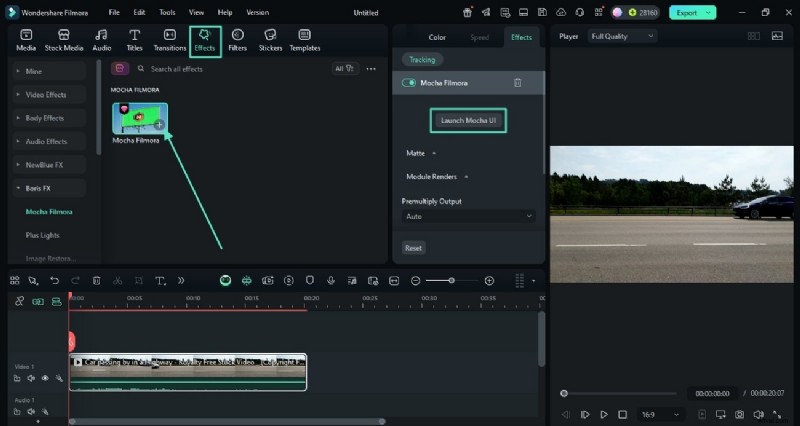
Step 2: Launch Mocha UI and Define Reference Plane
Click Launch Mocha UI in the effect settings. Use the spline tool to outline a large, flat area (e.g., ground or wall) that will serve as the stabilization reference.
Step 3: Track and Apply
In the Stabilize module, enable Translation, Scale, and Rotation. Click Track Forward to generate motion data.
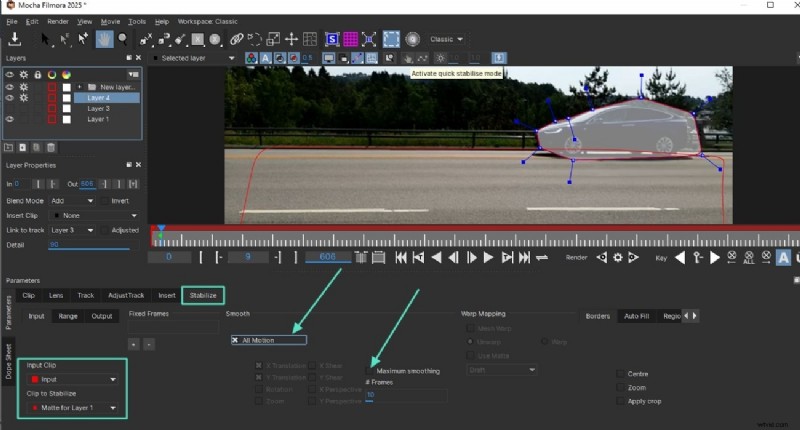
Step 4: Review
Close Mocha UI. The clip will now display the refined, cinematic stabilization.
- Intuitive interface.
- Comprehensive editing suite.
- Balanced power and usability.
- Some advanced features require a paid upgrade.
- High‑resolution rendering may take longer.
Follow these steps to convert shaky footage into polished videos with minimal effort.
#2 VideoStudio Ultimate
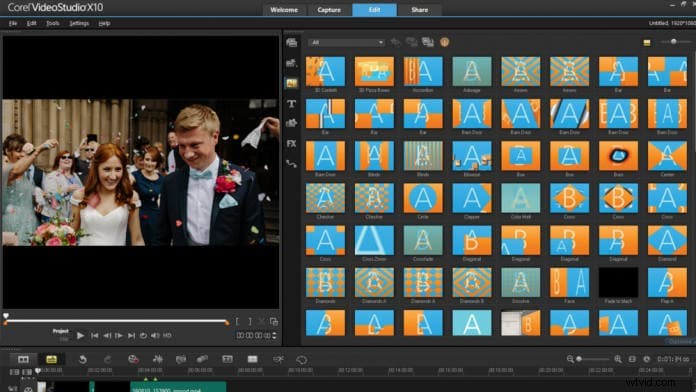
VideoStudio Ultimate provides robust stabilization and a wide array of editing tools, ideal for users who want a single solution for all post‑production tasks.
Key Features:
- Advanced motion tracking.
- Multi‑point stabilization.
- Customizable settings.
- Extensive effects library.
- 4K support.
- Precise stabilization algorithms.
- Rich effects selection.
- 4K editing capability.
- May strain older hardware.
#3 Movavi Video Editor
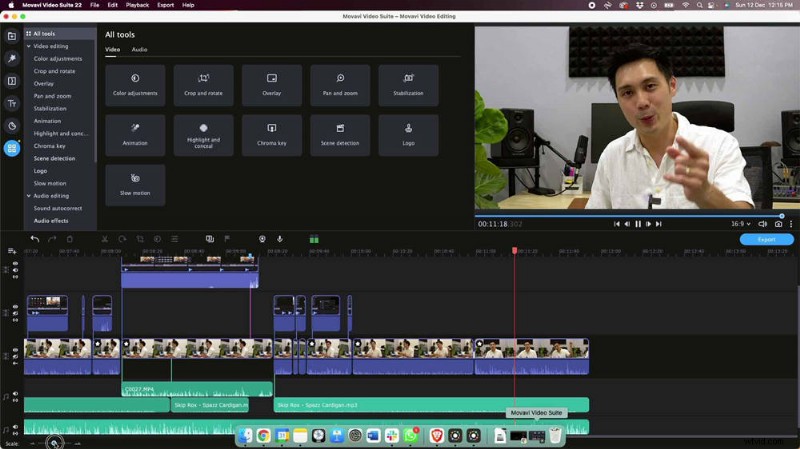
Movavi delivers a streamlined, one‑click stabilization workflow suitable for beginners and intermediate editors.
Key Features:
- Automatic stabilization.
- Fast processing.
- Intuitive interface.
- Built‑in filters and effects.
- Broad format support.
- Quick results.
- Beginner‑friendly.
- Comprehensive basic tools.
- Limited advanced options.
- Some features gated behind paywalls.
#4 Arcsoft Video Stabilizer
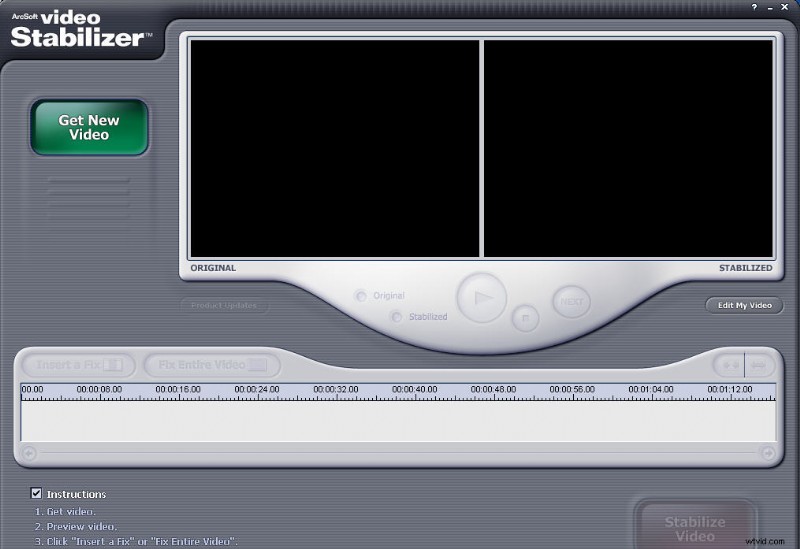
Arcsoft focuses solely on stabilization, offering a simple, batch‑processing workflow that preserves original quality.
Key Features:
- Specialized stabilization algorithms.
- Clean interface.
- Batch processing.
- Adjustable intensity.
- Quality preservation.
- Pure stabilization focus.
- Straightforward operation.
- Batch capability.
- Limited editing features.
- Not suited for complex projects.
#5 Final Cut Pro
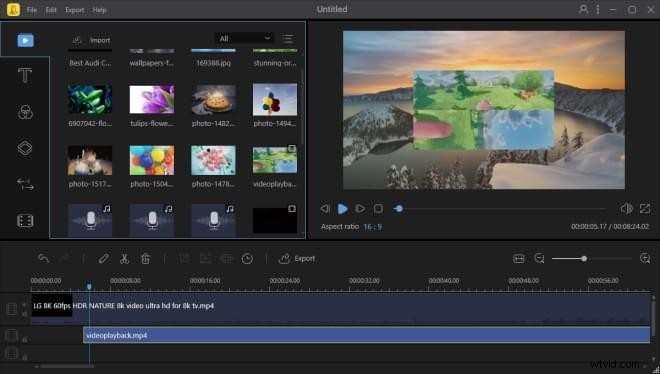
Final Cut Pro, available only on macOS, offers industry‑class stabilization tools that integrate seamlessly into professional workflows.
Key Features:
- Advanced motion analysis.
- High‑resolution support.
- Customizable parameters.
- Apple ecosystem integration.
- Professional‑grade quality.
- Apple ecosystem synergy.
- Mac‑only platform.
#6 Beecut
Beecut offers cross‑platform stability, combining desktop and mobile functionality for users who edit on multiple devices.
Key Features:
- Windows, Mac, iOS, Android.
- Drag‑and‑drop interface.
- Fast stabilization.
- Basic editing tools.
- Regular updates.
- Cross‑platform support.
- Simple interface.
- Active development.
- Stabilization quality behind premium options.
- Limited advanced editing.
#7 VSDC Free Video Editor
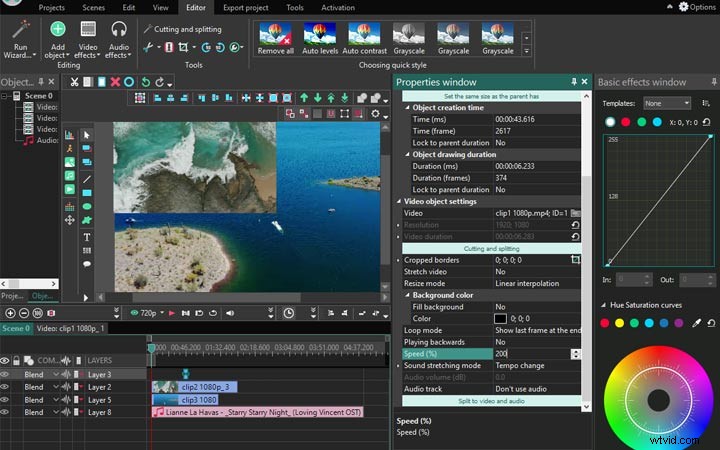
VSDC delivers a feature‑rich editing suite for Windows, with advanced stabilization that handles various shake types.
Key Features:
- Windows‑optimized performance.
- Customizable stabilization.
- Non‑linear editing.
- Multiple format support.
- No watermark in free version.
- Non‑linear editing tools.
- Broad format compatibility.
- Interface may overwhelm novices.
#8 VideoProc
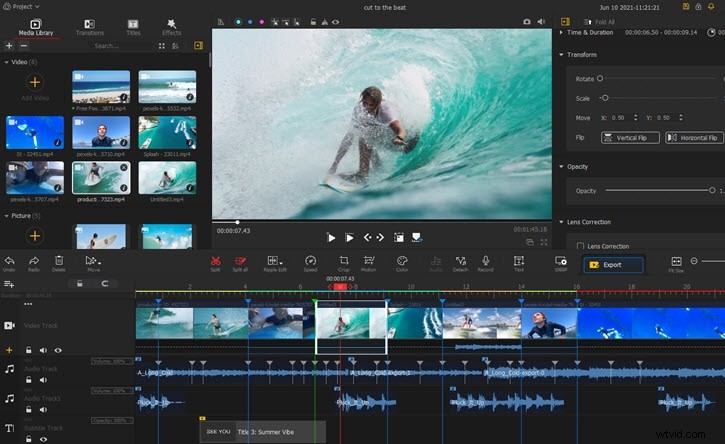
VideoProc stands out for GPU‑accelerated processing, supporting 4K and 8K stabilization while offering a suite of editing utilities.
Key Features:
- High‑speed GPU acceleration.
- 4K/8K support.
- Editing & conversion tools.
- User‑friendly UI.
- Regular updates.
- Fast GPU processing.
- High‑resolution support.
- All‑in‑one toolset.
- Interface may feel dated compared to newer apps.
Conclusion
Free video stabilization software has matured into a powerful arsenal that rivals paid professional suites. From Wondershare Filmora’s hybrid AI and planar tracking to mobile‑friendly Beecut, there is a solution for every workflow, skill level, and budget.
By selecting the tool that best aligns with your content goals, you can transform shaky recordings into polished videos that captivate audiences—all without spending a cent.
Remember, the most effective stabilizer is the one that seamlessly fits your creative pipeline and consistently delivers the desired smoothness.
FAQ
-
Is audio important for stabilizing video files?
Audio itself is not affected by stabilization, but some programs may shift sync during processing. Always verify audio alignment after editing.
-
Which software is best for video stabilization?
Wondershare Filmora ranks as the top free choice for most users, offering a balanced blend of power, simplicity, and additional editing tools. Your specific needs may guide you to a different option.
-
Can VLC stabilize video? Which one is better than VLC?
VLC is a versatile player but lacks built‑in stabilization. Dedicated tools like Filmora or VideoProc deliver far superior stabilization performance.