
For creators who thrive on adding visual flair to their videos, the GoCut app offers a powerful yet intuitive suite of effects. This guide walks you through safe installation, core functionalities, and the steps to unlock the full Pro experience, plus a quick comparison with Wondershare Filmora for those who want an even larger library of effects.
In this article
- Where to download the GoCut APK safely
- GoCut video editing features
- GoCut limitations
- Popular video effects on GoCut
- Alternative effects on Wondershare Filmora
- How to apply effects with Filmora
Part 1. GoCut: Best Mobile App for Video Editing Effects
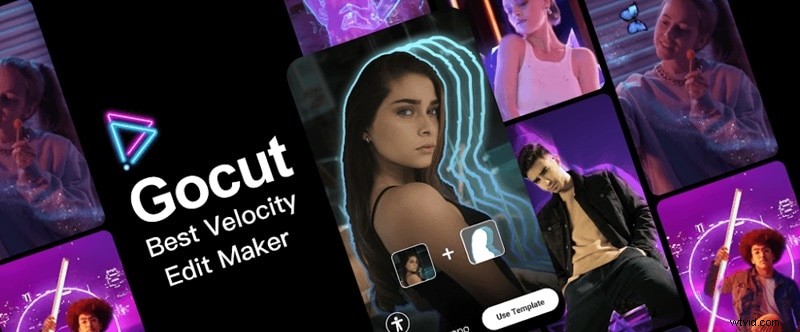
GoCut is engineered for users who want to inject creativity into their footage. Leveraging motion‑detection, the app automatically applies neon brush strokes, neon stickers, and smooth transitions with a single tap.
Where to download the GoCut APK safely
Officially, GoCut is available on Google Play for Android and the App Store for iOS. While third‑party APKs exist, downloading from unofficial sites can expose your device to malware. Stick to the official stores to keep your data secure.
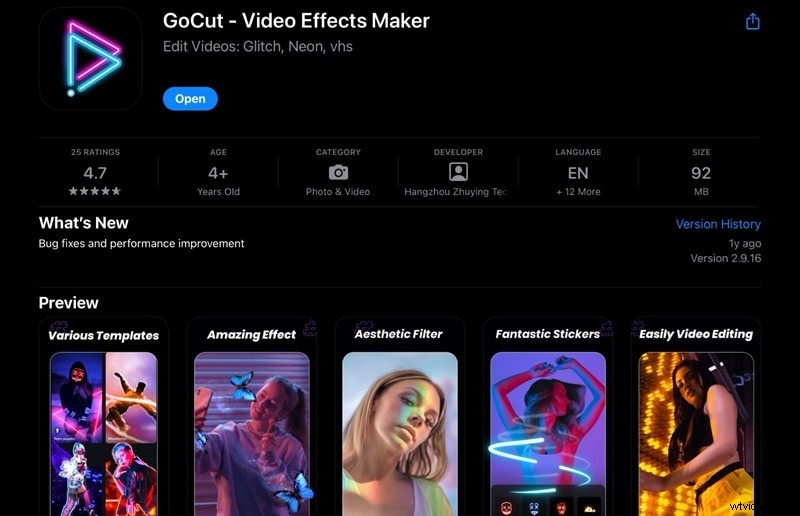
GoCut video editing features
Beyond its signature effects, GoCut provides essential editing tools:
- Split & Trim: Cut clips into precise segments or remove unwanted portions.
- Speed Control: Create slow‑motion or fast‑forward sequences.
- Reverse: Play footage backward for creative twists.
- Stickers & Emojis: Add a playful touch with a variety of overlays.
- Direct Social Sharing: Export and post instantly to Instagram, TikTok, or YouTube.
GoCut Limitations
While GoCut excels at effects, it lacks some advanced editing tools found in premium suites. Users seeking comprehensive features may find the app’s effect search a bit cumbersome. The Pro version addresses many of these gaps.
Part 2. Popular Video Effects for Download on GoCut App
Beginner‑friendly and free, GoCut offers a limited set of effects with a watermark on exports. To remove the watermark and access advanced transitions, premium brushes, and more, upgrade to GoCut Pro for just $19.99.
Popular effects and their usage stats:
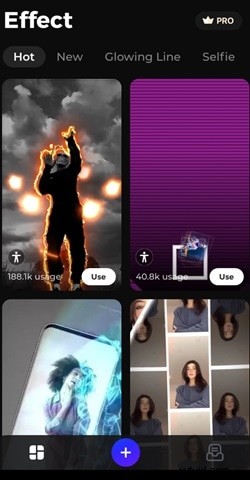
- Discoloration Lighting (188.1k)
- Calling My Phone (147.4k)
- Work Remix (58k)
- Sugar Crush (15.9k)
- Flame 02 (10.2k)
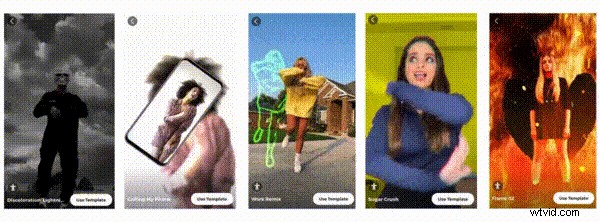
To apply an effect, open GoCut after installation, tap Use on a template, then select Use Template and choose your video from the gallery. The effect will automatically render.
Part 3. Find More Eye‑Catching Video Effects on Wondershare Filmora
If GoCut’s library feels limited, Filmora expands your toolkit with over 900 effects and a built‑in search feature. Filmora supports Mac, Windows, iOS, and Android, making it a versatile choice for cross‑platform editing.
Make Videos with Wondershare Filmora
- Extensive video/audio effects and creative assets.
- AI‑powered tools for effortless content creation.
- Intuitive interface suitable for beginners and pros.
- Cross‑platform support: Mac, Windows, iOS, Android.


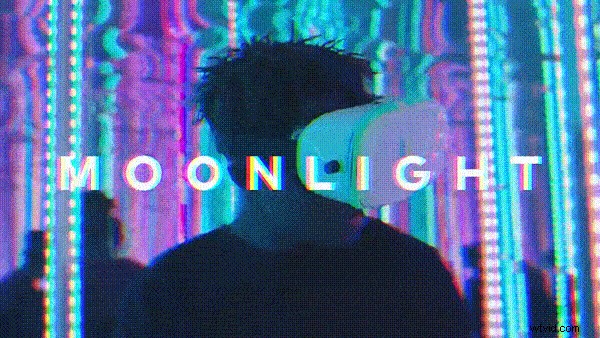
Filmora’s effects include:
- Lens
- Glitch
- Retro
- Flashback
- Bling
- Body Effect
- VHS
- Cinematic
- Line, and more
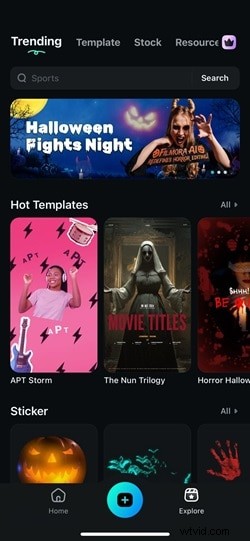
Special‑occasion templates—Halloween, festivals, viral trends—speed up the creative process. A royalty‑free music library and sound‑effects catalog further enrich projects. Filmora also offers standard editing tools such as trimming, speed adjustment, stickers, and direct social sharing.
Part 4. How to Apply Video Effects to Your Video
Download Filmora from the App Store or Google Play, then choose between pre‑built templates or custom effect application.
Method 1: Using Pre‑Built Templates
1. Open Filmora and tap Explore. Select Hot Templates or navigate to Template from the Trending tab. 2. Browse and tap Make Video on a chosen template. 3. Import the required number of videos and confirm. 4. If further tweaks are needed, select Project Editing to customize the output.
Method 2: Apply and Customize Video Effects
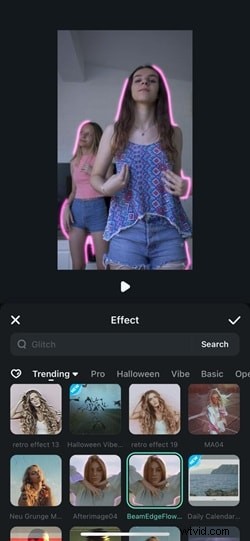
1. Create a new project and import your footage. 2. Tap Effects on the toolbar; use search or categories to find the right effect. 3. Drag the effect onto the timeline to set its duration; repeat as necessary. 4. Use AI Smart Cutout to remove backgrounds, then add a new background or solid color. 5. Add text via Text > T+, customizing font, style, animation, and placement. 6. Insert stickers from the Stickers tab, including animated GIPHY stickers. 7. Enhance audio by selecting Audio; choose from Filmora’s library or generate custom tracks with AI Audio. 8. Export by tapping Export, selecting format and resolution, then share directly to social platforms.
Conclusion
Video effects are now a staple for content creators. GoCut provides a quick, user‑friendly pathway to add striking visual touches without steep learning curves. For those who crave a broader palette and advanced tools, Wondershare Filmora offers an expansive suite that scales from hobbyists to professionals. Explore both apps to keep your content fresh and engaging.