
Understanding a foreign video can be frustrating, but almost everyone faces this challenge. While YouTube’s auto‑translation can help, it relies on the uploader’s settings and is not always reliable.
When captions are missing, you’ll need a dedicated YouTube video translator that can create subtitles or even dub the audio into another language. Advances in AI now make it possible to generate highly accurate subtitles and realistic voice‑overs with lip‑sync.
Below we’ve narrowed down the best translators available today. Skip the research and choose the tool that fits your needs.
How We Tested the Tools
With so many options promising speed and accuracy, we evaluated each product based on real‑world performance. Our criteria include:
- Translation Accuracy – Does the tool preserve meaning, tone, and context?
- Subtitle Readability – Are the captions clear, well‑timed, and easy to follow?
- Voice Dubbing & Lip‑Sync – Does the tool produce natural‑sounding audio that matches the speaker’s mouth movements?
- Supported Languages & Export Options – How many languages are available, and can you export subtitles or dubbed videos in common formats like SRT, TXT, or MP4?
We then split the tools into two categories: those that provide full subtitle and dubbing capabilities with lip‑sync, and those that focus solely on subtitle translation.
Our Top 3 YouTube Video Translators

1. Wondershare Filmora
Filmora is a versatile video editor that excels at translating, captioning, and dubbing. It lets you generate subtitles, edit timing, hard‑code captions, and create AI voice‑overs in multiple languages—all with built‑in lip‑sync support.
Download

2. Maestra
Maestra is a browser‑based translator that handles transcription, translation, and dubbing in one place. It offers flexible subtitle formats and a simple editor for quick adjustments.
View details

3. YouTube to Transcript
This tool produces a clean transcript first, then lets you translate, summarize, or trim the content. It’s ideal for students, writers, or anyone who needs the text rather than the video.
View details
Translators with Lip‑Sync or Full Dubbing
For viewers with hearing impairments or creators looking to broaden their audience, translators that offer lip‑sync or full dubbing are invaluable.
Below is a quick comparison of the most popular options.
| Platform | Languages Supported | Translation Accuracy | Subtitle Export | Rating* | |
| Filmora | Windows, macOS | 23 languages | High | 4.7/5 | |
| Maestra | Web, browser extension | 125 languages | High | 4.8/5 | |
| HeyGen | Web, iOS | 175+ languages | High | 4.8/5 | |
| YouTube Translator & Video Dubbing | Browser extension | 50+ languages | Low | 2.8/5 | |
| Vidnoz | Web | 140+ languages | Moderate | 4.5/5 | |
|
Show more Show less |
* Ratings are based on personal hands‑on experience and user reviews.

1. Wondershare Filmora
Filmora combines AI translation and speech‑to‑text features to deliver subtitles, edits, and dubbing—all within one editor. You can export SRT or TXT files, embed captions, or create stylized hard‑sub videos for social media.
Key Features
- Real‑time subtitle editing with preview
- Export in SRT or TXT formats
- Hard‑sub creation for social platforms
- Integrated translation and dubbing workflow
- AI lip‑sync and voice modeling for authentic dubbing
Pros
- Highly accurate subtitles and translations
- Full control over timing, text, and style
- All features are part of a single editor
- Export options include SRT or embedded captions
Cons
- Requires local installation
- AI features consume credits
Platforms – Windows, macOS (iOS and Android via AI Captions)
Price – Free version available; subscription or one‑time purchase options available.
Languages – 23 (English, Spanish, German, Hindi, Chinese, Japanese, Korean, etc.)
Best For – YouTube creators needing a smooth workflow for multilingual content, subtitles, and dubbing.
Why We Recommend It – Filmora offers a simple setup for creators who want to translate, subtitle, and dub videos without juggling multiple tools.
2. Maestra
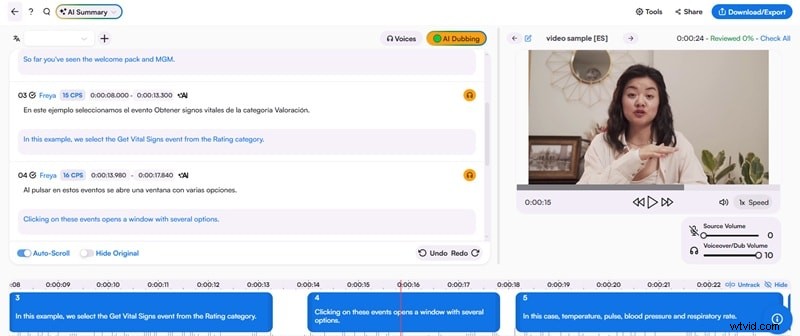
Maestra is an online AI translator that works directly with downloaded YouTube videos. Upload a file, choose languages, enable dubbing if desired, and refine subtitles afterward.
Key Features
- AI summary generation
- Intuitive text editor for subtitle proofing
- Integrations with YouTube, OBS, and vMix for live translation
- Browser extension for real‑time YouTube translation
Pros
- Free plan with watermark‑free usage
- Supports SRT, TXT, VTT, XML, and more
- Wide range of AI voices
- Manual subtitle editing post‑generation
Cons
- No custom voice dubbing
- Limited editing tools beyond subtitles
- Video export only MP4; audio only MP3
Platforms – Web, browser extension.
Price – Free tier; Pro starts at $49/month.
Languages – Up to 125 for translation; 29 for dubbing.
Best For – Casual creators wanting web‑based subtitle and dubbing tools, or educators needing quick transcript exports.
Why We Recommend It – Maestra excels at producing multilingual subtitles and offers handy extras like AI summaries for educational content.
3. HeyGen
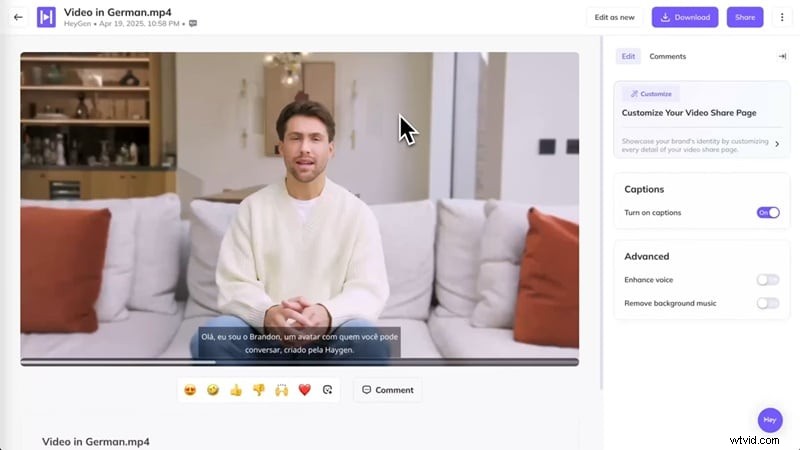
HeyGen is an AI‑driven translator that accepts YouTube links or uploads, translating speech and synchronizing the new audio with lip movements for a natural feel.
Key Features
- Subtitle editing with style options
- AI dubbing for natural voice output
- Voice cloning for consistent branding
- Side‑by‑side preview before download
Pros
- Direct YouTube URL support
- Realistic dubbing with near‑perfect lip‑sync
- AI avatar integration for localized presentations
Cons
- 30‑language limit on free plan; 3 videos/month
- Free plan caps each video at 3 minutes
- Processing can be slow for dubbing
Platforms – Web, iOS.
Price – Free tier; subscription starts at $29/month.
Languages – 175+.
Best For – YouTubers and educators who want natural‑sounding, lip‑synced multilingual videos.
Why We Recommend It – HeyGen delivers one of the most seamless translation experiences, with realistic voice dubbing and well‑timed lip‑sync.
4. YouTube Translator & Video Dubbing
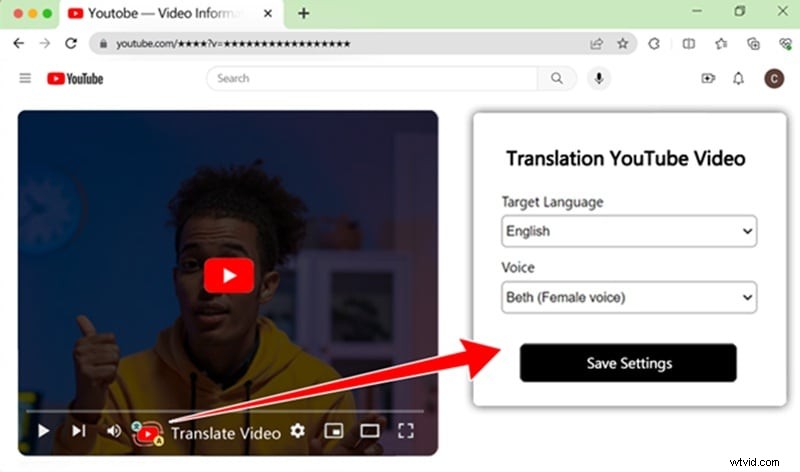
This browser extension translates YouTube videos in real time, but only works if the video already has captions. After installation, you can toggle translation directly from the player.
Key Features
- Automatic sync of dubbed voice‑overs
- AI subtitles for improved clarity
- Multiple voice options with localized accents
Pros
- Free for 20 minutes of video
- Displays subtitles beside the video
Cons
- Timing often off; no manual adjustment
- Background audio muted during dubbing
- Voice sounds robotic
Platforms – Browser extension.
Price – Free; paid starts at $6/month.
Languages – 52.
Best For – Those who want an English dub of a foreign interview or explanatory video.
Why We Recommend It – Convenient for instant dubbing on YouTube; the extension appears directly in the player.
5. Vidnoz
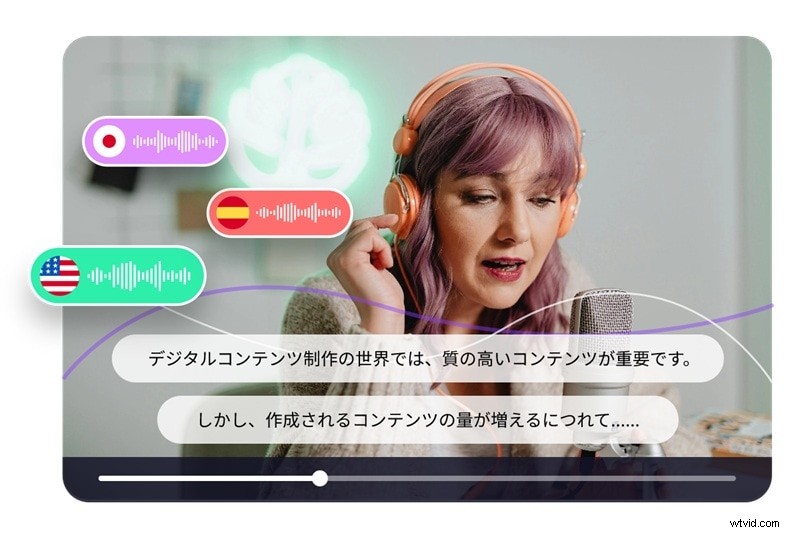
Vidnoz offers AI translation for YouTube content, accepting either a file upload or a YouTube link. It also provides lip‑sync and script proofreading for higher quality output.
Key Features
- Multi‑voice detection for natural dialogue flow
- Accent handling for clearer pronunciation
- AI voice cloning to mimic the original speaker
Pros
- Simple interface that works directly with YouTube links
- Script proofreading to correct mistakes before audio generation
Cons
- Some advanced features locked behind Pro
- No automatic language detection for input video
- Pay‑per‑minute pricing can be costly for long videos
Platforms – Web.
Price – Starts at $27/month for 15 minutes of translation time.
Languages – 140+.
Best For – Viewers needing quick dubbing or subtitles for short clips.
Why We Recommend It – Vidnoz keeps the workflow simple, supports direct YouTube links, and offers helpful extras like lip‑sync and script proofreading.
Translators Focused on Subtitles Only
If you only need clean subtitles without dubbing, we’ve compiled a separate list. These tools excel at fast, accurate text output.
| Platform | Languages Supported | Translation Accuracy | Subtitle Export | Rating* | |
| RecCloud | Web | 100+ languages | High | 4.3/5 | |
| YouTube to Transcript | Web | 125+ languages | Moderate | 4.3/5 | |
| zTranslate | iOS, Android | 110+ languages | Low to Moderate | 3.5/5 | |
| Wayin AI | Web | 100+ languages | Moderate | 4.5/5 | |
| Immersive Translate | Browser extension, iOS, Android | 100+ languages | High | 4.6/5 | |
|
Show more Show less |
* Ratings are based on personal hands‑on experience and user reviews.
1. RecCloud
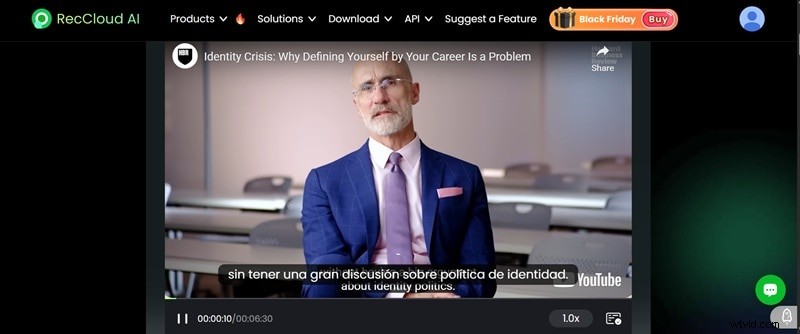
RecCloud is an online translator that offers fast processing and a simple interface. Paste a YouTube link, choose a target language, and let the AI work its magic. Each minute of translation costs 2 credits.
Key Features
- Video and subtitle export
- Direct URL support
Pros
- Fast processing speed
- New users receive a free video translation when they sign up
Cons
- Subtitles can overlap with originals
- Some phrases may be mistranslated or too literal
- No option to download the original transcript
Platforms – Web, iOS, Android.
Price – Starts at $9/week for 300 credits.
Languages – 100+.
Best For – Users who want quick subtitle translation.
Why We Recommend It – RecCloud’s straightforward workflow makes it easy to translate a video and preview subtitles on the fly.
2. YouTube to Transcript
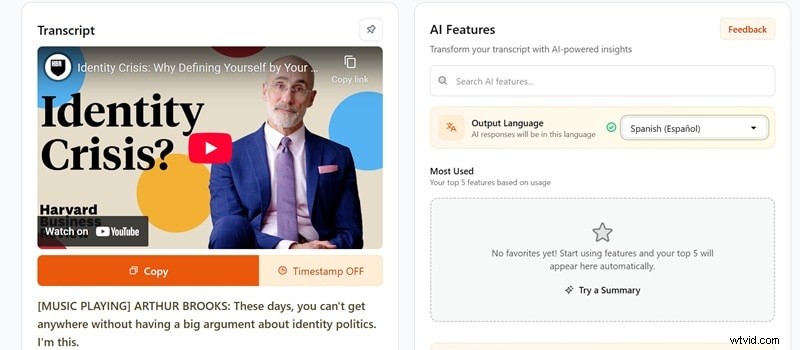
As the name suggests, this tool focuses on transcribing YouTube videos, then offers translation and summary features.
Key Features
- Translation into 125+ languages
- Remove unwanted sections (ads, intros, etc.)
- AI prompt library for summaries and insights
- Embedded player for side‑by‑side review
Pros
- All‑in‑one transcription and translation tool
- Creates clean notes and summaries
- Clickable transcript lines jump to timestamps
Cons
- No free trial; paid from the start
- Struggles with complex languages or figurative speech
Platforms – Web.
Price – Starts at $4/month.
Languages – 125.
Best For – Users who need transcripts for note‑taking or research.
Why We Recommend It – YouTube to Transcript excels when the primary need is a clean, editable transcript that can be translated or summarized.
3. zTranslate
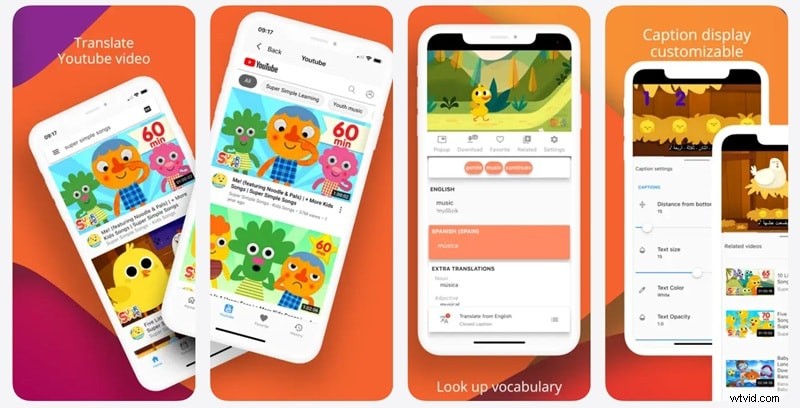
For mobile users, zTranslate translates YouTube videos on the go. It relies on existing captions, so only videos with subtitles can be processed.
Key Features
- Watch translated subtitles in real time
- Subtitle comparison for language learning
- Built‑in dictionary lookup
- Shadowing practice for pronunciation
Pros
- Trusted by millions for mobile translation
- Helpful for language learning
Cons
- Only works with captioned videos
- Ad‑supported
- Buffering issues reported by users
Platforms – iOS, Android.
Price – Free with in‑app purchase ($4.99) to remove ads.
Languages – 110+.
Best For – Students and mobile users who want on‑the‑go translations and language learning tools.
Why We Recommend It – zTranslate is ideal for quick, on‑device translations and instant word definitions.
4. Wayin AI
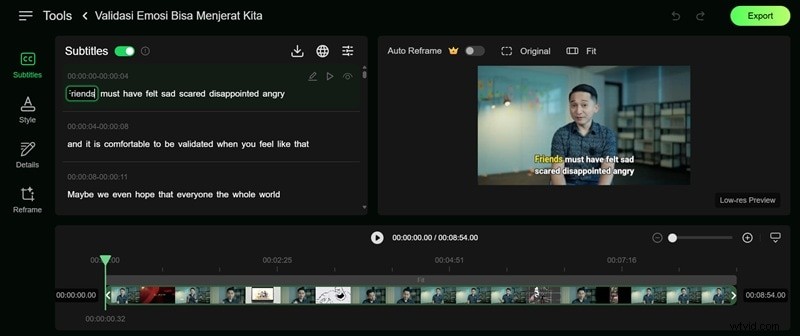
Wayin AI offers a web‑based translator that accepts YouTube links or uploads. It even supports TikTok, Twitch, and Facebook. A generous 60‑minute free daily subtitle translation quota makes it easy to try before committing.
Key Features
- Live subtitle editing with preview
- Pre‑set templates for quick styling
- Auto‑reframe (Pro) for platform‑specific framing
- Subtitle display options (original, translated, or both)
Pros
- Download SRT or TXT subtitles
- Export MP4 videos with captions
- Word‑by‑word playback of translations
Cons
- Interface still in early development
- Word‑by‑word translations can lead to mistranslations
Platforms – Web.
Price – Free tier; subscription starts at $13.99/month.
Languages – 100+.
Best For – Creators wanting flexible subtitle styling and translation editing.
Why We Recommend It – The highlighting feature aids language learners and the editor allows fine‑tuning of translations.
5. Immersive Translate
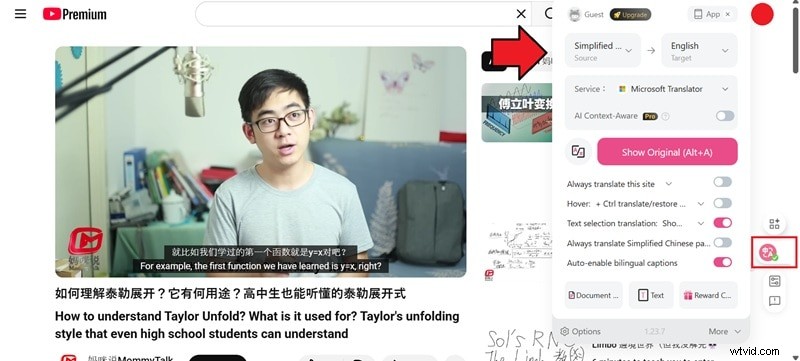
Immersive Translate is a browser extension (also on mobile) that automatically translates YouTube subtitles in real time, displaying both original and translated text on the video.
Key Features
- Choose from popular AI translators (DeepL, Microsoft, OpenAI, etc.)
- Full video translation support (titles, descriptions)
- Context‑aware translations (Pro) for natural output
Pros
- Fast, real‑time subtitle translation
- Side‑by‑side display of original and translated text
- Works immediately after installation
Cons
- Requires existing subtitles
- Needs internet connection
- No manual editing of subtitles in the free version
- Advanced context‑aware translation only in Pro
Platforms – Chrome, Firefox, Safari, Edge, iOS, Android.
Price – Free; Pro starts at $34.99/month.
Languages – 100+.
Best For – Viewers who want instant subtitle translation while watching on YouTube.
Why We Recommend It – Immersive Translate integrates seamlessly into the YouTube player, offering high‑quality translations without leaving the platform.
Choosing the Right Translator for Your Needs
Different users have different priorities. Our guide groups tools by the primary use case to help you decide.
1. For Note‑Taking
If you rely on YouTube for study or research, choose a translator that prioritizes accurate transcripts and allows you to jump to timestamps, trim sections, or generate summaries.
Recommended tools: Maestra, YouTube to Transcript
2. For Casual Watching and Learning
Looking for a quick way to understand content while watching? Pick a tool that offers real‑time translation and on‑screen subtitles.
Recommended tools: HeyGen, YouTube Translator & Video Dubbing, Vidnoz, RecCloud, zTranslate, Immersive Translate
3. For Repurposing Content
Creators aiming to reach multilingual audiences need a tool that goes beyond subtitles—edit captions, export formats, and natural‑sounding dubbing with lip‑sync.
Recommended tools: Wondershare Filmora, Wayin AI
Conclusion
Choosing the right YouTube translator depends on whether you need subtitles, dubbing, or both. From quick subtitle generators to full lip‑synced dubbing solutions, the options are plentiful.
For the most comprehensive experience—translation, editing, dubbing, and customization—try Wondershare Filmora. It consolidates all the essential features in one editor.