
Static images often struggle to keep viewers’ attention. Adding motion turns them into dynamic stories that resonate on social media, in presentations, or on any visual platform. Kapwing’s online image‑to‑video tool lets you create short, polished videos in minutes—no prior editing experience required.
In this guide you’ll discover how to convert an image to a video with Kapwing, compare three other free online solutions, and learn how to use a desktop editor for advanced projects.
In this article
- What is Kapwing?
- How to Convert an Image to Video with Kapwing
- Other 3 Ways to Convert Image to Video Online
- How to Convert Image to Video on Desktop Using Filmora
Part 1. What is Kapwing?
Kapwing is a cloud‑based video editor that unifies images, video clips, and audio into a single project. Because all editing happens in the browser, you never need to download software or transfer files between devices. Your edits autosave, so you can switch computers or work on the go without losing progress.
Kapwing Image‑to‑Video Converter
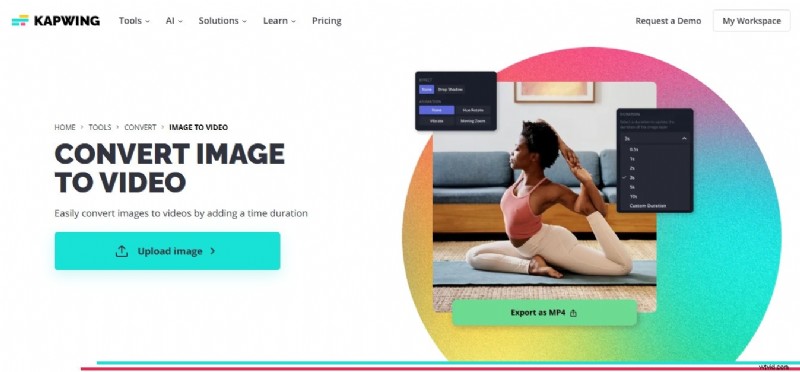
With just a few clicks, you can transform one or more photos into a short video. Set the duration for each scene, then export the finished clip. If you wish to refine the project further, add text overlays, background music, or transitions—Kapwing’s timeline makes adjustments intuitive.
Even beginners find the tool approachable. The resulting videos perform well on Instagram, Facebook, TikTok, and other platforms, delivering a lively visual experience that static photos cannot match.
Next, we’ll walk through the step‑by‑step process of creating a photo‑to‑video conversion on Kapwing.
Part 2. How to Convert an Image to Video with Kapwing
Turning photos into video is straightforward with a browser‑based tool. All you need is an internet connection and a modern browser—no installation, no device‑size constraints.
Below is a detailed walkthrough of Kapwing’s image‑to‑video converter, suitable for both desktop and mobile, and compatible with Windows, macOS, Linux, or any OS that supports a web browser.
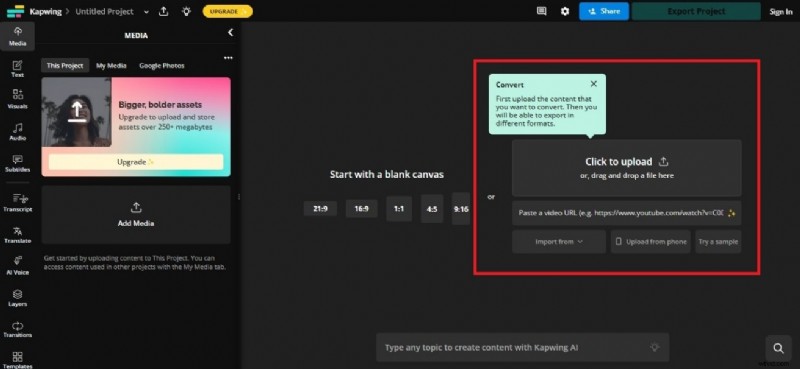
Step 1: Upload Your Image
Navigate to Kapwing and start a new project. Upload the image(s) you want to turn into a video. You can also paste a YouTube link or pull photos from Google Photos. For a slideshow, upload all images at once.
Step 2: Set the Duration
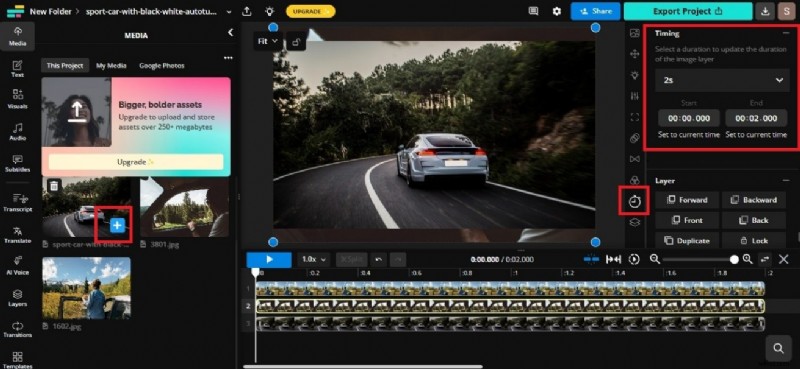
Click the plus icon next to the image in the media panel on the left. In the right‑hand timing settings, choose a preset duration from the project duration menu, or click Custom Duration to enter a specific number of seconds.
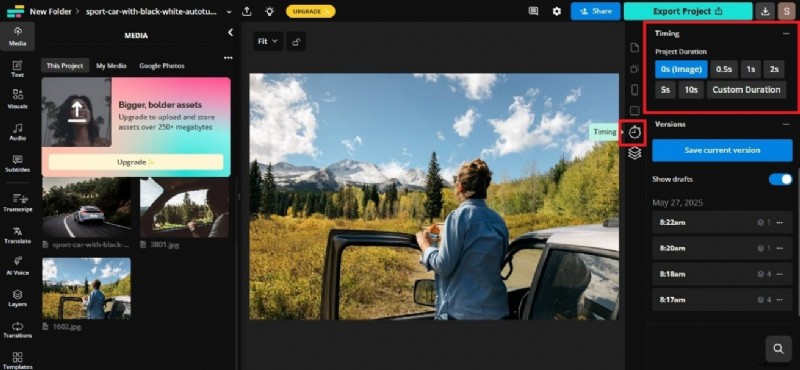
The selected duration determines how long the image appears on screen in the final video. Drag additional photos into the timeline and adjust each image’s playback time as needed.
Step 3: Edit and Export
Arrange your images, layer background music, or add text captions. When you’re satisfied, click Export Project in the top‑right corner and choose MP4 as the output format. Kapwing will process the video and provide a download link.
Scroll below for alternative online tools that also support image‑to‑video conversion.
Part 3. Other 3 Ways to Convert Image to Video Online
While Kapwing excels at quick slideshows, other platforms offer advanced AI features, richer templates, or unique visual styles. Explore these options to match your project’s needs.
Invideo: Best for Prototyping Video Concepts
Invideo’s AI image‑to‑video maker lets you generate a draft from a text prompt, then swap in your own photos and fine‑tune the result. It’s ideal for creators who want to prototype ideas fast.
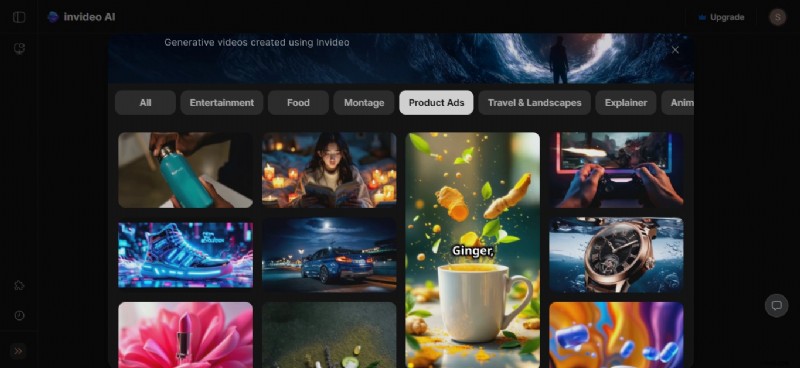
Key Features
- Over 16 million stock photos and clips
- AI tools for video generation, image generation, voice‑over creation, subtitles, and more
- Real‑time multiplayer editing for team collaboration
Canva: Best for Quick Content Production
Canva’s photo‑to‑video converter is perfect for non‑designers who rely on templates. Add animations, text, and effects to a sequence of images and export a polished video in seconds.
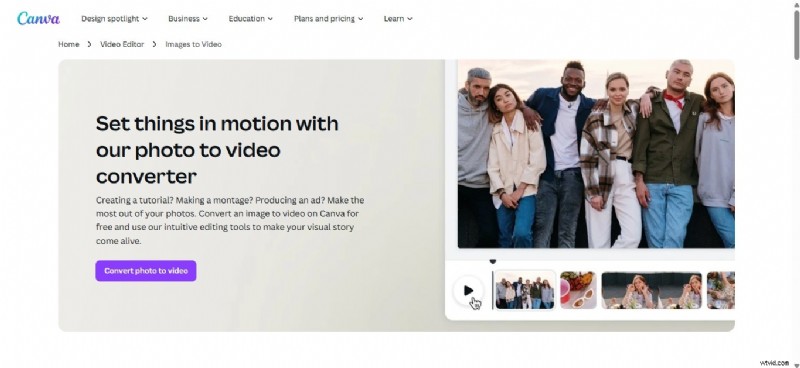
Key Features
- Extensive media library with stock images and clips
- Pre‑made templates and custom branding tools
- Responsive cropping, trimming, and resizing for every platform
- AI utilities like text‑to‑video and voice generation
- Team access for real‑time edits and sharing
Vidnoz AI: Best for Video Quality and Effects
Vidnoz AI turns a single image into a high‑quality video using AI models. Add a description, and the tool delivers smooth transitions and vivid visuals—perfect for dynamic storytelling.
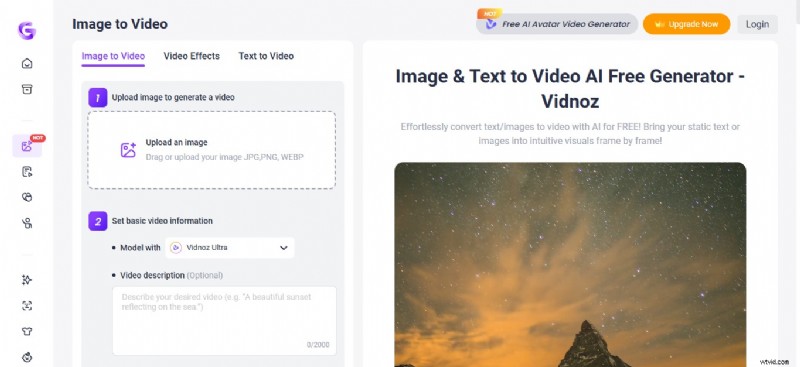
Key Features
- 1,500+ AI avatars with natural lip‑sync
- 1,800+ AI voices for narration
- 2,000+ customizable templates
- AI tools: image‑to‑video, text‑to‑video, voice cloning, translation
These online services are excellent for quick conversions, but if you need granular control over the final output, consider a desktop editor that bundles AI, templates, and robust editing tools.
Part 4. How to Convert Image to Video on Desktop Using Filmora
Wondershare Filmora offers a powerful alternative to Kapwing for turning images into videos, especially for creators aiming for high‑impact social media clips.
Filmora’s AI image‑to‑video generator can produce short, engaging videos from a photo or a text prompt. It’s ideal for TikTok, Instagram Reels, and YouTube Shorts.
Key Features
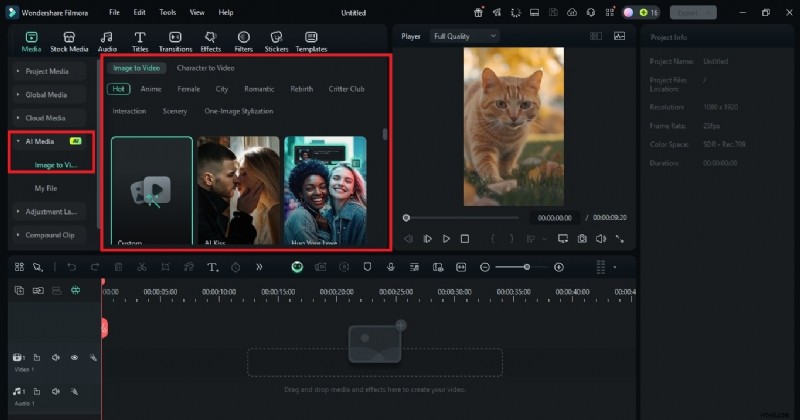
- Hundreds of AI‑driven video effects (e.g., AI Kiss, AI Hug, AI Fight, Disintegration)
- Easy layout fine‑tuning—stitch images, center subjects, crop, and more
- AI character animation that brings static images to life
- Vintage photo restoration and animation for retro projects
- AI text‑to‑video generator: input keywords, receive a full script, characters, and visuals
Follow these steps to create an image‑to‑video clip in Filmora:
Step 1 – Download and install Filmora. Launch the app and select the Image to Video option from the start screen or the toolbox.
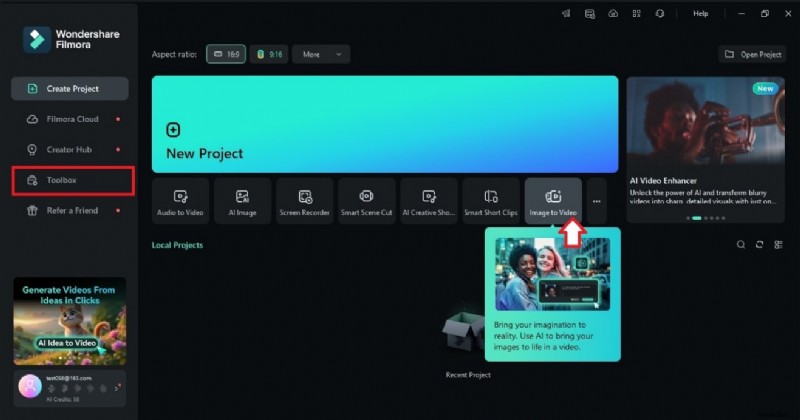
Step 2 – Choose an AI effect from the Image to Video tab, or select Custom to generate a clip from a reference image and a descriptive prompt.
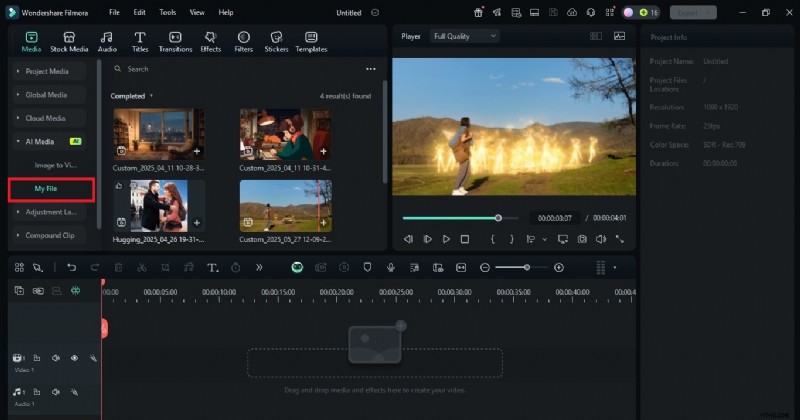
Step 3 – Once satisfied with the preview, click Export. Save the file as MP4 and you’re ready to share.
Conclusion
Each tool offers unique strengths:
- Kapwing – Rapid, no‑frills slideshow creation.
- Invideo and Canva – Rich AI features and template libraries for faster production.
- Filmora – Comprehensive desktop editing with advanced AI animation and text‑to‑video capabilities.
Choose the solution that best matches your workflow. For beginners seeking speed, Kapwing is a solid starting point. For creators who want deeper customization and AI‑driven storytelling, Filmora provides the flexibility to elevate your photo‑to‑video projects into viral‑ready content.
Get Started for Free – Windows 7 or later (64‑bit) | MacOS 10.14 or later