
MKV files deliver high‑resolution video and rich metadata, but many older devices and editing suites struggle to open them. AVI, by contrast, enjoys broad compatibility and is straightforward to edit and share. If you need to keep the original quality while moving files into a more universally supported format, you’ll want a converter that combines speed, reliability, and optional editing tools.
Below is a concise guide that compares the most popular free MKV‑to‑AVI converters, highlights their unique strengths, and explains how to choose the best fit for your workflow.

Part 1: MKV to AVI Conversion – Tool Comparison
Choosing between a browser‑based service, a lightweight utility, or a full‑featured editor depends on your priorities: convenience, editing freedom, or a clean export. The chart below distills the key attributes of five widely used options.
| Converter | Free Plan | Watermark | AVI Support | Editing Tools | OS |
| Filmora | Yes (trial) | Yes (trial) | Full AVI export | Full suite: AI tools, advanced editing | Windows, Mac OS |
| VLC | Yes (open source) | No | Full AVI export | Very basic (trim, simple convert) | Windows, Linux, macOS |
| Cloud Convert | Yes (limited daily use) | No | Full AVI export | None (conversion only) | Any (Online Tool) |
| HandBrake | Yes (open source) | No | Full AVI support (via FFmpeg) | Adjustments to resolution, framerate, and encoding settings | Windows, macOS, Linux |
| FreeConvert | Yes (limited daily use) | No | Full AVI support | Options to change video resolution, quality, and file size | Web‑based (any OS) |
Get started for free on Windows 7 or later (64‑bit) and macOS 10.14 or later.
Part 2: Top 5 MKV to AVI Converters (2025)
1. Wondershare Filmora – Best for Video Editing + Conversion
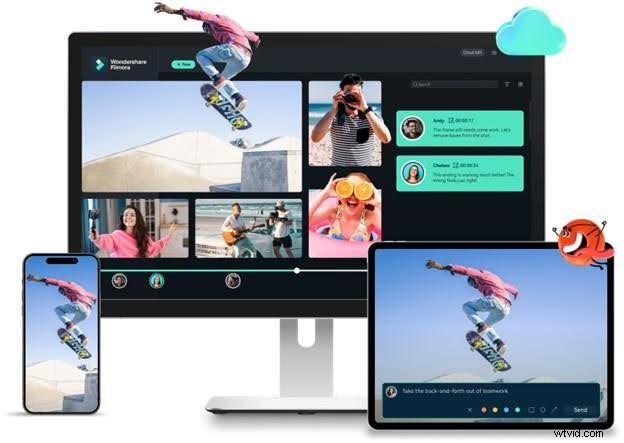
Filmora merges a polished editing suite with a straightforward MKV‑to‑AVI export. The AI‑powered Smart Cutout, Auto Beat Sync, and Audio Denoise tools let you refine footage before the final render.
Key Features
- One‑click MKV to AVI export
- Built‑in timeline editor
- AI Smart Cutout, Auto Beat Sync, Audio Denoise
- Supports AVI, MP4, MOV, and more
Pros
- Intuitive UI for beginners and pros alike
- Full suite of effects, transitions, and overlays
- Preset output profiles for a variety of devices
- Direct DVD burning capability
Cons
- Free version adds a watermark
- Advanced export options are gated behind paid plans
Target Users
- Content creators needing a reliable MKV‑to‑AVI workflow
- Editors who want to tweak video before conversion
- Casual users seeking compatibility with older players
Pricing
- Basic – $9.99/month
- Advanced – $34.99/year
- Perpetual – $49.99/year
Rating – 4.5 / 5
Review Snippet
Filmora delivers AI‑enhanced editing without sacrificing speed or cost, making high‑quality video production accessible to everyone.
Get started for free on Windows 7 or later (64‑bit) and macOS 10.14 or later.
How to Convert MKV to AVI with Filmora (Step‑by‑Step)
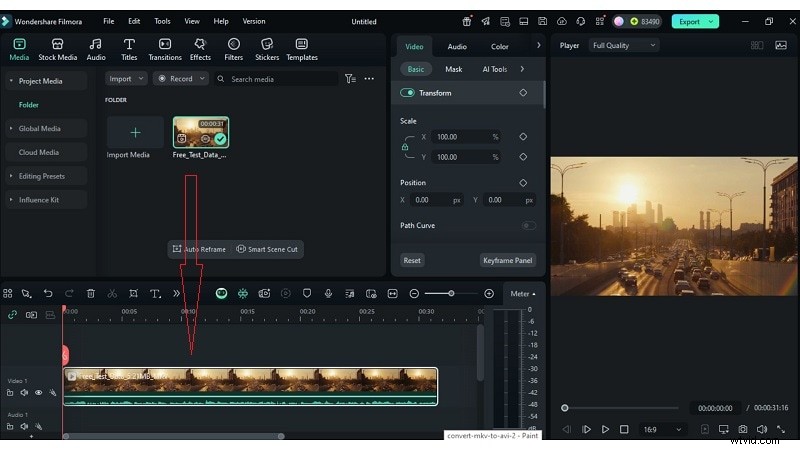
- Import your MKV file:
- File > Import Media
- Click Import Media Files Here
- Drag and drop the MKV into Filmora
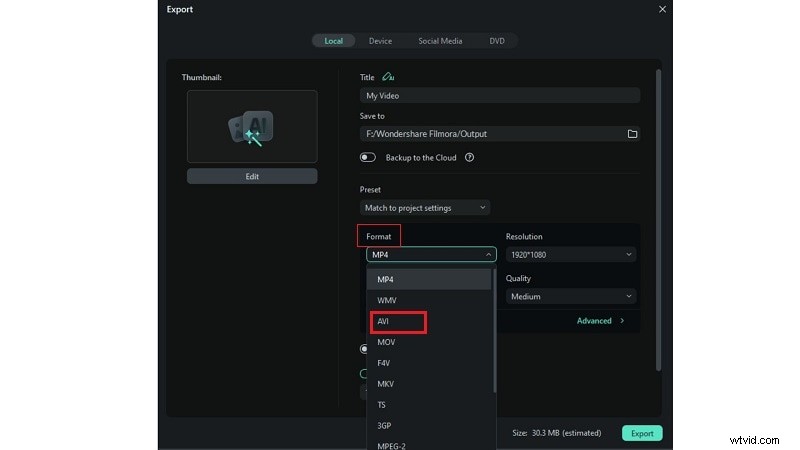
- Choose AVI from the Local tab. Other formats (WMV, MP4, MOV) are also available.
- Open Settings to tweak bitrate, resolution, or other export options, then click Export.
2. VLC Media Player – Basic MKV to AVI Converter
VLC offers a lightweight, free solution that doubles as a media player and a converter. It’s ideal for quick, on‑the‑fly conversions without installing extra software.
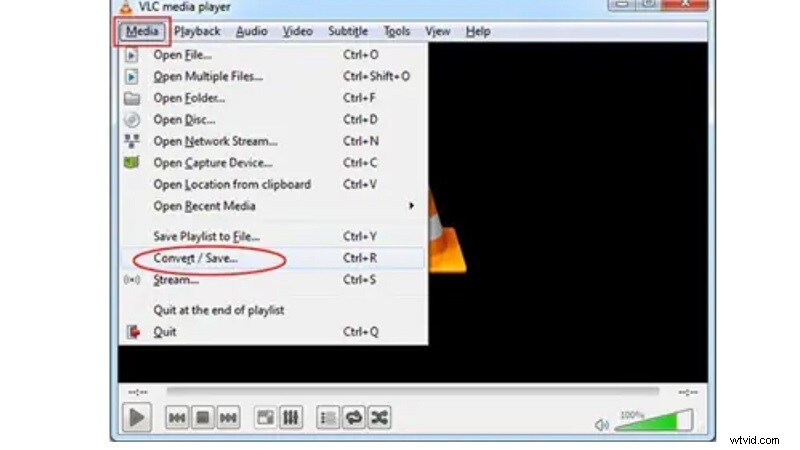
Key Features
- Wide format support
- Built‑in conversion profiles
- Basic resolution and codec adjustments
- All-in-one player and converter
Pros
- No additional downloads required
- Free and open‑source
- Hardware‑accelerated conversion for speed
Cons
- Interface feels dated compared to modern editors
Target Users
- Casual users who need quick playback on older devices
- Students and hobbyists working on small projects
- Non‑technical users seeking a free, single‑step solution
Pricing – Free (open‑source)
Rating – 4.3 / 5
Review Snippet
VLC is a reliable, no‑cost tool that handles MKV‑to‑AVI conversion with minimal fuss.
3. CloudConvert – Best Online MKV to AVI Converter
CloudConvert runs entirely in the browser, supporting over 200 file types. It’s a solid choice for users who prefer not to install software and need fast, secure conversions.
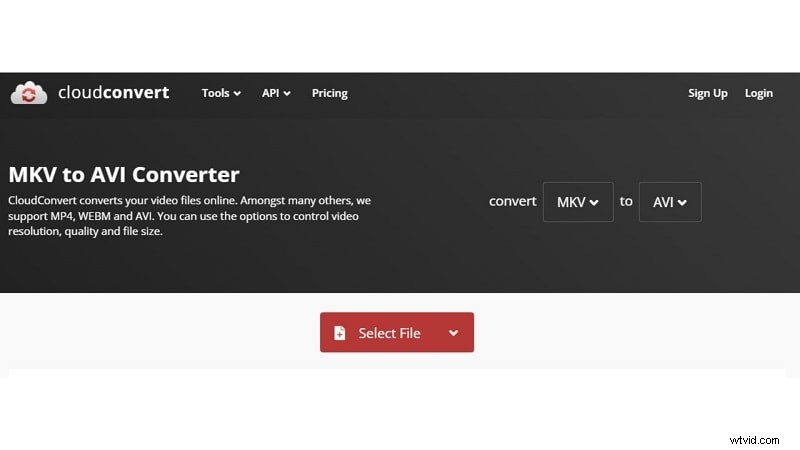
Key Features
- Supports video, image, and document formats
- MKV to AVI, MP4, WEBM, MPEG, and more
- Accessible on Windows, macOS, Linux, iOS, Android
- API access for developers
- Fast, secure file handling
Pros
- Flexible settings for advanced users
- Cloud storage integration and URL uploads
- User‑friendly interface
- Developer API available
Cons
- Free plan limits daily conversion time
Target Users
- Editors needing quick online conversion for legacy players
- Gamers converting clips for simpler editing
- Educators preparing content for classrooms
Pricing – $9.00 for 500 credits, $0.0180 per credit
Rating – 4.5 / 5
Review Snippet
CloudConvert offers precise, fast results with a clean web interface and cloud integration.
4. HandBrake – Free Ripping with Broad Format Support
HandBrake delivers a robust, open‑source solution for batch conversions and advanced codec control. It’s lightweight and runs on all major desktop platforms.
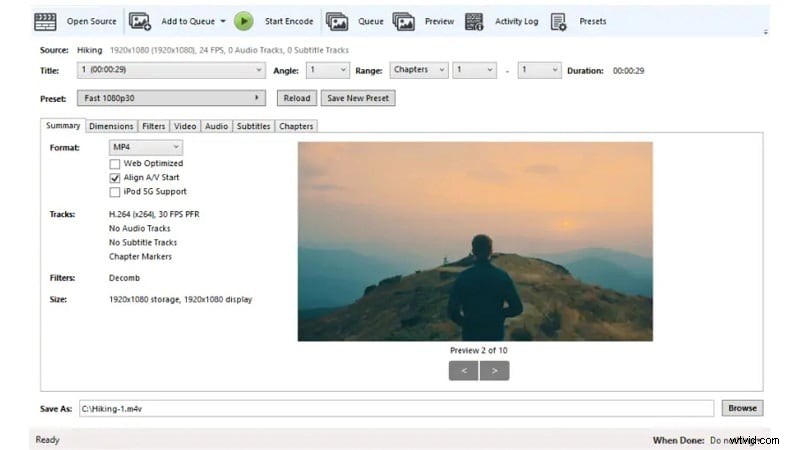
Key Features
- Runs on Windows, macOS, Linux
- Batch MKV to AVI conversions
- Subtitle support and conversion
Pros
- Cross‑platform compatibility
- Batch processing for large libraries
- Full codec support without watermarks
Cons
- Many options can overwhelm newcomers
Target Users
- Tech‑savvy users wanting granular control over bitrate, resolution, and codecs
- Professionals needing batch conversion for extensive footage
- Users who prefer open‑source, watermark‑free software
- Those learning subtitle and chapter management
Pricing – Free
Rating – 4.6 / 5
Review Snippet
HandBrake processes virtually any video format with speed and high quality, even legacy files.
5. FreeConvert – Quick Online MKV to AVI Converter
FreeConvert is a fast, browser‑based tool that prioritises user privacy with 256‑bit SSL encryption and automatic file deletion after a few hours.
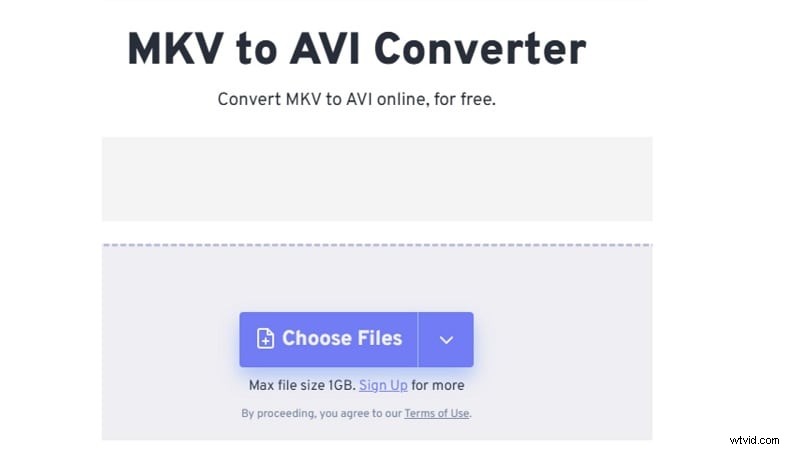
Key Features
- Batch conversion for multiple files
- Compression and quality control for file size management
- Preserves audio and video clarity
Pros
- Easy, no‑installation required
- SSL‑encrypted data handling
- Batch support for large projects
Cons
- Requires an active internet connection
- No advanced editing features
Target Users
- Beginners needing a simple, online conversion
- Users converting for older devices or software
- Those handling batch conversions for extensive libraries
- Privacy‑concerned users thanks to SSL and auto‑deletion
Pricing – Free with optional subscription upgrades
Rating – 4.6 / 5
Review Snippet
After trying competitors, FreeConvert compressed large videos quickly and cleanly—highly recommended.
Part 3: How to Choose the Right MKV to AVI Converter
Not every converter satisfies every need. Consider the following criteria when deciding:
- Batch conversion – Essential for multiple files; saves time.
- Lossless export – Preserve original video and audio quality.
- Format flexibility – Look for tools that support AVI and other common formats.
- Integrated editing – Convert and edit in one place for streamlined workflows.
- No watermark – Free tools should not force a watermark unless you upgrade.
Conclusion
MKV files often demand more than simple format conversion. This guide compares speed, quality, and added features across both online services and desktop editors. For users who want to edit and convert in one pass, Filmora stands out with its AI‑powered tools. If you need a lightweight, no‑cost solution, VLC or HandBrake may be the best fit. Online converters like CloudConvert and FreeConvert are ideal for quick, on‑the‑fly tasks.
Choose the tool that aligns with your workflow and project goals—whether that’s high‑quality output, creative control, or straightforward compatibility.
FAQs
-
What is the difference between MKV and AVI formats?
MKV is a versatile container that can hold multiple video tracks, audio languages, and subtitle streams in a single file, making it ideal for complex projects. AVI is a more traditional format with broad hardware support and easier integration into older editing suites.
-
Does Filmora compress the video when converting MKV to AVI?
Filmora gives you full control: choose lossless export or enable advanced compression to reduce file size without sacrificing quality.
-
Can I edit the MKV file before converting to AVI in Filmora?
Yes. Filmora allows you to trim, cut, apply AI tools, and enhance footage before exporting as AVI.