
Is a slow, aging computer stopping you from creating amazing videos? You’re not alone. Many aspiring creators believe they need an expensive, high-end machine to run quality editing software. But that’s no longer true. Stop allowing your equipment to stifle your creativity! You can edit amazing videos even with a low-spec machine.
Since modern video editors are developed for robust machines that are relatively costly, finding an application for low-cost systems is quite challenging. We've tested the top contenders to find the best video editors for a low-end PC that deliver powerful features without using a lot of resources.
Real-World Performance Test on a Low-End PC
Talk is cheap. To give you real, actionable data, we tested the top editors on a standard low-end PC with the following specs:
- Processor: Intel Core i5-8250U
-
RAM: 8GB DDR4
-
Graphics: Integrated Intel UHD Graphics 620
-
Storage: 256GB SSD
-
OS: Windows 11
We created a standard 2-minute, 1080p video project with multiple clips, text titles, transitions, and a color filter. Here’s how each software performed:
| Video Editor | Render Time (2-min 1080p) | Playback Smoothness (1-5) | Peak CPU Usage | Our Verdict |
| Wondershare Filmora | 6m 45s | 4.5 / 5 | 85% | Best balance of speed, features, and stability. |
| Microsoft Clipchamp | 11m 30s | 3 / 5 | 95% | Decent for online use, but rendering is slow. |
| Apple iMovie | N/A (macOS Only) | N/A | N/A | Highly optimized for Mac, but not available for our Windows test. |
| VSDC Free Editor | 9m 10s | 3.5 / 5 | 92% | Powerful features for a free tool, with moderate performance. |
| VideoPad | 12m 50s | 3 / 5 | 96% | Very easy for beginners, but performance lags on complex projects. |
| Clipify | 13m 15s | 2.5 / 5 | 98% | Simple to use but showed significant lag and high CPU load during testing. |
| Shotcut | 8m40s | 4/5 | 90% | Powerful and stable for an open-source editor, but the interface can be challenging for new users. |
|
Show more Show less |
The following are the best software for editing videos on a Low-End PC. Pick one for yourself!
1. Wondershare Filmora - Best Overall for Low-End PCs
We've been using Filmora video editor for years, and we enjoy how simple it is to use. Professionals suggest this tool to even the most inexperienced users.
This program will provide you with incredibly outstanding solutions, editing tools, audio/video repairs, transitions, and effects. It is also a very efficient tool that has been designed to run on low-spec PCs.
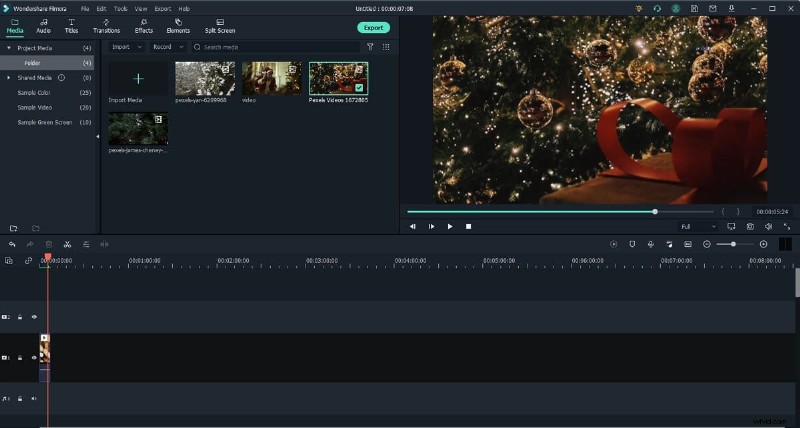
Filmora video editor comes with a plethora of video editing options, both expert and straightforward. So, when it comes to editing, you'll have a myriad of options at your disposal. Whether you are a newbie or a seasoned veteran in this industry, this editing tool will come in handy in various situations.
Main Features
- Proxy Workflow: Edit high-resolution video smoothly on any machine.
- GPU Acceleration: Faster rendering and a more responsive timeline.
- Huge Effects Library: Thousands of built-in titles, transitions, and effects without needing extra downloads.
- AI Smart Tools: Features like AI Copilot Editing, AI Music Generator, and AI Smart Cutout simplify complex tasks.
- Flexible Pricing: Choose between a subscription or a one-time purchase (Perpetual Plan) to own your software forever.
Pros
- Fastest performance in our tests.
- Provides all the editing tools
- Extremely user-friendly
- Packed with creative assets and advanced AI tools.
Cons
- The current version is not available for 32-bit computers.
Supported OS/version
Windows 7, Windows 8.1, Windows 10/11 & MacOS V10.15 or above
Minimum RAM
8GB recommended
 Secure Download
2. Microsoft Clipchamp - Best Pre-installed Free Option for Windows
Clipchamp is now the official, built-in video editor for Windows, replacing the old Photos app editor. It's a browser-based and desktop application that is surprisingly capable for a free tool. Its interface is clean and simple, making it great for quick edits, school projects, or simple social media videos.
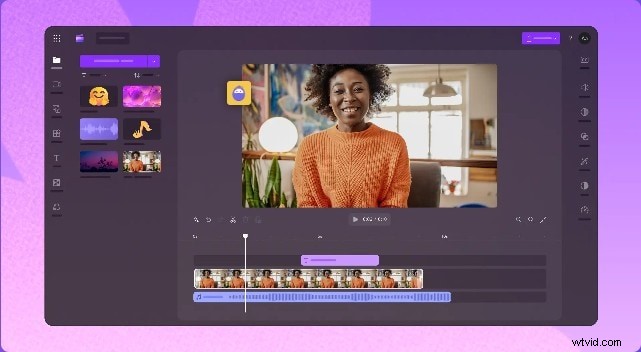
Main Features
- Timeline-based editor with essential tools like trim, split, and transitions.
- Large library of stock footage, audio, and filters.
- Text-to-speech and auto-captioning features.
Pros
- Free and already installed on modern Windows systems.
- Very easy for beginners to learn.
Cons
- Can be slow, especially during export.
- The free version is limited to 1080p exports.
Supported OS/version
Windows 11/10
Price
Free (Built-in), Premium subscription available
Minimum RAM
8GB recommended
3. Apple iMovie - Best Pre-installed Free Option for Mac
As with other iProducts, they're simple to use and provide precisely the right amount of utility and features. iMovie is a fantastic software that teaches the fundamentals of video editing to anybody with a Mac. iMovie includes simple drag-and-drop functionality and is incredibly user-friendly, but there is only so much you can do with it.
Main Features
- Providing some basic editing features such as trim, cut, rotate, and some advanced features like green screen and stabilization;
- Providing a background music library and a sound effect library;
Pros
- Easy-to-use features
- Simple editing timeline
- Good range of effects to choose from
Cons
- Available only for Mac
Supported OS/version
macOS v11.5.1 or Higher
4. VSDC - Best Freemium Option with Advanced Features
VSDC is a video editor for Windows packed with valuable features for budding makers. Even though it is free, it includes practically professional-level post-production tools such as colour correction wheels, hundreds of effects including Chroma Key, split-screen, and much more.
Furthermore, VSDC allows you to capture voice, video, and the desktop screen. This combo helps make lessons, game walkthroughs, or response videos.
If you're coming from something as simple as Movie Maker, the UI may be a little intimidating at first, but it won't take you more than half an hour to get the feel of it (check guides for beginners published on their YouTube channel).
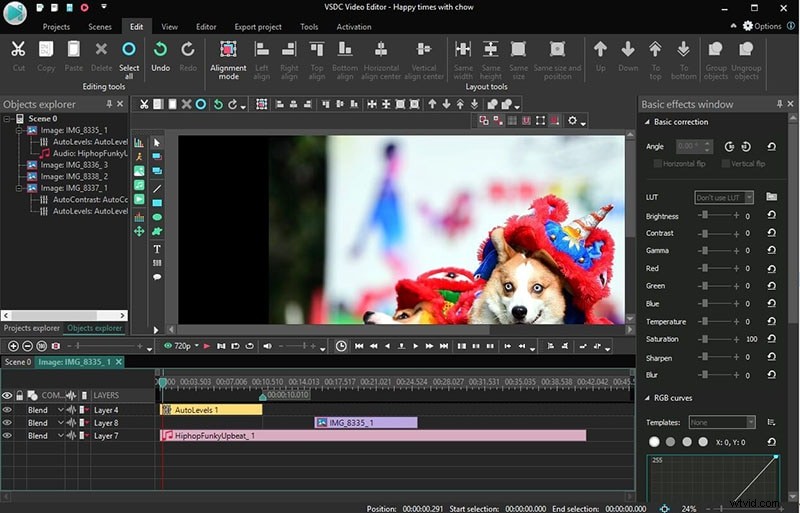
As a non-linear video editor, it can recreate all of the popular features you've seen on TV. Overall, VSDC is a beautiful alternative for individuals interested in video editing and who want to move beyond just dividing and merging files and adding music and titles.
Main Features of This App
- Green screen background removal via Chroma Key Tool
- It supports editing in multiple formats
- You can create multiple 3D charts and diagrams
- Essential editing tools such as 360 video editing, colour correction etc are available
Pros
- Lots of Blending modes
- Custom Colour correction
- Subpixel accuracy
Cons
- Pro editing features are missing
Supported OS/version
Windows
Price
Free and $19.99 for Pro Edition
5. VideoPad - Good for Absolute Beginners
NCH Software's VideoPad is another one of the video editors for Low-End PCs on our list. This application, which is available for Windows and Mac as the most user-friendly interface similar to Movie Maker.
The free version of VideoPad is exclusively intended for non-commercial home usage. It restricts video export choices on Windows to WMV and AVI and Mac to MP4, MOV, and AVI. There is also just one video track and one audio track in the free edition for a project.

The beauty of VideoPad is that it doesn’t require much effort to get started as a beginner. The menu tabs are not only simple to use, but there are also hundreds of ready-to-use titles, transitions, and video and audio effects.
On the one hand, it's useful for someone searching for a simple tool to cut vacation film and add music to it. If, on the other hand, you want to take your project to the next level, you could be disappointed by the absence of a non-linear video editing method.
Main Features of This App
- The app is available for multiple operating systems
- You can have digital audio tools
- This is a fast, efficient, and simple-to-use app
- It offers 50 free templates
Pros
- Easy-to-use
- User-friendly interface
- Multiple themes
Cons
- Limited support for animated videos
Supported OS/version
Windows and Mac
Price
$79.99 for Master's Edition
6. Clipify - A Intuitive Editor with Visual Effects
Clipify is a relatively new addition in the realm of video editors, but it is undeniably impressive. AMS Software developed this freemium video editor, a firm known for creating user-friendly but powerful software. PhotoWorks, a clever picture editor, and SmartSHOW 3D, a dynamic slideshow generator, are two of its most popular products. Clipify is their first foray into video editing, and it is a respectable one. Let's take a deeper look at this video editor designed for low-end computers.
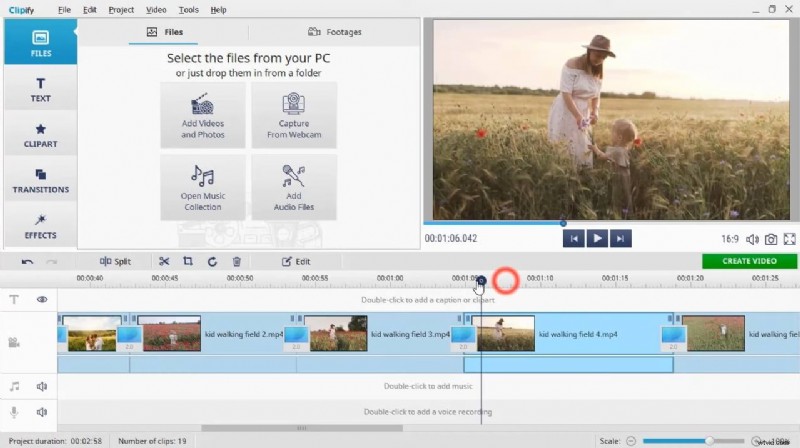
Clipify is a timeline-based video editor which allows you to add music, texts and voice over easily. With Clipify, you can split, cut, join your videos, change the video speed and stabilize the shaky footage.
Main Features of This App
- Audio and music editing
- Different export options
- Zoom-in and zoom-out
- Transition styles
- Chroma key feature
Pros
- Free version available
- Automatic video creation
Cons
- Some features are not available to free users
Supported OS/version
Windows 10, 8, 7, XP
Price
Start from $29.4 for the standard edition
7. Shortcut - A Strong Open-Source Contender
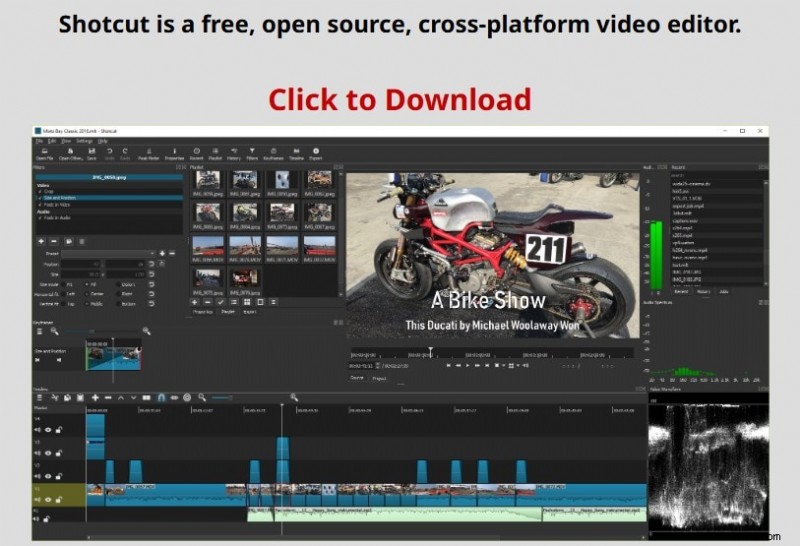
Shotcut is an excellent open-source editor that offers a great range of features. It has strong format support thanks to FFmpeg and offers more advanced audio and color correction tools than OpenShot. While its interface is a bit unconventional, it’s a stable and powerful choice for hobbyists who want to dive deeper into video editing without spending money.
Main Features of This App
- Advanced audio scopes and mixing tools.
- 3-way color wheels for color grading.
- Good support for various video and image formats.
Pros
- Powerful audio and video editing features for a free tool.
- Good stability and performance.
Cons
- The interface can take some time to get used to.
Supported OS/version
Windows, macOS, Linux
Vote Now: Crown the Best Video Editors for Low-End PCs in 2025! 🤔
We tested them all – now you decide! Which video editors for low-end PCs in 2025 deserve the #1 spot?
Select your top choice below:
Wondershare Filmora CURRENT LEADER
Microsoft Clipchamp
Apple iMovie
VSDC
VideoPad
Clipify
Shortcut
👏Thanks for voting! Your input helps others make smarter choices.🔥
See how your favorite video editors for low-end PCs stack up below!
How to Check Your Computer Specs?
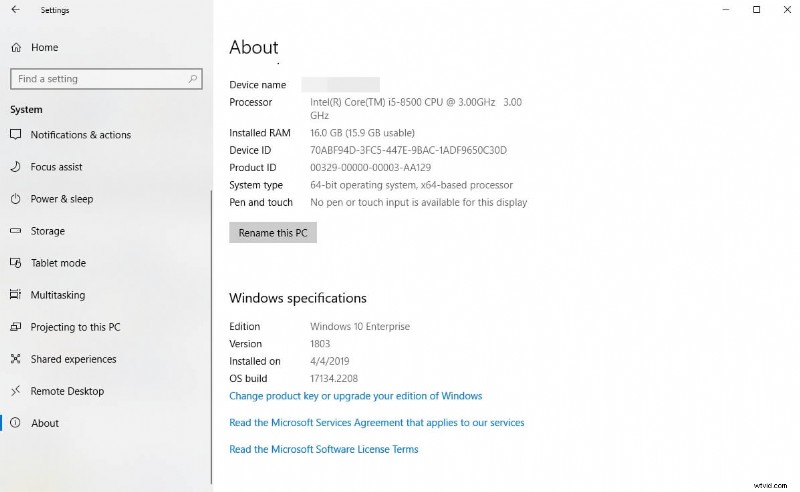
Some video editors will check the computer specifications first when you install it. But you can always check your computer’s configurations to find out if you fulfill the essential criteria for installing.
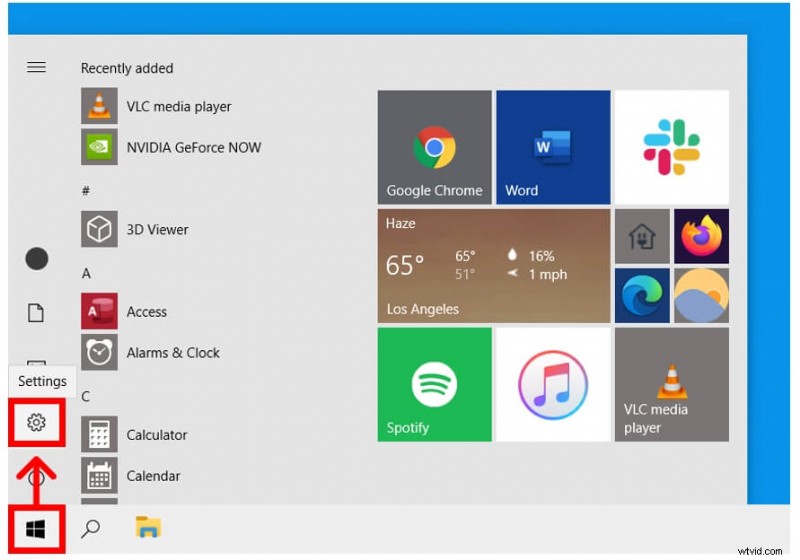
Here's how to check your specifications and the condition of your hardware on a Windows PC.
Step 1To begin, press the Windows Start button. This is the button in the bottom-left corner of your screen with the Windows logo. Then, choose Settings. This is the gear-shaped indicator located just above the power button.
Step 2Then, choose System. Scroll down to the left sidebar and click About. You may discover information on your CPU, RAM, and other components in this section.
Here's how to check your Mac specs
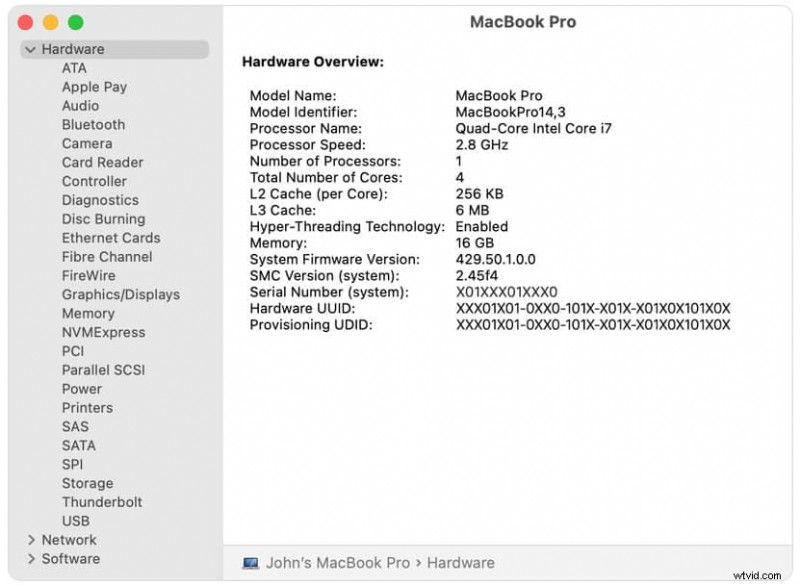
Step 1Select the Apple menu > About This Mac. This displays an overview of your Mac, including its model, CPU, RAM, serial number, and macOS version
(Note: Click the System Report button to get further information offered by the System Information application).
Step 2Press and hold the Option key when selecting Apple menu > System Information to launch System Information directly.
(Note: You may also utilize Spotlight to discover System Information, or start it from your Applications folder's Utilities section).
Conclusion
Finding a good Video Editor for a Low-End PC that is old or out of RAM is difficult. However, as you can see, it is doable. However, keep in mind that the longer your movie is, the more PC resources it will demand to edit.
The greater the resolution, the more likely you may encounter technical difficulties. In other words, if you're forced to work on a computer with limited capabilities, you should be careful about the media files you edit.
Secure Download