
The Best CapCut Alternatives for PC, Mobile & Online (2026 Review)
For creators who value privacy, ownership, and a seamless workflow, CapCut’s restrictive terms and rising fees have prompted a search for better options. This guide presents the leading CapCut alternatives across desktop, mobile, and web platforms, with detailed reviews, feature comparisons, and pricing insights to help you choose the right editor for your projects.
Why Filmora is the Best CapCut Alternative for Desktop?
- Robust AI editing tools that accelerate the creative process.
- Extensive library of templates and royalty‑free assets.
- Cross‑platform compatibility, enabling editing on PC, Mac, Android, and iOS.
100% Security Verified | No Subscription Required | No Malware

- Home
- Video Edit Software
- Best CapCut Alternatives for PC, Mobile & Apps like CapCut
If you’re looking for reliable CapCut alternatives for PC, Mac, mobile, or online, you’ve come to the right place. Many creators are reconsidering CapCut because of its strict terms of service and increasing costs. This guide covers the best options, including Wondershare Filmora (the top CapCut Pro alternative), iMovie, and InShot, so you can find the perfect CapCut video editor alternative that respects your creative freedom.
Part 1. Best Overall CapCut Alternative: Wondershare Filmora
Choosing the right desktop editor can transform your workflow and the quality of your finished videos. For those seeking a CapCut alternative for Mac or PC, two standout choices cater to different levels of expertise and project scope.
Wondershare Filmora: The #1 CapCut Alternative for Desktop and Mobile
Filmora offers creators a privacy‑first, ownership‑respecting editor with a transparent licensing model. Unlike CapCut, it contains no hidden clauses that access your voice, face, or personal data, ensuring you retain 100% of your content rights. Filmora’s free version is straightforward, while its paid plans unlock advanced tools without surprise fees.
 Secure Download
Compatibility
Windows, macOS, Android, iOS
Pricing
Free version; check the purchase page for full subscription pricing.
Best For
Users seeking high‑quality video output with cross‑platform flexibility.
Pros & Cons
- Intuitive interface for beginners and pros alike
- Fast rendering with support for cloud projects
- Available on both desktop and mobile devices
- Large built‑in library of stock footage, music, and templates
- Free version includes export limitations
- Not as lightweight as mobile‑only apps for basic tasks
Key Features
- Desktop Pro Tools: Mocha Filmora, Path Curve, keyframe animation, compound clips, adjustment layers
- Color Grading Suite: HDR support, color wheels, curves, color match, auto white balance
- AI Editing Features: Script‑to‑Video, Audio‑to‑Video, AI text generation, TTS, voice clone, quick text edit
- Cloud Collaboration: 100GB included, supports project sync and team editing
- Flexible Point Usage: 2000 monthly points for AI features, pay‑per‑use flexibility
- Export in Multiple Formats: MP4, MOV, and more, for seamless sharing across platforms
Target Users and Use Cases
- Creators: YouTube, TikTok, and promotional videos
- Students: Presentations, school assignments
- Businesses: Training content, marketing clips
Official Ratings and Brief Reviews
Filmora’s transparent licensing and powerful tools make it the most reliable CapCut Pro alternative and the best overall option for serious video creators.
Filmora vs. CapCut: Key Features & Why Filmora is a Better Alternative
| Category | CapCut Pro | Filmora Premium |
| Positioning | 🎯 Tailored for fast‑paced short videos (especially music‑based) & social media content. | 🎯 Designed for desktop‑based, high‑quality editing, color grading, and video compositing. |
| Platform Support | ✅ Cross‑platform (Mobile, Desktop, Web) with seamless environment switching. | ⚠️ Only Mobile, Desktop, lacks web editor; platforms function independently. |
| Pricing & Value | 💲 $19.99/month or $179.99/year. Flexible 1200 points/month for AI modules. | 💲 $59.99/year, includes 100GB cloud storage + 2000 points. Points system used for AI features. |
| Cloud Storage | ⚠️ Cloud is no longer free. Paid tiers: 10GB ($0.99/mo), 100GB ($4.99/mo), 1TB ($14.99/mo). | ✅ 100GB cloud storage included with subscription. Supports collaborative projects. |
| AI‑Powered Features | ✅ Rapid production via modules like AI Fashion Model, Script to Video, AI Erase, Motion Tracking. | ✅ Advanced AI features: Smart Cutout, Background Removal, AI TTS, Audio‑to‑Video, Script Creation. |
| Creative Tools | ✅ Super‑resolution, frame interpolation, flicker removal, dynamic blur, camera/motion tracking. | ⚠️ Lacks tools like super‑resolution, optical flow, AI Expand, camera tracking, AI motion blur. |
| Editing Workflow | ✅ Covers basics: multi‑track, magnetic timeline, Bezier curves, composite, filters, transitions. | ✅ Desktop‑level tools: Mocha tracking, Path Curve, compound clip, adjustment layer, pro keyframes. |
| Color Grading | ⚠️ Limited tools: no auto white balance, HDR, or lens correction. | ✅ Full suite: HDR, auto white balance, LUTs, curves, wheels, color match. |
| Plugins & Extensions | ❌ No support for advanced plugins like Mocha or desktop‑specialized extensions. | ✅ Supports professional plugins like Mocha Filmora and other premium editing tools. |
| Watermark Policy | ⚠️ Free version includes watermark. | ✅ Paid version offers watermark‑free exports, ideal for commercial use. |
| Cloud Collaboration | ⚠️ Relies on local storage; simple project management on web. | ✅ Full project sync, cloud‑based team collaboration supported. |
| Points Consumption | ⚠️ Some high‑usage modules (like Seedance AI Video, AI Dialogue Scene) consume points rapidly. | ⚠️ Modules like Script‑to‑Video, Idea‑to‑Video also require points; may raise total production cost. |
|
Show more Show less |

Part 2. Top 5 CapCut Alternatives for Mobile & Online
When editing on the go, convenience, versatility, and ease of use are essential. Below are five top CapCut alternatives that deliver powerful editing tools for Android and iOS users, as well as web‑based solutions for quick online edits.
1. iMovie – Free, Beginner‑Friendly Video Editor
Apple’s iMovie is a free, intuitive editor available on macOS, iPhone, and iPad. It offers a drag‑and‑drop timeline, 4K export, built‑in themes, and seamless iCloud integration. While it lacks advanced features like keyframing or motion tracking, it remains a reliable choice for home videos, school projects, and quick YouTube intros.
Pricing
Completely free for Apple device users
Best For
Apple users seeking a simple, cost‑free editor with clean output
Pros & Cons
- Free with all Apple devices.
- Clean interface and easy to learn for beginners.
- Supports 4K video editing and cinematic effects.
- Syncs seamlessly across iPhone, iPad, and Mac.
- Limited to Apple ecosystem (no Windows or Android support).
- Lacks advanced features like motion tracking or AI editing tools.
Key Features
- Drag‑and‑drop editing with built‑in themes and transitions.
- Trailer templates with cinematic storyboards.
- Support for 4K video resolution.
- Direct export to YouTube, Facebook, or AirDrop.
2. InShot – Simple and Quick Edits on the Go
InShot is a lightweight mobile editor that offers all the essential tools for quick, polished videos. Its minimalist design and intuitive controls make it ideal for beginners and social‑media creators seeking fast, stylish edits.
Compatibility
iOS, Android
Pricing
Free version with ads and watermarks; Pro version starts at $3.99/month
Best For
Mobile users who want fast, stylish edits for social media without a desktop
Pros & Cons
- Optimized for fast mobile editing.
- Wide range of filters, transitions, and effects.
- Easy‑to‑use timeline for trimming and cutting.
- Perfect for TikTok, Instagram Reels, and YouTube Shorts.
- Watermarks in free version.
- No desktop version or cross‑platform sync.
- Limited control compared to advanced editors.
Key Features
- Built‑in filters, stickers, and sound effects.
- Video speed control and reverse playback.
- Social media presets for aspect ratios and resolutions.
- Voiceover recording and background music options.
3. KineMaster – Advanced Mobile Editing at Your Fingertips
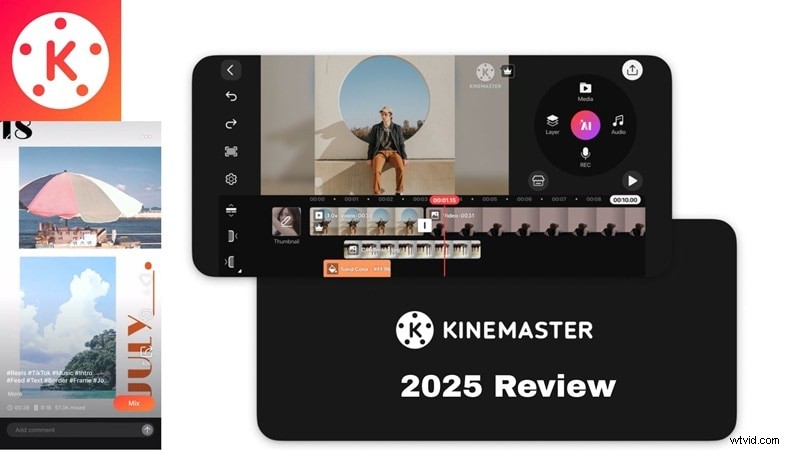
KineMaster delivers desktop‑level features in a mobile app, making it a favorite among advanced mobile editors. With multi‑layer editing, chroma key, and keyframe animation, it’s a powerful tool for complex projects straight from your smartphone.
Compatibility
iOS, Android, Windows (beta)
Pricing
Free version with watermark; Premium starts at $4.99/month
Best For
Mobile creators who need multi‑layer editing and professional control
Pros & Cons
- Supports multi‑layer video editing on mobile.
- Chroma key (green screen) and keyframe animation.
- High‑quality export up to 4K resolution.
- Large asset store with transitions, effects, and audio.
- Free version includes watermarks.
- Interface may be overwhelming for beginners.
- Desktop version is still in beta and limited in features.
Key Features
- Multi‑track timeline with video, audio, and effects layers.
- Chroma key for green screen editing.
- Advanced animation with keyframe support.
- Built‑in audio mixer and voiceover recorder.
4. Clipchamp – Easy Editing in the Cloud
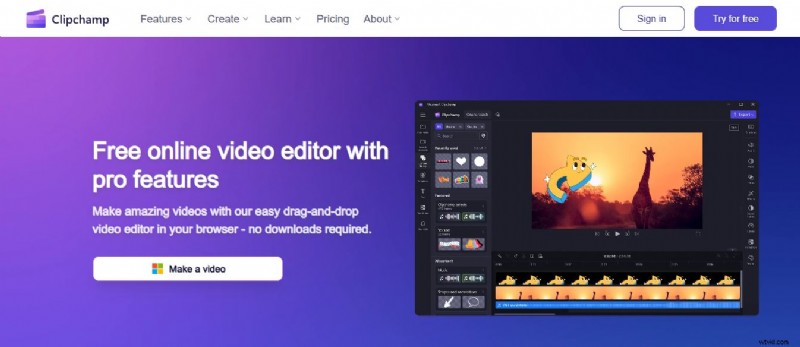
Clipchamp is a browser‑based editor that offers a streamlined, all‑in‑one experience. It’s ideal for users who want quick, efficient edits without installing software.
Compatibility
Windows, Web-based (via browser)
Pricing
Free with basic features; Premium starts at $11.99/month
Best For
Windows users and online creators needing quick, browser‑based video editing
Pros & Cons
- No installation required – works directly in browser.
- Intuitive drag‑and‑drop timeline editor.
- Integration with Microsoft 365 and OneDrive.
- Good for quick edits and social media content.
- Web‑only on macOS (no dedicated app).
- Limited advanced features compared to full desktop editors.
- Free version includes export restrictions and watermark.
Key Features
- Web-based editor with real‑time preview.
- Built-in stock media and AI voiceovers.
- Screen and webcam recording features.
- Text‑to‑speech and subtitle generation tools.
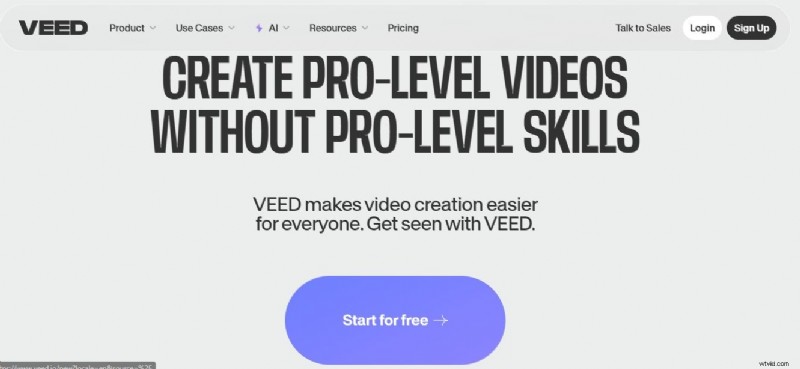
5. VEED.io – Perfect for Quick Online Edits
VEED.io is a popular web‑based editor that emphasizes speed and simplicity. It’s especially useful for basic edits and quick social‑media posts.
Compatibility
Web-based (accessible on all major browsers)
Pricing
Free plan with watermark; Pro starts at $12/month
Best For
Online creators and teams needing fast video editing with AI tools and collaboration
Pros & Cons
- Perfect for quick and simple edits, especially for social media content.
- Requires no downloads or installations.
- Offers unique AI tools like subtitle generator, AI voice generator, noise remover
- Limited advanced editing capabilities compared to desktop software.
- The free version includes watermarks on exports.
Key Features
- Many AI tools beyond basic editing.
- Subtitle generator for automatic translation and accessibility.
- Recording tools: camera, screen, and audio recorder.
- AI background remover for quick background changes.
- Optimized for Instagram, TikTok, and Facebook.
- Text-to-speech tool.
- Video cropper, trimmer, and enhancer.
Conclusion
Choosing the right CapCut alternative hinges on your platform, skill level, and creative goals. Whether you need a robust desktop editor like Filmora, a lightweight mobile solution like InShot, or a web‑based tool like Clipchamp, there’s an option that fits every workflow. Among all, Wondershare Filmora stands out as the most comprehensive CapCut best alternative, delivering powerful tools, cross‑platform flexibility, and a user‑friendly experience.
Explore these alternatives, match them to your needs, and start creating high‑quality videos with confidence.