
Video content is now part of daily life. Creators, brands, and casual users all want tools that make editing quick yet powerful. The Vita video editor is one of the most popular mobile apps for crafting short, stylish clips. It combines templates, filters, and music in a way that works for social media, vlogs, and personal projects. But beyond speed, creators also look for quality, flexibility, and creative freedom.
This review explores what the Vita app offers, how it performs, and where it fits best. You will see its core tools, strengths, and limits. Then, we look at the best editor's choice that can handle advanced editing, giving you the best of both worlds for your next video project.
Part 1: What is the Vita Video Editor App?
The Vita video editor brings pro-style tools to your phone. It has an easy interface and ready-to-use templates that help you edit quickly without cost. Developed by SNOW Inc., a company behind many successful editing apps, it already has millions of downloads.
Built for creators who want speed and style, it can turn full HD clips into polished content. With tools like speed control, text, filters, and effects, it helps transform basic footage into engaging videos.

Common use cases include:
The Vita app is flexible and works for many creative needs. Here are some popular ways people use it:
- Personal Memories: Add filters, effects, and background music to any clip of your day. You can turn them into beautiful works of art.
- Educational Videos: Spicing up tutorials and lessons using sound effects, captions, and animated text.
- Vlogs: Make your vlogs stand out with the Vita app's vlogs templates, fonts, and text styling options.
- Ad Campaigns: Make video marketing easy with transitions, filters, and sharp HD quality.
- Creating social media content: You can edit your posts for Instagram, TikTok, or even YouTube by adding the correct aspect ratio and fun effects.
1. VITA - Video Editor & Maker: App Details
| Fetaures | Details |
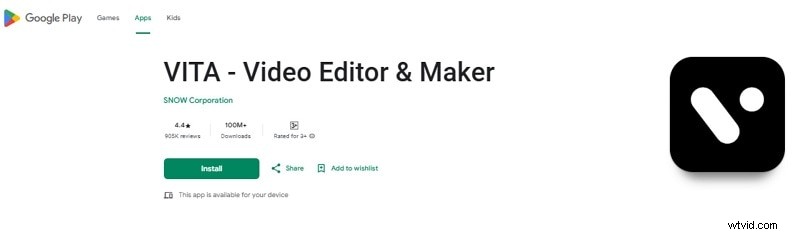
| App Name | VITA – Video Editor & Maker |
| Developer | SNOW Corporation |
| Ratings | 4.4 Stars (905K Reviews) |
| Pricing | 100M+ |
| Release Date | December 26, 2019 |
| Latest Update | Ongoing (Refer to Play Store) |
| Comatibility | Android, iOS |
2. Downloading Vita: The Simple Start to Editing
Vita is available as a mobile app on both Android and iOS devices. Vita is not available for PC. If you want to work on a desktop, you may need to look for a Vita for PC alternative.
For Android (Google Play)
- Open the Google Play Store.
- Type "Vita – Video Editor & Maker" in the search bar.
- Tap Install and wait for the download.
- Launch the app and begin editing.
For iOS (App Store)
- Go to the Apple App Store.
- Search for "Vita – Video Editor & Maker."
- Tap Get and complete the installation.
- Open the app to start your project.
System Requirements
- Android: Version 8.0 or higher
- iOS: Version 13.0 or later

Filmora
AI Video Editing App & Software
The Best Vita Alternative for Win/Mac/Android/IOS!
Filmora is a versatile, all-platform video editor that provides a powerful and user-friendly alternative to Vita, perfect for creators seeking advanced features without complexity.
3. Vita Video Editing App Highlights and Core Features
Key Highlights
The Vita editing app includes tools that make creating short videos easy. Here are the Key highlights:
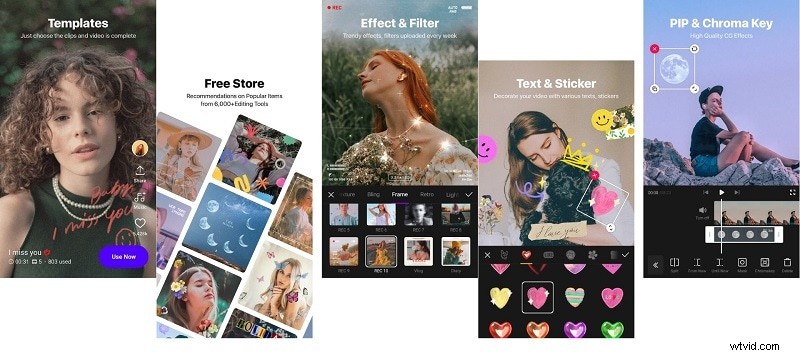
- GIFs from GIPHY: Add fun animations directly.
- Copyright-free stock clips: Use built-in stock without worries.
- Photo stickers: Turn pictures into playful elements.
- Picture-in-Picture (PIP): Layer videos for creative layouts.
- Text tools: Titles, captions, and dynamic fonts.
- Aspect ratios: 16:9, 1:1, 9:16, and more for every platform.
Core Features
The Vita video editing app offers a mix of creative and practical tools designed for quick results. Here are some of the most useful features explained in simple terms.
- Easy editing tools: The app includes all the basics you need. Trim the start and/or end; reverse the clip, rotate, and change the order as needed. You can even blur the background or apply basic animations with a few taps.
- Adjust playback speed: Vary the speed of your video with slow-motion or fast-motion effects. This is great for time-lapse footage, action shots, and dramatic scenes.
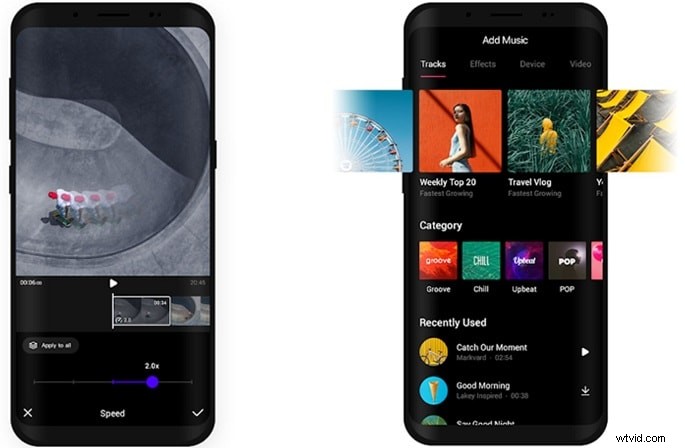
- Background music and voice effects: Strong audio can shape how viewers feel. You can add music through the app's library, drag in DRM-free tracks already on your device, or extract sound from video clips. You can also add voice effects for a fun twist.
- Video filters: Select from a variety of filters like travel, food, portrait, film, and retro. You can add them to individual clips or use the same filter on the entire video to give it a cohesive feel.
- Stunning templates: Templates are a standout feature. They cover various categories, including lifestyle, vlogs, and travel. With them, you can start a project quickly and save time while still creating engaging edits.
- Full HD export: Videos can be exported in 1080p for sharp detail. This makes your content ready for platforms like YouTube, Instagram, or TikTok without losing quality.
4. Vita App Review: Pros You'll Enjoy, Cons to Consider
Here's a closer look at what makes the Vita app shine and where it falls short:
Pros
- Built-in Resources: The app comes with a free library of filters, sounds, and effects. No need to search or download extras from outside.
- Simple Design: Its interface is clean and easy to follow. Even novices can make fast edits, and the ad-free interface lets you focus on your work.
- HD Quality: Vita allows exports in crisp 1080p. For a mobile editor, this is a strong advantage.
- Premium-like Tools: Many features you'd expect only in paid editors are already included for free.
Cons
- Performance Issues: On some devices, the app freezes or even refuses to export finished projects. Older phones may also heat up while running.
- Copyright Risks: Although music is labeled free, a few users reported copyright claims after using certain tracks in their uploads.
5. User Experience & Performance
The Vita video editor is designed for creators who want quick results without spending money. It balances ease of use with solid output, making it popular among social media users.
Best For
- Beginners who want to edit fast
- Content creators focused on TikTok, Instagram, or YouTube Shorts
- Users who need templates more than complex controls
Best Feature
- Full HD export with no watermark, rare for a free mobile editor
- Templates that let you finish a project in minutes
Limitation
- No multi-track editing for advanced layering
- Lacks pro tools like motion tracking
- Better suited for casual or semi-pro projects
Ratings (Out of 5)
| Ease of Use | 5/5 |
| Editing Features | 4/5 |
| Video Quality Output | 5/5 |
| Music & Sound Library | 4.2/5 |
| Filters & Effects | 4.1/5 |
| Export Speed | 4.1/5 |
6. How to Use the VITA Video Editing App
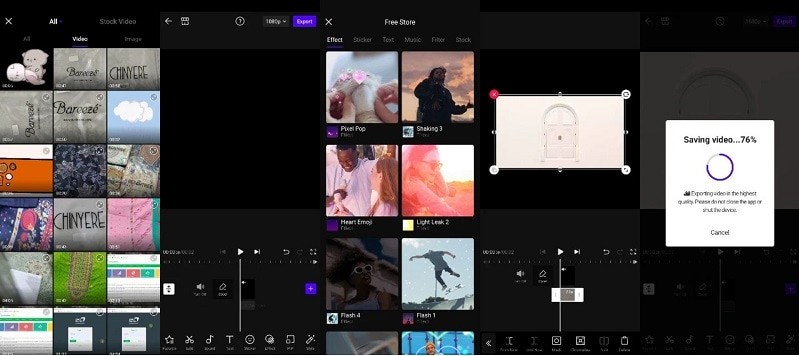
The Vita video editor works in portrait mode. Turning the phone sideways does not change the layout. Editing options stay at the bottom, while the preview is shown at the top for convenience.
1
Import Media
Begin a new project and add clips or photos from your device. There is no restriction for the number of files you upload. You can also use stock videos from the included library. Remember, the bigger the import, the longer it takes to load it.
2
Basic Editing Tools
After it is imported, tap the bottom menu to execute operations such as trimming, resizing, cropping, or adding text. Tune your brightness, contrast, or saturation with simple sliders. Drag the timeline to quickly mark in and out points.
3
Apply Filters, Stickers, and Music
Tap on the store icon to check out free stickers, effects, and sound options. Filters can be added to clips or an entire project. Music tracks in the app's library can be used, or one of your own.
4
Green VS Blue (Chroma Keying)
Add a video to the PIP track and a GREEN SCREEN clip above it. Choose Chroma Key to replace the green background with another scene or picture.
5
Export the Project
When done, tap export at the top. Select your resolution and frame rate, then save the video to your gallery. It's ready to share.
Part 2: Best Vita App Alternative on Mobile and Desktop
Mobile apps like the Vita video editor are handy, but desktops bring more. Dollar for dollar, desktops give more performance. They also deliver stable power, simple upgrades, and better long-term value. This makes them reliable for heavy editing work. For creators who want full control, desktops are the natural next step.
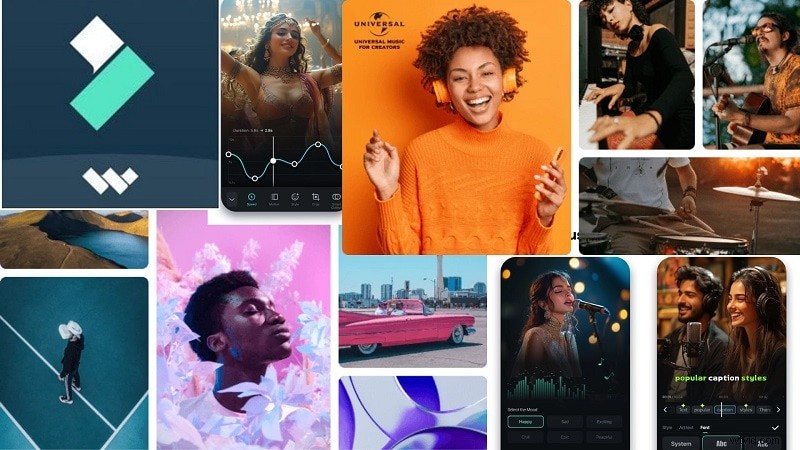
Wondershare Filmora is built for those who need more than a mobile app. It works on both desktop and mobile, so projects move freely between devices. The interface is simple, easy for beginners, and smooth to learn. Even advanced tools like keyframes are not hard to use here.
 Secure Download
Key Tools and Features
- Multi-track Timeline: Arrange video, audio, and effects with full control.
- AI Copilot & Smart Cutout: Enable you to get editing suggestions or process to remove backgrounds in one click.
- Motion Tracking & Keyframes: Attach text or effects to moving objects and add superior effects.
- Green Screen / Chroma Key: Replace backgrounds with onscreen video for professional results.
- AI Audio Tools: Denoise, vocal remover, and auto beat sync for polished sound.
- Color Grading: LUTs, HSL controls, and color match for cinematic visuals.
- Stock Media Access: Millions of assets from Pexels, Pixabay, Unsplash, and GIPHY. You can have more assets using filmstock.
- 4K or 8K Export & Screen Recording: Perfect for tutorials, YouTube, or professional projects.
Filmora balances power with ease, making it a strong step up for those who start with mobile editors but need desktop strength for bigger ideas.
Conclusion
The Vita video editor proves why mobile editing is so popular today. It is simple, free, and packed with features that help users create social-ready content fast. Still, its limits appear when projects need more depth, stability, or advanced effects. That is when a desktop solution becomes the better choice.
Filmora fills this gap with AI tools, multi-track timelines, professional audio controls, and 4K or 8K export. It is a natural progression for anyone who starts with the Vita app but needs stronger options to push creative work further.
Secure Download