
Animated text instantly elevates any visual content. By converting your motion into a lightweight GIF, you can share striking messages across social media, websites, and presentations with ease.
Choosing the right tool is essential, because not every GIF maker delivers smooth motion, crisp fonts, or fast exports. Below, we’ve evaluated the most reliable options and highlighted the features that matter most.
Scroll down to find the tool that best fits your workflow.
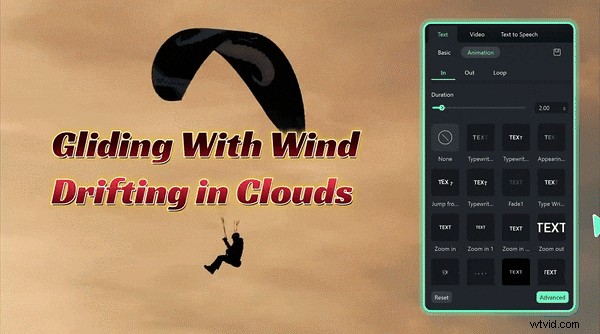
Part 1. Top 5 Animated Text GIF Makers
We’ve curated five standout tools that range from browser‑based editors to full‑featured desktop applications. Each offers unique strengths—whether you need speed, versatility, or professional polish.
1. Wondershare Filmora – The All‑in‑One Professional GIF Maker
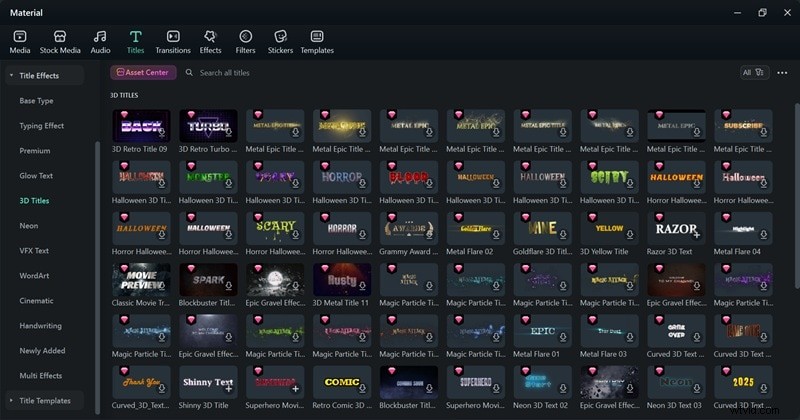
Filmora is a complete video editor that excels at creating animated text GIFs. Its Text Animation feature lets you design eye‑catching motion with over 100 preset movements, 1,000+ licensed fonts, and custom text paths.
Platforms: Windows, macOS, iOS, Android.
Pros: Extensive template library, natural motion, full video editing suite.
Cons: Free version watermarks exported files.
Key Features: Handwriting, 3D, cinematic styles; over 100 animation types; text path control; 1,000+ fonts.
Ideal Use Cases: Social media promos, YouTube intros, educational clips, personalized GIFs.
2. Loading.io – Quick & Flexible Online GIF Maker
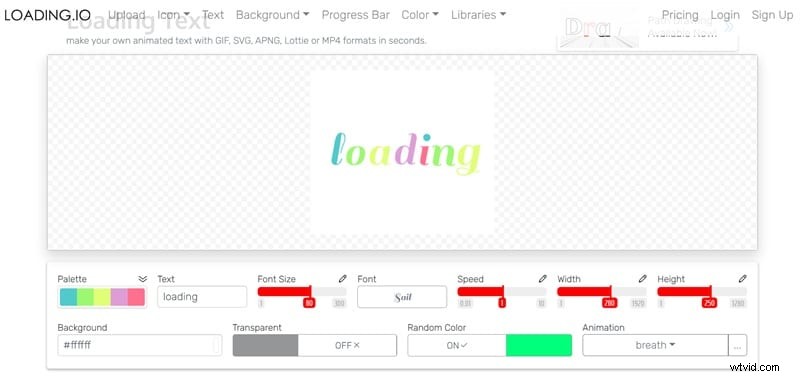
Loading.io offers a fast, browser‑based editor that lets you tweak speed, font, size, and background color. Export options include GIF, SVG, APNG, and MP4.
Price: Free tier available; premium plans start at $9.99/month.
Pros: Lightweight, creative control, multiple export formats.
Cons: Many effects behind paywall; account required for custom text.
Key Features: 100+ animation styles; 800+ fonts; 300+ color combos.
Ideal Use Cases: Social media loops, loading animations, website motion titles.
3. Textanim – Classic Glitter & Flashy GIFs
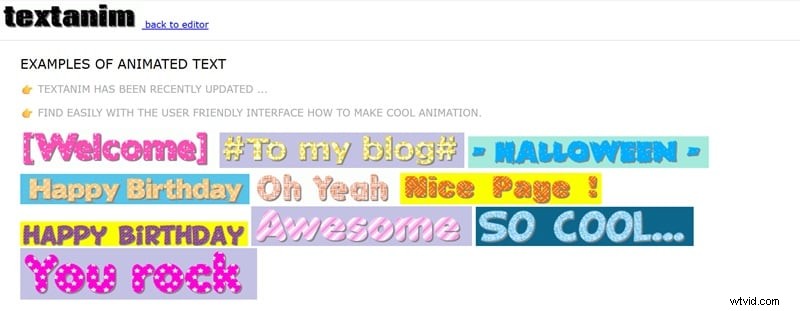
Textanim is a straightforward, free tool that lets you generate animated GIFs instantly—no sign‑up required. It offers a solid set of presets and multilingual support.
Pros: No account needed; can create simple logos.
Cons: Ads during editing; animation effects feel dated.
Key Features: 50+ fonts; support for Japanese, Arabic, Thai; multiple background presets.
Ideal Use Cases: Retro‑styled posts, greetings, banner graphics.
4. TextStudio – Stylish 3D & Modern GIFs
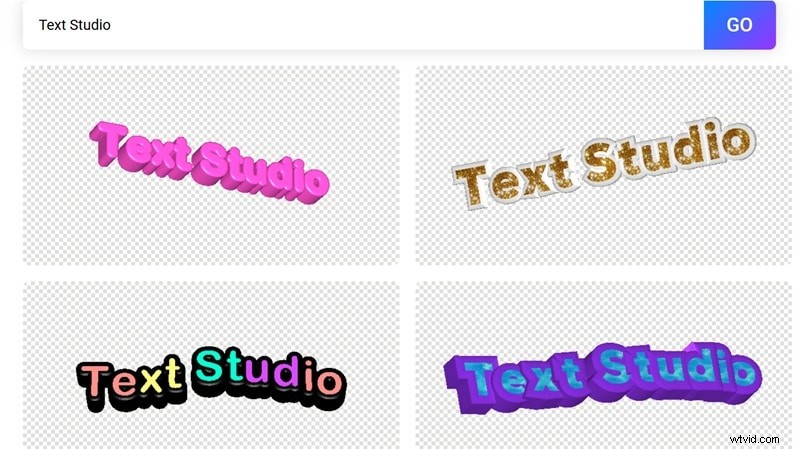
TextStudio delivers quick 3D text templates with real‑time previews. It’s free to use, with a premium plan starting at $9.99/month.
Pros: Simple interface, customizable 3D templates.
Cons: Frequent pop‑ups; standard animations limited.
Key Features: Wide font and color selection; 3D templates inspired by Minecraft, Pokémon; instant download.
Ideal Use Cases: Social media titles, branding visuals, personalized greetings.
5. BlogGIF – Fun, Meme‑Ready GIFs
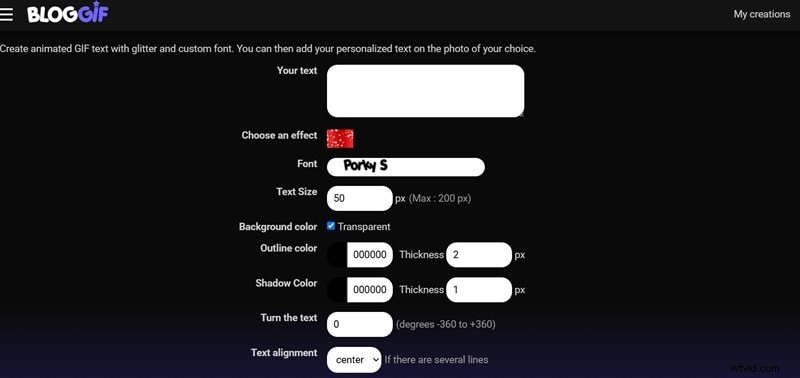
BlogGIF offers a playful interface with thousands of background effects. It’s free, ad‑free, and allows image uploads for overlay text.
Pros: No ads, image overlay support.
Cons: Limited animation control; pixelation at larger sizes.
Key Features: 1,000+ background effects; 100+ fonts; customizable size, color, shadow.
Ideal Use Cases: Greeting cards, social posts, personalized messages.
Part 2. Choosing the Right Animated Text GIF Maker
Each tool excels in a different area. Consider these criteria when making your decision:
- Ease of Use: Create smooth motion in minutes without complicated menus.
- Style Variety: Beyond fades—look for dynamic transitions and creative effects.
- Export Quality: High‑resolution, loop‑friendly GIFs with transparent backgrounds.
- Customization: Fonts, motion paths, colors—small tweaks can change the vibe.
- Price & Value: Free tools suit quick edits; premium plans unlock richer effects and higher export quality.
Our Final Pick: Filmora. Its extensive template library, deep customization, and full video editing suite make it the most versatile choice for professionals and hobbyists alike.
Step‑by‑Step: Creating an Animated Text GIF in Filmora
Below is a quick tutorial to illustrate how effortless Filmora’s workflow is.
Step 1 – Launch Filmora and Start a New Project
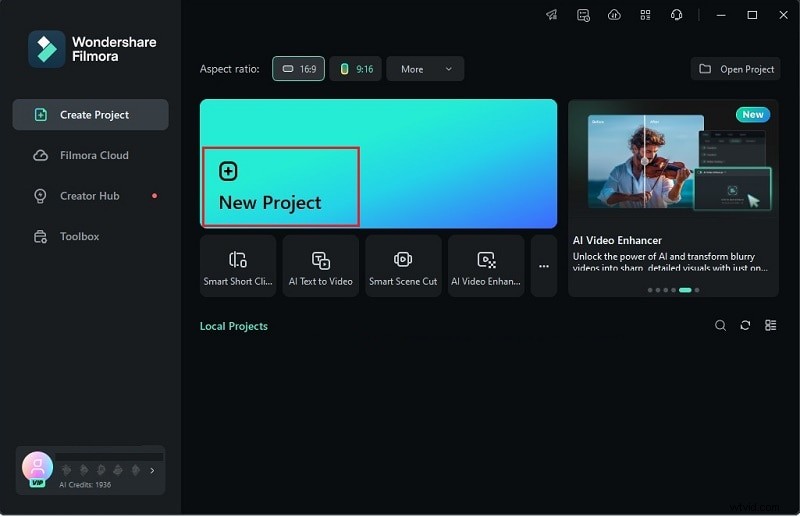
Open the latest version of Filmora, click New Project, and prepare a fresh timeline.
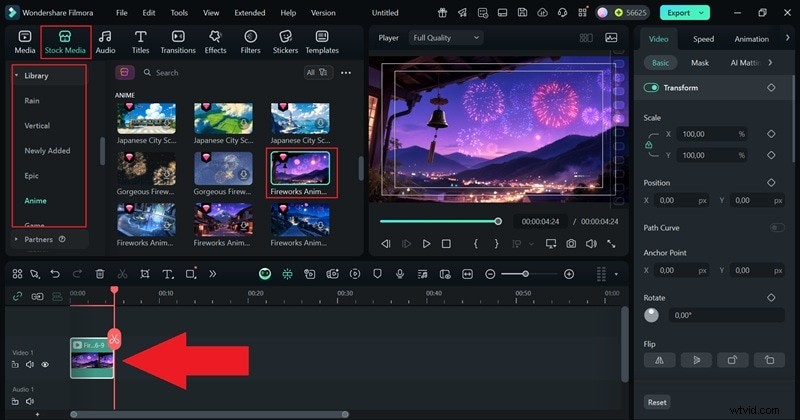
Step 2 – Choose Your Background
Drag a clip or solid color onto the timeline. Filmora’s Stock Media library offers textures and visuals to match your style.
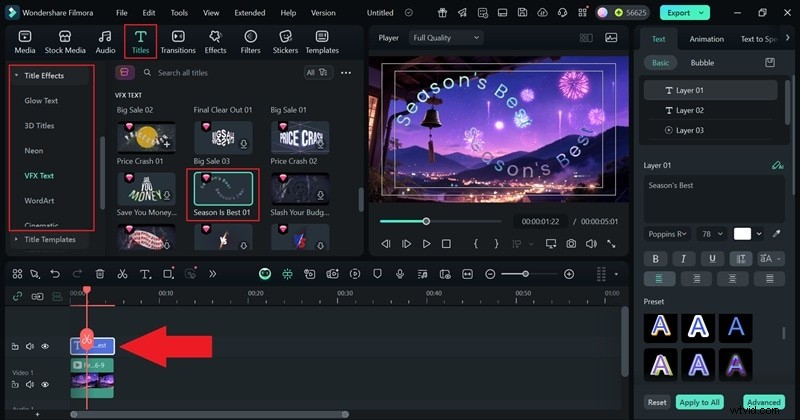
Step 3 – Add a Text Template
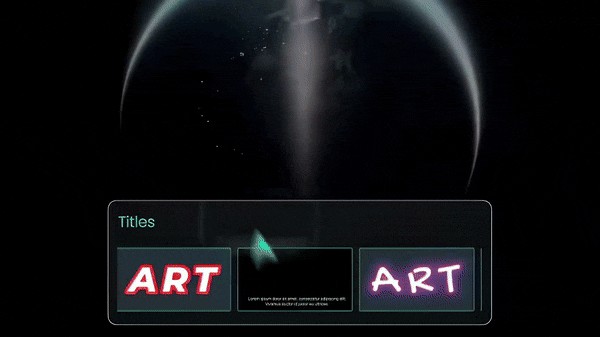
Go to Titles → Title Effects, select a style, and drop it above the background.
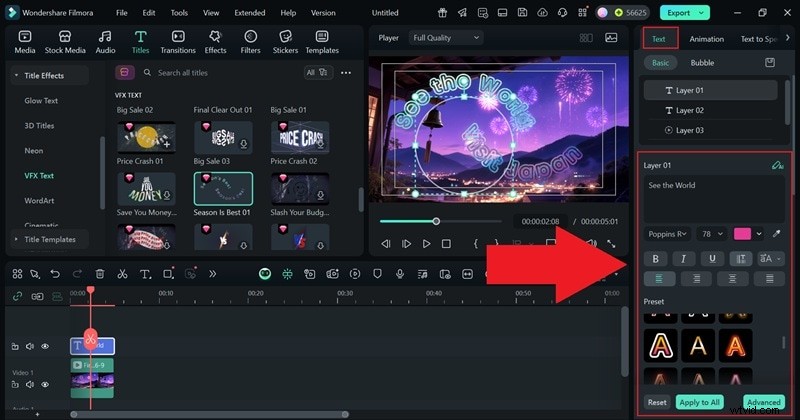
Step 4 – Customize the Text
In the property panel, type your message. Adjust font, size, and color. For motion, open the Animation tab and pick a preset.
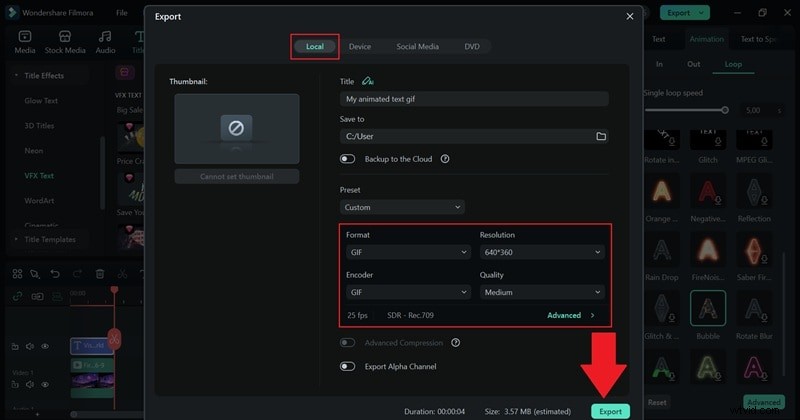
Once satisfied, click Export, choose GIF, set the destination, and export.
That’s all—your animated text GIF is ready for sharing.
Part 3. Creative Uses for Animated Text GIFs
Animated text GIFs are versatile tools for storytelling, marketing, and personal expression. Here are a few inspiring applications:
- Marketing Campaigns: Animate discount codes or taglines to capture attention.
- Sports Highlights: Overlay motion text that syncs with gameplay moments.
- Travel Intros: Layer titles over scenic footage for cinematic introductions.
- Personal Messages: Sparkling or flowing text adds a heartfelt touch to greetings.
Conclusion
Whether you’re a marketer, content creator, or hobbyist, the right animated text GIF maker can elevate your visuals. Filmora stands out for its professional quality and flexibility, while Loading.io, Textanim, TextStudio, and BlogGIF offer excellent alternatives for specific needs.
With the right tool, you can craft engaging, polished GIFs that resonate across platforms.

Frequently Asked Questions
Can I Make Animated Text GIFs for Free?
Yes. Tools like Textanim and BlogGIF allow free creation, and Filmora’s free version includes many professional animation options.
Do Animated Text GIFs Support Transparency?
Most tools support transparent backgrounds, ensuring seamless integration into videos and web pages.
Can I Edit Existing GIFs with New Text?
Absolutely. Platforms like Filmora or BlogGIF let you overlay new text on existing GIFs.
Which Tool Is Best for Social Media?
Filmora offers the fastest export and highest quality, making it ideal for Instagram, TikTok, and YouTube.