
Lighting can make or break a visual project. When shadows hide key details, AI relighting offers a professional fix without a reshoot. ClipDrop Relight has emerged as a top-tier tool for photo enhancement, but does it support video? In this 2026 guide, we explore how to use Relight ClipDrop, its pricing, and why a timeline-based AI video relighting alternative is essential for modern creators.
One good example of an AI relighting tool is ClipDrop Relight. If you have been thinking of trying it, this article explains how ClipDrop Relight works, what it can realistically fix, and where its limits appear. We will also introduce a more professional AI video relighting option to help creators choose the right tool with clarity and confidence.
Part 1: What Is ClipDrop Relight and How Does It Work?
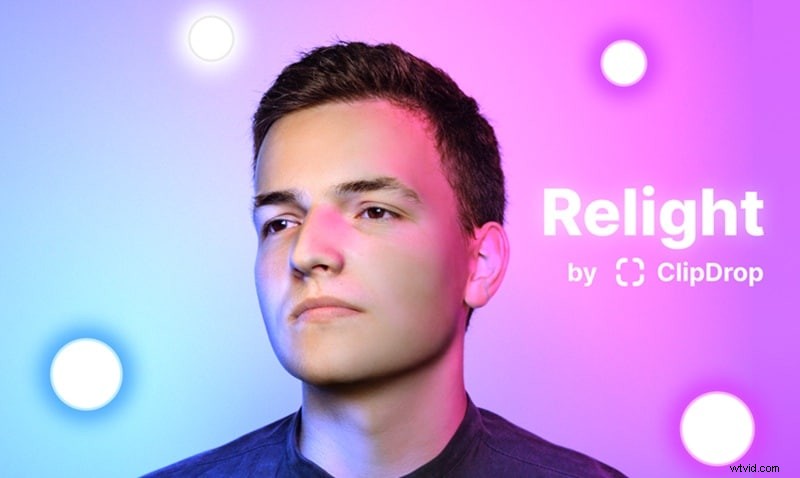
ClipDrop Relight is an AI-based tool that lets creators adjust lighting in a photo after it's captured. ClipDrop Relight simulates realistic light direction and intensity by understanding the structure of the image itself instead of applying flat brightness adjustments.
How ClipDrop Relight Works
- Depth awareness: ClipDrop AI Relight estimates which parts of an image are closer or farther away using depth prediction. This helps the AI understand spatial separation between subject and background.
- Surface orientation: The system predicts how surfaces are angled. This allows light to fall and reflect naturally rather than spreading evenly across the image, a principle widely used in modern computer vision
Together, these methods allow Relight ClipDrop to add virtual light sources that respect shape, volume, and shadows.
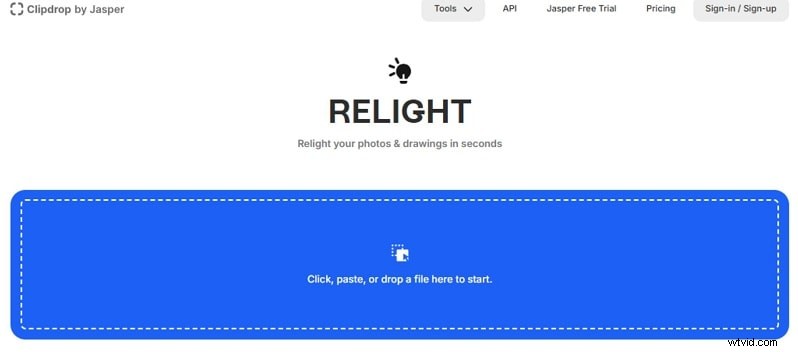
Why the Web-Based Version Matters
- No software download or installation
- Works directly in a browser on any device
- Fast testing and instant previews
This web-first design makes clipdrop co relight practical for quick edits, remote work, and creators who want results without technical setup.
Part 2: Step-by-Step Guide: How to Use Relight Clipdrop for Stunning Photos
ClipDrop Relight can be accessed directly through a web browser, which makes it easy to use on any device without installing software. Follow these steps to use Relight ClipDrop.
Step 1
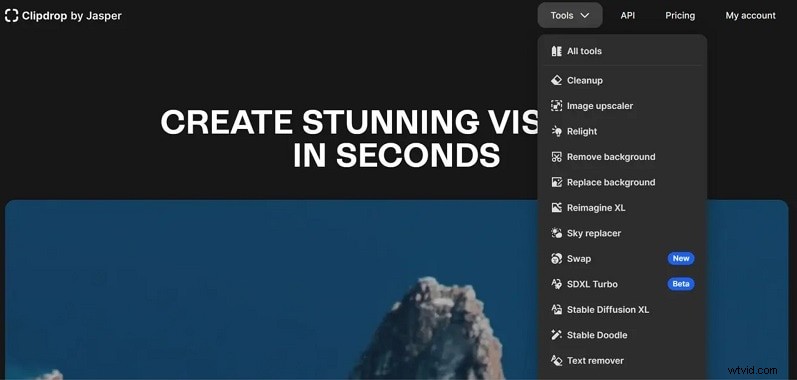
Open ClipDrop in your web browser
From the Tools menu, select Relight. This takes you to the relighting workspace.
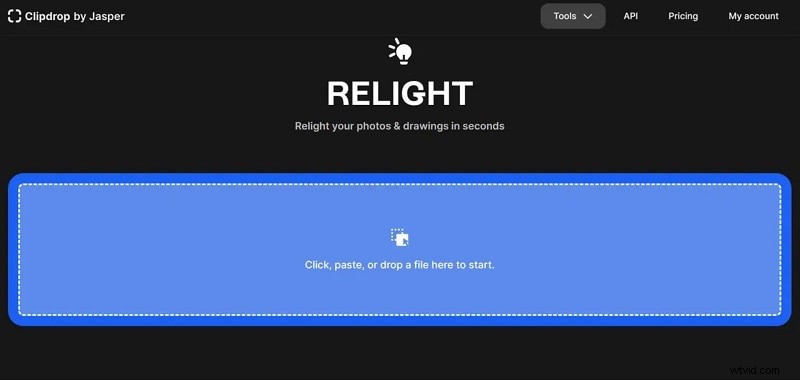
Click the upload area to choose an image. You can also drag and drop a file into the page. If your image is already copied, paste it into the same area.
Step 3
Pick your output mode
Choose the free option to continue with standard export. If you need higher-quality output, select the HD option and follow the upgrade prompt.
Step 4
Apply a look first, then refine it
Start with a preset to set the overall mood. Then adjust the ambient color and strength to match your scene.
Step 5
Shape the light with controls
Use the first light controls to set direction and intensity. If you want more control, add another light source and tune it to affect the whole photo or a specific area.

Click Download to save the edited image to your device.
Part 3: ClipDrop Relight Pricing: Can You Use ClipDrop Relight Free?
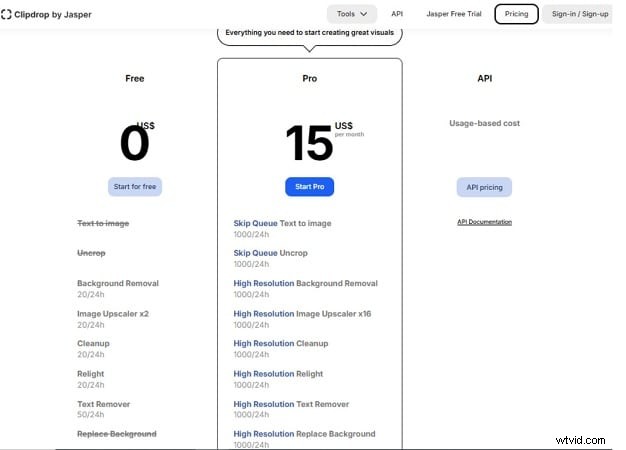
ClipDrop relight free access is available and works directly in the browser. According to ClipDrop's official pricing page, the free plan allows users to relight images at standard resolution, with a daily usage cap. This tier is suitable for testing, learning the tool, and casual personal edits.
What You Get with the Free Plan
- Web-based access with no upfront payment
- Standard-quality relight results
- Limited daily usage (relight included in the free quota)
- Intended for non-commercial use
For higher output quality and heavier workloads, ClipDrop offers a Pro plan.
ClipDrop Pro (Relight Included) – $15/month
- High-resolution relight support
- Much higher daily processing limits
- Skip-queue processing for faster results
- Commercial-use rights
Part 4: Is there a ClipDrop Relight Download for Desktop?
No. There is no desktop application for ClipDrop Relight on Windows or macOS. ClipDrop Relight works entirely online through a web browser. This means no installation, no updates, and no system requirements. You always access the latest version by visiting the official website.
If you want a desktop tool that works in a similar way to ClipDrop Relight but runs locally on your computer, Wondershare Filmora is the tool you can rely on. Not just ClipDrop, AI relighting is now built into many modern editors, including Filmora. This feature is accessible directly inside its editing workspace.
| Features | ClipDrop | Filmora |
| Supported Formats | Image (JPG, PNG) | Video (MP4, MOV, MKV, AVI, etc.) and Image (JPG, PNG, GIF, WebP, etc.) |
| Number of Light Sources | 1–3 light sources | 1–3 light sources |
| Color Correction Tools | ||
| Real-time Preview | ||
| Additional Editing Tools | Extensive | Few |
| Processing Speed | Fast | Fast |
|
Show More Show Less |
Filmora works on both Mac and Windows. Since AI Relight is built right into the editor, you get some practical benefits, such as:
- Keeping full control over the rest of your edit while adjusting light and shadows
- Working offline once the software is installed, without relying on a browser
- Maintaining better performance and stability compared to web-based tools
Part 5: Best AI Video Relighting Alternative: Why Choose Filmora Over ClipDrop?
While ClipDrop Relight is effective for still images, it does not support video timelines or frame-to-frame lighting consistency. Video relighting requires subject detection, motion awareness, and stable lighting across scenes.
If you need to work on moving images as well, Wondershare Filmora introduces AI Relight, designed specifically for video creators. The feature analyzes each clip to balance brightness, shadows, highlights, and color temperature, making subjects clearer without flattening the scene.

 Secure Download
Unlike web-based photo tools, Wondershare Filmora provides a robust AI Video Relight solution directly on your editing timeline. This makes it the ultimate ClipDrop Relight alternative for those who need to maintain lighting consistency across moving frames—a feature ClipDrop currently lacks.
Why Filmora Is the Superior ClipDrop Relight Alternative for Creators
Filmora combines speed and control, which photo-based tools cannot offer for video. Below are some key advantages for creators of using Filmora:
- One-click intelligent relighting for fast correction
- Preset lighting styles such as front lighting and ambient lighting
- Custom lighting mode with up to 8 virtual light sources
- Visual light controls using draggable on-screen light orbs
- Real-time preview while adjusting lights
Unlike manual lighting tools, Filmora uses AI to reduce setup time while keeping creative flexibility.
Part 6: How to Apply AI Relight in Filmora (Tutorial)
Step 1
Import and Select Your Clip
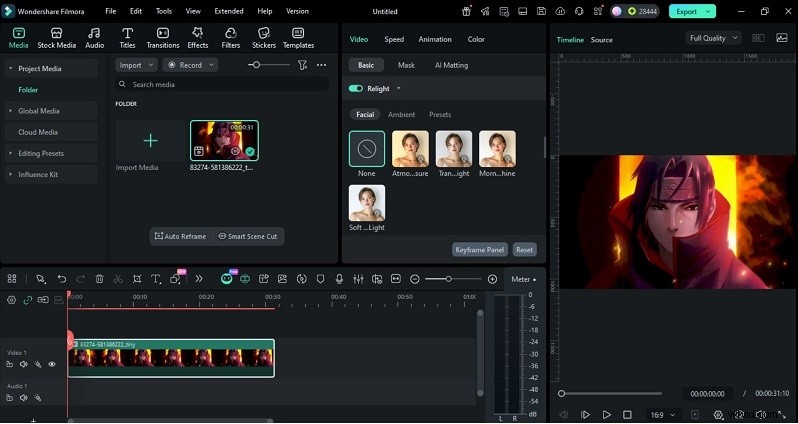
Add your video to the timeline and click it to open the editing controls. In the right Properties panel, go to Video > Basic and enable Relight, which appears below the Drop Shadow option.
Secure Download
Step 2
Choose a Relighting Approach
Use Presets or Ambient for quick results, or switch to Facial when the subject's face needs clearer, more balanced lighting.
Step 3
Apply or Refine The Lighting
Select a preset to set the mood, then adjust the overall strength if needed. For more control, activate Light 1 or add another light to fine-tune how the scene is illuminated.
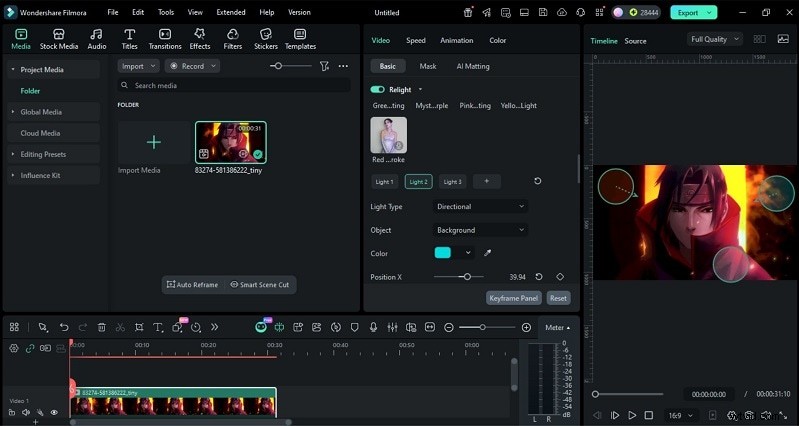
Play the clip to check lighting consistency, make minor adjustments if required, and export the video.
Beyond AI Relight, Filmora allows creators to fine-tune lighting with color correction and LUTs, which are helpful when you want to relit the scene to a consistent visual style. It also includes AI Video Enhancer to improve clarity and reduce noise after lighting adjustments.
For polished delivery, Filmora supports real-time previews and flexible export presets, making it easy to finalize relit videos for any platform.
Conclusion
ClipDrop Relight proves how far AI lighting has come. With depth-aware processing, this tool can deliver fast, believable photo improvements through the browser. For still images, ClipDrop AI Relight is efficient, accessible, and easy to test, even with the ClipDrop Relight free limits.
However, motion demands more control. When projects involve timelines, consistency, and polish, a true ClipDrop Relight alternative is required. Filmora fills that gap with AI Relights built for video. Together, these tools show a clear path: quick fixes for photos, and professional AI lighting for serious creation.

Filmora
AI Video Editing App & Software
Best tool for making videos anywhere for all creators!
Simplify all your steps in video editing, from the pre-processing to finalizing, Filmora AI stays tuned.
FAQs
-
How reliable is AI relighting for fixing poor lighting?
AI relighting improves uneven exposure and shadows but does not replace real lights. Clipdrop relight works best when the subject is clear and well-defined. Extremely dark or noisy images limit accuracy.
-
Is ClipDrop Relight suitable for video projects?
No. ClipDrop AI Relight is designed for single images only. It does not maintain lighting consistency across frames, which is essential for video.
-
Can Filmora AI Relight handle moving subjects?
Yes. In the latest version of Filmora, AI Relight adjusts lighting across frames. This keeps exposure stable as the subject moves.
-
When should creators use Filmora AI Relight instead of photo tools?
Filmora AI Relight is better for any project involving motion. It applies lighting on the timeline and preserves consistency, which photo-based tools cannot do.