
If you love to watch foreign content on platforms like Netflix, you should know about the subtitles. As a content creator, when you make your videos, you can add them before uploading online for your community. For adding subtitles to your clips, utilize the best subtitle edit for Mac tools mentioned in this article.
In this article
-
- Wondershare Filmora for Mac
- Aegisub
- Jubler Subtitle Editor
- Subtitle Workshop
- Subs Factory
-
- Detailed Guide for Adding Subtitles Manually With Filmora Mac
- 3 Elaborated Methods to Add Subtitles Automatically With Filmora Mac
- Way 1. Adding Subtitles Automatically Through Speech-to-Text Feature
- Way 2. Integrating Your Subtitles Through AI Translation
- Way 3. Using Dynamic Captions to Add Subtitles to Your Clips
Part 1. Best Subtitle Editors on Mac
Let's look at the best subtitle editors you can utilize while adding and refining captions in your clips on your Macbook.
1. Wondershare Filmora for Mac
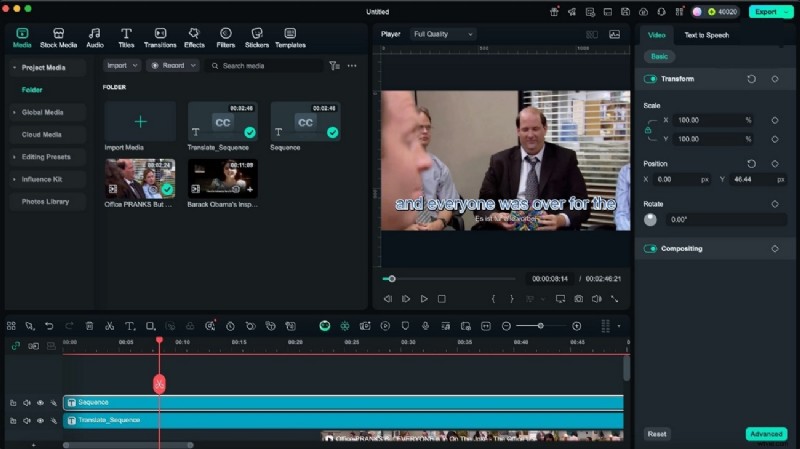
If you're looking for an SRT editor for Mac that offers complete video editing and not just simple caption editing, Wondershare Filmora is the best option. With Filmora Mac, you can transform your complete video by adding subtitles that stand out both manually and automatically. Users can download different subtitle templates and mark them as favorites to use in the future.
Key Features
- Generate subtitles through the speech-to-text feature using your audio files in three steps.
- Assess an extensive collection of caption templates, such as for YouTube.
- Use title effects like 3D and VFX to make your subtitles prominent.
- Several catchy fonts are available and you can also adjust their alignment such as centralization.
- Users can rotate their added subtitles on a 360-degree angle to give their video an engaging look.
- Position your subtitles accordingly so they don't appear on the faces of the characters.
- Add a colored background to your captions so they appear clearer and attractive.
- After adding subtitles to a video on Filmora Mac, you can't download it without a watermark for free.
2. Aegisub
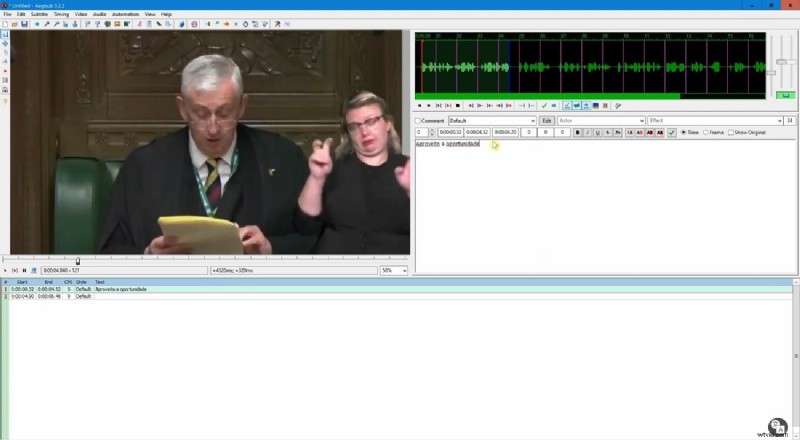
Aegisub is a Mac subtitle editor offering different options for opening subtitles, such as creating a blank script and opening an existing file. The platform also contains a spell checker that uses the Hunspell library to check spellings accurately. It offers a replacement for misspelled words; you can also add them to the dictionary. With Aegisub, you can import plain text scripts and modify them using the subtitle edit box.
Key Features
- Aegisub supports reading several subtitle formats such as MicroDVD and SRT.
- Offers a translation assistant that does the job of translating your subtitles efficiently.
- With Aegisub's export feature, transform your entire script using different export filters.
- The platform automatically archives and backs up your edited subtitle files.
- Inexperienced editors mostly find editing subtitles with it difficult since the tool is complicated.
- Editing subtitles with Aegisub might seem complicated for inexperienced editors.
- You need a b internet connection to add or edit subtitles in Aegisub.
3. Jubler Subtitle Editor
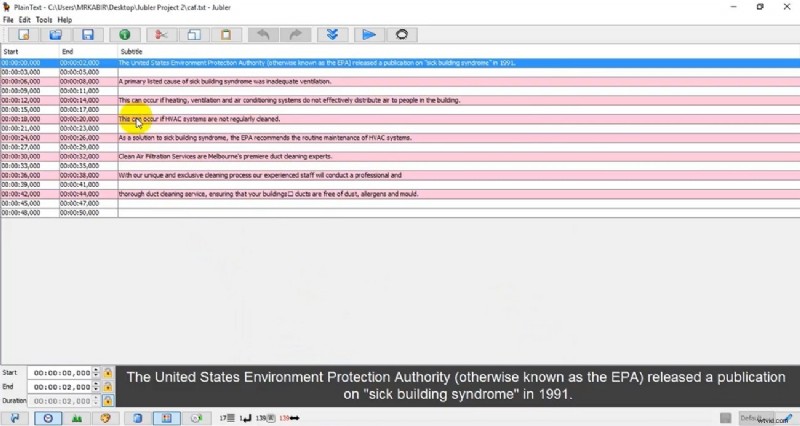
This is a tool that users can download and use to convert and refine their existing subtitles. Jubler Subtitle Editor is a subtitle software for Mac that lets you check the spelling of your captions in real time and modify them if needed. The creators redesigned its HiDPI UI in the latest version from scratch, so the subtitle editor looks clearer on high-resolution screens.
Key Features
- With Jubler Subtitle Editor, open and save subtitle files that are specifically used by YouTube.
- Auto-translate with Azure enables you to automatically translate subtitles into other languages with Microsoft's translation service.
- You can translate subtitles from one language to another using the translation mode while displaying original and translated text side-by-side.
- Users can adjust the size of everything on Jubler's screen according to their requirements.
- Smoothly integrates with necessary external applications such as aspell and MPlayer.
- Editors need to download another external application, MPlayer, to preview subtitles.
- Jubler Subtitle Editor only supports a few popular subtitle formats and not several ones.
4. Subtitle Workshop
Subtitle Workshop is a user-friendly subtitle edit Mac free with a customizable interface where you can add shortcuts according to your requirements. You can also customize it to automatically or manually detect and fix your text subtitle errors. Additionally, it comes with a video player in which you can preview your edited subtitles and turn on the full-screen mode to play a clip.

Key Features
- Currently enables you to create and save over your captions in over 60 subtitle formats.
- Provides detailed information about your subtitle file, such as when a user created it.
- Subtitle Workshop supports using external Pascal scripts, enabling editors to maximize efficiency.
- You can also download older versions of Subtitle Workshop for free from its website.
- It enables you to make your video engaging by supporting style tags such as italic.
- The interface is outdated, and the latest version of Subtitle Workshop was released several years ago.
- Subtitle Workshop contains several tools that make it not the right choice for beginner editors.
5. Subs Factory
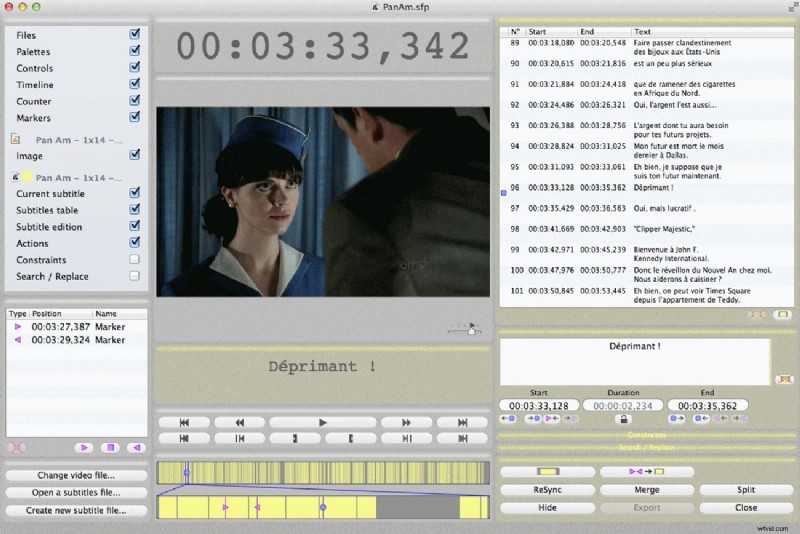
If you want to create, edit, and delete video subtitles using your Mac device, look no further than Subs Factory. It is a subtitle editor for Mac that enables you to translate your subtitles automatically in over 100 languages and displays the changes you made in seconds on your video. Moreover, you can learn the complete process of adding subtitles through Subs Factory by checking the user manual on its website.
Key Features
- Users can extract subtitles from their clips and save them as separate files.
- Resynchronization is simple because you only have to pick two reference subtitles to start it.
- The timeline displays the audio waveforms along with subtitles to enable complete editing.
- Correct your corrupted files using Subs Factory's new dedicated interface.
- The platform can read modern video formats like AV1, allowing users to add subtitles.
- The automatic translation feature of Subs Factory is only available in the purchased version.
- You can install the latest version of Subs Factory only on macOS 10.13 or later versions.
Part 2. Edit Subtitle and Video With Filmora
Having discussed the key features of Filmora Mac that make it the best choice for beginners, let's learn to add subtitles with it manually and through AI:
Detailed Guide for Adding Subtitles Manually With Filmora Mac
Filmora, a subtitle software for Mac, enables you to add your subtitles manually and edit them using its different features, and here's how to do it.
3 Elaborated Methods to Add Subtitles Automatically With Filmora Mac
Filmora features subtitle edit macOS that contains the AI captions feature with which you can add subtitles using the following 3 ways:
Way 1. Adding Subtitles Automatically Through Speech-to-Text Feature
If you want Filmora Mac to automatically create the subtitles for you using its "Speech-to-Text" method, follow these steps:
Way 2. Integrating Your Subtitles Through AI Translation
Here's how you can use Filmora's subtitle editor for Mac with its AI translation feature to add subtitles to your videos through these steps:
Way 3. Using Dynamic Captions to Add Subtitles to Your Clips
To match dynamic effects according to the audio rhythm, follow these steps and add dynamic captions to your clips using Filmora Mac subtitle editor.
Conclusion
To conclude, we mentioned the best subtitle edit for Mac that you can use to add accurate captions in our article. It mentioned a user-friendly platform, Wondershare Filmora, that helps you add subtitles manually and automatically, and also beautify them. With Filmora, you can add subtitles in different languages through the AI translation feature and choose catchy title effects from the available templates, like 3D and cinematic, to enhance your clip's overall look.