
Facing tight deadlines for your video projects? AI video editors are revolutionizing video editing by automating repetitive tasks like trimming, cutting, color correction, and transitions—letting you focus on creativity and storytelling.
From enhancing visuals to streamlining workflow, the latest AI-powered video editing apps help creators save time and produce professional-quality content faster. In this guide, we'll explore the top AI video editors and tools that can transform your video editing process.
Part 1. The Characteristics of AI Video Editor Apps: A Tabular Overview
Before learning about the video editing applications in detail, you must know the characteristics that a good resource possesses. Let us have a look at the tabular overview of the key features that you must look for when choosing the video editing application:
| Feature | Description |
| User-Friendly Interface | Intuitive layout with easy navigation for beginners and pros. |
| Essential Editing Tools | Trim, crop, split, and merge clips quickly and precisely. |
| Speed Control | Smoothly adjust clip speed, including dynamic speed changes. |
| Multi-Track Editing | Layer video, audio, and overlay tracks for creative editing. |
| AI Tools | Automatic captions, audio enhancement, and video optimization. |
| Flexible Export Options | Export in multiple formats and resolutions, including 4K, with direct upload support. |
| Cross-Platform Compatibility | Works on desktop, mobile, and tablet with seamless file syncing. |
Part 2. 8 Top-Rated AI Video Editor Apps To Note
Having learned what a good AI video maker app should look like, let us explore some of the top-rated applications available:
Filmora App [iOS/Android]
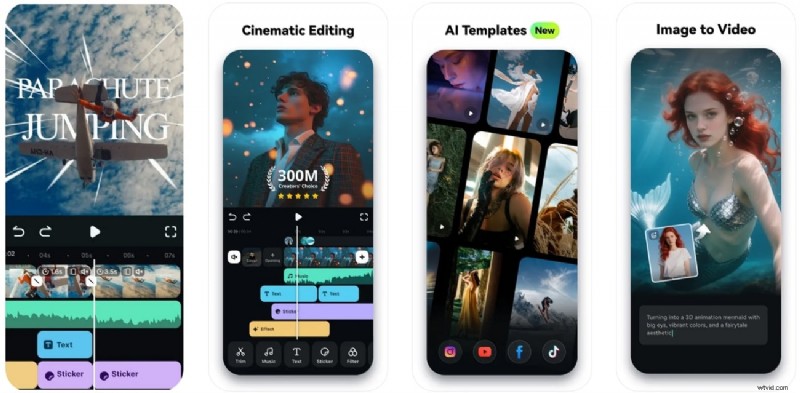
One of the best AI video editing apps that offers an extensive set of features is the Filmora App. This AI-powered multimedia application consists of an intuitive interface with a multi-track editing utility. Users can import and export various file types in multiple formats. It offers precise basic video editing such as cropping, trimming, and splitting videos effortlessly. Besides basic editing, the application offers a large number of AI-powered features.
Users can generate captions automatically for the spoken words in multiple languages. It offers an extensive music library, allowing users to add background music to their videos. The speed ramping feature lets you adjust the speed of the clips according to your preferences.
Key Features
- 4K Video Export: Export videos in stunning 4K resolution, ensuring crisp and clear visuals.
- AI Image to Video: Transform static images into dynamic videos effortlessly using AI technology with this AI video editor for Android and iOS.
- AI Remover: Designed to remove unwanted objects or text from images or videos easily and seamlessly.
- AI Voice Cloning: Enables precise replication of voices for consistent narration or personalized voiceovers.
Pros & Cons
- Let you extract audio from video seamlessly.
- Offer AI Music to generate background music of your choice.
- Allows iOS users to save the generated results as Live Photos.
- The free version contains a watermark on the exported results.
Why We Pick It
The Filmora App is ideal for users who are looking for basic and AI-powered editing under one platform.

Filmora
AI Video Editing App & Software
Best tool for making videos anywhere for all creators!
Edit smarter, not harder! Let AI handle the heavy lifting—start your video project now.
PowerDirector [iOS/Android]
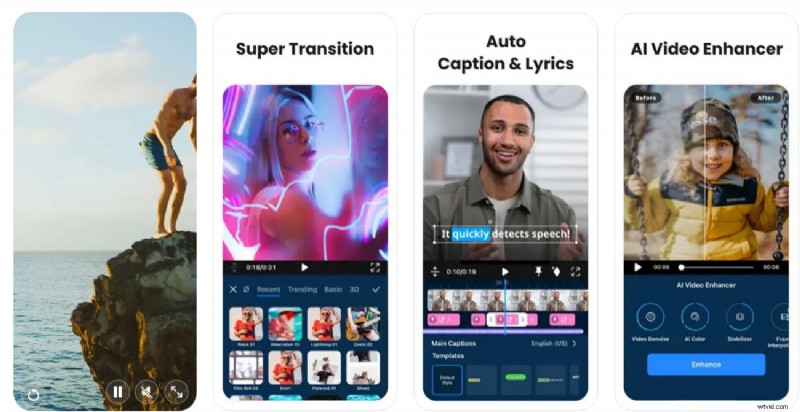
PowerDirector App is a feature-rich and versatile AI video editor for iPhone, designed to meet the needs of both amateur and professionals. It has an easy-to-use interface with multi-track editing features, so it is easy to overlay multiple video and audio recordings. In addition, it has AI-based background removal to separate subjects without green screens.
Key Features
- Seamlessly track moving objects in your footage to apply effects or overlays.
- Automatically adjust and enhance colors for more vibrant videos.
- Remove or replace backgrounds effortlessly using AI.
Pros & Cons
- Offers an extensive library of effects and transitions to elevate video creativity.
- Supports 360-degree video editing for immersive content creation.
- Show lagging and slow responsiveness, even on powerful devices.
- The free version limits exports to HD resolution and includes watermarks.
Why We Pick It
Fast rendering, comprehensive multi-track editing, and advanced AI tools.
YouCam Video [iOS/Android]
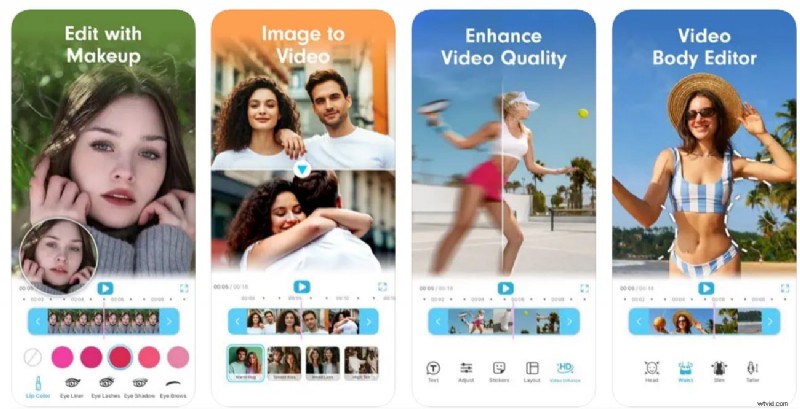
YouCam Video is an AI video editing app for social media, offering advanced retouching options such as skin smoothing, face reshaping, video background removal and makeup application features. Moreover, the AI reshape lip gives your lips a plumper looks in the video.
Key Features
- Integrates AI-powered beauty and editing tools seamlessly for both photos and videos.
- Fine-tunes the skin and removes pimples and acne seamlessly, leaving flawless skin.
- Offers customized quality enhancements such as brightness, saturation, and highlight.
Pros & Cons
- Provides an extensive library of lip colors with hundreds of shades.
- Bring static images to life with AI-powered animation.
- The AI caption facility is missing in this tool.
- Users do not get the ability to generate background music for their videos.
Why We Pick It
AI-powered beauty and video retouching tools, including AI face smoothing
InShot [iOS/Android]
InShot is an effective full-featured photo and AI video editor app that is made to suit creators of any level. It has user-friendly interface with advanced editing capabilities that encompass simple editing capabilities such as trimming, cropping, splitting, and merging clips with ease. Also, the app is brilliant in the integration of AI-based features like auto captions and background removal.
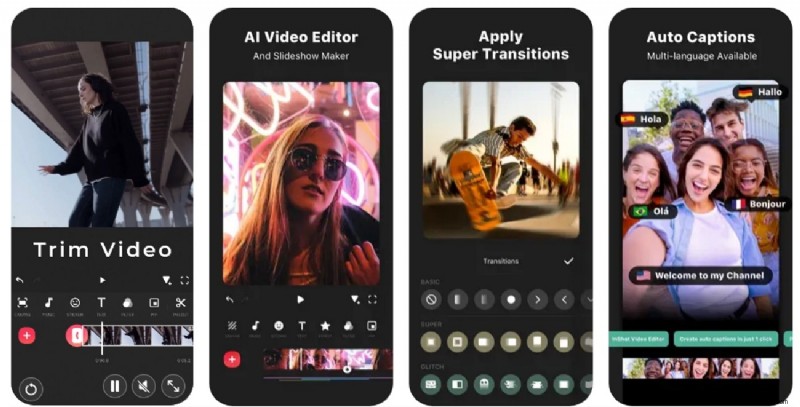
Key Features
- Keeps text or stickers synced with moving objects in the video with smart tracking.
- Enhance video and photo quality automatically using AI with one tap.
- Generates captions for videos with AI-powered speech-to-text.
Pros & Cons
- Supports sharing directly to social media platforms like Instagram, TikTok, and YouTube.
- Extensive collection of stickers, effects, and music.
- It does not generate AI emojis across each word in captions.
- The extract audio functionality is not available for this app.
Why We Pick It
Straightforward, beginner-friendly interface that supports quick edits like trimming, cropping, and merging.
Videoleap Editor by Lightworks [iOS/Android]
With an intuitive layer-based interface and advanced compositing tools, Videoleap enables seamless editing of videos and photos to produce compelling visuals. The AI video editor for Android and iPhone provides extensive AI-assisted features like automated video background removal and object erasing. In addition, it also includes rich collections of filters, transitions, and artistic effects.
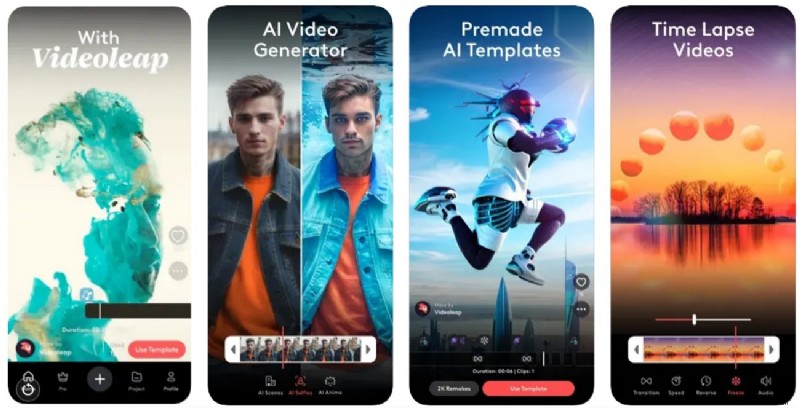
Key Features
- Automates video cuts, transitions, and filter suggestions for fast, polished edits.
- Use AI-powered tools to remove or change backgrounds and erase unwanted objects.
- Create captivating infinite zoom effects from a single image or clip for dynamic storytelling.
Pros & Cons
- Change or swap voices in videos, including singing voice generation.
- Combine multiple video, image, text, and effect layers with masking.
- Can require substantial device storage and processing power.
- Occasional bugs are reported with AI background removal accuracy.
Why We Pick It
Advanced layer-based editing with professional compositing, keyframe animations, and infinite zoom effects.
VN - Video Editor & Maker [iOS/Android]
It is an easy-to-use AI video editor for iPhone and Android designed to cater to both beginner and professional video creators. Using easy-to-use multi-track timeline interface, VN enables accurate editing of videos with options to trim, crop, split and make rough cuts with keyframes as low as 0.05 seconds. Also, users can rearrange the clips and insert overlays like pictures-in-pictures.
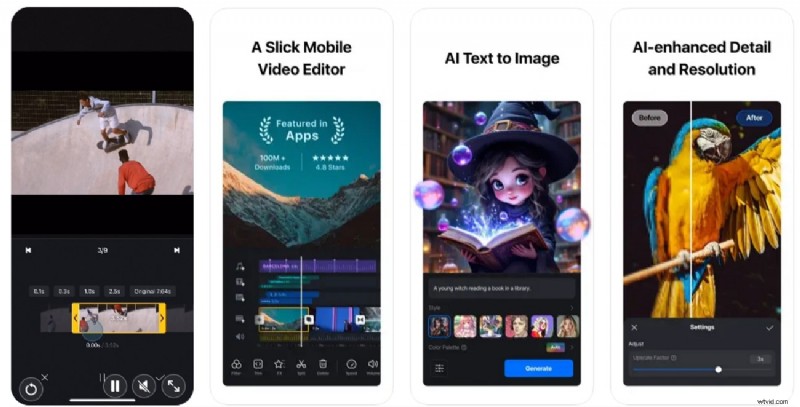
Key Features
- Fine-tune video playback speed, including preset curves for smooth effects.
- Use diverse fonts, text templates, and customize text appearance fully.
- Exports videos in custom resolutions up to 4K at 60 FPS.
Pros & Cons
- Enables seamless collaboration with cloud-based project sharing.
- Includes music beat markers that help sync clips to music.
- The AI image-to-video functionality is not available in this application.
- You cannot replicate your voice to add as a customized voiceover.
Why We Pick It
Free multi-track editing with no watermark, cloud sync, and an easy learning curve.
CapCut [iOS/Android]
One of the widely used AI video editors for Android and iPhone that lets you fine-tune your videos using AI is CapCut. The app enables you to create stories with the help of AI and gives you an opportunity to add a voiceover to the stories. In addition, CapCut applies superior technology to smooth your shaky and jittery video to create professional videos.
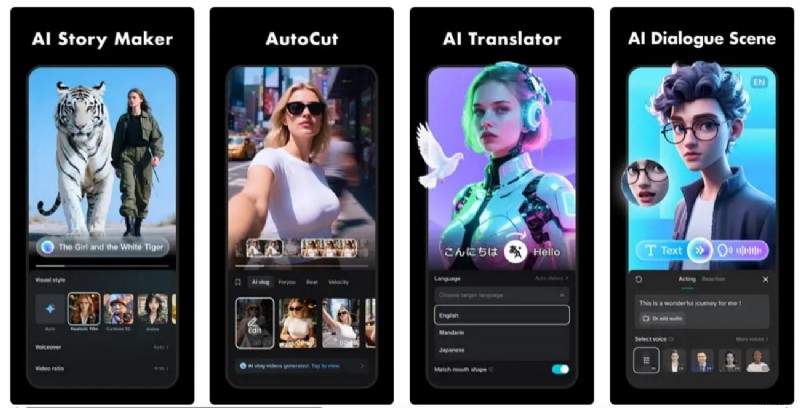
Key Features
- Automates speech recognition and subtitles in your videos.
- Remove unwanted background from your videos to provide seamless results.
- Extracts audio from your video to let you use the media for multiple purposes.
Pros & Cons
- Offers multiple custom export options according to your visual requirements.
- Provides an extensive library of effects and filters to give the video a creative flair.
- The app does not offer advanced AI features like image-to-video and text-to-video.
- No stock media library is offered by this application.
Why We Pick It
Extremely flexible multi-track timeline with advanced AI tools.
LumaFusion [iOS/Android]
When you need an AI video editor app that gives you the ability to control audio and speed precisely, consider LumaFusion. The application allows to choose among several frame rates, providing full control over resolution and quality. You can add dynamism to the applied elements with the keyframing feature. Moreover, multiple audio channels are supported by the application for high-quality sound in videos.
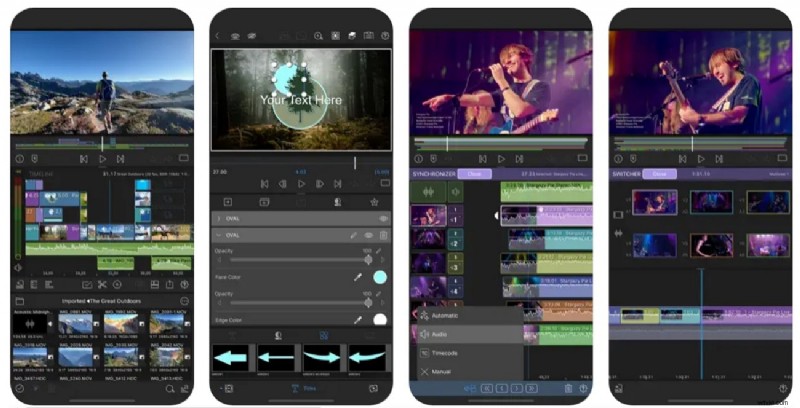
Key Features
- Automates speech recognition and subtitles in your videos.
- Remove unwanted background from your videos to provide seamless results.
- Extracts audio from your video to let you use the media for multiple purposes.
Pros & Cons
- Offers multiple custom export options according to your visual requirements.
- Provides an extensive library of effects and filters to give the video a creative flair.
- The app does not offer advanced AI features like image-to-video and text-to-video.
- No stock media library is offered by this application.
Why We Pick It
Professional-grade editing environment with advanced color grading.
Part 3. Making Selection Easier in AI Video Editor Apps
Having discussed the AI video editing apps in detail, let us have a look at the tabular comparison between them. The table provided below will help you make the decision to pick the right app for your requirements:
| Name | AI Feature Breadth | Editing Depth | Export Options | Innovation & Updates |
| Filmora | Wide range (AI captions, music, text-to-video, image-to-video, AI cutout, translation, etc.) | Strong multi-track, overlays, advanced keyframes | 4K and higher (up to 8K in newer versions) | Frequent updates, expanding AI suite |
| PowerDirector | Moderate (AI captions, some smart effects) | Mature editing tools, good timeline features | 4K export supported | Consistent but slower AI innovation |
| YouCam Video | Limited (mainly filters & AR effects) | Very basic editing | Up to 4K depending on device | Focused on beauty/filters, little AI progress |
| InShot | Minimal AI (basic auto captions only) | Simple editing, limited tracks | High-resolution export (device dependent) | Lightweight, less emphasis on AI |
| Videoleap | Some AI tools (effects, background changes, text-to-video on mobile) | Layer-based editing, more flexible than InShot | 4K export supported | Steady updates, moderate AI focus |
| VN - Video Editor | Limited AI (basic captioning at best) | Multi-track timeline editing | 4K export supported | Slow on AI adoption |
| CapCut | Strong (AI captions, AI effects, some text-to-video tools, music) | Decent editing, multi-layer but less detailed than pro apps | 4K export supported | Rapid AI expansion (Luma AI tools) |
| LumaFusion | Very limited AI | Professional-grade multi-track editing, comparable to desktop NLEs | 4K+ export with pro settings | Focused on pro editing, less AI emphasis |
|
Show more Show less |
 Secure Download
Part 4. Make the Perfect AI Video With the Best Video Editor App: Filmora App
As discussed, the Filmora App is one of the most robust solutions to perform AI-powered video creation on a smartphone.
Let us explore different methods through which you can generate and improve videos using this application:
- Method 1. Use the AI Image to Video Function
- Method 2. Create Video From Text-to-Video Feature
- Method 3. Take Manual Clips and Use Different Basic/AI Features in Editing
Secure Download
Method 1. Use the AI Image to Video Function
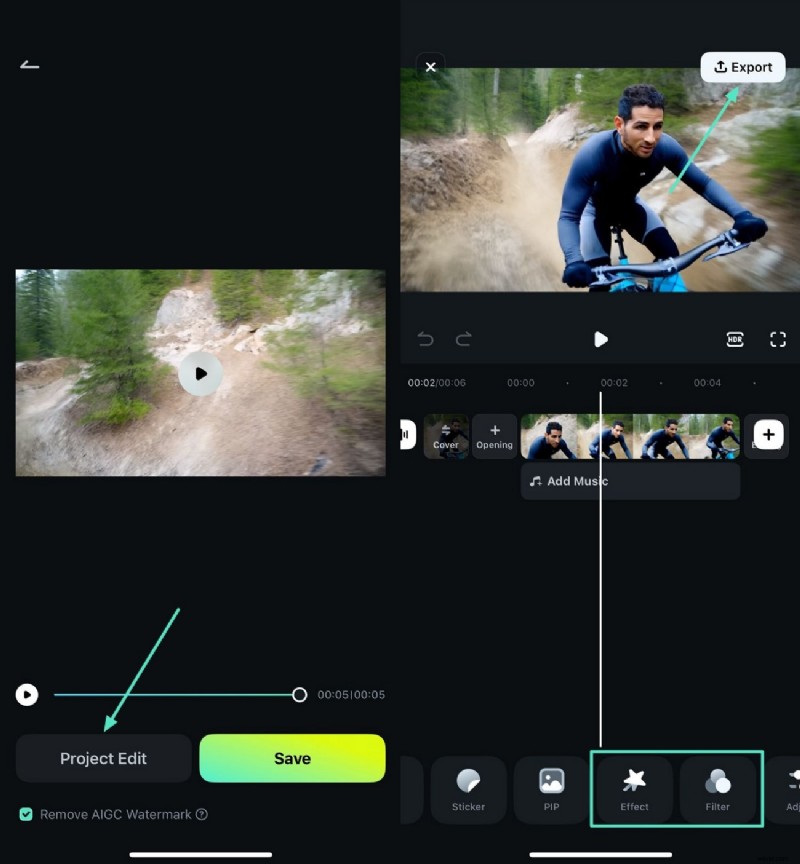
This AI-powered functionality lets you convert your simple videos into dynamic videos effortlessly. The best AI video editing app has the Google Veo 3 integration that automatically adds high-quality background sound to the video. Besides image import, you can specify requirements in terms of text to generate more accurate results.
From just a single static image, you can generate a dynamic mountain-biking video.
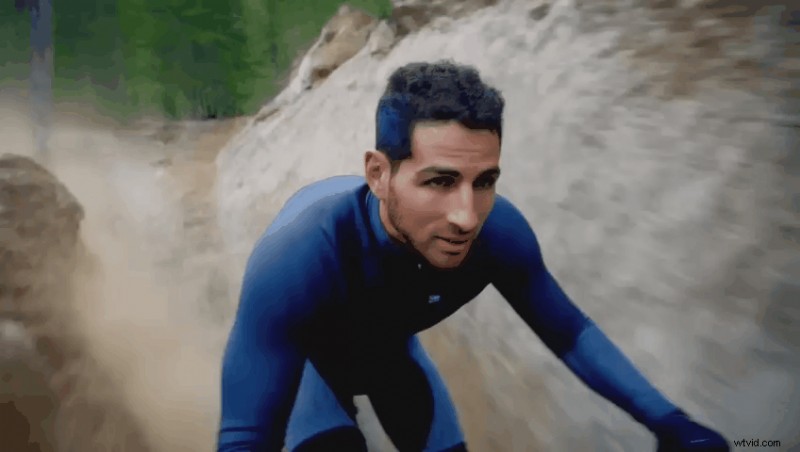
To learn how to use this function on the Filmora app, read the steps mentioned below:
Step 1
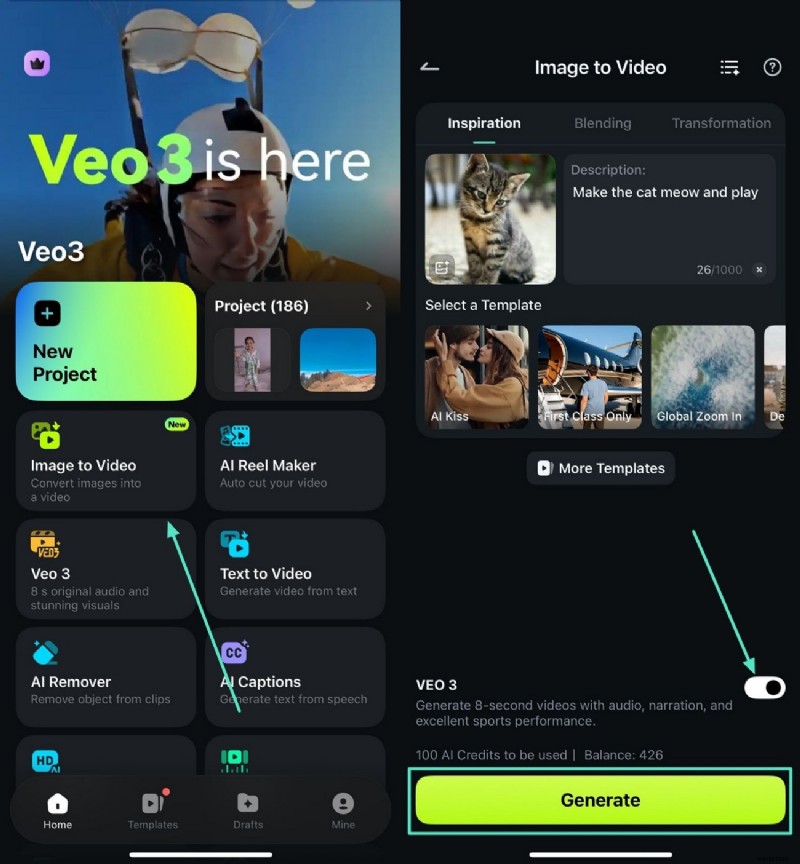
Access Image to Video and Import Image
- Start by launching the application and tapping the "Image to Video" feature.
- In the following interface, import the image you want to convert.
- Input the text for the requirement and turn the toggle on for "Veo 3."
- Finally, press the "Generate" button at the bottom.
Step 2
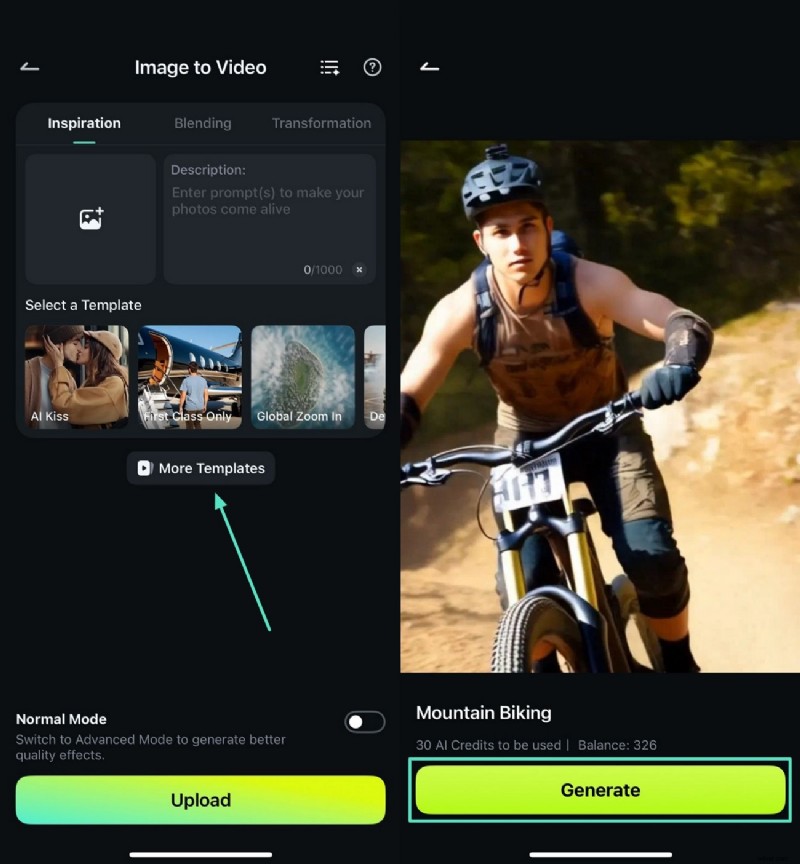
Choose a Template For Video Creation
- Conversely, opt for the "More Templates" option within the interface.
- In the next screen, tap on the template of your choice after browsing.
- Preview the template and press the "Generate" button to import the image.
Step 3
Edit the Generated Video
- Once the video is generated, press the "Project Edit" option located on the left.
- In the following interface, select the enhancement options from the toolbar at the bottom.
- Apply different effects and filters and press "Export" to save the video.
Method 2. Create Video From Text-to-Video Feature
This best AI video editor app allows users to generate videos from a text prompt as well. You can input a rough idea in terms of text, and the feature will generate a video along with an appropriate script. Besides, you can specify the aspect ratio, duration, and background score for the video before generating it through AI.
With just a few words of text, you can generate an entertaining video!

Read the steps mentioned below to learn how to use this feature on the Filmora App:
Step 1
Access the Text to Video feature
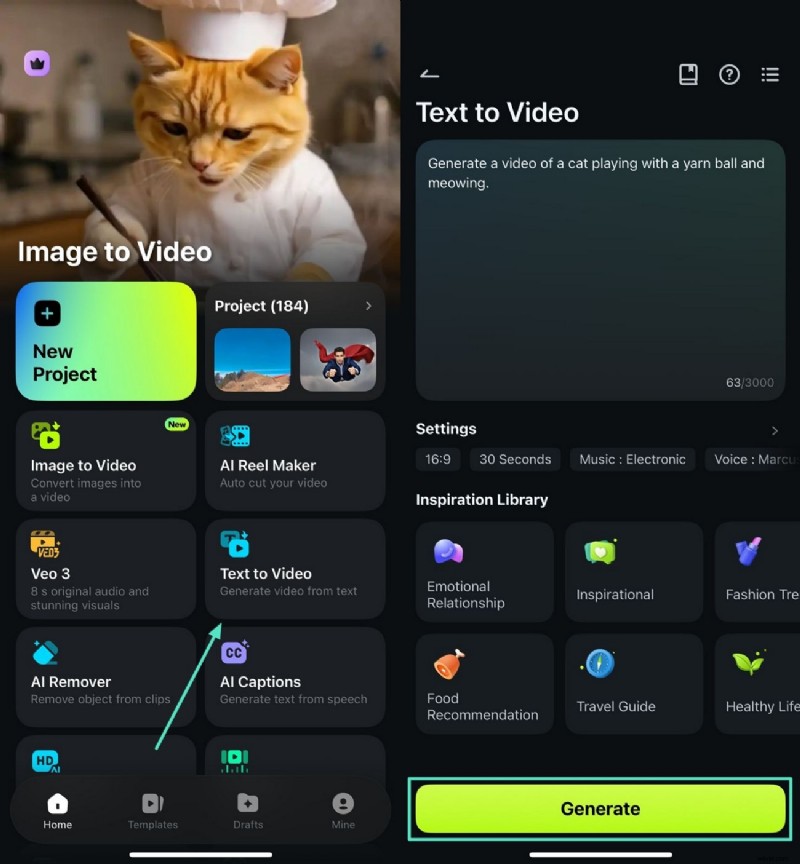
- Begin the process by accessing the "Text to Video" feature from the app's homepage.
- Next, input the text requirements in the text field within the interface.
- Configure settings like duration, music, and aspect ratio from the options provided.
- Hit the "Generate" button to let the app start the process.
Step 2
Preview the Script and Generate Video
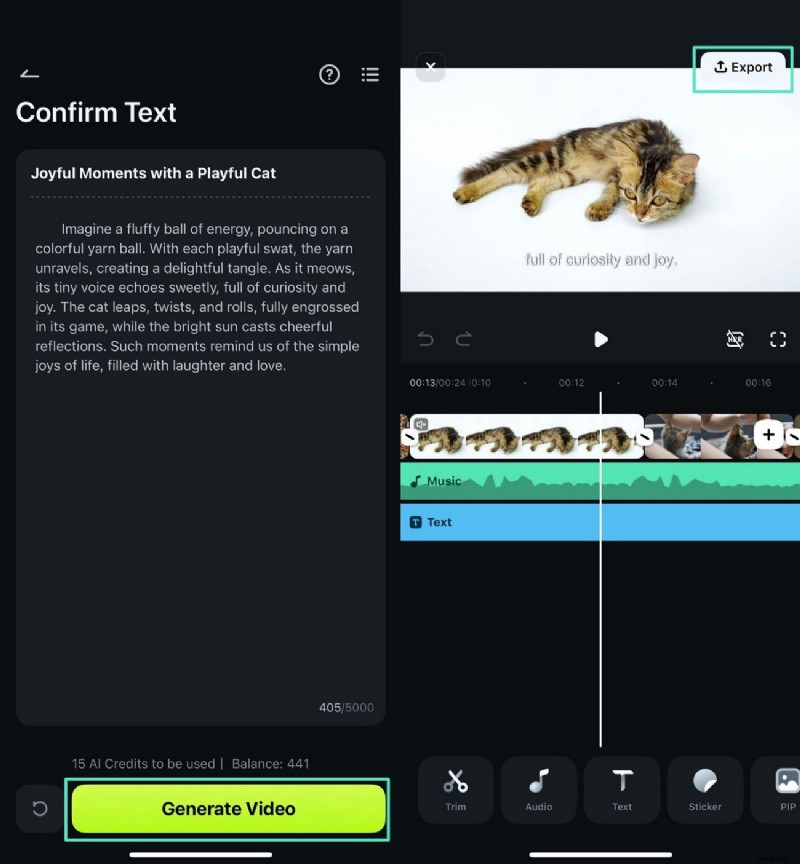
- The app will generate an appropriate script for your video, review it, and make changes if required.
- Next, press the "Generate Video" button located at the bottom.
- In the following interface, make changes to the video if required and hit "Export" to save results.
Method 3. Take Manual Clips and Use Different Basic/AI Features in Editing
Besides AI-powered video generation, the best AI video editor for Android and iPhone can enhance your already existing videos. The app offers various AI-powered features to fine-tune the video for professional results.

Follow the steps mentioned below to learn how to use this app for refining videos:
Step 1
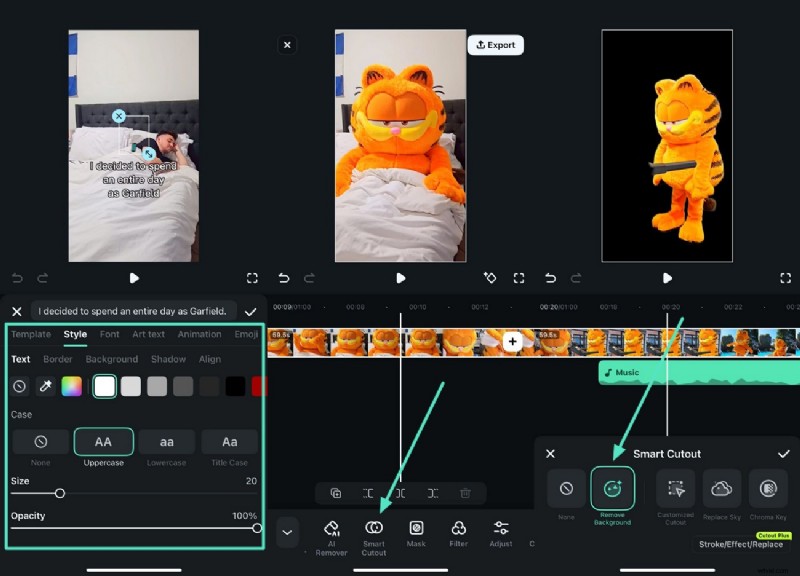
Import Video and Generate Captions
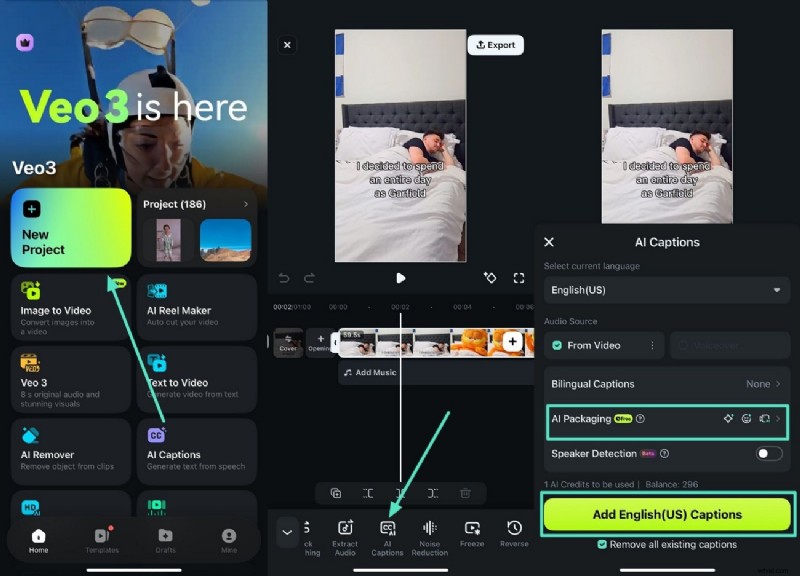
- After creating a new project and importing the video successfully, navigate to the bottom toolbar.
- Choose the "AI Captions" from the toolbar at the bottom.
- Next, select the language and enable the "AI Packaging" feature, and hit the "Add Captions" to generate the project.
Step 2
Stylize Captions and Smart Cutout
- Stylize the text by choosing text art from the options provided.
- Apply it to the video using the "Tick" icon on the right.
- Remove the unwanted background by tapping on the "Smart Cutout" option from the toolbar.
- Next, tap on the "Remove Background" option to isolate the subject automatically.
- Select the background by tapping on the options provided by the AI video maker app.
Step 3
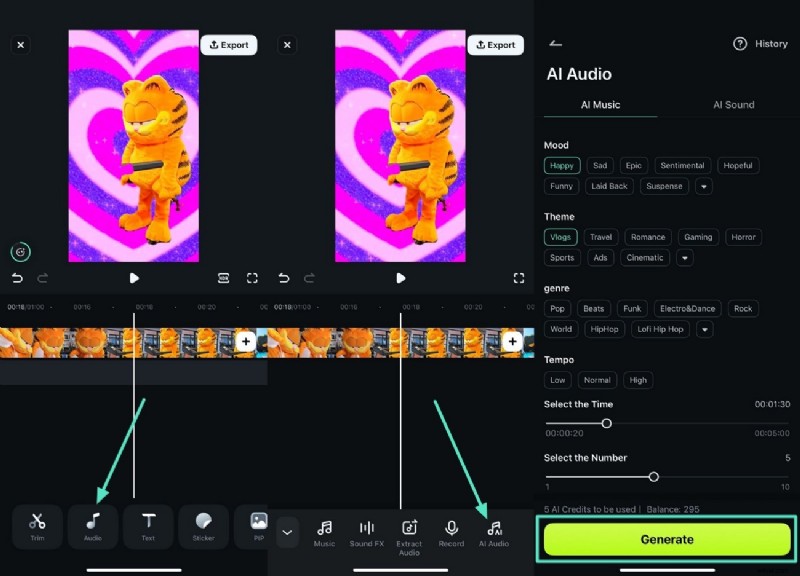
Generate Background Music Using AI
- Head to the toolbar at the bottom and press the "Audio" option.
- Next, tap the "AI Audio" option from the following toolbar.
- Select the Mood, Theme, and genre of the music and hit the "Generate" button.
Step 4
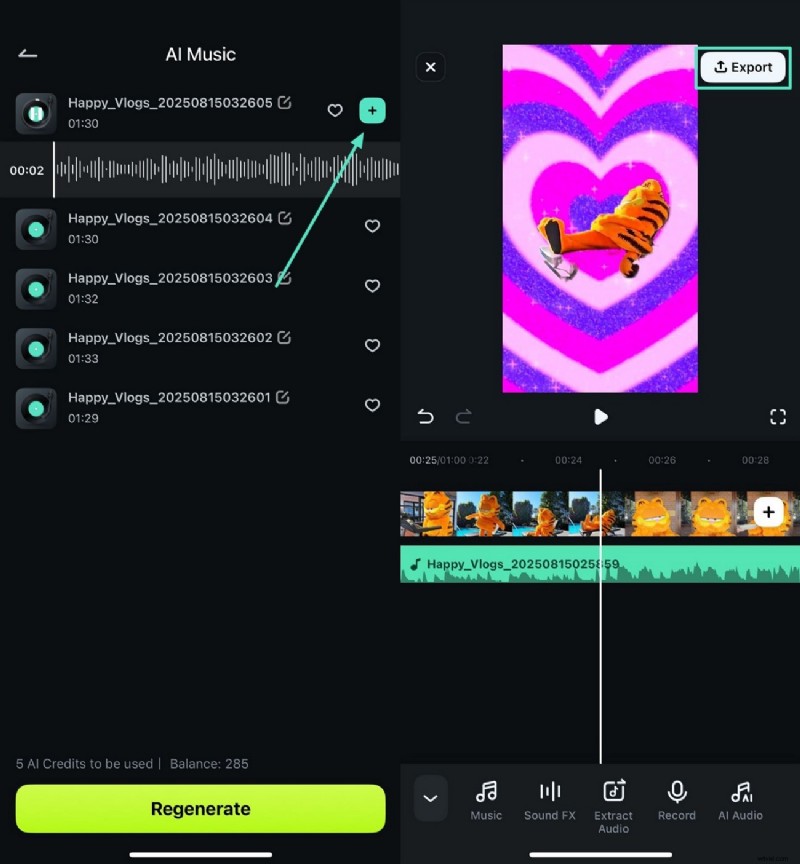
Edit The Audio and Export
- Review the results and add one to your video by tapping the "+" icon.
- Once you are satisfied with the results, press the "Export" button to save the video successfully.
Conclusion
To wrap it up, this article discussed top-rated AI video editor apps that allow you to create and improve videos using artificial intelligence. However, one of the most reliable applications that lets you create videos from text and images is the Filmora App. The app also provides basic manual editing to generate precise and accurate results.
Filmora
AI Video Editing App & Software
Best tool for making videos anywhere for all creators!
Create, edit, and share stunning videos instantly with AI—your audience will love it!