
The Featured section on Facebook is a part of your profile and it allows you to add your favorite photos for all your friends. In this post, we’ll explain Featured photos on Facebook and how to add photos to the Featured section as well as how to see who views your Featured photos on Facebook.
What Are Featured Photos on Facebook?
Facebook has a Featured section under your profile. You can upload photos to highlight to help other people know you better, and you can combine multiple photos into a collection. By default, the Featured photos are set to public.
You can click the Featured collection and then view these photos in the slideshow. Compared with ordinary pictures you shared on Facebook, a Featured photo is more significant and expressive because it’s a great way to express yourself to Facebook users.
Try MiniTool MovieMaker to edit videos for Facebook.
How to Add Featured Photo on Facebook
After knowing what are Facebook Featured photos, let’s learn how to add Featured photo on Facebook on a web browser.
Step 1. Go to Facebook.com on a web browser, and then click your profile picture at the top left corner.
Step 2. When you first add photos to the Featured section on Facebook, click the Add Featured in the Intro box. Alternatively, click the Edit profile option, and click the Add at end of the Featured. Then click the Add New.
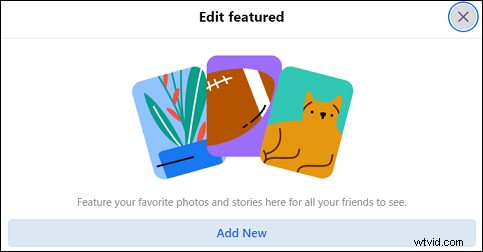
Step 3. You can click the photos you want to add. Also, you can click the Upload Photos to add photos from your computer.
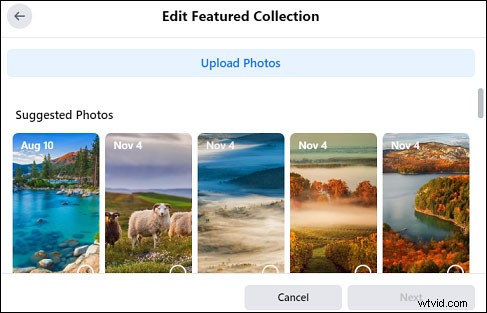
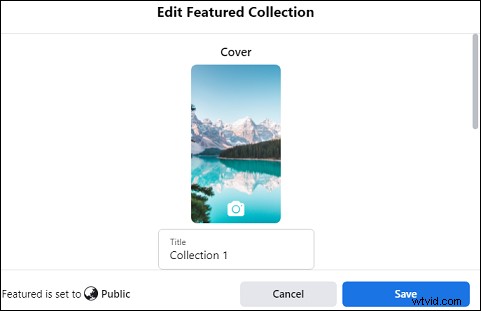
Step 4. Click the Next. Then give a title to this collection, and click Save.
Step 5. If you want to create a new Featured photos collection, click the Edit featured in the Intro box, then click the Add New, and then repeat steps 3 and 4.
The method to add Featured photos on the Facebook app for Android and iOS is almost the same as that on facebook.com.
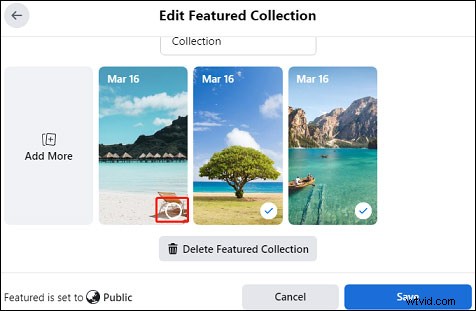
If you want to remove photos that you’ve added to the Featured section, click the Edit feature in the Intro box, click the Edit (a pencil) icon, then click the Delete Featured Collection to remove the entire collection. To remove a certain photo, just deselect it, and click the Save.
Note:
Currently, this feature is only available in some locations.
How to See Who Views Your Featured Photos on Facebook
The Featured photos collection is set to public. Can you see who views your Featured photos on Facebook? How to see who views your Featured photos on Facebook? Let’s get started.
Step 1. Open the Facebook app or go to Facebook via a web browser, and go to your profile.
Step 2. Go to the Intro section, click your Featured collection to view.
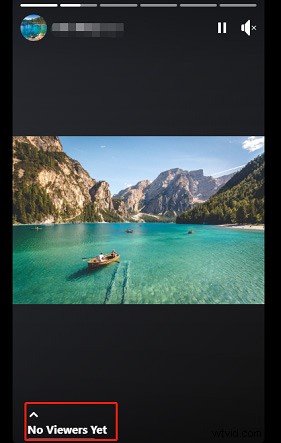
Step 3. At the bottom left of your collection, you can see the number of viewers, and click it to check your viewers.
Conclusion
Now, you’ve learned what Facebook Featured photos are and how to add or remove Featured photos on Facebook as well as how to see who views your Featured photos. Just follow the steps to create a Featured photos collection on Facebook.