
Your video can have countless moments, and sometimes you want to grab one of them. Find out an easy way to do this!
Whether you are a casual content creator or just want to add a touch of humor to a scene that is important or funny, adding the freeze frame effect is a simple yet effective way to do so. The difficulty is in finding a simple tool that enables you to achieve this effect without much effort. And Clideo's Online Video Editor will be a perfect tool for that. With just a few clicks, you can freeze any moment in your video and customize it exactly how you want — no technical skills needed! This article will explain why a freeze frame effect might be just what your video needs and how to add it easily without installing or learning any software.
Table of contents
- What is a freeze frame
- How to add a freeze frame to your video
- Tips for creating freeze frame videos
- Frequently asked questions
- Conclusion
What is a freeze frame
A freeze frame video effect pauses your video clip on a single still image for a set duration. This technique helps draw attention to a specific moment, adding emphasis or humor. Freeze frames are great for highlighting reactions, showcasing products, or creating dramatic pauses in vlogs and social media clips.
Stylized freeze frames can be used to introduce a new character, sometimes with text overlays or voice-over narration, to give biographical context. Besides that, freeze frames can give viewers time to absorb details that might otherwise be missed in fast-moving scenes. You can use them to pause on a funny face, freeze a key step in a tutorial, or add a visual break in storytelling. It's a simple video editing technique that packs a punch directly in your browser.
How to add a freeze frame to your video
Various tools have different methods for creating a freeze-frame effect. Some professional tools achieve it by adjusting the frames per second (FPS), using Frame Hold options, or applying Time Remapping techniques, found in Premiere Pro, for example.
Other video editing tools capture a specific moment as a still image, which can then be inserted back into the video timeline to pause the motion precisely where desired. Let's see how you can do that in Clideo's Video Editor.
-
Upload your video
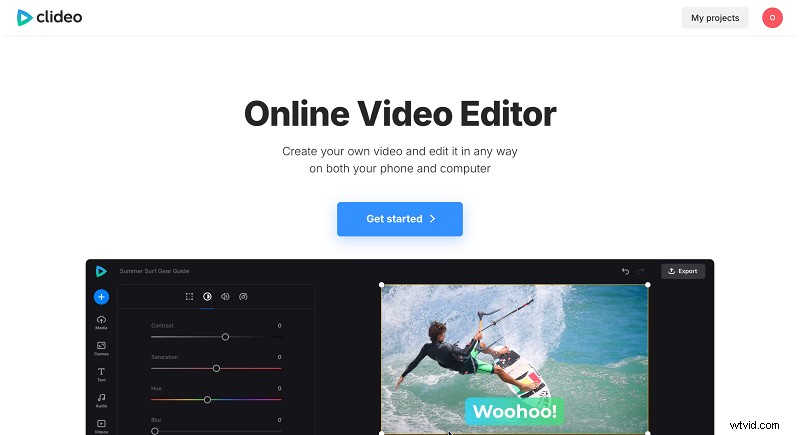
Open Clideo's Online Video Editor and click "Get started". Then click the "+" icon to import media files from your device. You can also pick videos from cloud storage if you prefer.
-
Freeze frame
Freezing in Clideo takes a single frame and turns it into a still image. So first, you need to drag the playhead along the timeline to find that exact moment you want to freeze. If your video is short or you need precision, click the "+" at the top right of the timeline to zoom in.
Once you find the right frame, make sure the video is selected in the timeline and click the "Freeze frame" icon that looks like a snowflake at the top left of the timeline.
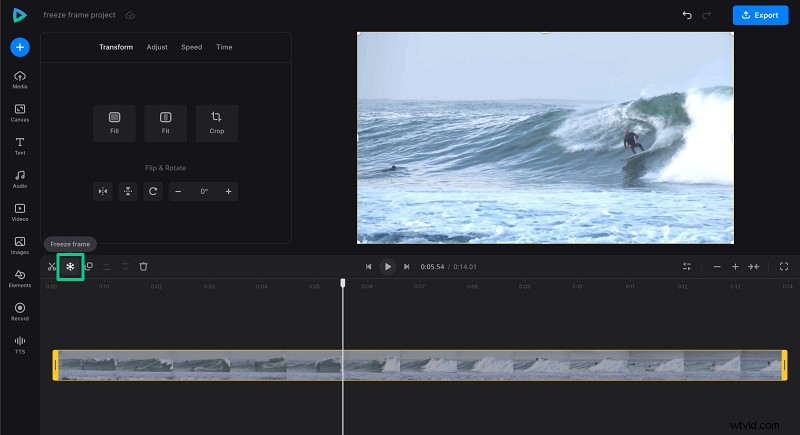
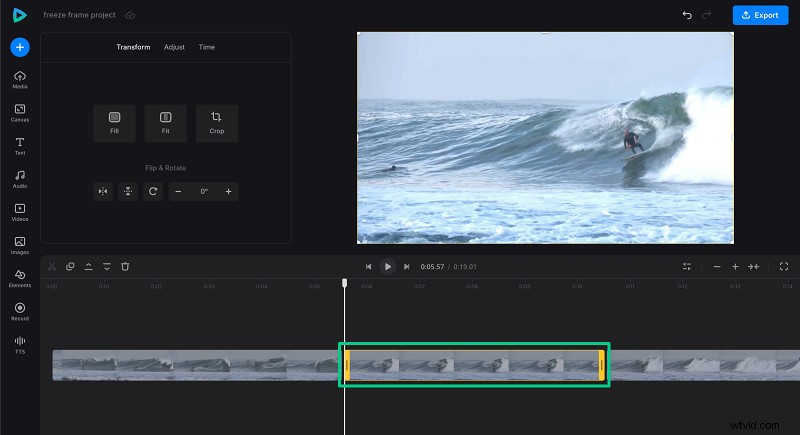
An image of that frame will appear at the playhead position, splitting the video.
The default duration of an image is 5 seconds. But you can adjust how long the freeze frame shows by selecting the image and dragging the yellow sidebars to make it shorter or longer. Make sure to turn on the ripple mode in the "Timeline Settings" to make the editing process smoother.
Edit the freeze frame
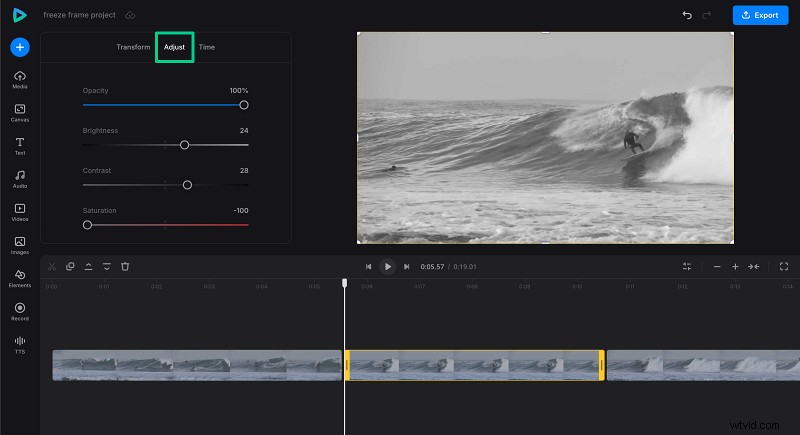
You can also make visual changes to the freeze frame or the entire video. Select the file in the timeline, and a tab with options will appear above. Here, you can adjust colors, crop, or blur the image, change video speed, or add any other assets you need.
Add sound effects, stickers, or GIFs
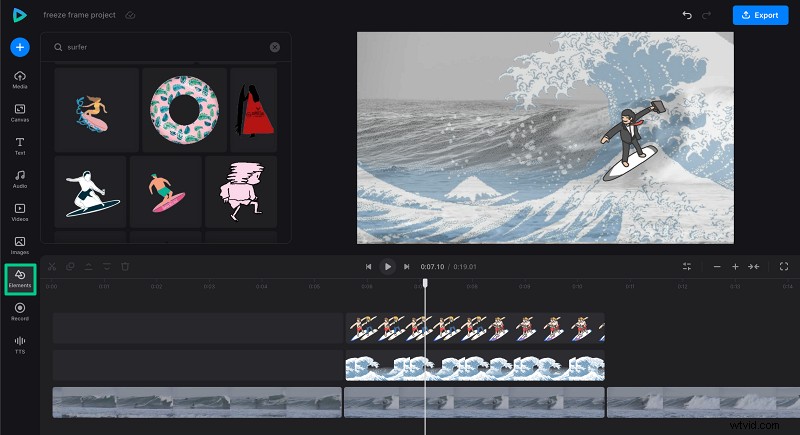
Want to add some fun? Pick a sound effect from the "Music" library or browse the "Elements" tab to find various GIFs or stickers to place over your freeze frame.
-
Export your video clip
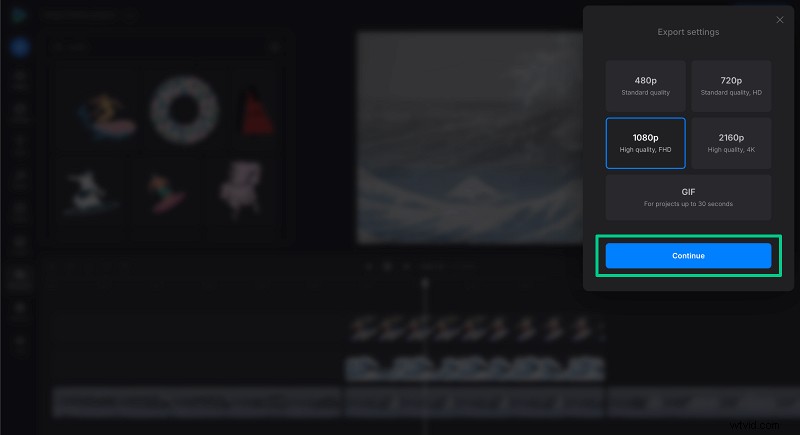
When done editing, click "Export" and choose your preferred export option.
-
Download the result
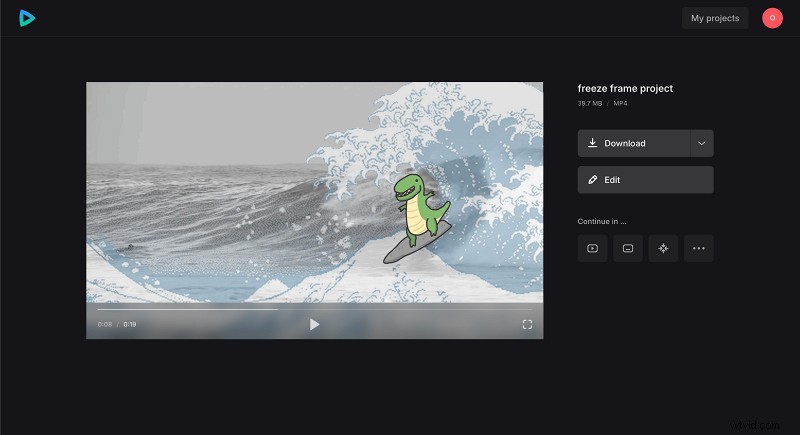
After processing, preview your video. If you like it, click "Download" to save it to your device or cloud storage. If not, click "Edit" to make changes.
Tips for creating freeze frame videos
When creating a clip with freeze frames, make sure you follow these tips to make sure your frame is catchy.
- Prepare the footage with the possibility of needing to freeze frames. Use a high shutter speed of at least 1/250 to ensure the frozen image is clear and detailed, without motion blur.
- Be precise when selecting the freeze frame position. Zoom in on the timeline as much as possible to find the frame you want.
- Adjust the freeze frame length to fit the mood; longer pauses work well for dramatic moments, and shorter ones for quick emphasis.
- Use stickers or GIFs sparingly to avoid cluttering the freeze frame.
- Consider adding text overlays or captions to provide context or humor.
- Remember to preview your video before exporting to catch any timing or visual issues.
- If your video has audio, be aware that the sound may continue or stop during the freeze frame, depending on the tool you use. Edit the track separately if needed.
We regularly improve our tools to add new features or enhance your experience. Check our Help Center for the most recent instructions.
Freeze frame your video
Add a freeze frame effect to your footage to create a fascinating story.
Frequently asked questions
How do I create a freeze frame in Clideo?
Clideo's video editing software lets you freeze a frame by positioning the playhead on the desired frame and selecting a freeze option to insert the frame as a still image right after the playhead.
Can I adjust the length of the freeze frame?
Will the audio pause during the freeze frame?
Yes, in Clideo, the audio will pause during a freeze frame and then resume.
Is the freeze frame effect suitable for social media videos?
Absolutely! Freeze frames help highlight key moments and keep viewers engaged on platforms like YouTube, Instagram, and TikTok.
Can I add stickers or text to my freeze frame?
Yes, Clideo's editor allows you to add stickers, GIFs, and text overlays to customize your freeze frames.
Conclusion
Adding a freeze frame video effect is a fun and simple way to spotlight those unforgettable or hilarious moments in your videos. With Clideo’s online video editor, you don’t need to be a tech whiz or download any software — just a few clicks and you can create stunning videos that really pop. Capture your favorite scenes and make your content truly stand out!