
Here are a few ways to make your film or video project stand out with the creative use of several different scene transitions.
Image via Shutterstock.
If you’ve somehow found yourself in the world of high-volume video creation, you’ll find it difficult to create new ways to keep your audience engaged and entertained. Finding the right pace and tone for your project can take a while, sometimes leading you to create, create, create time and time again before you fall into a good rhythm that suits your skill set. Having a signature transition or similar creative element in your video can establish voice and present a recognizable aesthetic.
The DIY Way
If you’re creating vlogs or tutorials and often film yourself regularly, these clever tricks for transitioning to the next scene are for you. The best part about these transitions is the amount of time and effort you’ll save come post-production. You can pull all these off in-camera without any editing prowess or unnecessary effects. These tricks are perfect for anybody without a lot of editing experience because most of the work is purely practical — it only requires a little pre-production planning.
You can also apply some of these techniques to your bigger narrative projects down the road — like the whip transition. The whip is a brilliant way you can hide a cut if you are trying to give the illusion of a single-take shot. Films like Birdman, Boogie Nights, and The Revenant have used this effect masterfully.
Cutting Like The Pros
This video essay breaks down the different kinds of cuts and transitions you’ll find in any major Hollywood movie that you can use, no matter the scale and size of your project. As you can see in the video, different types of cuts can carry different meanings and are trickier than others to pull off. If you’re used to working as a one man band, you might have more control over the camera if it’s a DSLR or mirrorless. This allows you to pull off some of these moves and cuts more easily.
If you’re making more narrative projects, the infamous J-Cut or an L-Cut is an excellent technique to add to your editing tool kit.
An important innovator when it comes to transitions is none other than Baby Driver and Shaun of the Dead director, Edgar Wright. His films are rapidly paced with match cuts, J-cuts, whips, pans, and audio swells that keep the audience on the edge of their seats. His transitions operate on different level than most directors’, existing in a genre of filmmaking all its own. The excellent video essay channel, Nerdwriter1, dove into Wright’s masterful Scott Pilgrim vs. the World and how it used audio, title cards, and transitions no one had seen before.
The free-form nature of the screenplay and storyboard for the film is unlike any other. Just as the film is getting started, Wright gives us a split-screen phone call transition, broken down to look like this:
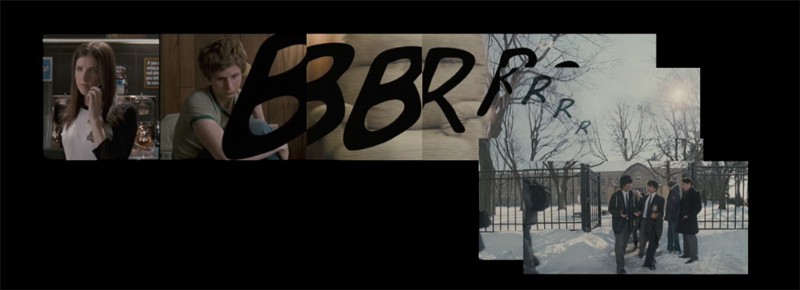
The important tip to take from this example is all the preparation and planning that went into pre-production; Wright knew exactly how he’d wanted to edit the film. Knowing how you plan to edit the video can improve every aspect of the production process, like shot composition, movements, and character placement. This foresight will also make your editor’s or colorist’s job much easier when dealing with the usual post-productions ins and outs.
Corporate Jobs
If you’re used to working corporate gigs for advertisement agencies or small businesses, finding a brand-appropriate aesthetic for graphics and animations can be tough. Here are a few easily customizable, FREE circle transitions that will help you keep your clients and audience engaged while continuing to give them new and exciting content.
Whether you’re working a big budget action epic, an intimate character study, or simply creating daily vlogs and videos for YouTube, you can’t overlook the importance of thoughtful, visually appealing transitions. For more on transitions and the many ways you can apply them to your work, check out our past coverage here:
- How to Create the Internet’s Favorite Transitions
- Take Control of Your Transitions with The Effects Panel
- Pro Tip: Cue Video Transitions with Sound Effects
- Video Editing Quick Tip: Create a Moving Object Transition in Premiere Pro