If you’re a company, video tutorials are an essential part of selling your product or service, and can be used to train employees by creating online courses. According to Forbes, 90% of users say that product videos are helpful in the decision process, and tutorial videos are one of the top 3 most effective types of video content with video overlay effects.
More and more people are turning to social platforms like YouTube and Instagram to find out more information about a business or how to use a product. That’s why it’s so important to nail a great tutorial video that clearly explains what you do and how customers can use your product or service.
Whether you’re shooting your own video or sponsoring content by influencers, this article will go through step by step how to create an engaging tutorial video that is both helpful and looks great.
How to showcase your product in a video
Step-by-step guide to creating video tutorials
Distributing your video tutorial on the right channels
How to showcase your product in a video
1. Take some footage
If you haven’t done so already, now is the time to take some quality photos or videos of your product. If you’re unsure on what camera is best to use, check out this article on the best video cameras for beginners. You’ll want to make sure your product is shot in good lighting by using these techniques and the footage is not shaky by using a gimbal or tripod. Try taking a video of someone demonstrating your product step by step, or reviewing it’s features and benefits.
2. Make a screen recording
If you’re creating a screen recording, we recommend using the Quicktime screen recorder on Mac or the the Windows built in screen recorder. Make sure you move your mouse slowly and go through each motion fluidly to ensure your recording is easy to follow by viewers. You can also record your voice using the Simple Voice Recorder for Mac or the Windows voice recorder. Make sure you speak clearly into your computer’s microphone, don’t sit too close or too far away, and do a few test runs to make sure you can clearly hear yourself.
3. Create a video slideshow
Take some images of your product or people using your product to use in your video slideshow. Make sure your images are clear and showcase your product in the best light.

Here’s a step-by step guide to creating awesome video tutorials
1. Go to Clipchamp’s free video editor
When you’ve gathered all your footage and are ready to start creating your video, head to Clipchamp’s in-browser video editor to start creating your tutorial video. You can sign up to a free Create account and get started straight away.
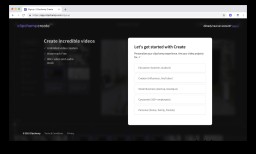
2. Start a new project
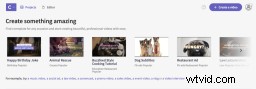
Click start new project to get started.
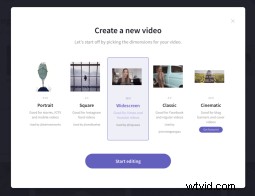
3. Select the aspect ratio
Choose the aspect ratio for your video. We recommend using Widescreen (16:9) as this is perfect for YouTube videos, and should easily fit any screen recording.
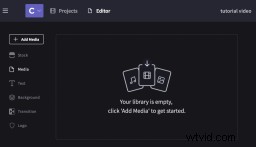
4. Add your footage
Drag and drop or browse to add your footage or recording into the library. The Create video editor automatically saves your projects as you go, but if you close the editor you may need to re-link your files back up.
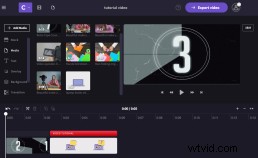
5. Create an intro
Start off your video tutorial with a 5 second long intro. Every tutorial video you create should have a memorable and entertaining intro.
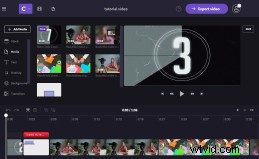
6. Add your footage to the timeline
Select your media footage and drag into the timeline. Place all media footage in your preferred order on the timeline.
7. Trim your video
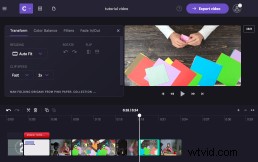
Use the Split Clip tool to cut your footage down to your preferred length, or drag in the highlighted blue bar to shorten the clip. Make sure the clips don’t drag on longer than necessary.
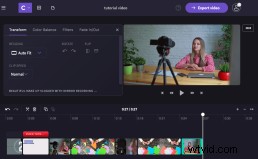
8. Speed up your video
If you feel your tutorial video is too slow, speed up your clips using the Clip Speed tool. There are three speeds to choose from, slow, normal and fast.
9. Add an outro
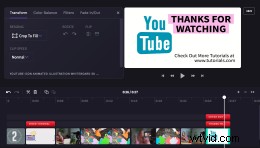
After completing the tutorial edit, add an outro to your video. An outro can be as simple as a text overlay placed on the last existing clip of the tutorial, or adding an extra stock or media file. Thank your viewers for watching, add in your brand name, social media platforms and website links.
10. Add background music and a voice-over
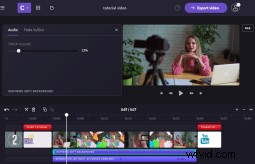
Now for the audio: Search through the stock audio and choose a relaxed, soft piece of music. Nothing to overpower your voice-over. Make sure to change the volume level once you have inserted your music to your timeline, and fade out the end.
11. Add transitions and effects
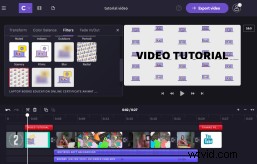
Add some cool transitions in between your clips, especially after the intro and before the outro. Filters and animations can be added once your clip has been selected and clicked. Adding on transitions and video editing effects will energize your tutorial and will make it more visually pleasing for the viewers watching.
12. Export your file
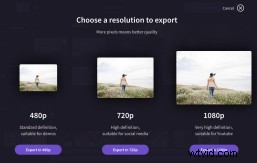
Lastly, exporting your tutorial video is the final step to completion. You can find the Export Video button in the top right corner of your screen. You will then be given three resolution exporting options, standard definition (480p), high definition (720p), and very high definition (1080p). If you’re uploading to YouTube, very high definition is recommended.
Distributing your video tutorial on the right channels
1. Sharing to social media
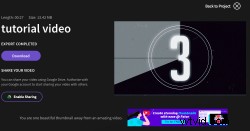
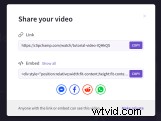
Clipchamp now offers a ‘Share Your Video’ option once your video has been exported. This feature allows users to easily share their creations via social media websites – Facebook, Facebook Messenger, Reddit and WhatsApp. An easy accessible link is also presented for you to use, copy, share and save forever.
2. Embedding on a blog or website
Clipchamp also offers a user-friendly embedding link for users to paste on to their website or blog. It’s as simple as clicking the ‘Embed’ button under ‘Share Your Video’ option.
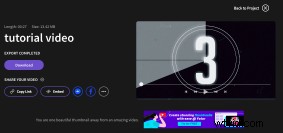
Copy the embed code, paste it on your website, and your video tutorial is good to go!