
Vmaker is now a multilingual screen recorder and is now available for use in 7 different languages. You can select to use Vmaker in languages such as Espanol, Francais, Italiano, Deutsch, Portugues, and Russian.
With the rapid growth in our user base of content creators from different regions of the world, we decided to make Vmaker much more accessible and usable.
We all know how easy a tool or service becomes when it’s made available in your native language. The ease of usability and linguistic personalization is now possible with the launch of multilingual support for Vmaker.
By introducing new languages to Vmaker, we want to make sure that our non-native English speakers are able to explore all the functionalities and features of Vmaker comfortably to create video content.
This is intended to reduce the dependency of users on the support team and understand the true potential of Vmaker in a better way.
This update is available for both — the Vmaker Chrome Extension and the Mac application.
New to Vmaker? Sign up and the rest will be history.
If you are new to Vmaker, you will have to sign up either using your email or social credentials such as Gmail and Facebook. The sign-up process will take you only a few minutes. You can click here to go to the sign-up page directly.
Sign-up for VmakerOnce you have signed up, you can choose to either install the Vmaker chrome plug-in or the Mac application.
Downloading and installing Vmaker mutilingual screen recorder
To download and install Vmaker, click on the download button on the dashboard and select the version that you want to download and install. If you are a Windows user, go ahead and install the Google Chrome Plug-in. Mac users can download and install the Vmaker Mac application.

Once you have successfully installed Vmaker, launch the multilingual Vmaker screen recorder application to select the language of your choice.
Here are the steps that you need to follow to Select your native language on Vmaker
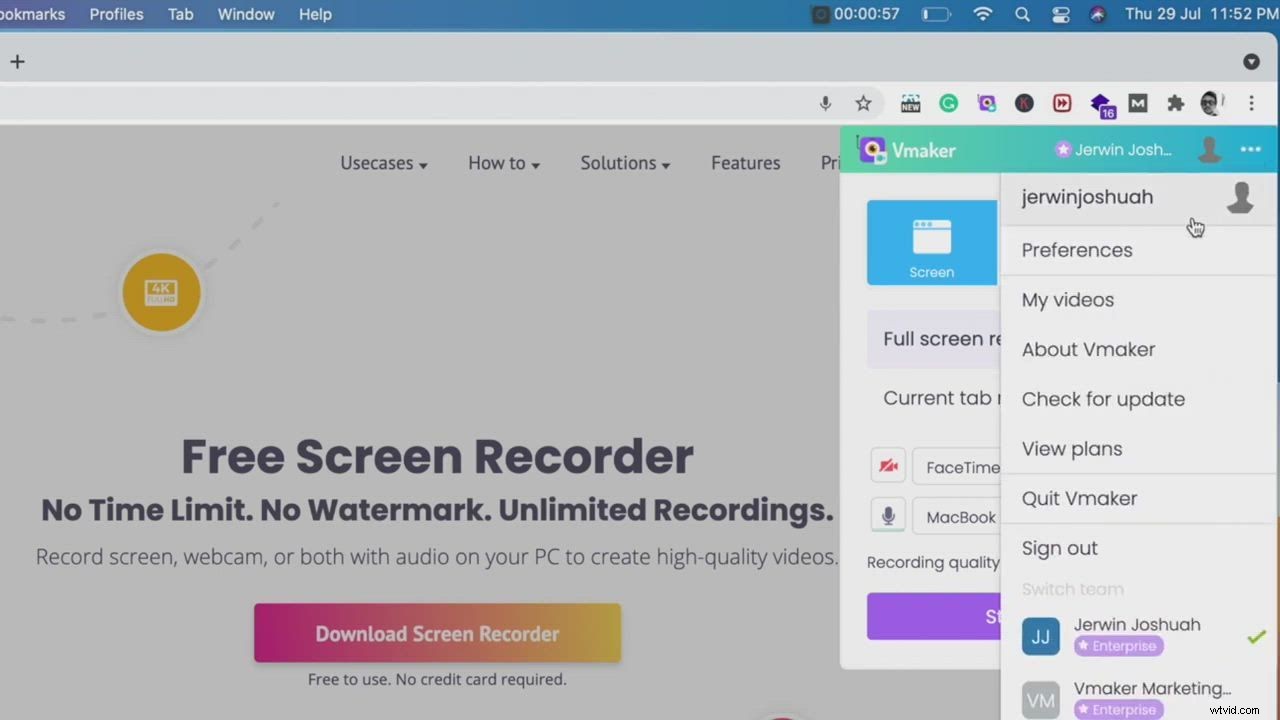
1.Launch the Vmaker chrome application and click on the 3 dots on the top right side of the application.
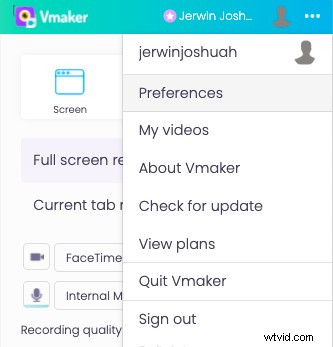
Click on preferences
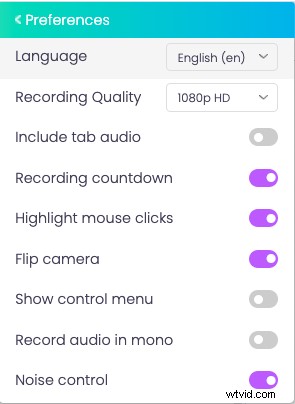
3. Once the preferences section opens up, you will see the option to select language. Click on the select language.
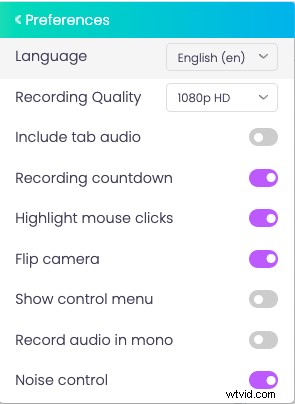
4.Choose the language of your preference from the drop-down box.
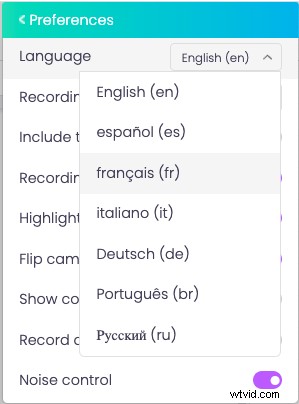
That’s it! Once you have selected the language, Vmaker will automatically save your preferences. You will now be able to use Vmaker in the language that you have selected.
Super easy, isn’t it? I am pretty sure that using Vmaker in your own language will enhance your experience and help get work done faster on Vmaker. You can get in touch with our support team if you need any assistance in selecting the language of your choice on Vmaker.
Go ahead and start creating video content with Vmaker in your native language.
Sign up for Vmaker and create videos for freeCheck out the Vmaker in different languages.
English: https://www.vmaker.com/
Portuguese: https://www.vmaker.com/br
German: https://www.vmaker.com/de
Spanish: https://www.vmaker.com/es
French: https://www.vmaker.com/fr
Italian: https://www.vmaker.com/it
Russian: https://www.vmaker.com/ru
Sign up for Vmaker and create videos for freeRecommended Reading:
How to screen record on iPhone
How do I record my webcam videos
10 Best Software to Create Video Tutorials
How to record Zoom Meeting
How to screen record on Chromebook with audio