
Adding cool text effects in your video is certainly a good idea for creators to make their content more engaging. Let's be honest, who doesn't like some good old creative text in a video file? Text effects in the video are unlikely to ever go out of style, and that is why it is essential to keep a firm grasp on them.
The lower thirds are important elements in this regard. You can refer to the article below to learn more about video lower thirds and what to do with them. Additionally, you can also look at some creative lower third ideas provided by Wondershare Filmstock to boost up your video. Let's begin!
- Part 1: What is Video Lower Third?
- Part 2: 10 Best Ideas for Video Lower Thirds
- Part 3: How to Add Lower Thirds to Video Clips in Wondershare Filmora?
Part 1: What is Video Lower Third?
If you feel like you are unfamiliar with the entire concept of the lower thirds, there is a high chance that you are wrong. You might have seen one without recognizing it. Let's take a deeper look at what a lower third means in video-making and why it is a necessity at times.
Simply put, a lower third is a text, or graphical element, or a combination of both, situated at the lower part of the screen. The purpose behind a lower third is to provide more insight to the viewers. Although additional text boxes are not always necessarily on the lower third frame of the screen, it gets its name from its position.
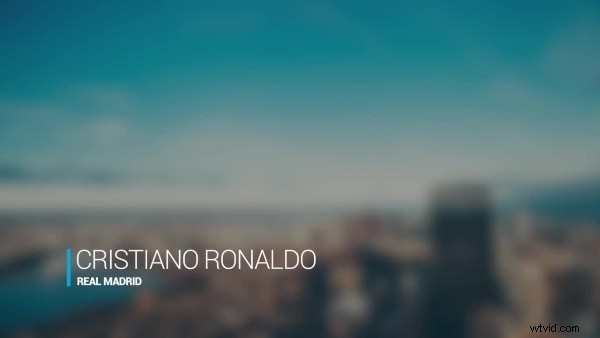
Lower thirds are a great way of conveying information without blocking out the screen or any important visuals. The said information can include names, situations, location, or another context. These computer-generated graphics and text can be overlaid on your video using some common video editors, such as Wondershare Filmora.
Part 2: 10 Best Ideas for Video Lower Thirds
Looking for the best ideas for your video lower thirds? Filmstock is there for you. Below are some of the most creative lower third ideas that you can use to add text effects to the video.
1. Creative LowerThird Pack
Best suited for broadcast roles, the Creative LowerThird Pack contains some creative title design templates for your video. The various templates can be used for television screens, gaming, or as a film title screen. You can make use of the lower thirds templates in your video in a creative manner.
2. Gradient Lower Thirds Pack
The Gradient Lower Thirds Pack by Filmstock, compatible above Filmora 9.6, is like a splash of colors in your monotone video, literally. Multiple gradients and hues are available in the pack to help brighten up your video. The pack contains title templates in which you can add your cool text intro in a memorable way.
The Gradient Lower Thirds Pack offers a wide range of dynamic colors whose vibrancy is guaranteed to shine its way through. The vivid text animations give off an overall fluidity and liveliness to your title design templates. You can use this pack when you are wondering how to make your text look cool in the video without putting in too much manual effort.
3. Stylish Lowerthird
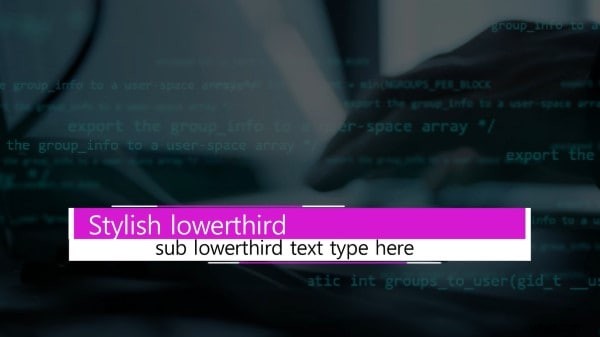
Looking for a lower third as elegant and classy as you are? Filmstock's Stylish Lowerthird Pack is here to save the day. The sleek and elegant designs in this pack are perfect for any formal-themed video where sophistication is a requirement.
The Stylish Lowerthird is the most useful informal setting with its neat and refined templates. You can also type a sub lower third in the template. Use it in TV broadcastings, newsrooms, and anywhere else you please.
4. Social Media Lowerthird Pack
As the name suggests, the Social Media Lowerthird pack revolves around the different social media platforms available today. The text templates are inspired by the themes of our favorite social apps and can be used with Filmora 9.2 or above.
The 16 different Social Media Lowerthird Pack templates can be best applied when you need to put your social handles out there. For example, you can choose the YouTube template and type your channel's name in the lower third.
5. Lowerthird Variety Pack
Behold the all-in-one Lowerthird Variety Pack by Wondershare Filmstock. This one offers a complete range of cool text effects that you can incorporate in your video, depending on your various needs. You can cover everything from businesses to parties and fundraisers to social media platforms, all in a single pack.
The Lowerthird Variety Pack is a personal favorite for many reasons, owing to its versatility and range. Multiple style themes are available for your text, covering all ends of the spectrum, from clean lines to vivid colors.
6. Broadcast Lowerthirds Pack
A pack specialized to meet your formal airing needs; the Broadcast Lowerthirds Pack features some creative and intuitive design templates. You can use the creative text effects of the bundle in news broadcasting, sports requirements, documentary films, interviews, weather reviews, and whatnot.
7. Classic LowerThird Pack
This one's for all the retro lovers out there. The Classic LowerThird Pack contains all the essence of the previous decades. The elegant design templates included in this pack will surely remind you of a simpler time.
The best part is that vintage never goes out of fashion. So, you can incorporate these title templates in all kinds of videos, including presentations, promos, documentaries, corporate videos or interviews, etc.
8. Neon Lowerthird Pack
Applicable to Filmora 9.6 or above, the Neon Lowerthird Pack contains all the liveliness and vigor of the neon theme. The simple and subtle text titles offer great vivacity and sobriety at the same time. The templates feature a neon-themed streak in different shapes along with the main text, which can be used at various places.
9. Digital Countdown Pack
The Digital Countdown Pack contains the true spirit of neon inscribed in it. Taking you back to the gaming arcades of the past, this pack includes countdown effects that are perfect as lower third graphics in fervent videos such as gaming or personal vlogs. Just pair it up with some fun music, and you are good to go.
10. Cute Lowerthird Pack
Full of cute and heartwarming animations, the Cute Lowerthird Pack is an absolute delight to have. It is perfect for occasions when children are involved, particularly making educational videos. Simply download it from Filmstock and then add it to your clip (that is – if you can handle all the cuteness).
Part 3: How to Add Lower Thirds to Video Clips in Wondershare Filmora?
If you are wondering how to add subtitles to a video, Wondershare Filmora has the answer for you. This marvelous video editing software enables its users to edit videos effortlessly owing to its attractive UI and fast service.

You can also add lower thirds in your videos using Wondershare Filmora. To know how to add text to video clips in Filmora, follow the steps given below:
Step 1: Importing Video
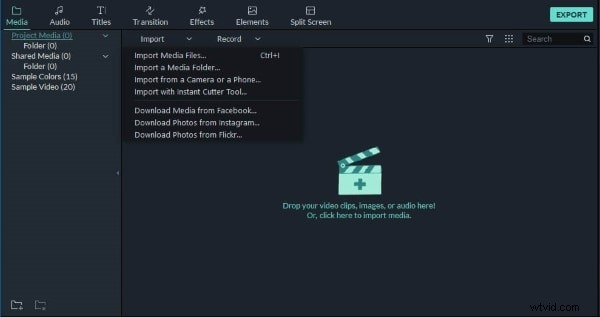
Launch Filmora on your computer and click on "Import." You can now select the desired video and add it to the media library.
Step 2: Adding to Timeline
Now drag-and-drop the video to the timeline panel. Next, zoom in on the timeline and find the frames that you wish to lay a text/lower third on.
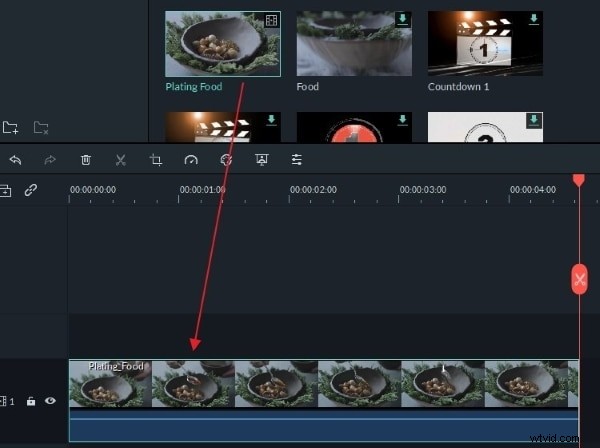
Step 3: Inserting Text
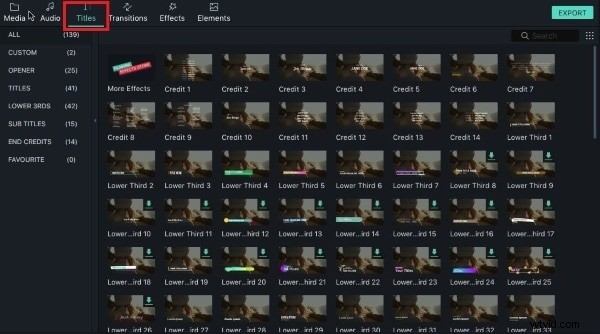
Open the "Titles" tab to access the "Text & Title" presets. Now choose a preset of your liking and position the Playhead at the point where you wish to insert text. Drag and drop the preset above the video.
Step 4: Fixing the Duration
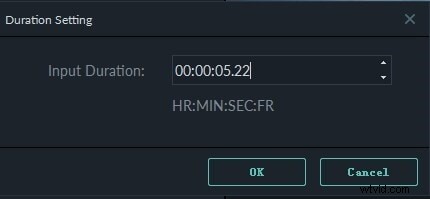
You can change the default duration of the text from 5 seconds by extending the edges of the text module in the timeline. Alternatively, you can select the text and then manually change the time by clicking on the "Timer" icon.
Step 5: Final Editing
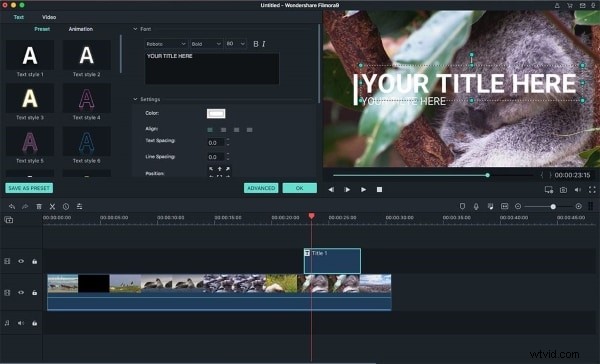
From the timeline, double-click on the "Title" frame. In the pop-up window, you can customize your text in multiple ways.
Step 6: Saving the Video
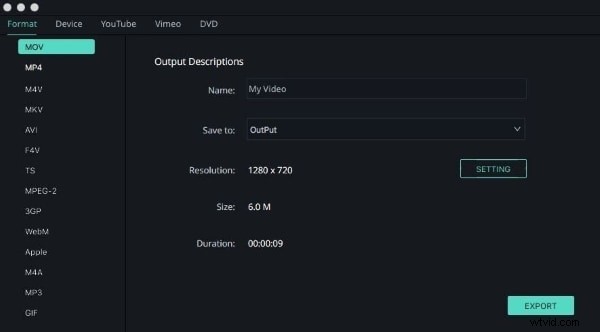
Finally, click on the "Export" button, select a file type and save your video to a location of your choice.
You can also learn more ideas about how to add lower thirds to the videos below.
Wrapping Up
And there you have it. Hopefully, by now, you know enough about video lower thirds and what to do with them. The post-filming process can prove to be rather tiresome for creators, and learning how to do it right is certainly not an easy task.
But that is what Wondershare Filmstock is for. The tool has made editing and processing videos highly convenient for users. You can have multiple title design templates and creative text designs in the software, which is basically a library for Filmora. Make sure to try Filmstock for some wonderful effects that you can add some cool text effects to your video lower thirds.