
Want to elevate your IG content? This 2026 guide shows you exactly how to do Picture in Picture on Instagram (PiP mode) for Stories and Reels. Whether you're looking for what is picture in picture in instagram or need a step-by-step for instagram picture in picture iphone, we've got you covered. Learn to put a photo on a video using built-in tools or Filmora's advanced PiP features.
In this article
- What is Instagram Picture in Picture (PiP)?
- Step-by-Step Guide: How to Get Picture in Picture Mode on Instagram (IG)
- How to Do Video Picture in Picture (PiP) on Instagram with Filmora Editor
Part 1. What is Picture in Picture Mode on Instagram? (Everything You Need to Know)
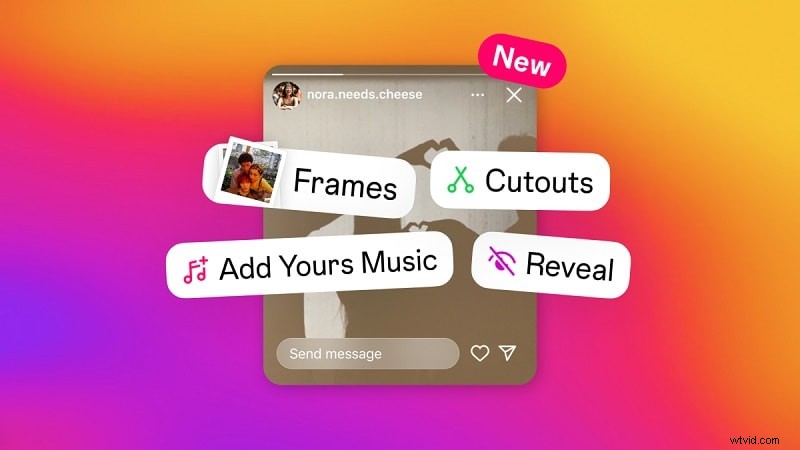
First of all, how does Picture in Picture on IG Story work? If you open the Instagram Story sticker feature, you'll see that Instagram offers a plethora of tools designed to enhance your stories. One such tool is the option to add a Photo and Cutouts, which you can use to make an Instagram Picture in the Picture effect.
What's the difference between adding a photo and cutouts?
- Adding a Photo: Simply insert an image into one frame.
- Cutouts: Use this feature to add another photo as a sticker. You can select and isolate specific objects within the image, automatically or manually removing the background for more creative placement in your frames.
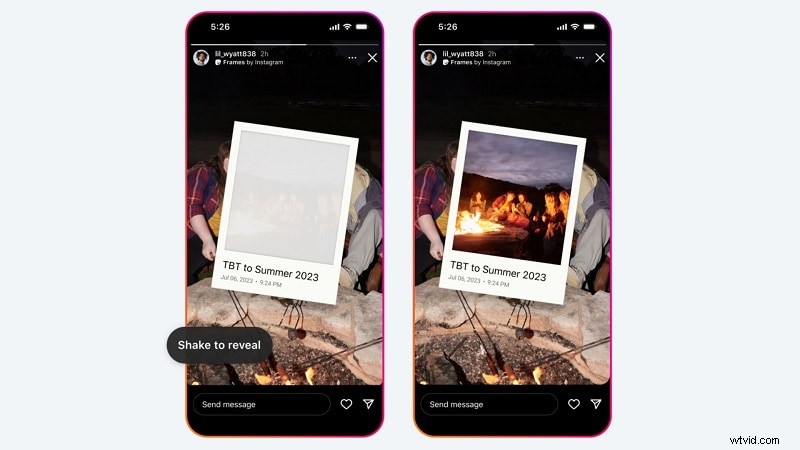
Additionally, Instagram also lets you overlay your picture through the Frame sticker, which works a bit like a digital Polaroid. When you use the Frame sticker, your photo will appear in a frame and initially look blurry. When posted, your viewers can interact by shaking their phones or tapping the frame to clear up and fully view the photo within the frame.
| Feature | In-App PiP (Stickers) | System PiP (Multitasking) |
|---|---|---|
| Purpose | Overlay photos/videos for creative content. | Watch IG videos while using other apps. |
| Best for | Stories and Reels creators. | Instagram Live and Video calls (limited). |
Part 2. Step-by-Step Guide: How to Get Picture in Picture Mode on Instagram (IG)
There are a few easy ways to create a Picture in Picture effect on Instagram to layer your photos over a video or image. The first method is using Instagram's built-in tools, which we've briefly discussed. The second method is by copying and pasting an image directly onto your Story.
Method 1: Using Instagram's Built-in Photo Sticker
1
Open Instagram and Select Story/Reel Mode
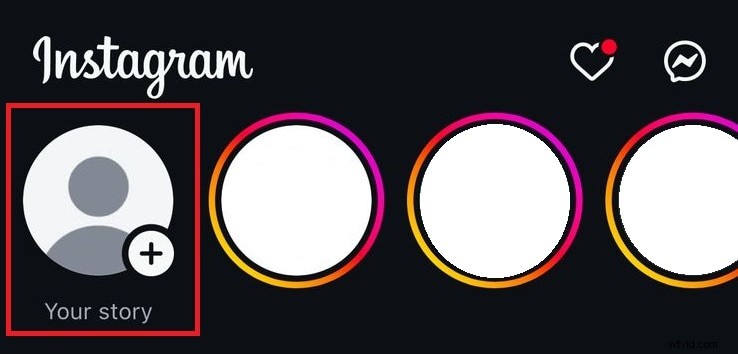
Launch Instagram and open the Story camera by swiping or tapping Your Story. You can take a new photo or video, or choose one from your gallery.
2
Tap the Sticker Icon
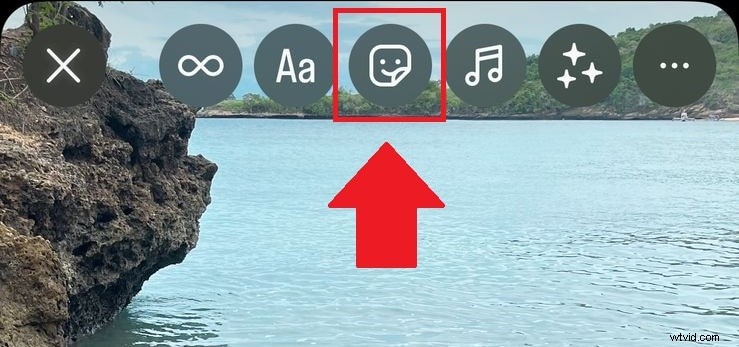
Once your main photo or video is ready, tap the sticker icon at the top of the screen.
3
Paste the Photo to Create an Instagram PiP Effect
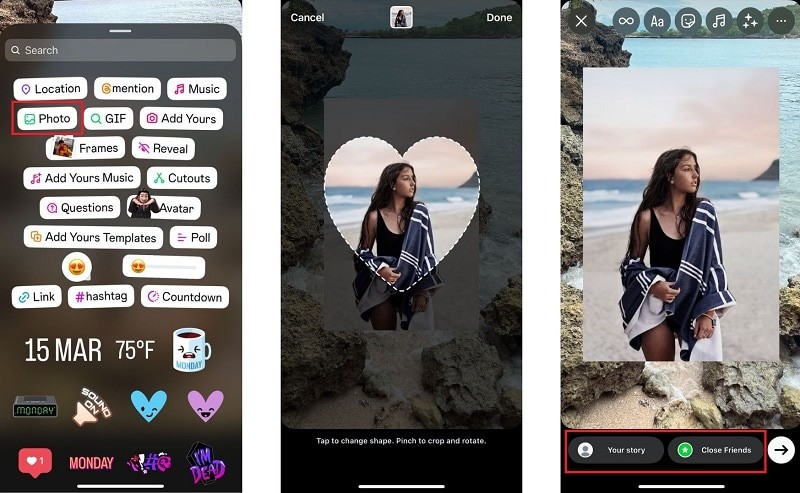
Find and tap Photo or Cutouts to insert an additional image. If you want to use the frame sticker instead, select Frame.
4
Choose a Photo
Pick any photo from your gallery that you want to overlay on your Story. If you are adding a photo, you can tap on the added photo to change the shape.
5
Customize Your Story
Drag, pinch, or rotate the added photo to place it exactly where you want it on the screen. Then, you can add text, GIFs, stickers, or other effects to make your Story even more appealing.
6
Post Your Story
Once you're happy with the design, tap Your Story to share it with your followers!
Method 2: Copying and Pasting a Photo on iPhone/Android
Another way to create a Picture in Picture effect in Instagram Stories is by copying the image you want to add and pasting it directly onto your Story. If your phone supports auto-masking (which most iPhones do), you can even add an image without its background.
1
Copy the Image to Add as an Overlay
Open your Photos or Gallery app. Then, copy the picture you want to add as an overlay to your Instagram Story.
On iPhone:
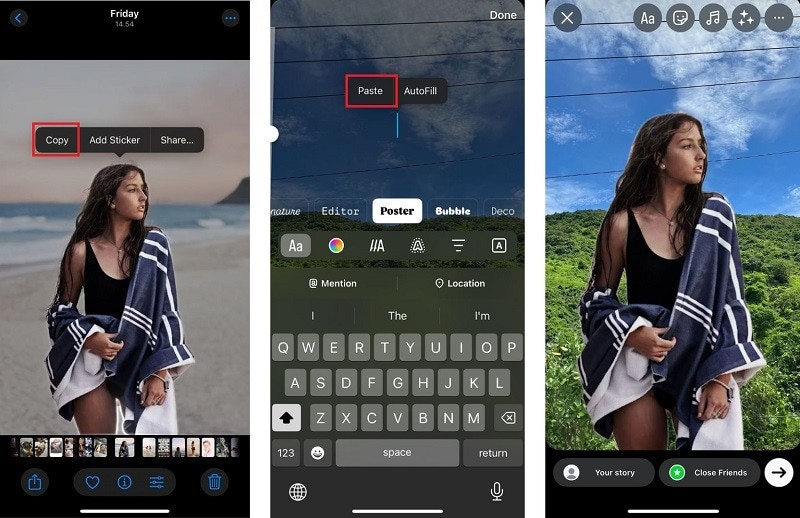
- If you want to copy an image without a background, long-press the subject of the photo until you see an outline around it. Tap "Copy" when the option appears.
- If you want to copy the full image, tap the Share button and select "Copy Image."
On Android:
Some Android devices also allow copying images, but if you don't see the option, you can use third-party apps to achieve a similar effect.
2
Open Instagram and Create a Story
Open Instagram and access the Story camera. Take a photo, record a video, or choose an image from your gallery as your background.
3
Paste the Image onto Your Story
Once your Story background is ready, tap anywhere on the screen to open the text tool. Then, press and hold until the "Paste" option appears, and tap it. Your copied image will appear on the screen.
4
Resize and Position the Image
Drag, resize, or rotate the pasted image to place it exactly where you want. You can add more copied images by repeating the process!
Part 3. How to Do Video Picture in Picture (PiP) on Instagram with Filmora Editor
If you're looking to create more advanced effects, such as a photo-in-photo video or overlaying one video on another, Instagram's built-in tools can be limiting. For creators who want to know how to put a picture on a video seamlessly and go beyond simple picture in picture instagram story effects, we recommend a dedicated video editing tool like Filmora.
Although Instagram Picture in Picture lets you overlay pictures over an image or video in your Stories, it doesn't currently support overlaying a video within the app. Those looking to combine multiple videos or overlay a video over an image on an Instagram Story will need a little extra help from an external tool.
Thankfully, making use of Picture in Picture for videos is easy using Wondershare Filmora. Available for both iPhone and Android, Filmora is a versatile video editing app that provides a wide range of features, including Picture in Picture, that you can use for your Instagram Story.
 Secure Download
There are a few reasons why we recommend Filmora as your go-to tool for enhancing your Instagram content:
- Versatile Picture-in-Picture Capabilities: Filmora supports advanced picture-in-picture options, allowing you to overlay videos on videos or images on videos, giving you more creative control over your content.
- AI Smart Cutout: Instantly remove backgrounds from your videos or images in one tap and overlay them with different backgrounds or effects.
- Blending Mode: Choose from various blending options like Overlay, Multiply, Color Burn, and Darken to make your overlays look artsy.
- Direct Sharing to Instagram: Conveniently share your edited videos directly to Instagram from within the app, making your content creation workflow more efficient.
While the Instagram app is great for photos, it struggles with video-on-video overlays. With Filmora's Picture in Picture (PiP) tool, you can layer multiple video tracks, adjust opacity, and use AI Smart Cutout to remove backgrounds—something the IG app can't do natively.
Filmora Tutorial: How to Use Picture in Picture (PiP) to Overlay Videos for Instagram
1
Start a New Project in Filmora
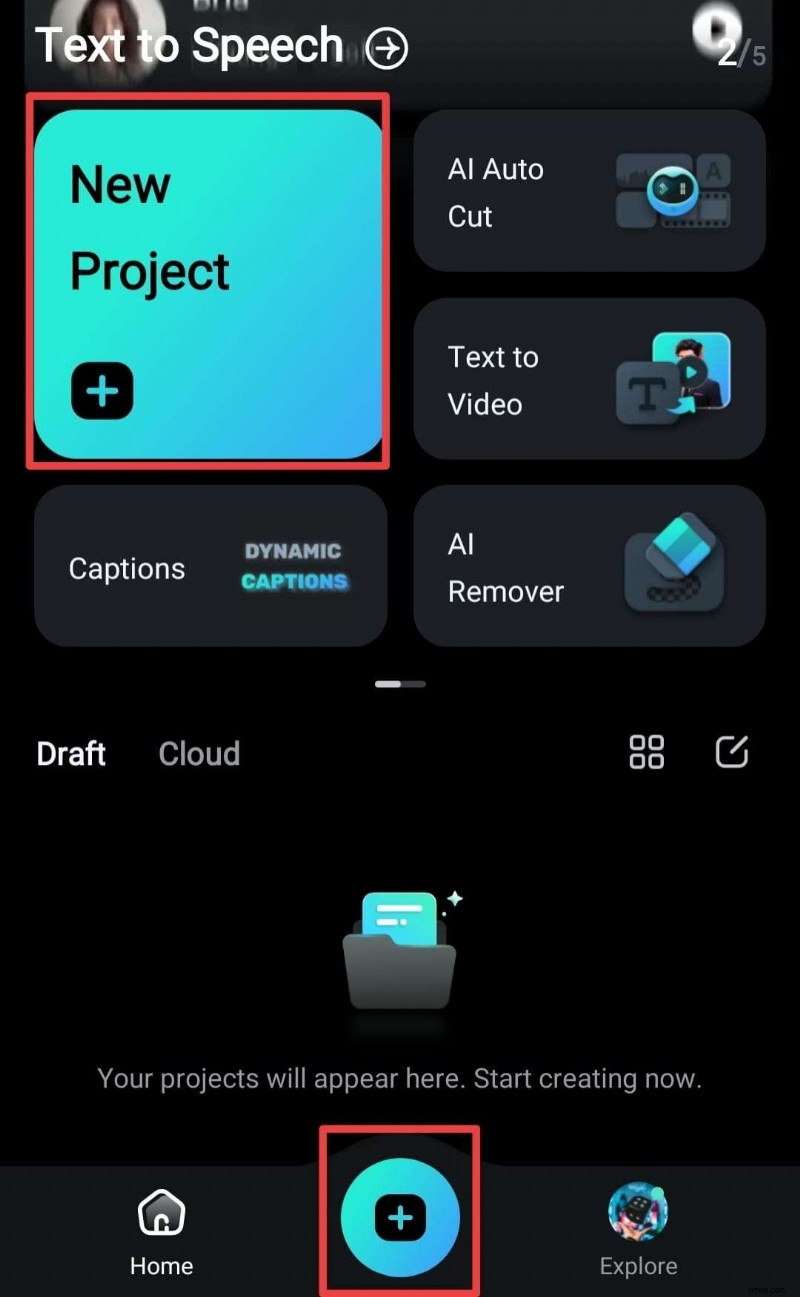
Open Filmora and create a new project. Select the primary video you want to use from your gallery.
2
Turn on Picture-in-Picture (PiP)
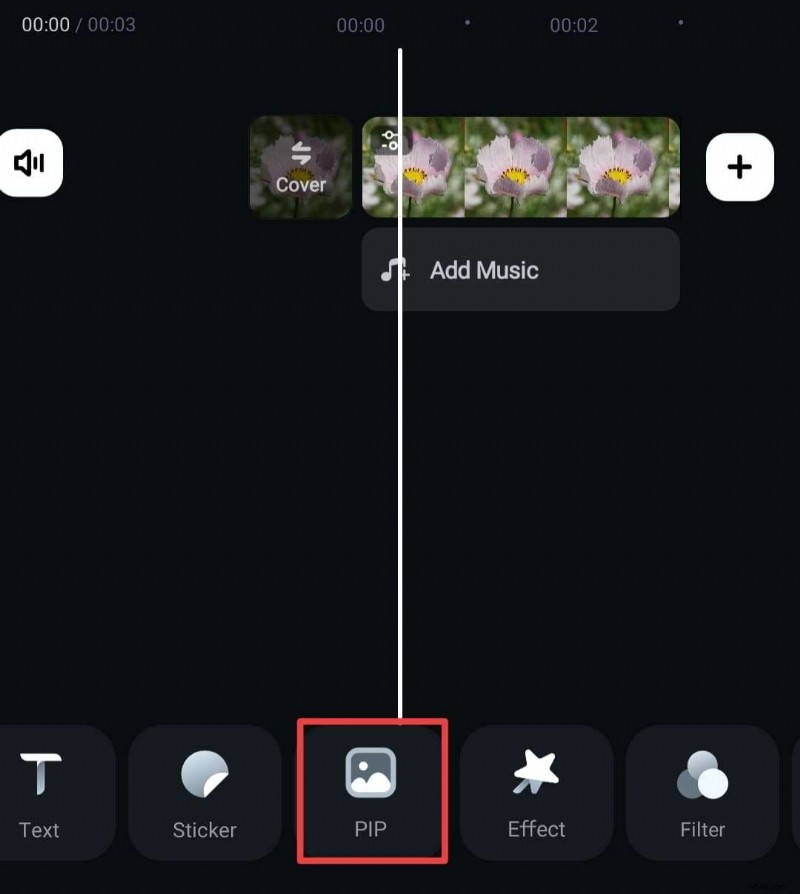
After your main video is uploaded, hit the PiP button on the bottom toolbar. Choose a media file from your collection and tap the Checkmark icon to add it.
3
Edit Picture-in-Picture
To refine your PiP content, tap the video to bring up the editing menu.
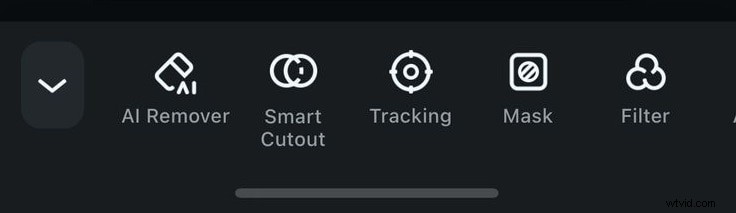
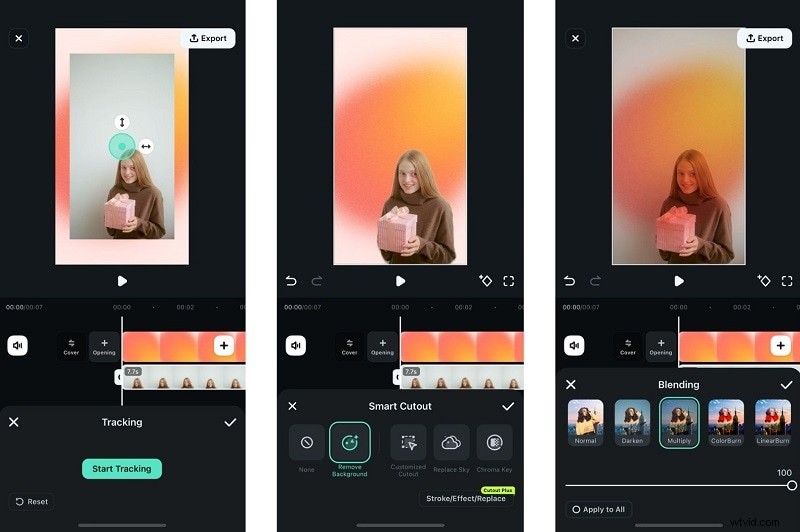
From the available options, you can do several things, including:
- Add Animation
- Apply Blending Mode
- Smart Cutout
- Tracking (attach your PiP content to a specific object or area within the main video)
Conclusion
After learning how to use Picture in Picture on Instagram, your IG Story can no longer be ordinary! Now's the time to experiment and channel your inner designer to create Instagram Stories that awe your followers.
To elevate your content even further, you can apply the Picture in Picture effect to your videos using Filmora. Filmora lets you to blend your PiP content with overlays, play with animations, and try the smart cutout option to fully express your creative vision.

Filmora
AI Video Editing App & Software
Best tool for making videos anywhere for all creators!
- Image to Video tool makes AI editing fast, fun, and super easy.
- Explore other creative templates, from fantasy to vintage effects.
- Enhance your alien video with music, effects, and pro-level editing tools.
- Share your final video instantly to TikTok, Instagram, YouTube, and more.