
In today’s mobile‑first world, square videos (1:1 ratio) dominate Instagram feeds. They capture more screen space, align with platform algorithms, and look polished on both feed posts and stories. Below is a detailed walk‑through of how to craft these videos in Apple’s free iMovie, and why you might want to switch to a dedicated tool like Wondershare Filmora for a smoother experience.

Table of Contents
- Why Square Videos Matter on Instagram
- Making a Square Video in iMovie (Mac)
- Limitations of iMovie for Square‑Sized Content
- Filmora: A Better Alternative for Instagram Square Videos
- Conclusion
- Frequently Asked Questions
Why Square Videos Matter on Instagram
Square videos are essential for maximizing visibility and engagement. Key reasons include:
- Mobile screens display square footage more efficiently, reducing wasted vertical space.
- Instagram’s feed algorithm favors optimally sized videos, often boosting reach for 1:1 content.
- Ads and stories integrate seamlessly when the aspect ratio is square, eliminating black bars.
- Landscape clips on a phone display with letterboxing; squares use the entire frame.
- Step‑by‑step tutorials and product demos stay focused without awkward cropping.
Making a Square Video in iMovie (Mac)
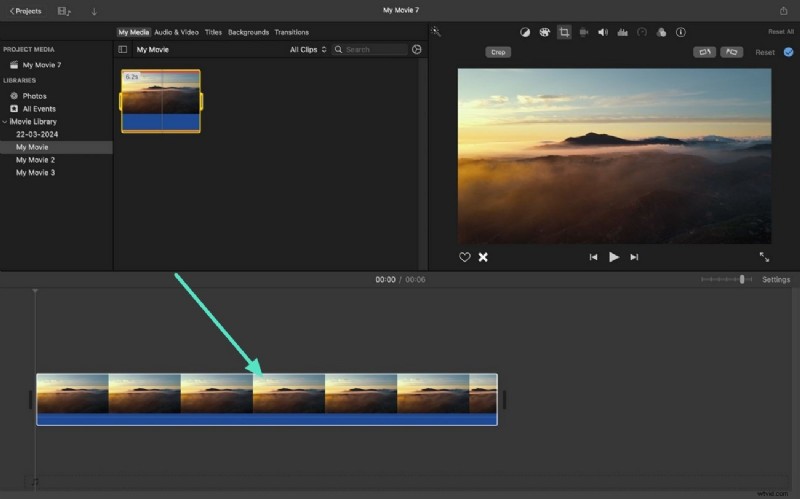
iMovie is a built‑in, beginner‑friendly editor that ships with every Mac. Though it doesn’t provide an exact 1:1 cropping preset, you can approximate the square format using the crop‑to‑fill tool.
Step‑by‑Step Process
- Launch iMovie, create a new project, and import your clip.
- Drag the clip onto the timeline.
- Click the Crop to Fill button above the preview.
- Adjust the framing to centre your subject and trim any unwanted edges.
- Play back to confirm the crop, then export at the highest resolution (1080p or 4K).
Limitations of iMovie for Square‑Sized Content
While iMovie handles basic editing, it lacks a dedicated 1:1 preset and precise resolution controls. For marketers producing content across multiple platforms, this can lead to extra steps or reliance on third‑party utilities.
Filmora: A Better Alternative for Instagram Square Videos
Wondershare Filmora combines intuitive drag‑and‑drop editing with robust aspect‑ratio tools, making it ideal for social‑media workflows.

Desktop Workflow
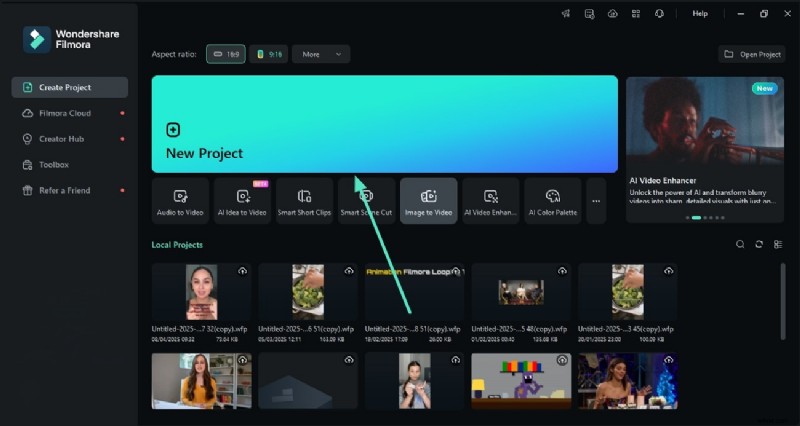
- Open Filmora and start a new project.
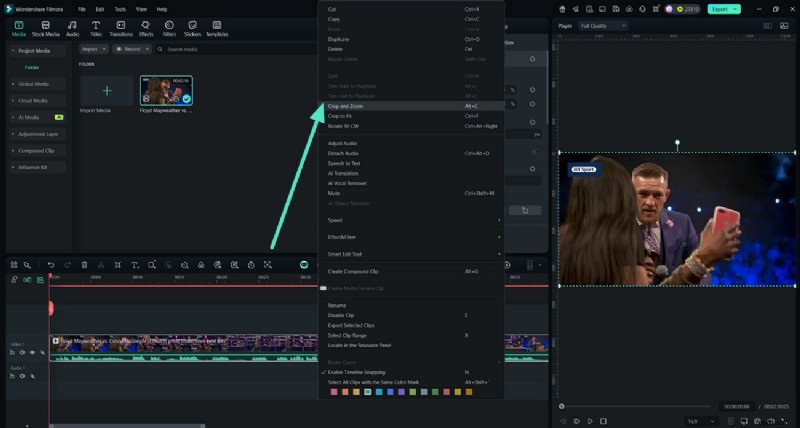
- Import your clip and add it to the timeline.
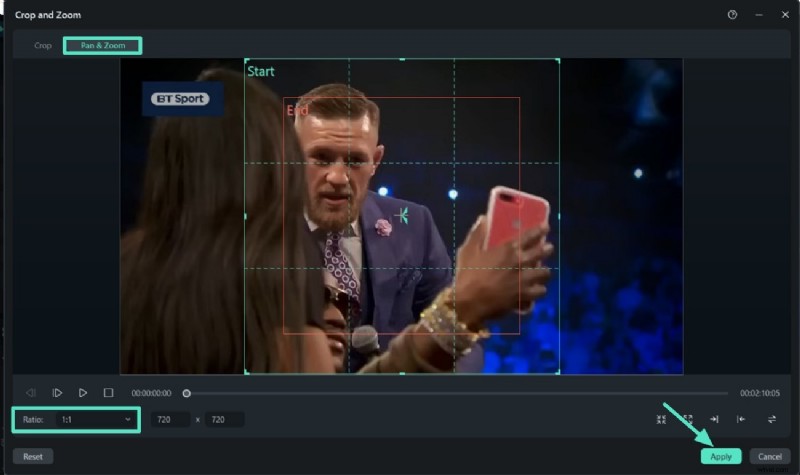
- Right‑click the clip, choose Crop & Zoom.
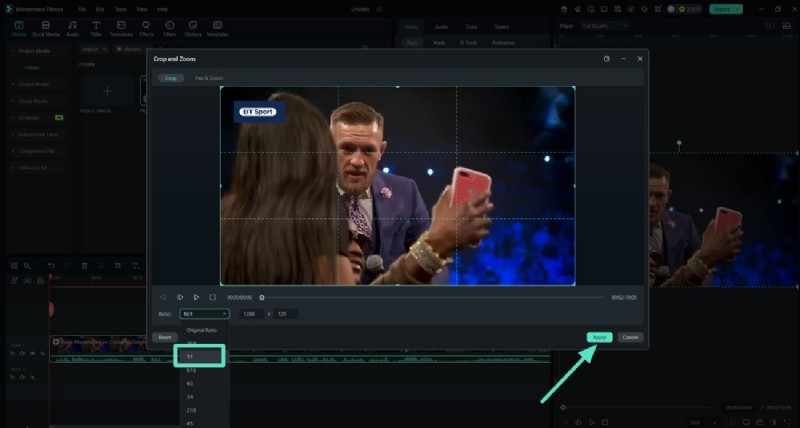
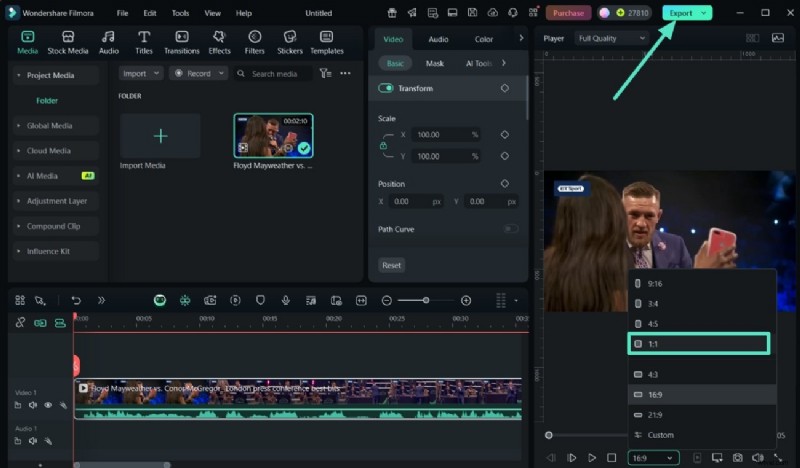
- Set the ratio to 1:1 and adjust the framing.
- Apply Pan & Zoom if you need to focus on a particular area.
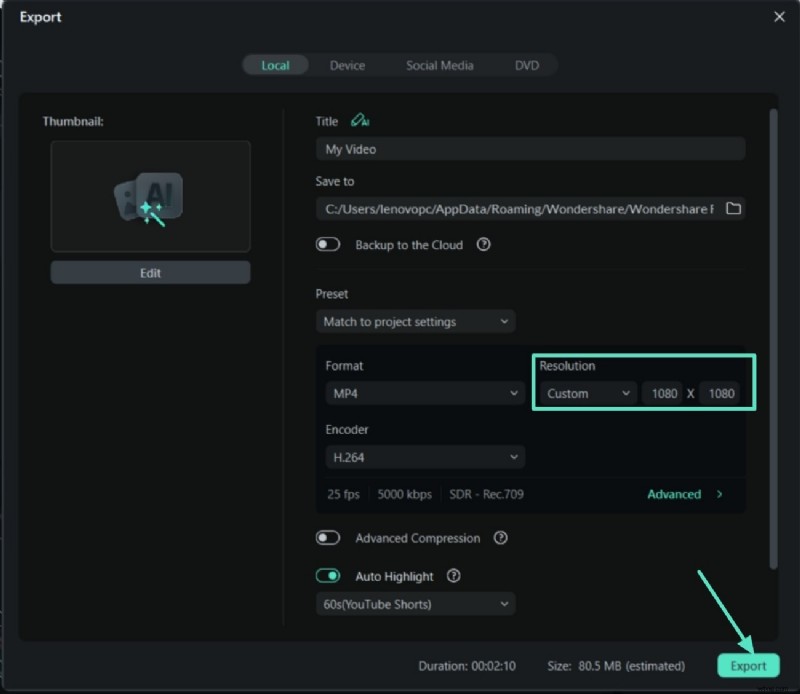
- When exporting, set the resolution to 1080 x 1080 (Instagram’s optimal square size).
- Export and save.
Mobile App Workflow
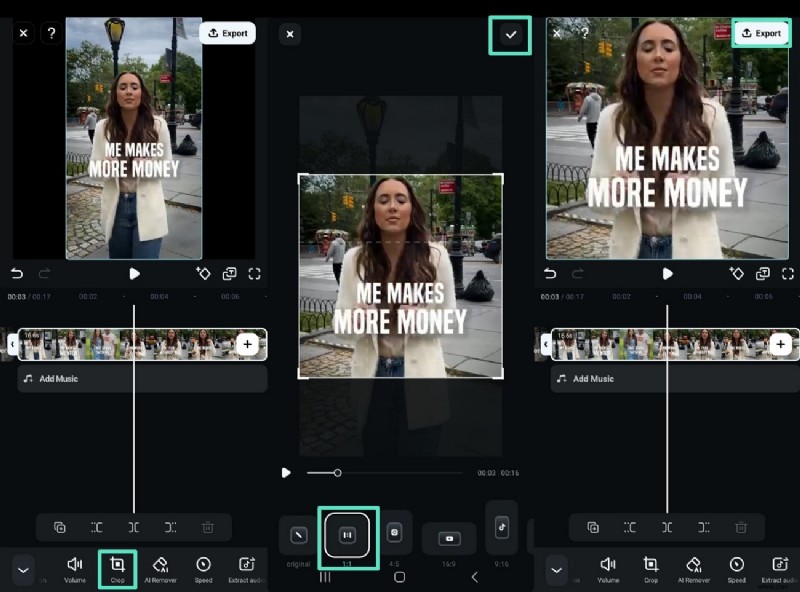
- Launch Filmora Go and create a new project.
- Import your clip, then tap Scale and set the ratio to 1:1.
- Use the Crop tool to fine‑tune the frame.
- Confirm with the checkmark, then export to your gallery.

Conclusion
iMovie can serve as a quick, no‑cost solution for creating square videos, but its lack of precise aspect‑ratio controls makes it less efficient for frequent, multi‑platform publishing. Filmora, with its built‑in 1:1 presets and resolution settings, offers a streamlined, professional workflow that saves time and ensures your content meets Instagram’s specifications.
Frequently Asked Questions
- Can I add text or music in iMovie before resizing? Yes—iMovie supports text overlays, transitions, and background music.
- Will cropping degrade video quality? Minor quality loss can occur if you zoom excessively. Always export at the highest resolution possible.
- Can iMovie on iPhone produce square videos? No, the iPhone app doesn’t support square cropping. Use Filmora or a dedicated cropping app instead.
- Is scheduling square videos directly to Instagram possible? Instagram’s native upload doesn’t allow scheduling. Third‑party tools like Buffer or Later are required.