
What launched as a photo-sharing app for iOS devices in 2010 quickly became one of the world's largest social media platforms, with over 2 billion active users. Today, Instagram is more than a photo-sharing service – it introduced videos in 2013 and later expanded these to reels and stories.
Yet, the platform's video standards are peculiar. It was designed for mobile devices and portrait mode, requiring users to crop videos for Instagram. That's also what this guide will be about, so stay around as we go over Instagram video's crop sizes and show you the five best tools to crop a video for Instagram.
In this article
-
- Filmora (Desktop Software)
- Instagram App
- Kapwing (Online Tool)
- Photos (iPhone)
- Google Photos (Android)
Instagram Video Requirements to Consider Before Cropping
Instagram experimented with video dimensions for a while, primarily due to new smartphones with 18:9 (2:1) and 21:9 aspect ratios, in addition to the standardized 16:9. For years, many IG videos appeared as if they didn't fit the viewer's screen, often looking like they were zoomed in.
That lasted until 2021 when Instagram standardized the four video types, and the social media platform's users learned about the app's video standards. Here are the requirements for each type:
| Video Type | Aspect Ratio | Dimensions | Additional Acceptable Dimensions |
| In-Feed Videos | 4:5 | 108 x 1350p | 108 x 1080p 108 x 608p |
| Reels | 9:16 | 108 x 1920p | / |
| Stories | 9:16 | 108 x 1920p | 192 x 1080p |
| Carousel | 4:5 | 108 x 1350p | 108 x 1080p 108 x 608p |
It's worth noting that video formats and duration also play a vital role here. The social media platform accepts only MP4, MOV, and GIF formats and videos with a length of up to 15 seconds for stories or up to a minute for in-feed videos, reels, and carousel posts.
However, there have also been recent changes to video duration, and many accounts have longer videos enabled.
5 Best Methods for Cropping Videos for Instagram
To adhere to these norms and create engaging clips that fit the platform, you must crop videos for Instagram. To make this easier, we've prepared the top five tools for the task. They include the following:
Filmora (Desktop Software)
Who says cropping a video for Instagram has to be done on the phone? Whether you're a content creator, an IG celebrity, or a meme page admin, having a dedicated desktop editing tool at your disposal can make cropping videos for Instagram a seamless task.
That's what Wondershare Filmora can offer you, as this powerful video editor makes cropping videos for Instagram a breeze.
Characterized by extensive libraries of animations, effects, and transitions, AI-enhanced features that make editing seamless, and a beginner-friendly user interface anyone can navigate, Filmora is an editing tool with everything you'll ever need.
While it's a cross-platform app for Windows, macOS, Android, and iOS, we'll focus on its desktop Windows version and show you how to crop a video for Instagram. Here's what you'll need to do:
 Security Verified. 3,591,664 people have downloaded it.
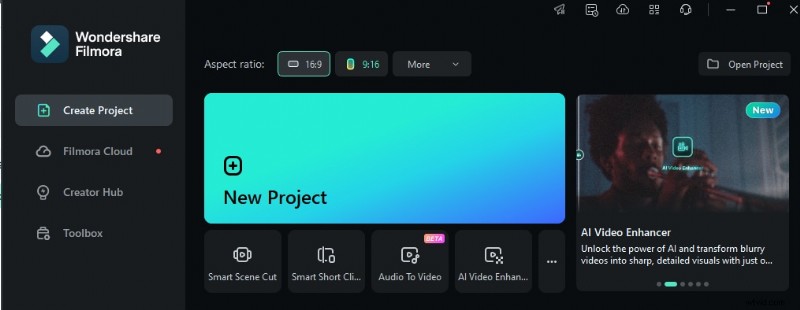
- Open the Filmora app on your device and click New Project.
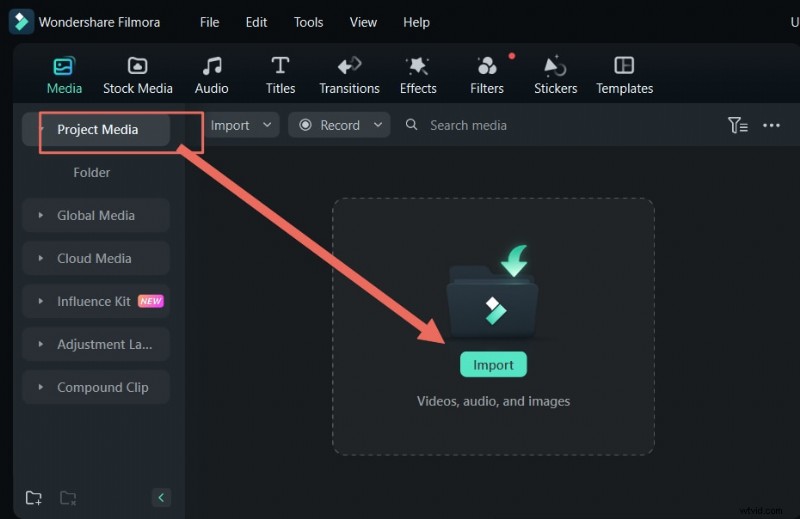
- Press Import to add your videos. Then, drag and drop the imported clips into the Timeline.
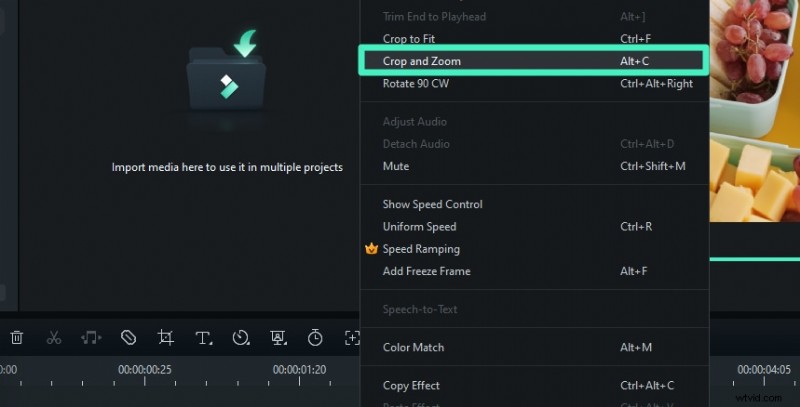
- Right-click a video and choose Crop and Zoom. You can also hit ALT + C or tap the Crop button above the Timeline.
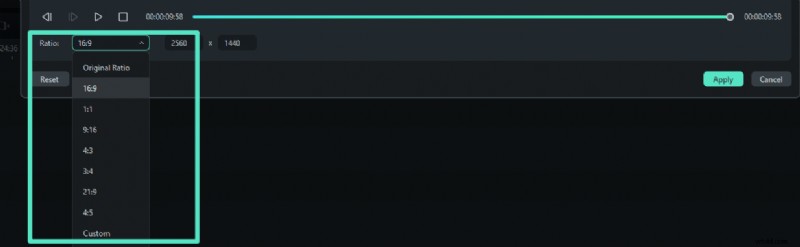
- Select a Ratio to fit IG's standards or adjust the Resolution depending on what you want to post.
- Drag the corner handles to select what to include and crop a video for Instagram. Tap Apply.
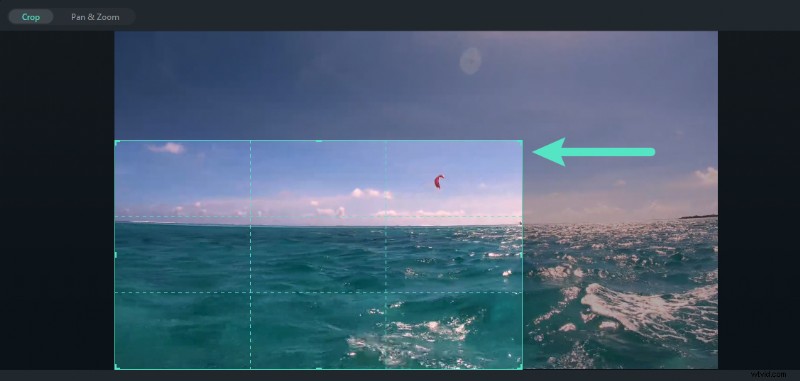
- Once satisfied, tap Export in the top right and save the video.

In a few seconds, you can crop a video for Instagram that perfectly matches the platform's standards.
Instagram App
The Instagram app is a decent choice for those who want to avoid downloading or installing professional editing apps.
Over the years, Meta's updates have drastically improved the once challenging-to-use app and made it a competent, far more reliable tool than ever. Today, the app is a solid choice for cropping videos for Instagram, so let's dive into the how.
Here's a quick guide on how to crop videos on Instagram itself:
- Launch Instagram and hit the Plus button at the bottom.
- Select a Post, Story, or Reel, tap on a video, and hit Next in the upper right corner.
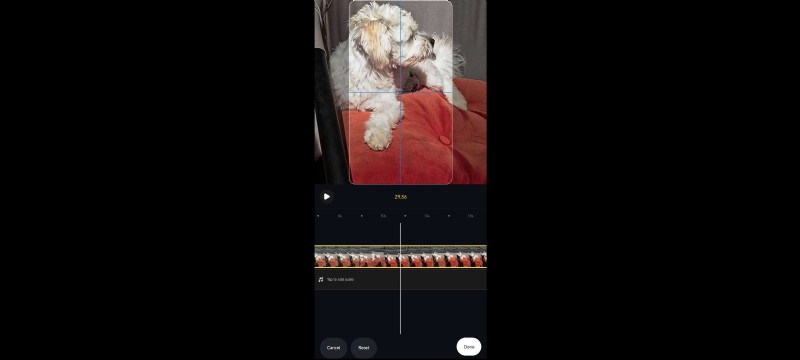
- Tap the Edit video button in the bottom left, then choose Edit > Crop.
- The IG app will adjust the aspect ratio depending on the type of video you're posting. You can then zoom in to crop videos on Instagram.
Unfortunately, there aren't many options for cropping videos on Instagram besides zooming in, which makes it easy to rotate the video accidentally, prompting many users to look for alternatives.
Kapwing (Online Tool)
As a fully-fledged online video editor, Kapwing is among the top choices for users who want to crop videos for Instagram. The well-known web app also has hundreds of editing templates, transitions, and integrations, making it a worthy alternative to cropping videos on Instagram.
You can follow these steps to crop a video for Instagram with Kapwing:
- Open a browser and head to Kapwing's online video editor.
- Tap the Click to upload area and upload your video to Kapwing.
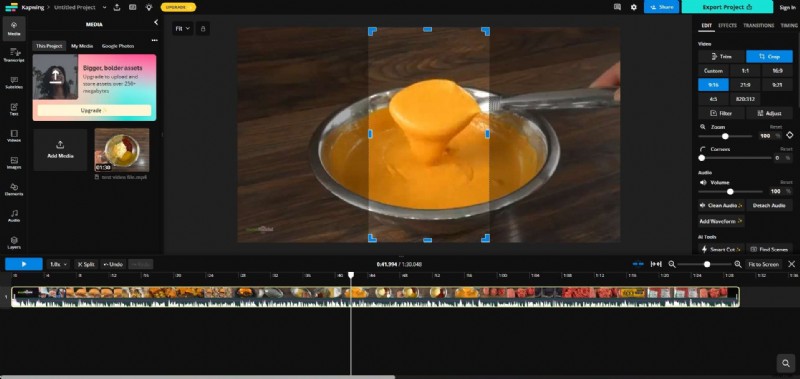
- Select the Edit tab in the right sidebar and click the Crop option.
- Pick one of the preset aspect ratios or manually drag the video's corners to crop a video for Instagram with Kapwing.
Besides the 9:16 preset aspect ratio, the seemingly complex Kapwing's online video editor doesn't offer much in terms of specific Instagram resolutions and ratios you can pick.
Photos (iPhone)

If you only have access to a smartphone, its built-in video editing features are a fantastic alternative to all the abovementioned tools. For iPhone users, that's the Photos app, which has been drastically improved in the past few years and is a breeze for cropping IG videos today.
Here's how you can use it:
- Open your video with the built-in Photos app and hit Edit in the top right corner.
- Hit the Crop icon in the bottom menu bar and then tap the Dimensions icon in the top right to access additional crop options.
- Switch between Vertical and Horizontal options and choose between Freeform, Square, 16:9, 9:16, 4:5, and other aspect ratios.
- When satisfied with the crop, hit Done in the bottom right to save the video.
The Photos app on iOS devices offers many cropping options, making it a fantastic asset for Instagram videos and other social media platforms.
Google Photos (Android)

The counterpart of the Photos app for iPhones and iPads is the Google Photos app for Android users. While it's most likely not your Android phone's primary image tool, a spot often occupied by the Gallery app from your phone's manufacturer, it comes standard on all Android phones, making it a decent choice for cropping videos for Instagram.
Here's how to use it:
- Launch Google Photos and tap the video you want to crop.
- Hit the Edit button at the bottom and then select the Crop option.
- Drag the edges manually, crop a video for Instagram, and hit Save copy when you're done.
Alternatively, tap the Aspect Ratio button above the Crop tab and choose one of the options, such as 1:1, 4:5, 9:16, 16:9, etc.
Bonus: Create a Striking Thumbnail for Cropped Instagram Videos by AI
Instagram users only see the video's thumbnail before watching a particular reel from their For You page. That makes compelling thumbnails a pivotal element for your IG videos, responsible for grabbing the audience's attention and getting them to click on your post or reel.
Besides providing context and sometimes previewing the content, these snapshots of a moment from the video also impact your branding and consistency, making them even more vital for business accounts and the way their users perceive them on this massive social media platform.
Fortunately, thumbnails are relatively easy to make, and that's also an area where Wondershare Filmora can be of excellent service to you as a content creator.
Security Verified. 3,591,664 people have downloaded it.
The app's AI Image Stylizer can make thumbnail creation a breeze and create visually appealing thumbnails that improve your click-through rate, attract a broader audience, and help with your brand image.
Here's how you can try it for yourself:
- Open Filmora and hit the New Project button.
- Tap the Import button to add an image you plan on using as your IG video's thumbnail.
- Drag and drop the image from the Media section into the Timeline below it.
- Select the Image tab in the right sidebar and then click AI Tools.
- Enable the AI Image Stylizer feature and select the style that best suits your video. It has many image styles you can choose from and works best on portraits.
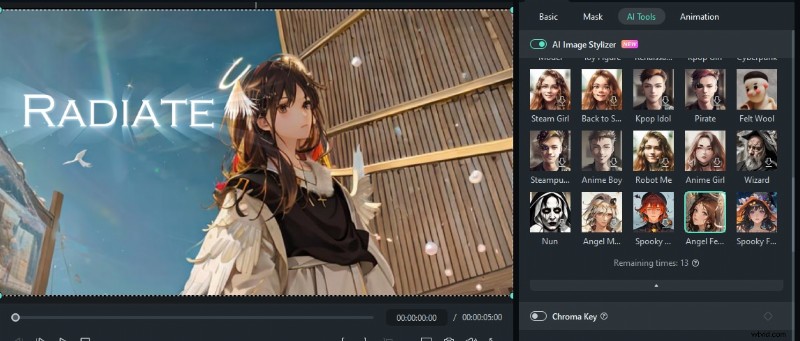
- When ready, tap the Export button at the top right. Adjust the export settings and hit Export once more to save the thumbnail image.
Conclusion
Posting high-quality and engaging video content on IG requires cropping a video to fit the platform's video standards.
While you can crop videos on Instagram, the app doesn't offer as many other video editing options as the professional video editing apps. Considering that, the number one spot for cropping a video for Instagram has to go to Wondershare's cross-platform Filmora app, whose ease-of-use, cropping options, and AI-enhanced features make the process a breeze.
Security Verified. 3,591,664 people have downloaded it.