
Adobe After Effects is known for numerous editing features for videos and images. One of its most popular capabilities is text animation, where you can bend or shape your text into any form you want. In fact, it is one of the first things you learn and can be applied to any project, boosting the creativity and appeal of your design.
In this article, you will discover how to use this feature to effectively type on a path in After Effects and bring your text and entire design to life. Let's begin!
In this article
-
- What are Some Creative Ways to Animate Text Along a Path?
-
- How to Create Curved Texts in Filmora Using Presets
- How to Create Curved Text in Filmora Manually
How Text Curving in After Effects Works
Adobe After Effects is a powerful editor and video compositor loaded with features for creating spectacular designs. One of its most impressive features is the text-curving capability, which allows you to place text along a path in After Effects.
Essentially, this feature works by allowing you to create a path for your text to follow. So, the final result is a curved text or phrase, depending on the direction your masked path takes. Aside from this text on path After Effects feature, you can curve text by warping it or using the bend it tool from the platform.
Choosing to animate text on a path in After Effects is always preferable, although there are other ways to curve text. This is because it's easier and quicker to implement. Not to mention, the results are always impressive.
How to Make Text Follow Paths in After Effects
Using the text-to-path After Effects feature is a straightforward process that you can carry out in minutes. Here's how to do it:
Step 1: Open your design in Adobe After Effects and click on the Text button. This allows you to enter your preferred text.

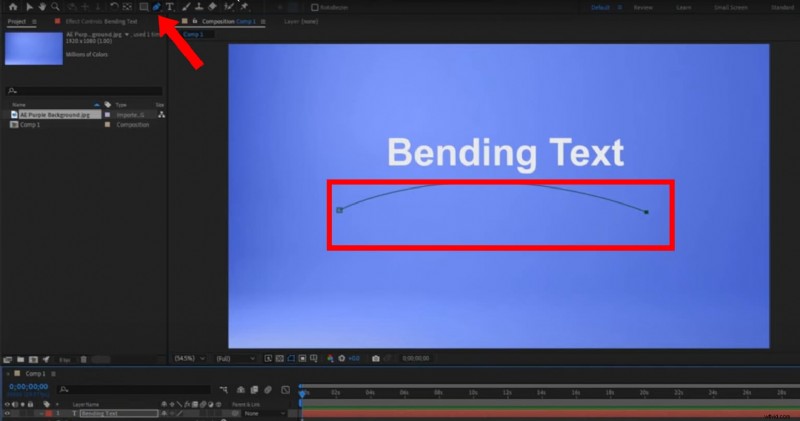
Step 2: Using the Pen tool, create a curved path.
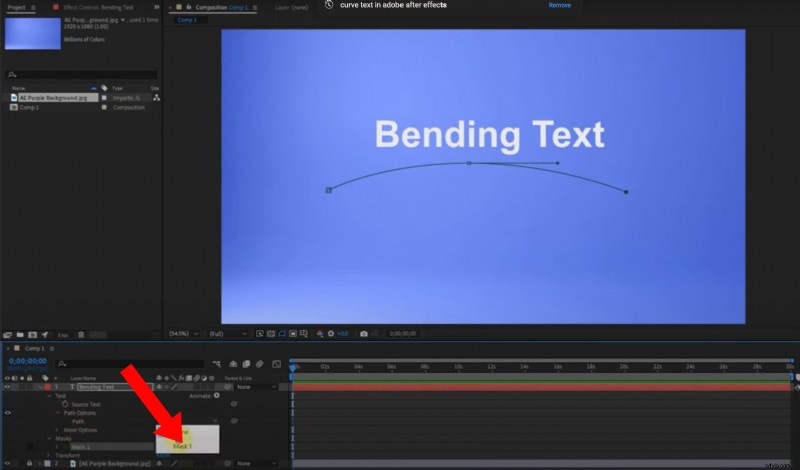
Step 3: Go to the Text panel at the bottom of your screen and select Mask to confirm that your mask is all set. Next, from the same Text panel, go to Path Options and choose Mask 1. This will attach the text to the path you created.
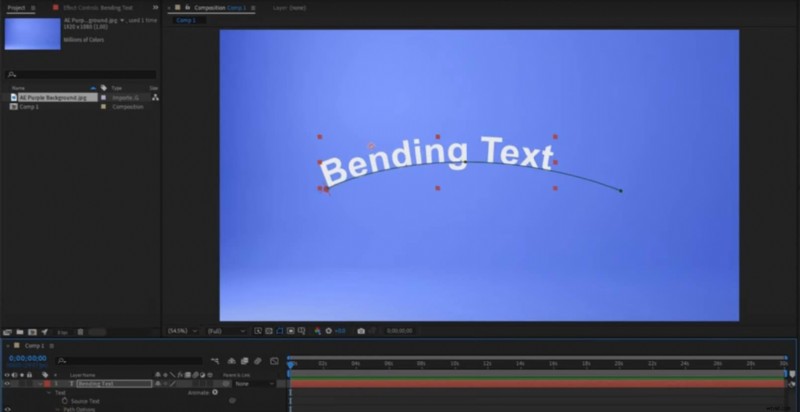
Step 4: Now, you can hold any of the alignment points on the text path to change the shape, depth and angle of the curvature.
What are Some Creative Ways to Animate Text Along a Path?
Now you know how to use the text-on-path After Effects feature, creating your designs should be a walk in the part. But, before you get to designing, here are some creative ways to make your text follow paths in After Effects:
- Using Different Shapes: Aside from curved lines, you can also use shapes as your path. So, ensure to experiment with different shapes to see how the text curves along the paths.
- Perpendicular to Path: Enabling the Perpendicular to Path option allows the platform to rotate the text along the path.
- Text Effects: With After Effects, the design possibilities are endless. One sure way to harness this is by adding effects such as scaling or changing the opacity as the text moves along the path.
Limitations of Creating Text on Path in After Effects
While it certainly has its benefits, the text-on-path After Effects feature has its downsides. It is important to note these pitfalls so you know what to look out for when using the platform. Understanding these limitations can also help you decide whether or not it's the perfect platform for you:
- Cost: To access the features Adobe Effects offers, you must first subscribe to a plan. This could be costly, especially for people who want to use the platform for a single design.
- Steep learning curve: Learning how to navigate the platform and text path animation in After Effects can be difficult. This is specifically because most of the functions are dependent on prior functions. So, for beginners just getting that hang of the platform, it can be a struggle.
- Time consumption: Editing videos or designs takes a lot more time, and since the learning curve can be steep, the platform's editing efficiency is reduced.
Animate Text Along a Path Without Stress With Filmora
For many people, the limitations of using Adobe After Effects to type text on a path can be a major obstacle. The good news is that there are much simpler platforms that can perform the same function with less stress. Plus, they are suited to both beginners and professionals.
Wondershare Filmora is one of these platforms. With powerful AI technology, this platform makes the editing process seamless. It also uses text path animation to empower you to create text on a path in no time. Here are some of the features of Filmora for text path animation:
- Filmora offers up to 19 types of presets with different forms of curved text that fit any video.
- The platform also allows you to increase the strength of your curve or change the angle.
- Filmora's curved text presets can be adjusted to either become a full circle or inverted.
Animate Text Along a Path In Wondershare Filmora
- Create text that flows along a path you design.
- Customization options to design interactive text effects.
- Draw any shape with ease using the Bézier tool.
- A variety of Text Styling Options aligns with your creative vision.
- Combine the text along a path with Filmora's Creative Assets.


How to Create Text on Path in Filmora
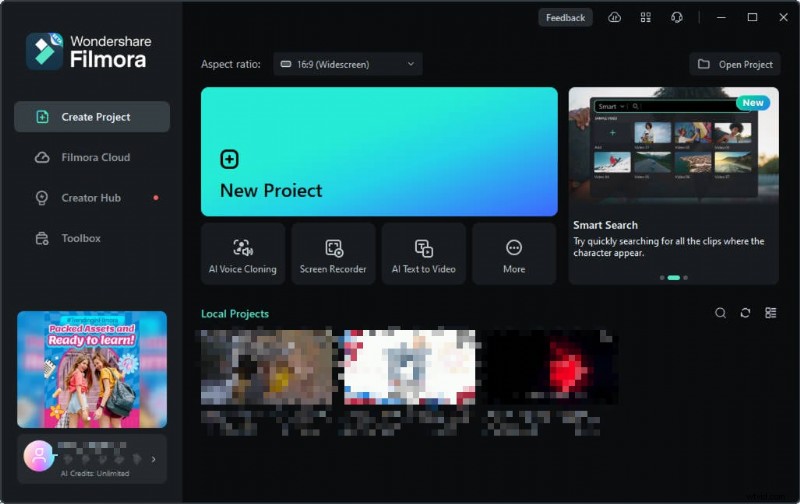
Step 1: Download Filmora and launch it on your computer. Then, click on New Project to edit a new video.
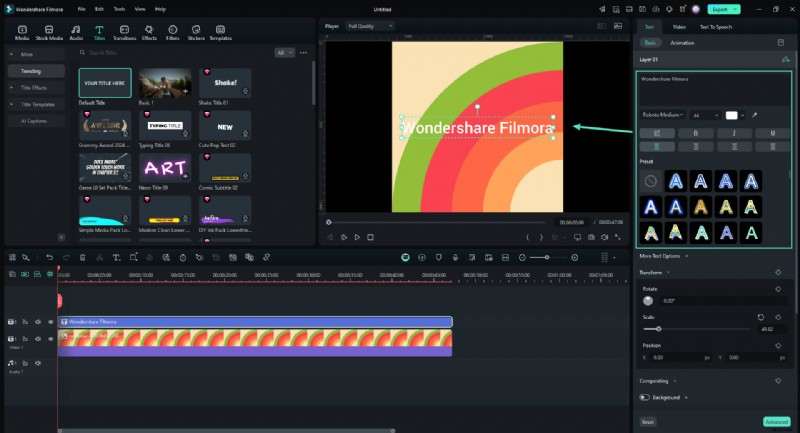
Step 2: Upload your video to the editing suite and select Titles on the top panel to access the text tools.

Step 3: Edit the text box with your preferred text. Then, move it to align it.
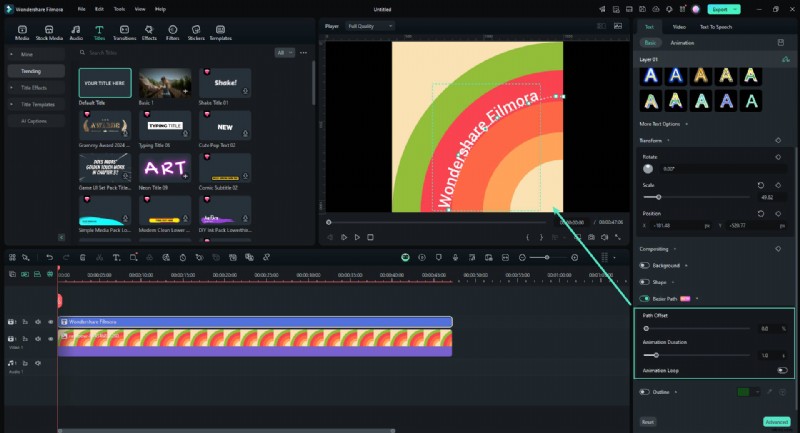
Step 4: From the right panel, under Basic in the Titles menu, you can edit the properties of your custom text. To create your customized curve, go to Bezier Path and drag selections around points and Bezier handles to position the text along the path of your design. Adjust the rotation, spacing, and alignment as needed.
Use the "Animation Duration" slider to adjust the animation speed.
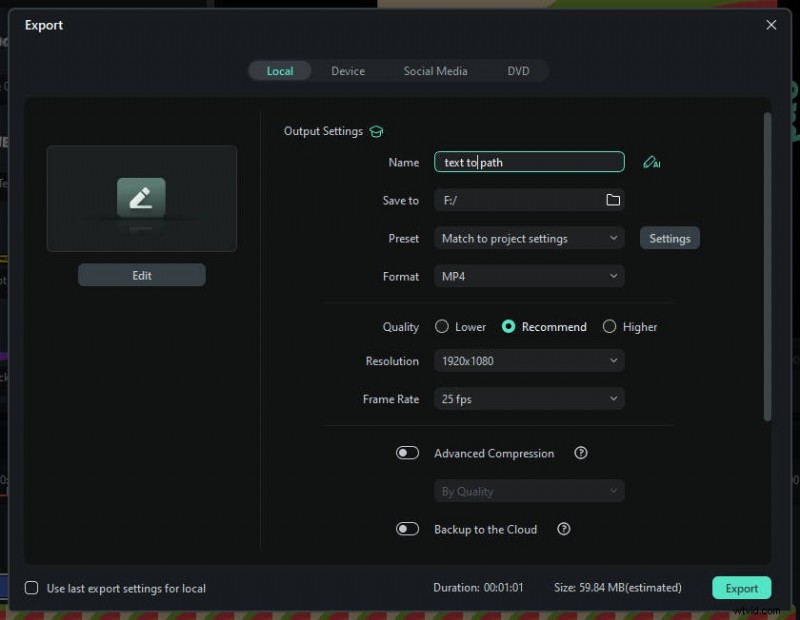
Step 5: Export Your Project
Once you are satisfied with the text fit, click on the "Export" button. Choose your preferred format and resolution, then export the video or image with your fitted text.
Conclusion
Adding text along paths in After Effects can elevate your content to a whole new level. It also gives each video and design a professional look, which is more appealing to your audience. However, it can be daunting for new designers or beginners in the field to navigate. As such, it's best to use more straightforward editors like Filmora, especially when creating type on a path in videos.
Filmora's text path animation feature is easy to use and intuitive. In addition, it gives you versatility as you can explore different kinds of text path animation depending on your preferences. To access this feature, download Filmora today.