
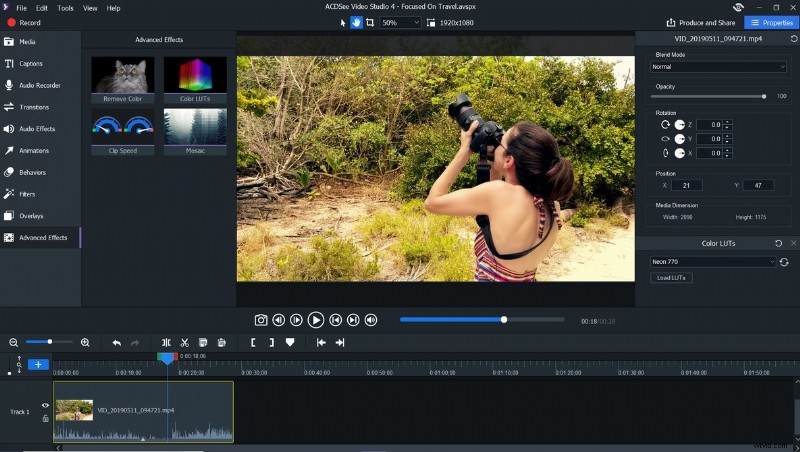
The most common complaint with nearly all video editing software available on the market is the learning curve. Most programs lack a certain degree of intuitiveness, so any attempt to tinker leads to exasperation. That was certainly my number one frustration with past attempts to teach myself to use some of the heftier video editing suites. Enter ACDSee Video Studio 4, the answer to exacting and irritating video editing sessions.
As a self-taught photo-editor and retoucher, it took me a long time to feel really confident with the majority of features in Lightroom and Photoshop. Eventually, I hit that point where things started to make sense. I could seamlessly move between menus and features. I developed a workflow. When I decided to start creating instructional videos, I downloaded a really popular mid-priced video editing program and hoped my knowledge in photo editing would be at least a little bit applicable. Nope. I hoped the learning curve in video editing might be a little easier than photo editing. Not in the least. What followed were two weeks during which I was glued to my computer googling "how do I..." for every single aspect of creating my first video. It seemed like every 10-15 seconds of content I was trying to create required me to watch 8-10 minutes of screen-recorded demos while a monotone droning voice narrated what should have been considerably easier to understand. Eventually, I managed to put out a solid first video of which I'm pretty proud, but I've been dreading getting around to assembling the second episode.
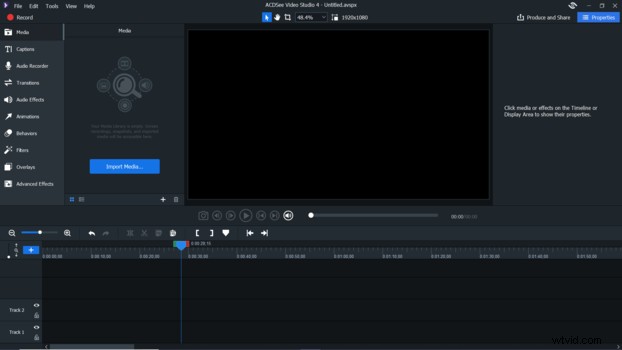
ACDSee Video Studio 4 makes the video creation process seem less daunting without sacrificing functionality. The screen format looks and feels similar to other video editing software, so it's not entirely foreign, but it's pleasantly refined and streamlined. When you open the program, you'll find a timeline for clips, a preview window, and menu options that make sense in an order that you'll likely use them. Here are all the video editing options in the order you'll find them:
Media: This is the button you'll click to import content, and it's right there at the top of the list, easy to find and easy to use. When you try to import video from an external hard drive, you'll get a pop-up message suggesting that you copy media to your computer for smoother functioning and a lower likelihood of program crashes. The pop-up is a smart suggestion and a nice touch that will save you frustration later on.

Captions: This is pretty self-explanatory and offers enough font, style, and alignment choices to be really customizable without taking an hour to navigate.
Audio Recorder: This is a handy option that allows you to record a voiceover directly in the program, nicely streamlining what is often an extra step in video creation.

Transitions: Transitions are as easy to select and apply between clips and other content as they were when creating your social studies Power Point in seventh grade. There are 30 to choose from, so you have options without feeling overwhelmed.

Audio Effects: Drag and drop fade-ins and fade-outs for audio clips are another helpful time-saver.
Animations: These allow you to animate any of your visual content with your choice of seven drag-and-drop presets or control your animation further with the Custom option. Custom animation makes keyframing easy, allowing you to set a fully customized size, placement, and angle of your content. If you feel like you went wrong somewhere along the way, there is a built-in Restore animation that sets things back the way they were.

Behavior: These are extra little flourishes. Think of them as a hybrid of transitions and animations. They can be applied to the intro, outro, or middle of each clip and provide a little more movement and impact to your project.

Filters: Robust yet intuitive filters allow you to change the look of your content. The usual manual adjustments like Exposure, White Balance, and Vibrance are there, but you'll also have the ability to do things like dial in RGB settings, create a mirror image, and simulate chromatic aberration (just to name a few). Photo Effect will be a popular filter for creatives aiming to easily apply an Instagram-like filter to their content. Just drag the filter on to a clip and choose one of the options from a drop-down menu for ready-to-go looks.

Overlays: This is a collection of still and animated visual effects that will sit on top of your content. Options like fireworks, animated hearts and bubbles, and numeric countdowns will be popular with the Snapchat crowd, but more subdued overlays like light leaks and film scratches are available too.

Advanced Effects: Here's where things get impressive. Under this menu, you'll find tools called Remove Color (perfect for incorporating chroma key clips), Clip Speed for speeding up or slowing down the action, Mosaic for creating pixelated areas on the screen to blur text or people's faces, and finally, the incredibly useful Color LUTS which allows you to import your favorite LUT files or choose from the pre-installed options to really dial in the look and coloring of your content.

For those of us who like to learn by watching, ACDSee is rolling out a collection of their own training videos for Video Studio 4 featuring quality sound, a clean, bright, distraction-free environment, and an articulate instructor: the company's Director of photography, Alec Watson. This is a major bonus.
The first three training videos are already up on YouTube:
Amazingly, the simplicity of the program doesn't limit how much you can customize your finished product. Other more streamlined video editors offer only pre-made templates with little customization. With Video Studio 4, you can control almost everything and dial it in exactly how you want it. One of my favorite features is that filters can be applied to all or just part of each clip. You can select when the filters begin and end and each filter can be adjusted independently.
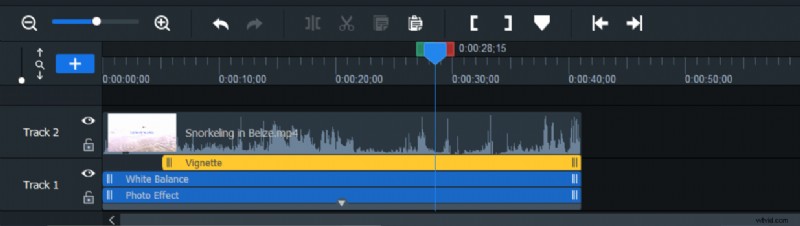
That's as complicated as it gets. Unlike other more intensive video editors, everything you want to adjust will appear within the main interface. The only function that utilizes a second window is previewing media before dragging it into the timeline. No more fighting with free-floating windows or accidentally closing windows you meant to minimize. An hour or two of tinkering is all it takes to become fluent in this program, which makes it perfect for vloggers and content creators of all skill levels. Once you're happy with your video project, you can export in practically any size and format you might need (including 4K). Ideal YouTube and Vimeo formats are preprogrammed for easy exporting and upload.
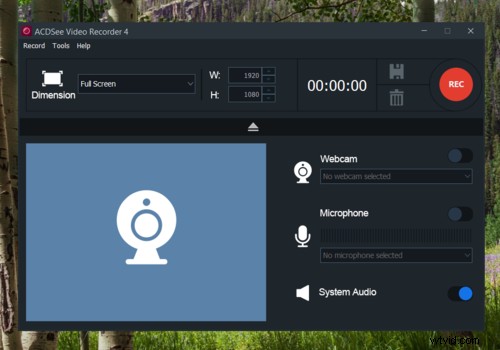
As they say in infomercials: but wait, there's more. One last fantastic feature bears mentioning: the Record functionality. Video Studio 4 downloads include a second program (Video Recorder 4), which allows you to record video via screen capture and webcam, which you can then import easily into your video project. As a photography teacher, I create a lot of screen-share video tutorials for my students. Until now, I've been frustrated by the screen capture software on the market: it's either expensive and clunky or free but watermarked with screen lags and poor audio. I have no complaints about Video Recorder 4. I can narrate my screen share with my computer's microphone, or turn off the mic and add narration later in Video Studio 4. I can even turn short clips of my screen recordings into GIFs to help students see certain steps of a tutorial on repeat.
If you're interested in getting into video but don't know where to start or just want to streamline your editing process, Video Studio 4 is the editing software that you've been waiting for. For a refreshingly simple take on video editing, spend an hour tinkering or check out the videos above. I think you'll find Video Studio 4 to be a really intuitive, manageable, and fully functional video editing suite. If you're searching for straightforward editing software, look no further.