
Working as a video editor can be a hectic and tedious experience. Spending some time to think about organizational tools and methods can help you out significantly when working with a lot of files, or in a large group of colleagues. Renaming files, creating proper folder structure, logging metadata, backing up files, and developing a workflow can make your life much, much easier. While some of the advice listed below is geared for Premiere Pro users, any video editor can take advantage of these tips.
Rename Files
There are a variety of different ways to rename your files in your project. The content you’re capturing will ultimately help guide your naming structure decisions. Are you a daily vlogger? Then naming by date may serve you best. Shooting an indie film? Perhaps scene and take numbers are a good option. While you can rename files within Premiere Pro, this method doesn’t change your source file names. You can batch rename source files in both Adobe Bridge and Lightroom.
Create Folders and Subfolders
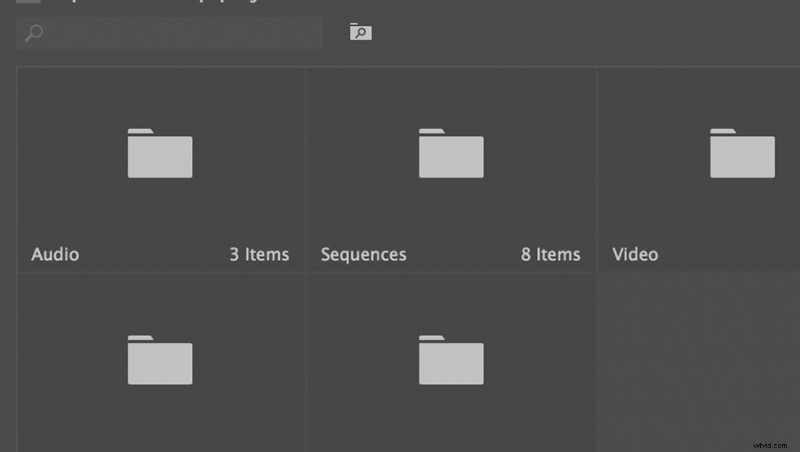
Just as renaming your files will help keep you organized, so too will creating proper folder structure. Setting up standard folders and subfolders on your local drive will help streamline your editing process. Using bins in your Premiere Project will also help you quickly and easily find assets. Whether it’s on my local drive or within a Premiere Pro project, I like to create folders for video, audio, and graphics. I’ll create subfolders according to the depth of my particular project.
Log Metadata
If you have time and the project warrants it, using metadata is extremely powerful. Metadata is essentially data about data. This can include the name of your videographer, scene, and take numbers, date of your shoot, or any technical information. You can add metadata via Premiere Pro’s Project or Metadata panels. Adobe Bridge is also especially useful when working with metadata. Once you’ve added the desired metadata to your assets, you can search, browse and filter your assets as desired.
Backup Files
Backing up your files only takes a few minutes, but can save you hours of work. Most of my editing is done on an external harddrive, which can very easily be dropped. When I purchase a new external harddrive, I buy two - using the second as my backup drive. Backing up your files can be a simple copy and paste to your backup drive, or you can use programs like Time Machine and Premiere’s Project Manager to help you out. In addition to backing up source files, I also save multiple versions of project files with the names corresponding to the date.
Develop a Workflow
Use all of the tips listed above to create your own workflow. Once you go through the motions of choosing a naming scheme, creating custom folders and bins, logging metadata, and backing up your files, you’ll have a template for future projects. While these tips may be time-consuming, they are certainly worth the time. Making an effort to stay organized at the beginning of your edit will pay off tenfold.