
**** Last updated on 18th May 2020 ****
Wondering if it's worth the effort to adjust the colours of a video? Well, here's a question for you:
What do Wes Anderson, Vincent van Gogh, and Cadbury’s branding department all have in common? Answer: They understand that colour is powerful!
Whether you’re creating a mood, evoking an emotion, or making a sale, getting the colour right is a huge help. That’s why brands fight to gain control over particular colour combinations. And it’s why directors devote so much time and attention to distinctive colour schemes and unique palettes.
It’s all about balance, saturation, and contrast
It's not enough to film something colourful, though, because a lot of colour work happens in post-production. Movie studios employ professional colourists to tweak the balance, saturation, and contrast in films so that they look amazing – and can more effectively manipulate an audience’s emotions!
Chances are you can’t afford a professional colourist or expensive video colour correction software. But Clipchamp provides an effective video colour editor for free.
Here’s how it works:
Step 1: Open a free Clipchamp account
You’ll need a Clipchamp account to get started. You can sign up using Facebook, Google or Dropbox, or with your email. Clipchamp is free to use, or you can upgrade for extra features.

Step 2: Set up your project
Starting a video project in Clipchamp is easy. Just click ‘Create a video’, choose the appropriate aspect ratio, and the editor will open:

Step 3: Choose the video files you want to work on
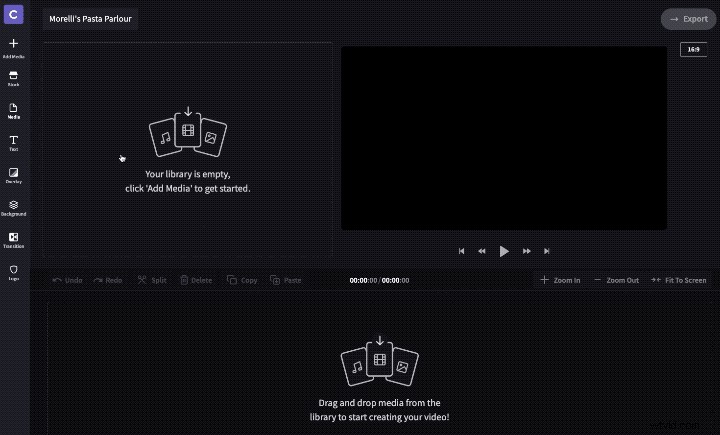
You can import video and audio from your computer by clicking the Add Media button and browsing your files:
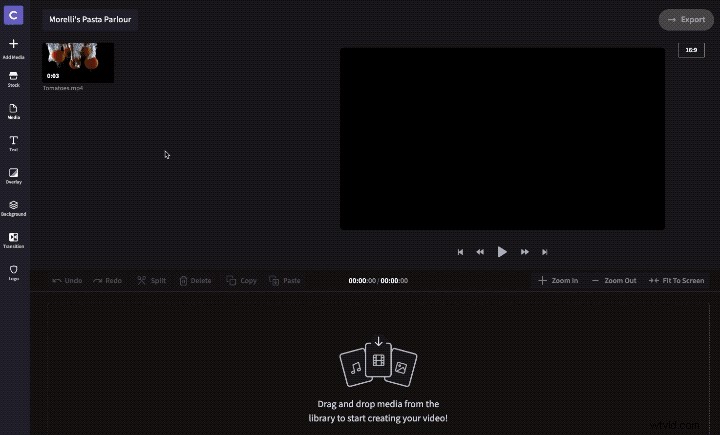
Alternatively, check out Clipchamp’s media library of more than 100,000 professional video and audio stock files:
Step 4: Access the video colour editor
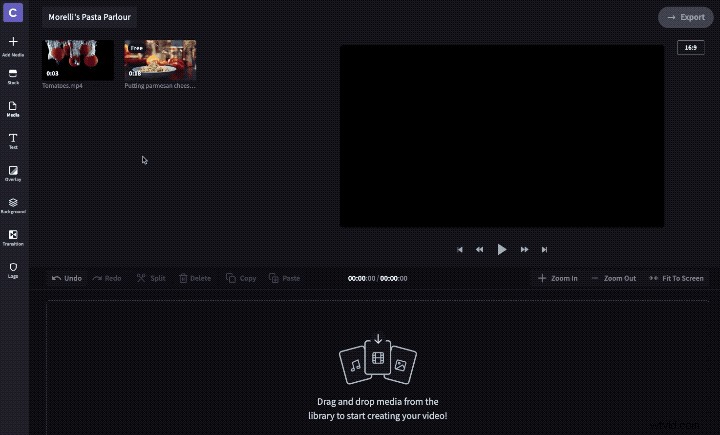
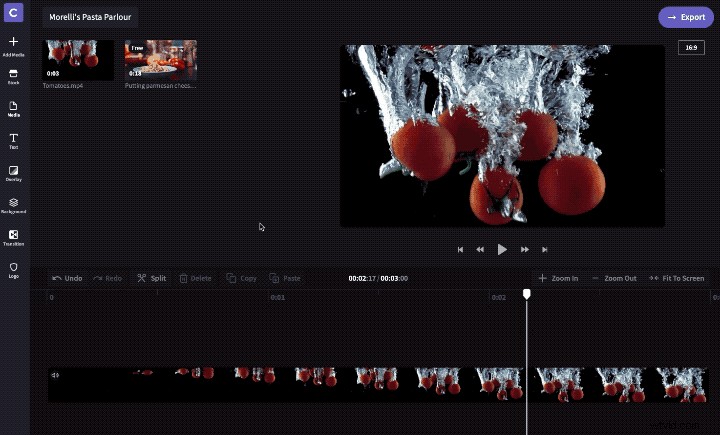
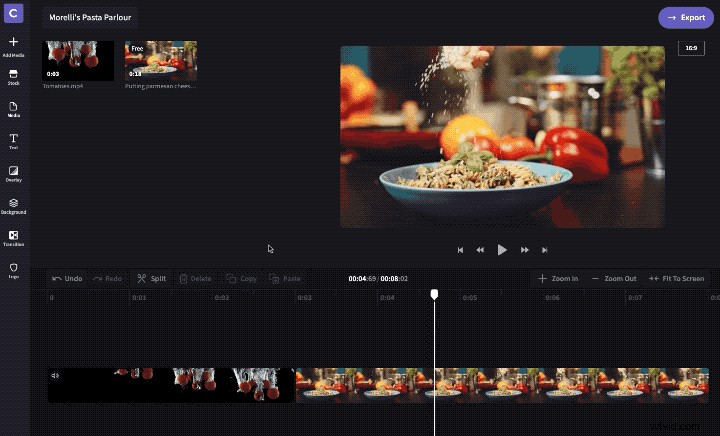
You can start adjusting the balance, saturation, and contrast of your video with just a few clicks. First, drag the video to the timeline at the bottom of the editor:
Then select the video on the timeline. This will highlight it and bring up all available editing tools.
Under the Color Balance tab, you’ll find sliders to change exposure, saturation, temperature, and contrast:
There are also pre-set filters, which you can apply to your video:
Step 5: Time to adjust the colours of a video
There's no one right way to do colour correction. A simple filter could be enough, but you might need to play around with the sliders as well. It depends on what you want to achieve by adjusting the colours of your video.
Try different approaches until you get the right look. It helps to use a reference image showing the look you want to achieve, so you can tell when you've got it just right. Also keep in mind that colours might look slightly different depending on the computer screen you're using.
If you want an old-fashioned, vintage look, you can reduce the saturation to make a video black and white, and then raise the temperature and boost the contrast to create a nostalgic sepia-tone.
Or if you’re going for a modern, vibrant feel, try increasing the saturation and warming the temperature, and consider applying a blur filter to put the focus on any important titles, like we’ve done in this example video:
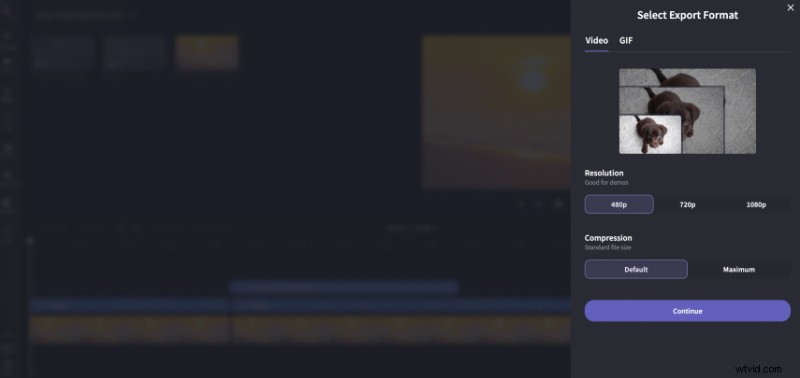
Once you're happy with the colours of the video and the changes you made, click Export as the final step to download the result:
PRO TIP: Don’t feel your video projects are vibrant or professional enough? Why not take a look at Clipchamp’s library of colourful video templates and use them as springboards or inspiration. For example, this Youtube Cooking Vlog Template uses bright, vivid footage with up-beat music and matching title styles.