
Zoom is a technique used in television production and filmmaking to change the focal length of a zoom lens during the shot. However, if you want to create a Zoom effect during shooting, you will need some highly expensive cameras and recording equipment. Fortunately, you can create a Zoom effect nowadays with some video editors, such as iMovie and Wondershare Filmora.
In today's article, we will show you how to zoom in on iMovie.
- Part 1: How to Zoom in/out Videos in iMovie on Mac and iPhone?
- Part 2: The Best iMovie Alternatives (Windows and Mac) for Zooming in/out Videos
- Part 3: Tips for Creating an Amazing Video Zoom Effect
Part 1: How to Zoom in/out Videos on iMovie on Mac and iPhone?
iMovie allows users to zoom in/out video clips that have been imported into it. To zoom in/out videos with iMovie on your macOS or iOS devices, you can follow the tutorial below.
1. Zoom in/out Videos in iMovie on Mac
If you're a Mac user, take the following steps for zooming in on a video with iMovie.
Step 1. Launch the iMovie program and then choose a video clip that you wish to zoom.
Step 2. Drag the video clip into the timeline, and Split (Apple Key + B) the footage into parts if necessary. Select the part you want to apply the zooming effect, and it will be shown in the preview window.
Step 3. Tap the "Crop" button present on the top of the preview window to see the video editing effects i.e. Fit, Crop to Fill, and Ken Burns (The zooming in/out and panning effect used in video production is known as the "Ken Burns" effect).
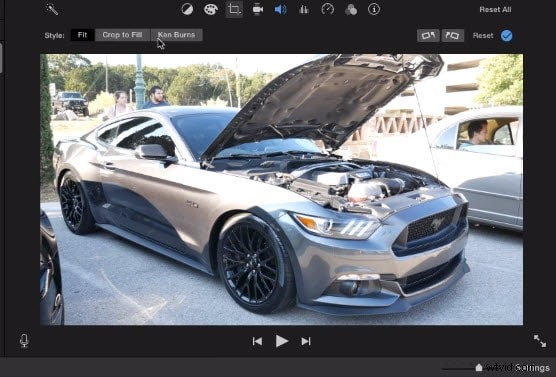
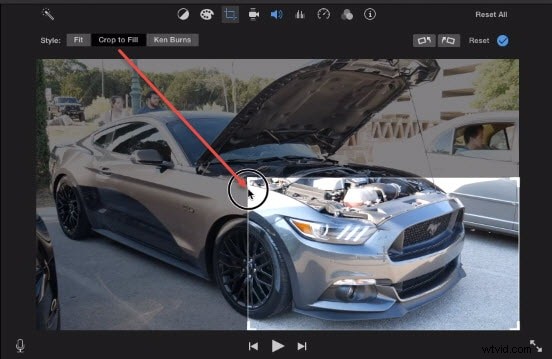
Step 4. Now select "Crop to Fill", and this will bring up a white rectangle. Drag the edge of the rectangle to crop the video.
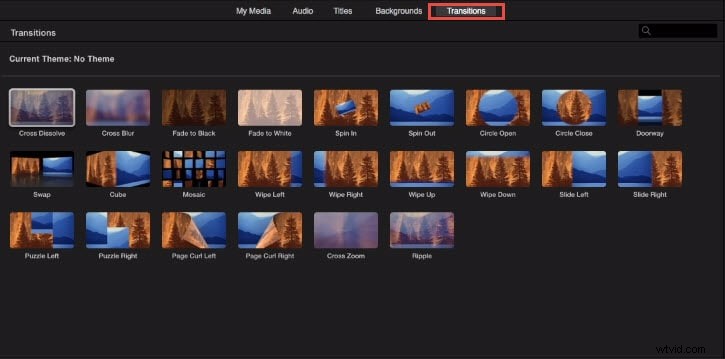
Step 5. Add transitions to make the jump more smoothly. Go to Transitions, and choose a transition effect you like, then drag it into the beginning/end of the zoom part.
Step 6. Click on the "Play" button to preview the zoom effect. If you are satisfied, then hit on the "Done" button to apply the effect.
You May Also Like: How to Crop and Rotate Photos/Videos in iMovie
Check this video to know more details:
2. Zoom in/out Videos in iMovie on iPhone/iPad
If you're using iPhone or iPad, do as follows:
Step 1. Click on the iMovie application and choose the required video to add a zoom effect.
Step 2. Now select the frame of your own choice.
Step 3. Click the magnifying glass button to apply the cropping.
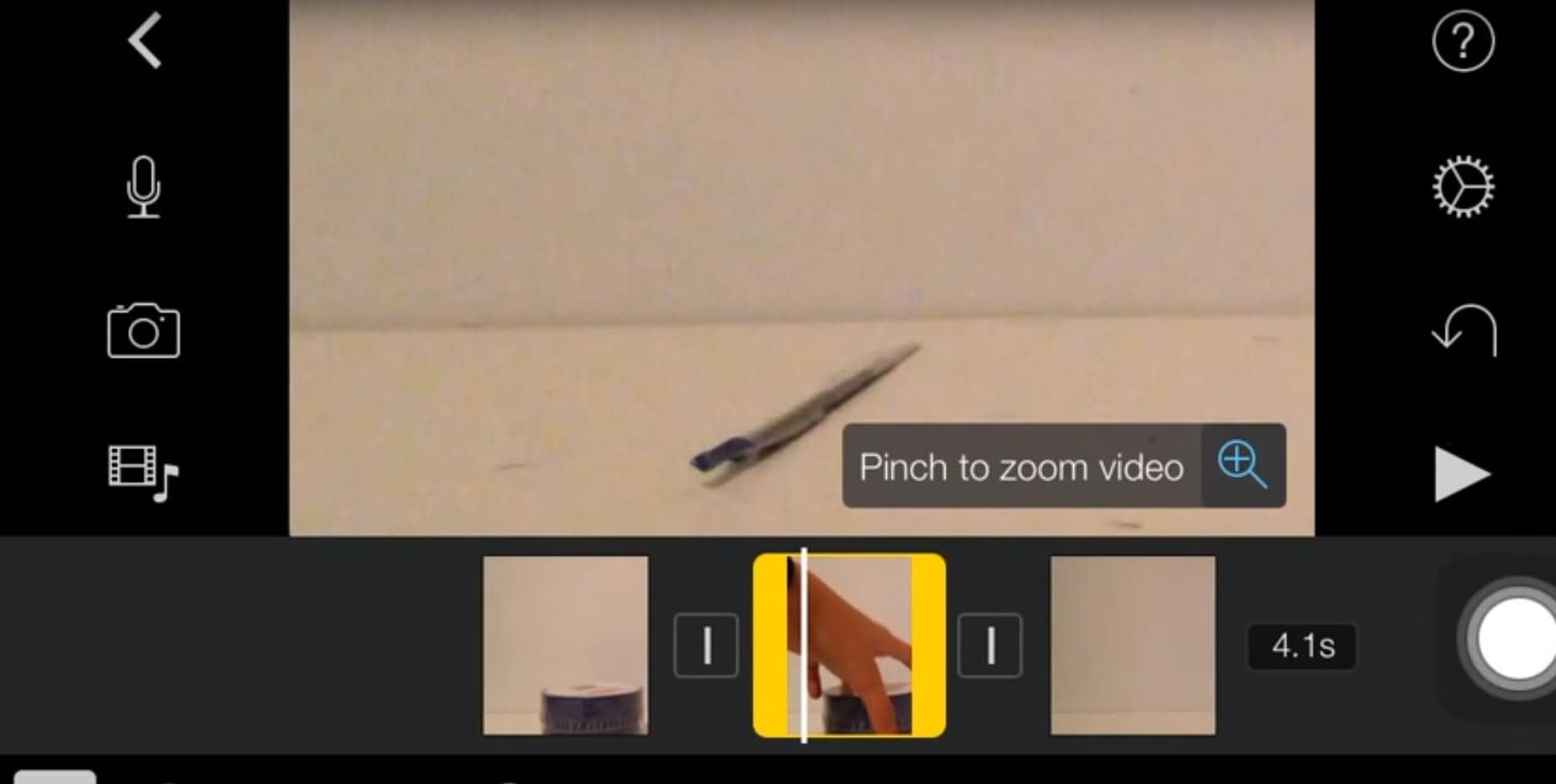
Step 4. Preview the video and make suitable adjustments if needed.
Step 5. Once you are satisfied with the effect, click on "Done". In this way, the effect will be applied to your clip.
Part 2: The Best iMovie Alternative for Zooming in/out Videos
Wondershare Filmora is a multifunctional video editor for both Windows and Mac users. It is one of the best iMovie alternatives to zoom in/out videos quickly and easily. Filmora also supports adding some special effects, audios, background music, text and titles, transitions, and more to your video footage.
The tutorial below is about how to make a pan and zoom effect within one minute. Just click on the "Try It Free" button below to get Filmora directly and make a cool pan & zoom effect right now!
The steps of making a Pan & Zoom effect in Filmora for Mac are similar to that of Filmora for Windows.
Step 1. Drag the video/image to the timeline, then right-click the video/image and select Crop and Zoom.
Step 2. In the popup window, select the Pan and Zoom option. Set the start and end area as you need, and then click OK to save the settings.
It's really pretty simple, isn't it? Want to know more about Filmora? Do not miss the video below to check out what Filmora can do for you.
Learn more about: How to Zoom Videos Easily
Part 3: Tips for Creating an Amazing Video Zoom Effect
If you want to create a stunning video zoom effect during shooting, check out the following tips:
1. Move the camera manually
You can move your camera manually away or towards your subject if your camera is not allowing you to zoom when the shutter is open, or you do not possess a zoom lens.
2. Keep your camera still
The movement of the camera can greatly affect your shot while utilizing a slow shutter speed. You can prevent camera shake by setting your camera on a still surface or using a tripod.
3. Focus on smooth zooming
You have to lay stress on "smooth zoom" for getting fine, smooth lines in your photo. A lot of practice is needed for mastering this technique.
4. Lights
Any kind of light whether it is a neon sign or city light plays an important role in the zoom effect. Lights can produce stunning effects if they are applied effectively.
5. Reverse zooming
If you have a moving object, then zooming in on a subject can provide better results in comparison to zooming out. So you should try this experiment also.
Related: How to Reverse Video in iMovie
6. Partial zoom
You can also zoom partially, as some zoom lenses have broad focal lengths.
Related: How to Add Video Effects in iMovie
That's it. Have you learned how to zoom in/out videos with iMovie and its alternative - Wondershare Filmora? If you need further assistance, please leave your comments below to let us know.
You May Also Like: Get Best iMovie Alternatives for Mac