
I’m not saying you make boring screenshots. I’m just saying a lot of people make boring screenshots.
It usually goes like this: Grab screenshot, make minor edit, share or paste in message, email, document, etc.

Of course, it doesn’t have to be this way.
We can make our screenshots say more, to stand out, to speak or, if you like, sing with melodic grace and beauty.
I’m not kidding, you can make screenshots sing with the new Snagit 2020. More on this later in the post.
1. Say more in screenshots with Snagit Stamps
While annotations like arrows and shapes help to identify specific elements in screenshots, sometimes another layer of information is necessary to get your point across.
For example, it’s hard to know anything about what is shown in the screenshot below outside of the fact that it appears to be a file storing or sharing system. Is this a new system or interface? Are there particular things I should pay attention to?
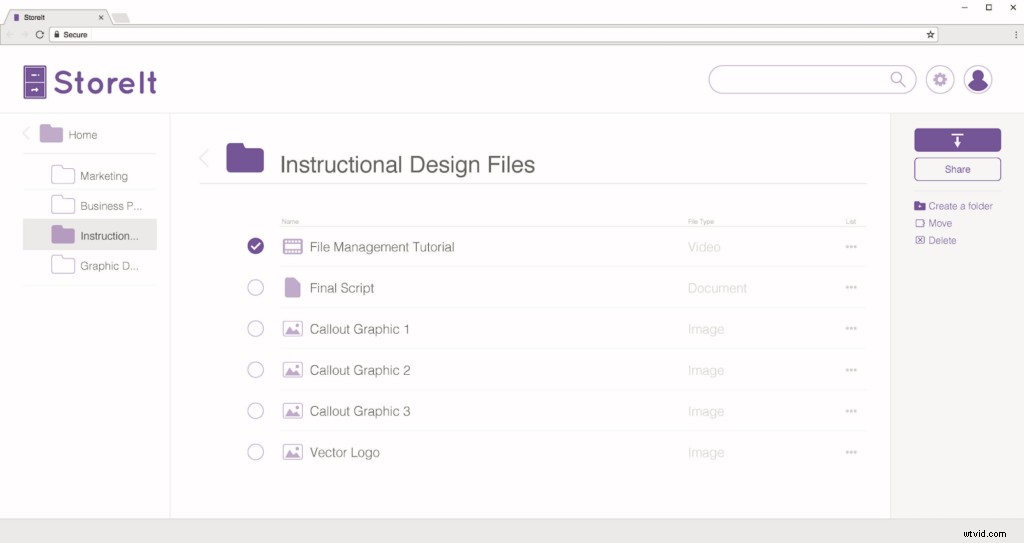
It’s hard to tell.
Instead of just identifying a particular element or object, often you need the user to know context about the image itself (e.g. it’s a screenshot of a new interface) or that it pertains to a particular topic.
Snagit stamps offer the ability to add this additional layer of information.
The Snagit stamp library includes UI elements, keyboard icons, cursors, math symbols, smileys, food, business and medical signs and numerous other useful categories.
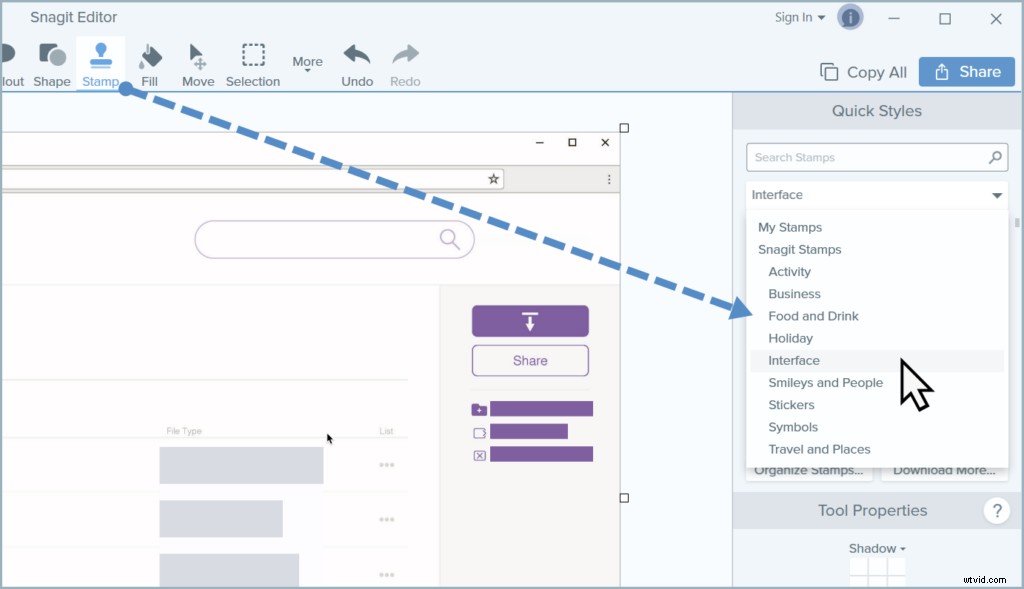
Here is a great little video we created on Snagit’s stamps and how they can be used to enhance screenshots.
Organized by categories, the stamps are easily searched, selected, and applied to screenshots in a matter of seconds.
If browsing through categories isn’t your thing, use the search bar to find the right stamp.
Select a stamp, click to apply it to your image, and then resize, move, and rotate it to get the look you need.
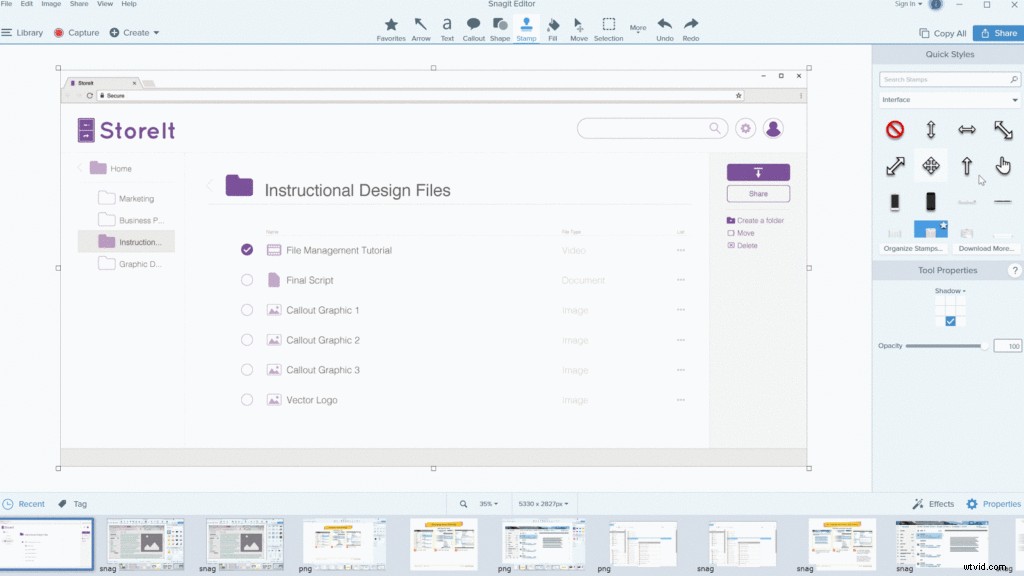
Snagit stamps are vector graphics. This means they can be made as small or large as you like and they won’t get distorted by pixelation.
Let’s return to the screenshot I shared earlier to see how stamps can be used to enhance your communication.
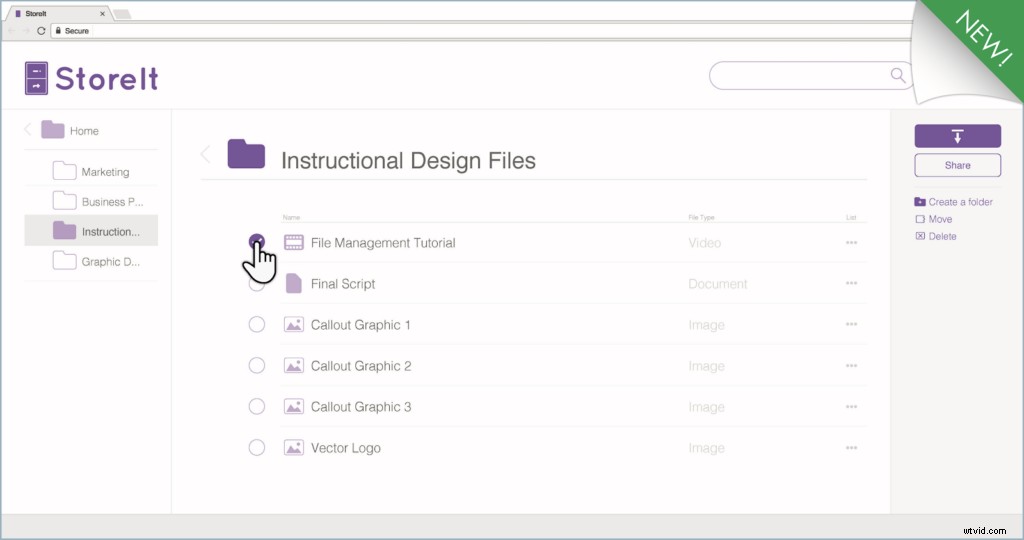
See the difference?
First, I placed the green page curl “New” stamp from the Stickers section in the upper right corner.
Then, to show some action, I added the pointer stamp and made it larger so it’s easy to see.
Now this screenshot can be sent via email or placed on a knowledge base to notify a team of a system update. Adding stamps offers additional clarity when users see the image with an accompanying email or help article.
2. Create your own stamps
While Snagit comes equipped with loads of stamps, it’s not uncommon to have a particular graphic, like a company or personal logo, that often must be added to screenshots.
In this case, instead of having to keep the graphic organized somewhere and open it every time you need it, you can turn it into a stamp for easy access. This also works for creating custom watermarks.
On Windows, select the Stamp tool and click Organize Stamp > Add Stamp and then choose the image file for the graphic you want to add. If you’re working on a Mac, click Import Stamps and choose the file you want to add).
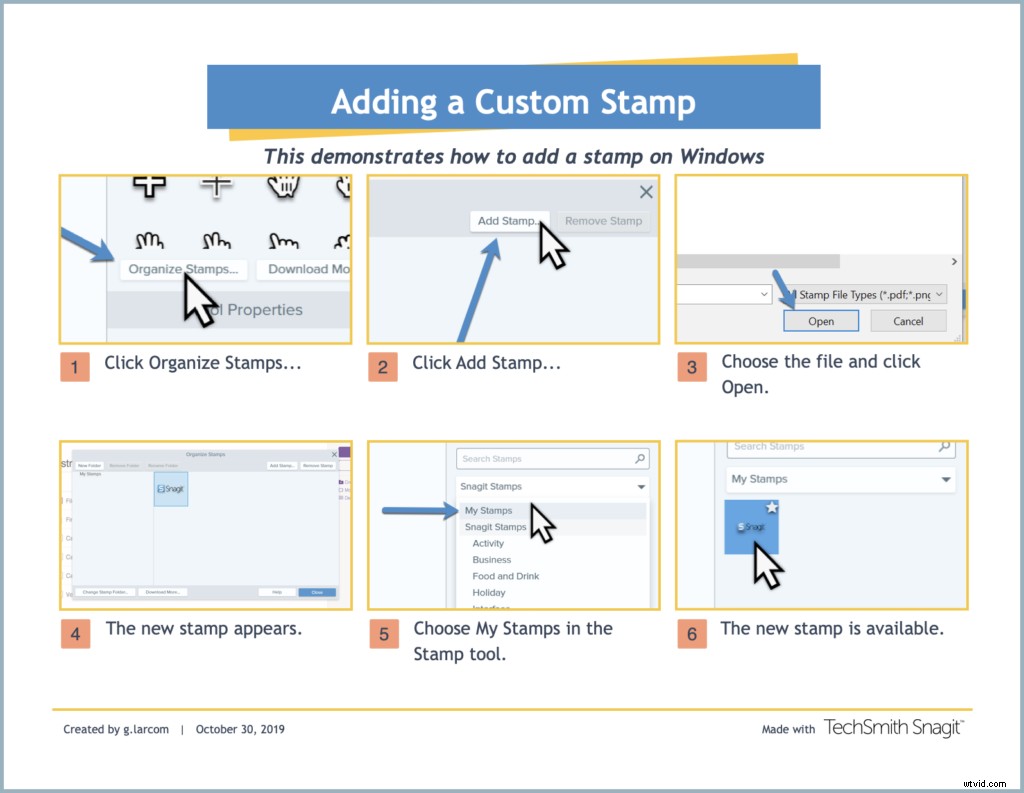
Note: If you want your custom stamp to be scalable (a vector graphic like the stamps included with Snagit), make sure it is saved in vector format as a .PDF file.
3. Create more than screenshots
In the section above, did you notice the guide I used to show how to add custom stamps to Snagit?
It contains six screenshots and a cursor stamp to demonstrate an entire process. To create that I used the Image from Template feature in Snagit 2020, which is found in the new Create menu.
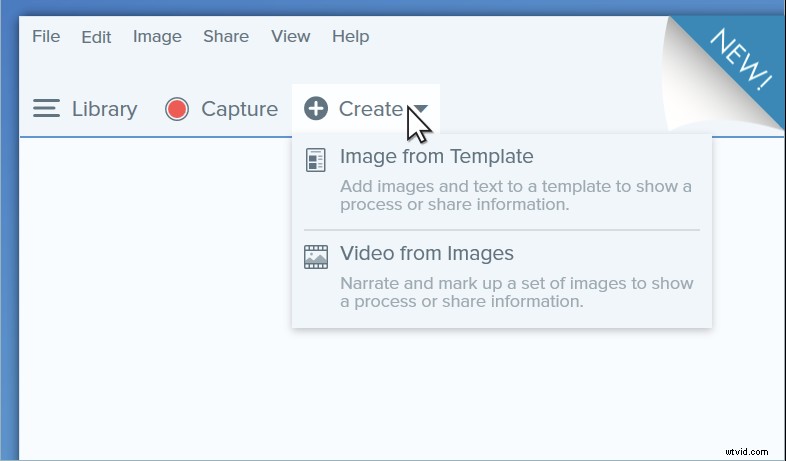
The Create menu offers two new features that can help you take your screenshots to the next level. Image from Template, which I mentioned, and Video from Images.
These features make it easier than ever to create engaging content with screenshots.
Combine Images in Templates
TechSmith Snagit 2019 introduced combine images. Now Snagit 2020 has taken it a step further, offering professionally designed templates for combining screenshots and images.
Templates let you quickly create custom visual guides in no time. Titles, subtitles, and captions for each image are automatically organized so you can show complete processes.
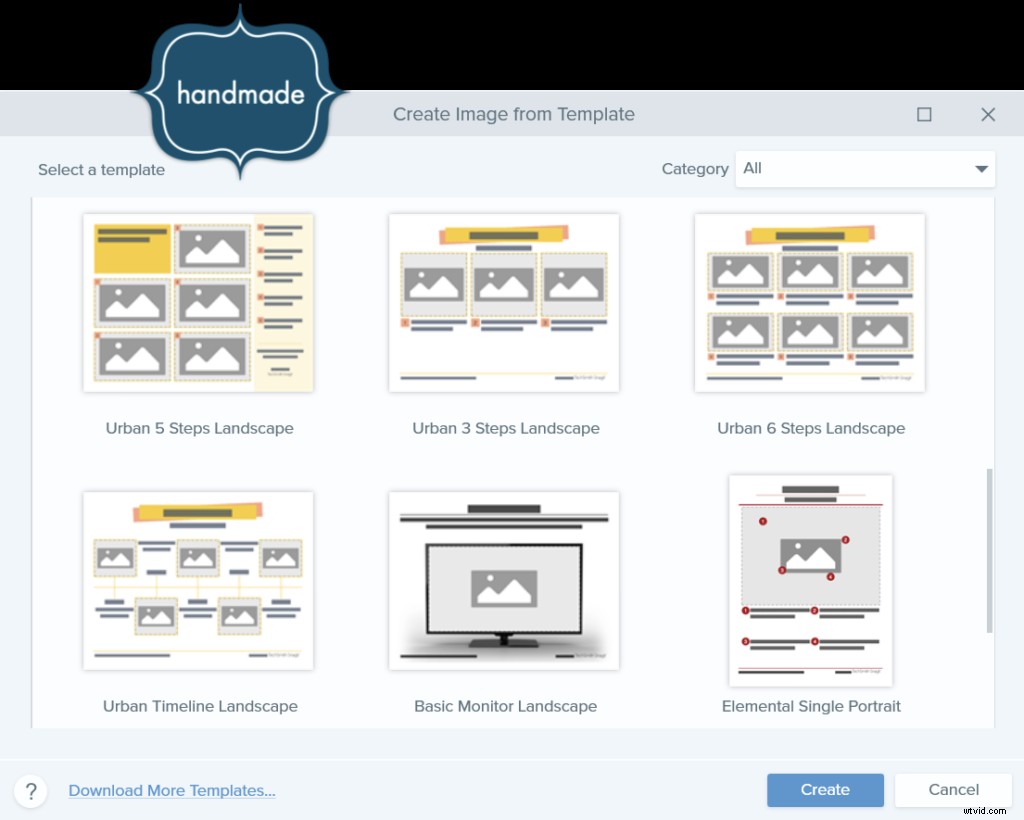
After adding stamps, annotations, and any necessary edits to your screenshots, combine them to create an easy to follow guide that can be shared with colleagues, users, and anyone else who needs it.
Create Video from Images
Earlier, when I said we’d make screenshots sing, I was serious. Here is where the singing, actual, legitimate singing, can happen. More than likely you’ll want to make your screenshots speak, but it’s really up to you.
Snagit 2020’s Video from Images feature lets you turn screenshots and images into videos with narration and live-action drawing.

The feature lets you record your voice and annotations drawn on screenshots and images. You can choose to show the cursor in the video and toggle between your webcam and the image while recording.
This is a great way to demonstrate processes, provide quick presentations, or deliver precise feedback.
If all that isn’t enough
Ok, so I’ve shared a number of ways to add visual flavor to your screenshots. Add stamps for additional context information. Combine them in templates to create complete guides. And, finally, create a video from one or more images with narration and drawing.
If you start doing all of that, at a point you may want or need more resources.
More stamps, more templates, and even stock photography to spice up any of the three techniques I shared.
If that’s the case, then check out TechSmith Assets for Snagit. It’s a subscription service that offers tons of additional resources.
With that, I think you’re ready to never again create and share a boring screenshot. Good luck and, when you’re ready, go ahead and make a screenshot or two sing.