
We’re used to cameras being 4K video-enabled these days and the Panasonic Lumix G90, known as the Panasonic Lumix G95 in the US, can shoot 4K video at up to 30p. However, it also has a less common trick up its sleeve, the ability to shoot in V-Log L.
That’s a feature that’s normally reserved for high-end cameras. In fact, it’s a paid-for extra for the Panasonic Lumix GH5 and Lumix S1. So it’s great to see V-Log L in a mid-range camera.
- Read our Panasonic Lumix GH5 review
- Read our Panasonic Lumix S1 review
Basically, V-Log L applies a logarithmic gamma curve to the image. This scrunches down the tonal variation within the scene and extends the dynamic range to 12 stops.
This wide dynamic range footage gives more flexibility to grade the video (adjust it post-capture). As well as being able to put the contrast where you want it, there’s more scope to tweak the colour. That makes it easier to make the footage match the video from other cameras.
- How to shoot at high frame rates with the Panasonic Lumix G90 / G95
A natural side effect of shooting in V-Log L mode is that the footage looks very flat. Not just a little flat, very flat like you’re shooting through thick fog. So if you don’t want to grade your videos, it’s not for you. However, if you want to be in complete control of the appearance of your videos, then it’s a great feature to use.
- Read our Panasonic Lumix G90 / G95 review
-
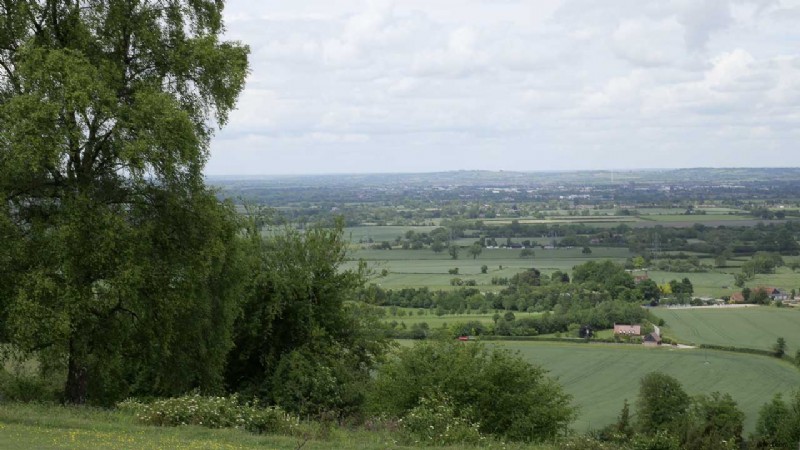
- Standard
-
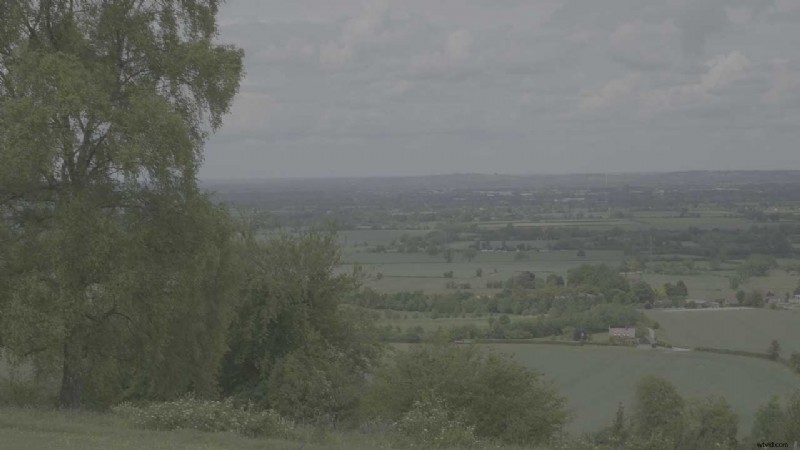
- V-Log L
- Read more: Panasonic S1 to get paid V-Log, 10-bit video upgrade in July
How to shoot V-Log L with the Panasonic Lumix G90 / G95
The good news is that it’s very easy to switch to V-Log L shooting on the Panasonic Lumix G90 / G95, it’s listed under the Photo Style settings in the main and Quick menus. This means you can switch quickly from shooting standard-looking vide to V-Log L.
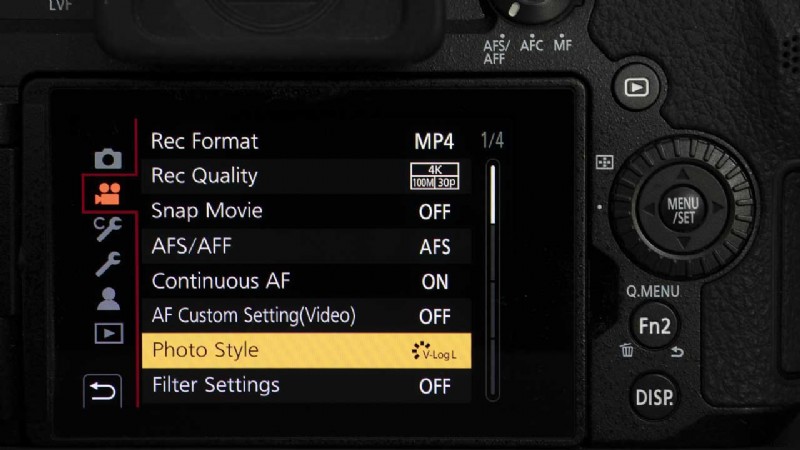
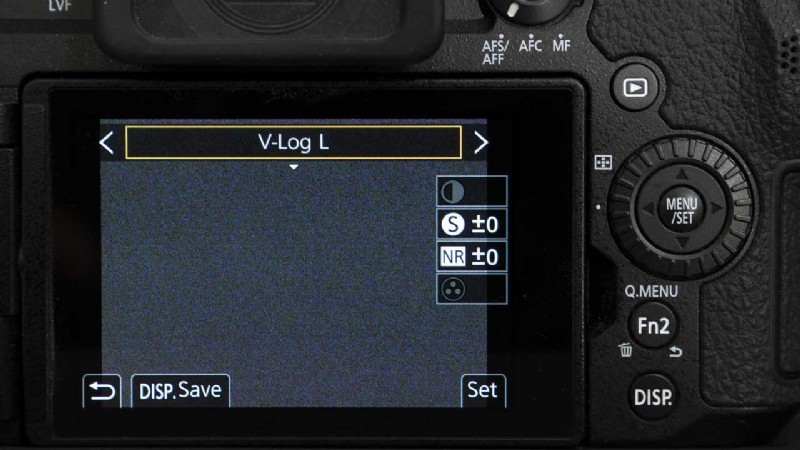
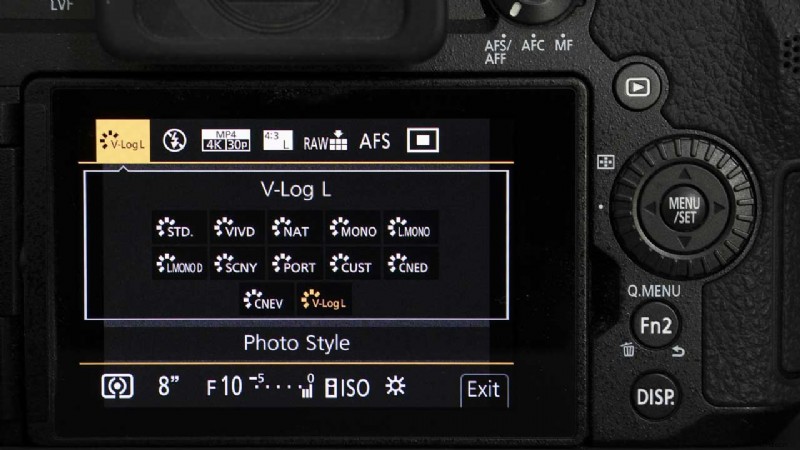
However, it’s important to bear in mind that the base sensitivity (ISO) setting in V-Log mode is ISO 400. So if you’ve been shooting at a lower ISO, you’ll need to factor this in when you switch.
Also, if you’re going to the trouble of shooting V-Log, it makes sense to take full control over the exposure settings. That means shooting in manual exposure mode with a specific ISO value selected. You can do that by using the standard manual exposure mode. However, you can also shoot video in manual exposure mode using the Creative Video setting on the G90 / G95.
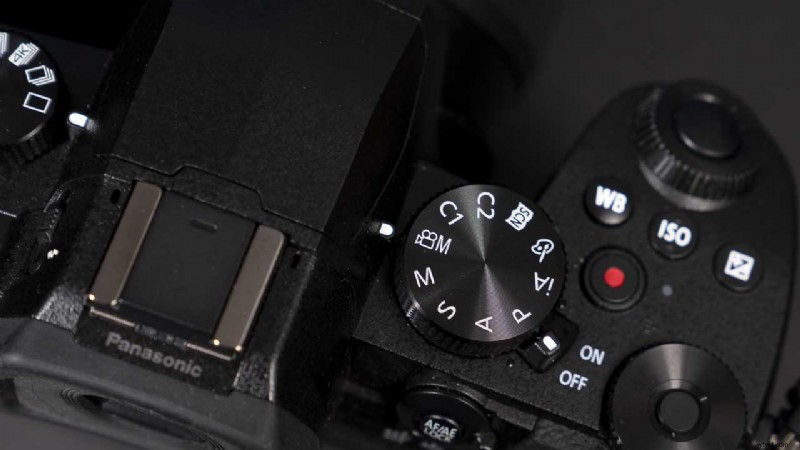
By default, the Creative Video mode is set to program, so the camera takes control of the exposure settings. But it’s easy to change this to manual. As follows:
- Turn the Mode dial to the Creative Video Option.
- Press the Menu button and select ‘Exposure Mode’, it’s the first option in the top tab.
- Press Menu/Set
- Scroll down to M and Press Menu/Set again. Now you’re all set.