
SmartCapture offers a new way of controlling the Mavic Air by hand and taking photos or videos however you like. It’s so intuitive and straightforward that even beginner pilots can master it. Now let’s take a look! (Note that the aircraft firmware v1.0.1.0 or later is required to use SmartCapture.)
-
Enter SmartCapture Mode
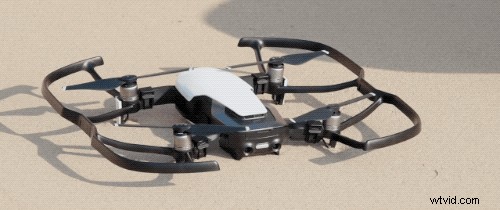
Place the aircraft on a level surface, power it on and enable SmartCapture in DJI GO 4 or press the Function Button twice. The Front LEDs will become solid yellow, and the aircraft will beep twice.
-
Gesture Launch
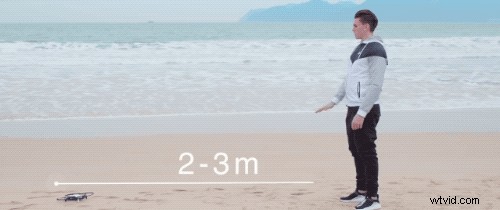
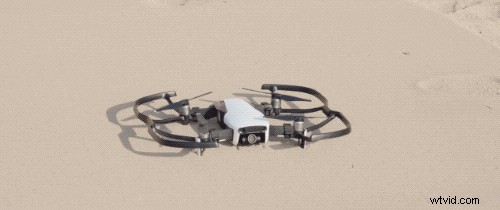
Stand at a distance of 2 to 3 m in front of the aircraft, raise your palm for about 2 seconds, and wait for PalmControl to be activated. Once PalmControl has been activated successfully, the Front LEDs will blink green slowly, the drone will take off and hover in place.
-
PalmControl
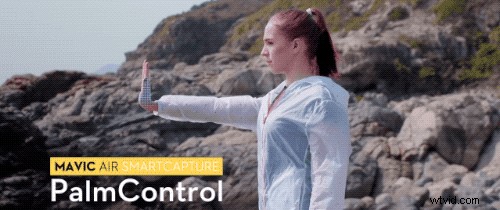
Stand at a distance of 2 m in front of the aircraft and position your palm towards the camera for 2 seconds to activate PalmControl. The Front LEDs will blink green slowly to indicate that PalmControl has been activated. Then you can control the aircraft with your palm.
-
Control Distance
Stand in front of the aircraft’s nose, raise and extend your arms and hold your palms closely together. The front LEDs will blink green slowly. Move your hands apart, and the aircraft will fly away from you, to a maximum distance of 6 m. Move your hands together, and the aircraft will fly towards you, to a minimum distance of 2 m.
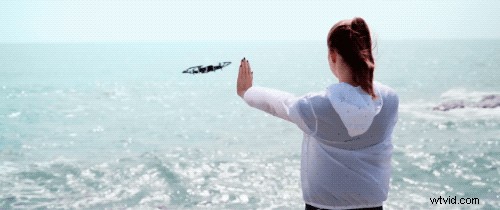
-
Follow
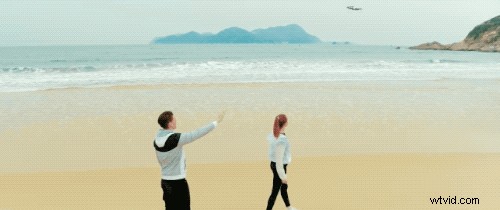
Lower your hand towards the floor to activate Follow.Once Follow is activated, the front LEDs will turn solid green. GIF
You can select either Trace or Profile in DJI GO 4 to control your aircraft.With Follow, you can adjust the aircraft’s position and distance with your palm.
-
Selfie
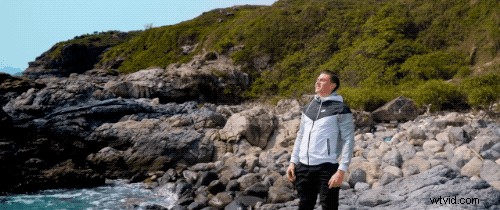
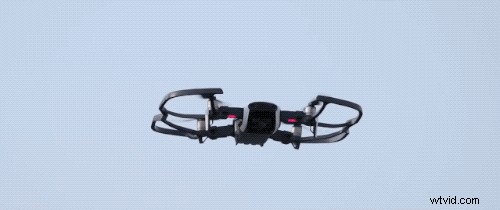
Stand at a distance of 7 m in front of the aircraft and make a V gesture with one hand. When the selfie gesture is recognized, a 3-second countdown will begin.
With two seconds remaining the Front LEDs will blink red slowly, then with one second remaining, the LEDs will start to blink red quickly. The Front LEDs will turn off when capturing a photo.
-
Group Selfie
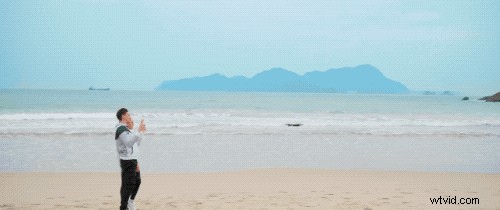
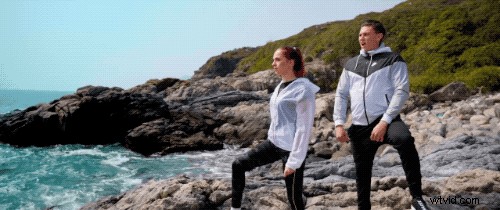
When making multiple V gestures at the same time, Group Selfie will be activated.
Mavic Air will take a photo at its current position. Then it will fly to a point 5 m away from your group, ascend, and take a photo at a 30° angle. The aircraft will then fly to a point 7 m away from your group, ascend, and take one more photo at a 15° angle. Finally, it will fly back to its original position.
-
Record Videos
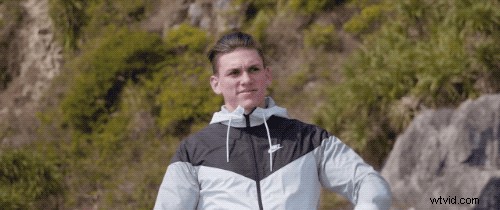
Stand at a distance of 7 m in front of the aircraft and make a frame gesture with your fingers. When the frame gesture is recognized, the aircraft will start recording.
During the recording, the Front LEDs will turn off. After 5 seconds have elapsed, making the frame gesture again will stop the recording.
-
Switching Control
In SmartCapture, the person controlling the Mavic Air can be switched at any time.
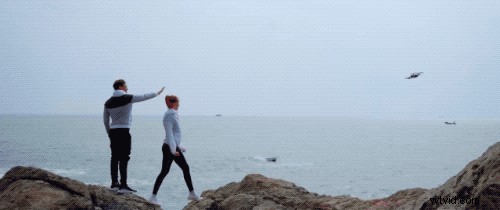
Lower your hand towards the ground, and the person who would like to control the aircraft should raise their palm in front of the drone.Once the aircraft is under their control, the Front LEDs will blink green slowly.
-
GestureLand
To land the Mavic Air, move your palm down slowly to make the aircraft descend to its minimum altitude.
Continue commanding the drone to descend for a further 3 seconds, then it will land automatically, and its motors will stop.The Front LEDs will turn yellow, and the aircraft will wait for further instruction.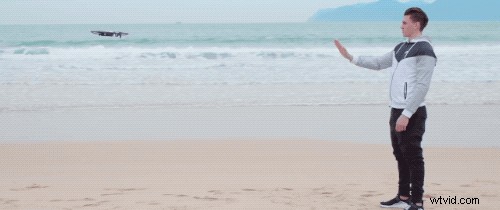
Why not give it a go and share your spectacular shots with us on our Offical Owners Facebook group and SkyPixel.
Get the Mavic Air on DJI Store