
GIFs are becoming more and more popular in recent years (especially when Flash is going away soon), they are not just cool but can be very useful for commercial uses for social promotion. Colin Smith (from VideoRevealed see video above) recently posted a video looking at how you can easily create a GIF that is optimized for both quality and size.
The problem with GIFs
We have been looking at creating GIFs for our commercial clients in the food and product business for a while now. The main problem has been creating them in such a way that they are not of poor quality on the one hand (i.e. poor color, low resolution, too jumpy, etc.). or on the other hand way too heavy for use on most websites without slowing them down.
We have looked at different methods of making and exporting GIFs and several paid and free services that are available online, however so far at least we couldn’t find a workflow that was simple, quick, and resulted in both high-quality GIFs and ones that were not too big.
Creating the optimal GIF
Smith thinks that he had found the optimal workflow for making video-centric GIFs using Premiere Pro and GIPHY.
The steps are pretty simple. Compose your clip in Premiere Pro (under 15 sec tops and optimally up to 6 sec). Now go to export in Premiere Pro and choose the following settings:
- Export in an H.264 format.
- In the video, tab choose a locked aspect ratio and 480-pixel resolution (for a 16:9 aspect ratio you are looking at 270-pixel height).
- Change the frame rate to 15.
- Turn audio off.
- Export (hopefully the size should be small (GIPHY allows only 100MB or less but recommends 8MB or less).
- Import into GIPHY (after you create a free account) and share/send/download the clip and use it on your site.
The results
We tried Smith’s method on a short clip from our recent Godox ML-60 LED review. You can see the original H.264 clip and below the (surprisingly larger GIPHY clip – 1.3MB after PP export vs. 5.7MB after the GIPHY export). Can you see any difference?
The original Premiere Pro export (H.264 video)
The GIPHY export (GIF)
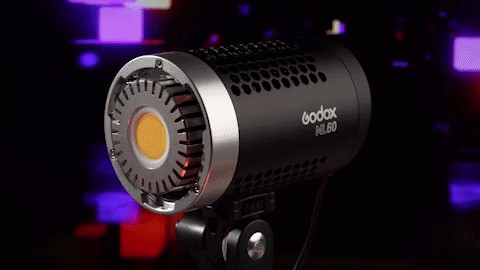
The optimization that GIPHY provides allows you to get the most out of your GIF while maintaining a very small size and of course you can also use still images in Premiere Pro if you are looking for this type of look.
You can find more Premiere Pro related video on this link here on LensaVid. We will continue posting more interesting videos from Smith’s channel (see a few previous ones that we published – here).