
In Photoshop, the ability to isolate and manipulate specific parts of an image is foundational to any professional workflow. Whether you’re sharpening a subject, swapping skies, or creating composite artwork, mastering the right selection tool can save hours of painstaking effort.
Adobe Photoshop offers a rich array of selection methods—each tailored to a particular scenario. Below is a concise guide to the most widely used tools, how to customize them, and when to choose one over another.
What Are Selection Tools in Photoshop?
Selection tools let you define a region of interest. Once a selection is active, you can cut, copy, apply adjustments, or mask exactly that area without affecting the rest of the image.
Different tools employ different strategies—rectangle, lasso, brush, or AI‑driven. Selecting a clear, hard‑edge object like a jacket requires a different approach than picking out a soft‑shaded sky.
Key Selection Options
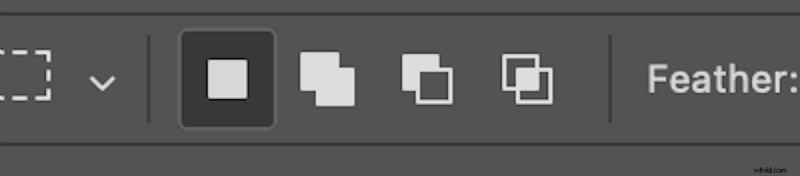
Every selection tool in Photoshop can be further refined with the same set of modifiers: New, Add, Subtract, and Intersect. These icons—squares of varying configuration—control how new shapes combine with the current selection.
Feather
The feather setting smooths the edge of a selection. A 0‑pixel feather keeps the boundary sharp, ideal for crisp objects. Adding a subtle feather (1‑3 px) helps blend soft‑edged elements—hair, foliage, or distant mountains—into the background without bringing in unwanted pixels.
Inverse Selection
Sometimes you need to edit everything except the chosen area. Inverse (Cmd + Shift + I on Mac, Ctrl + Shift + I on Windows) flips the selection, making the dotted outline encompass the entire canvas.
Selection Tools Overview
Marquee Tools
The marquee family offers quick geometric selections.
Rectangular Marquee – ideal for cropping or isolating rectangular sections in graphics.
Elliptical Marquee – useful for oval or circular cuts, such as creating a round mask for a portrait.
Single Row/Column – draws a continuous horizontal or vertical line, handy for selecting a specific band of pixels.
Lasso Tools
For irregular shapes, the lasso tools let you hand‑draw the boundary.
Lasso – freehand, best for quick rough selections.
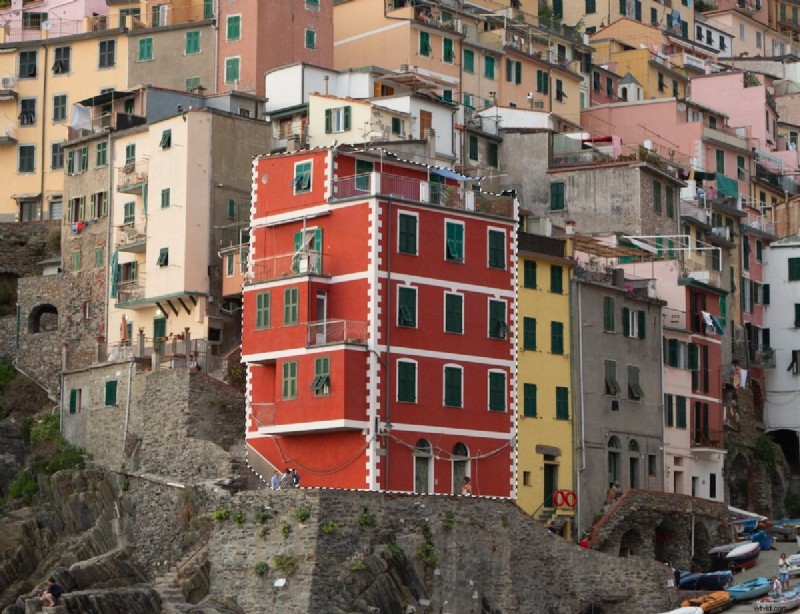
Polygonal Lasso – click to create straight‑edge segments; perfect for architectural outlines.
Magnetic Lasso – follows edges automatically when you trace near an object with a distinct contrast.
Selection Brush Tool
Released in Photoshop 2024, the Selection Brush combines brush strokes with live selection preview. Paint over the area you want to keep; the tool generates a mask that you can immediately apply to an adjustment layer.
Quick Selection Tools
These semi‑automatic tools are great for picking objects with clear boundaries.
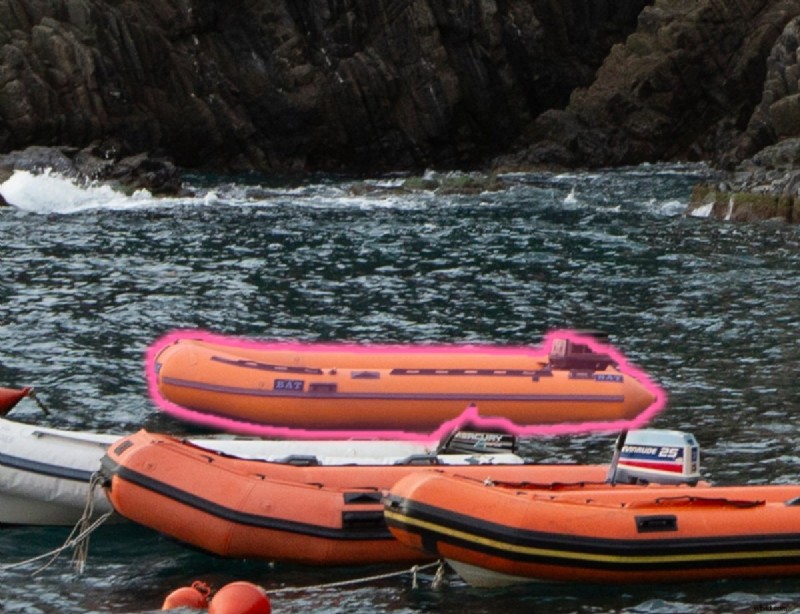
Object Selection – use the cursor to hover or drag a box; Photoshop identifies and selects the nearest object.
Quick Selection – brush across the target; the tool expands to adjacent pixels of similar color. Use the Add/Subtract options and brush size slider to fine‑tune the result.
Magic Wand – click a point and select all neighboring pixels within a tolerance range. Adjust the Sample Size and Tolerance sliders to control the selection’s breadth.
Select Areas (Menu Options)
Under the Select menu you’ll find advanced color‑based selections.
Color Range – pick a color with the eyedropper; the preview shows all matching pixels. Use Fuzziness to expand or contract the selection.
Focus Area – automatically isolates the most in‑focus parts of a photo, useful for depth‑of‑field edits.
Subject – a one‑click selection that targets the primary subject; best when the subject stands out against a uniform background.
Sky – automatically selects the sky region, making it trivial to replace or color‑grade the horizon.

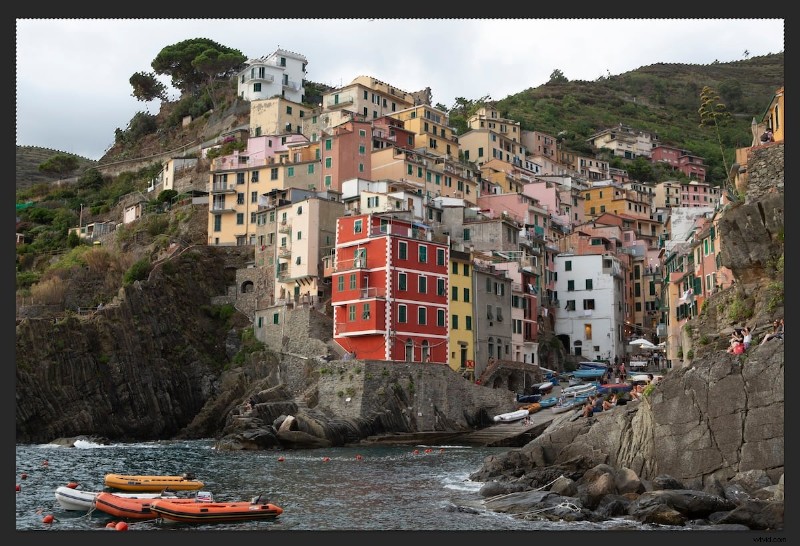
Pen Tool
For pixel‑perfect precision, the Pen tool remains unbeatable. Place anchor points around the target, adjust handles to curve between points, and close the path to create a mask. While it demands practice, the resulting selection is clean and editable at any resolution.
Read our in-depth article about the Pen tool here.
FAQ: Choosing the Right Selection Tool
Which tool is the fastest?
The Object Selection and Quick Selection tools are the quickest for clear subjects. They generate a provisional selection in seconds and can be refined with feathering or brush adjustments.
Which tool offers the most accuracy?
The Pen tool provides the highest accuracy because you manually define each anchor point. It’s the preferred choice for complex shapes, sharp edges, or when a flawless mask is essential.
Conclusion
Photoshop’s selection arsenal is both powerful and diverse. By understanding each tool’s strengths—speed, ease, or precision—you can select the most appropriate method for any project, from quick social‑media edits to print‑ready composites. Experiment, practice, and you’ll find that mastering these tools is a cornerstone of professional image editing.