
I never bother to keyword or tag my images. I often neglect putting my photos into organized collections. It takes too much time away from my workflow to bother with any of that – so how the heck do I find any of my images?
Lightroom Smart Collections
It’s easy to keep track of your images without painstakingly organizing them shot-by-shot. Lightroom Smart Collections allow you to filter and organize your images based on metadata contained within the images. Often times this metadata can be unique enough to sort your images based on subject, location, and genre.
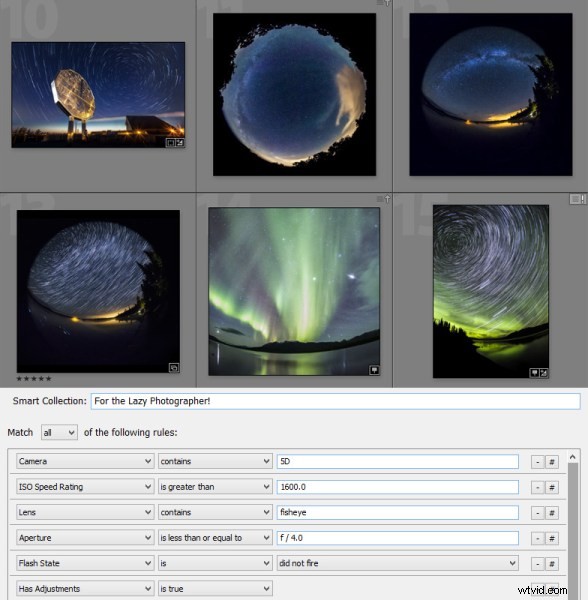
Smart Collections allow you to define very specific criteria, and you can require many different criteria to be met before an image will be included in the collection. Common settings like ISO, shutter speed and aperture are available, but the options are endless. You can filter based on whether a flash was used, based on GPS data, file type, lens, focal length, capture date, the list goes on.
Below are a few examples where Smart Collections can define a specific type of image with only metadata:
Example 1: pan blurs
Some images can easily get lost amongst others, and pan-blur shots are one of them. I usually photograph these on a whim while shooting other subjects, but they all have something in common. I use a zoom lens with a very small aperture, in addition to a few other factors:
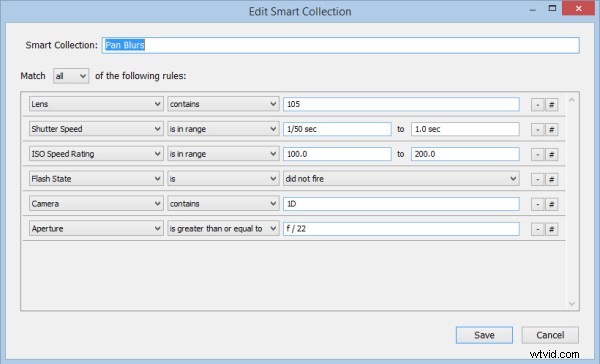
Slower shutter speeds are usually used, and typically only with one of my cameras. I built the above list of criteria or requirements which gives me a pretty good list of all the pan-blur abstract images I’ve ever taken:
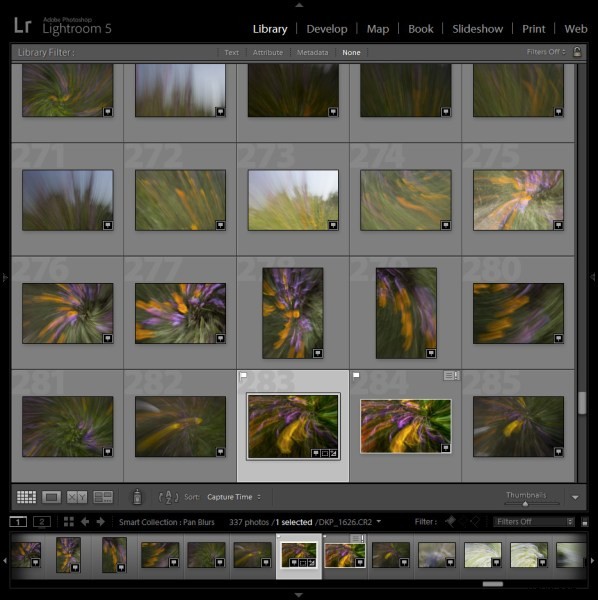
There is always a chance that an unrelated shot might meet the same criteria and appear in the collection, so try to be as specific as possible and use as many defining conditions as you can.
Example 2: GPS data
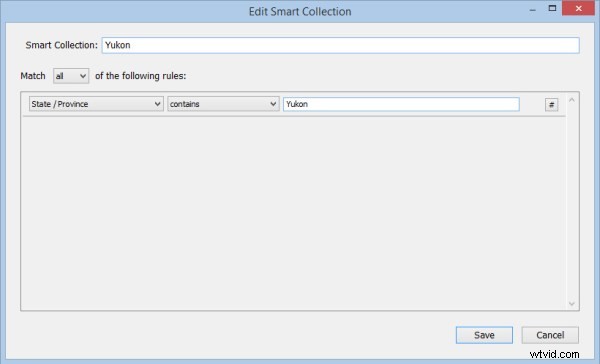
If you have a GPS unit for your camera (or have a GPS built-in), the extra metadata provided by your location can be invaluable to sorting your images. For example, I can easily specify that I want to create a collection of all images I’ve photographed in the Yukon Territory of Canada:
You could also further to showcase only the wildlife shots. Because I know that I would only have been using focal lengths longer than 200mm for wildlife, I can add that requirement to find only my wildlife images. A few other shots may sneak in, but it’s a great way to narrow things down:
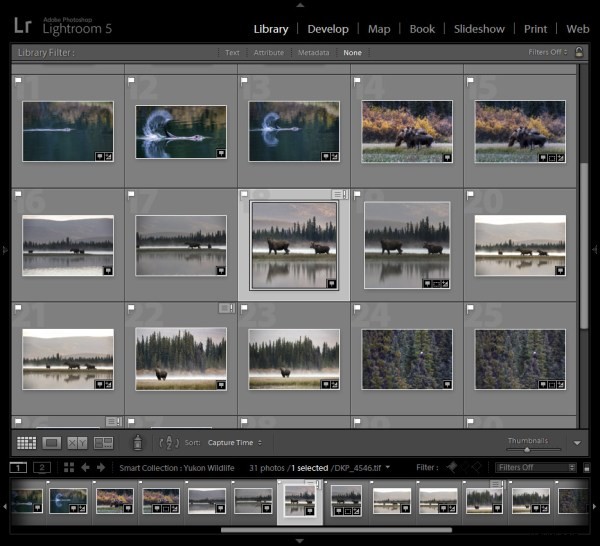
Entire vacations or trips can be defined this way, and even specific client location shoots can be identified by this location metadata.
Example 3: snowflakes
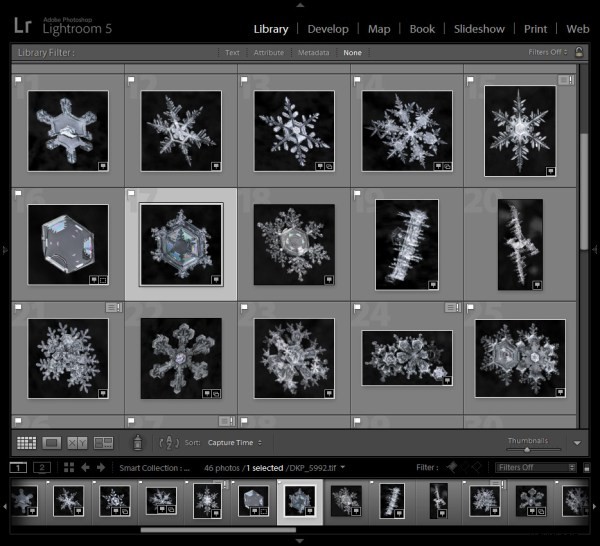
I shoot a TON of snowflake images each winter, and by looking at the common metadata for each image you can create a “fingerprint” that a Smart Collection can identify. The following Smart Collection will only show snowflake photographs:
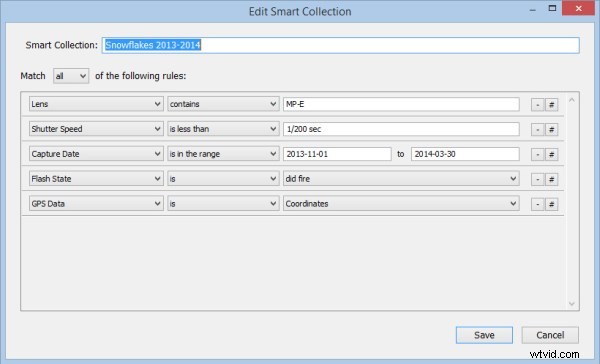
I can also create a collection of just my final print-ready files. As these images need to be edited in Photoshop as part of the required workflow, the final images would then all be TIF files. That requirement can be added to show only my completed images:
Conclusion:
Not every subject will have a “fingerprint” that can be defined by Lightroom Smart Collections, but with a bit of clever thinking you should be able to define a good number of your own. As new images are added to your Lightroom catalog that meet the criteria for inclusion in your new Smart Collections, they will automatically appear. The lazy efficient photographer’s dream come true!