
A Guest Post by Chris Folsom from Studio Tempura.
Because of its small size and long battery life, the iPad represents a very compelling option for mobile photo editing. But how does it work? Well, the process can be a little slow and painful, but it can work.
I wanted to be able to make some quick edits while shooting the Preakness this year. My local paper had expressed an interest in running some shots on their website, but they wanted the images almost as they happened… so waiting until I got home wasn’t an option. I could bring my Macbook with me, but space was limited and I didn’t really want to carry around another 4.5lbs all day.
I decided to give the iPad a try. Here’s my workflow and some examples of shots edited on the iPad:
Import
With the Apple camera connection kit, this part of the process was a breeze. I used a USB cable hooked directly to my camera and imported the files to my iPad. The iPad automatically creates new galleries in the Photos app… “Last Import” and “All Imported”, making it very easy to find the images I pulled from the camera.

The 9th Race of the Preakness by Chris Folsom
RAW conversion
I spent the day shooting exclusively in RAW. Before the event, this was the element I was most concerned about… the iPad can import RAW images, but most editors don’t do well with anything that isn’t a JPG. Sure, they might let you edit the RAW file, but typically they are just using the lower-res embedded JPG within the RAW file.
Due to the subject I would be shooting (sports), I didn’t want to switch to JPG + RAW as it would lower my FPS and I like the flexibility of RAW, so I needed an application that would be able to work with those files. Thankfully, such an application exists: PiRAWhna
PiRAWhna ($9.99 on the Apple iTunes store) will search your iPad for RAW files and allow you to make minor edits (white balance, contrast, exposure, sharpening, etc) on the images before exporting them to .JPG while retaining their original resolution.
The application has had some less than stellar reviews, so I was hesitant to give it a try. I am glad I did though… I had no problems with stability on my iPad 2 and I was able to edit and export images in under a minute. The interface isn’t particularly slick, but it does the job well enough.
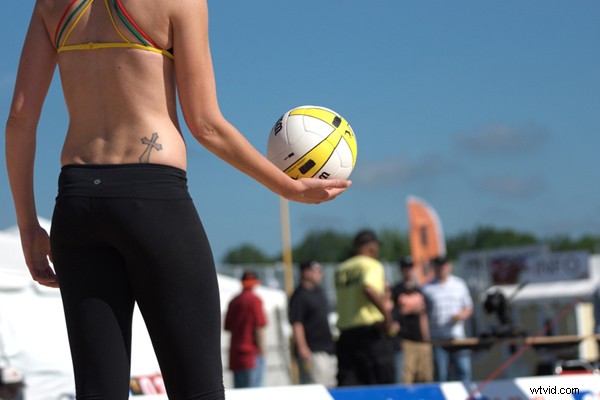
Women's Pro Volleyball by Chris Folsom
Edit
Once you have used PiRAWhna to convert your RAW images to JPG, you are free to use any number of image editors available for the iPad. My editor of choice is Photogene (http://www.mobile-pond.com/MobilePond/), which is about as close to Lightroom or Aperture as I have found on the iPad. Photogene will allow you to do further edits to your newly converted JPG file… crop, rotate, retouches, add vignette and more.

Pat Monohan, lead singer of Train by Chris Folsom
Send
Now that you have imported, converted and edited your image, it is ready to upload somewhere. Here too, the iPad has plenty of options. Twitter clients (and I definitely took advantage of Twitter during the event), Email, FTP clients… there are no shortage of options for getting photos out to the world. Assuming, of course, that you have internet connectivity.
Overall, I would say that I was fairly happy with my first attempt at using the iPad at an event. The editing process is certainly not as seamless as on my computer, but it gets the job done and is much less cumbersome than hauling around a laptop. So, next time you want to do some mobile photo edited, consider leaving your notebook at home and bring your iPad instead.
Chris Folsom is a Baltimore-based photographer. View more of his work at his website or on Flickr. You can also follow his photographic endeavors on Twitter.