
Have you ever tried following a Photoshop tutorial to edit your photo, only to be stymied by something basic in the program? While you struggle to figure out something like how to unlock layers in Photoshop, the video instructor continues and is soon ten steps ahead of you.
So frustrating!
I can’t teach you all the secrets of Photoshop, but I can teach you how to quickly unlock a layer so you can edit it to your liking!
Why is a Layer Locked in Photoshop?
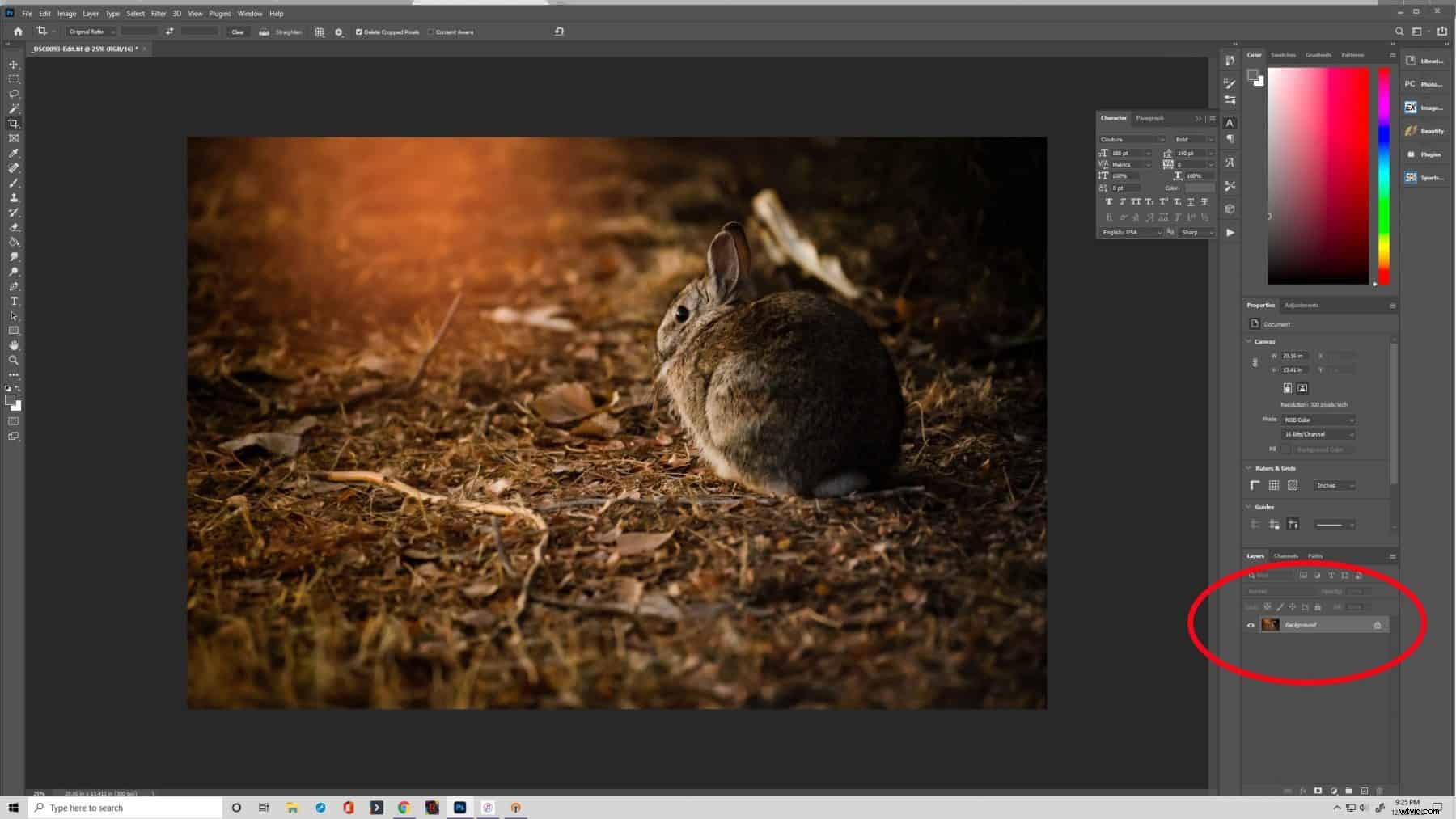
You’ll know a layer is locked because there is a locked padlock symbol to the right it in the layers panel.
Photoshop automatically locks the background layer in an image. That means you can’t move it up or down in your stack. You can also manually lock and unlock layers yourself. Locking a background layer gives it some protection from being reordered. I think it also encourages you to make a new layer to do your work on, so the original image isn’t destroyed.
When you lock other layers, you prevent them from being changed or altered in some way. There are five different ways of locking a layer in Photoshop’s newer versions.
- Lock transparent pixels
- Image pixels lock
- Lock position
- Prevent auto-nesting into and out of Artboards and Frames
- Lock all
So how can you unlock (or lock?) layers in Photoshop?
Step 1: Open the Layers Panel
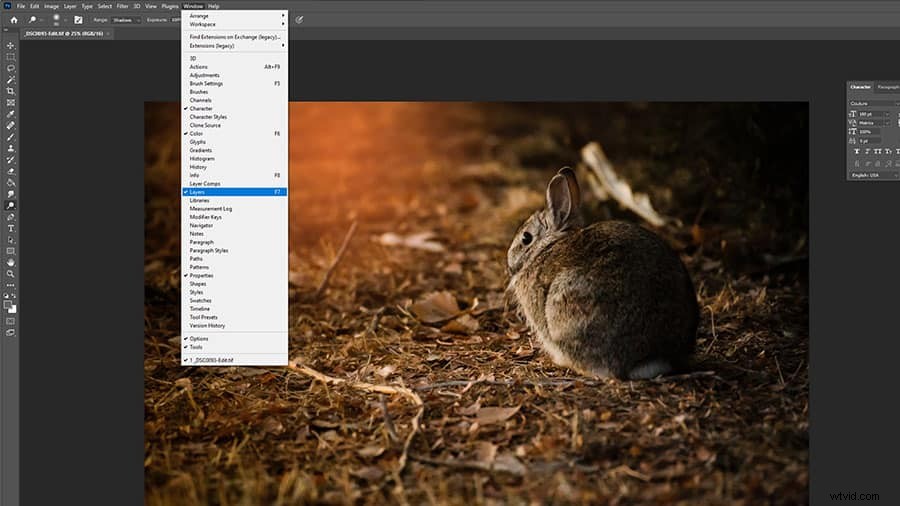
If you don’t immediately see the layers panel in your Photoshop work area, you might have accidentally closed it. Click “Window” on the top toolbar and ensure there’s a checkmark next to “Layers.” You can also press the F7 key to toggle the panel on and off.
Step 2: Unlock the Background Layer
To unlock the background layer in Photoshop, simply locate it in your layers palette. Click the padlock icon once. It is now unlocked. You can also unlock it by making sure it’s highlighted and pressing the “/” key. In some older versions of Photoshop, you have to double-click the symbol.
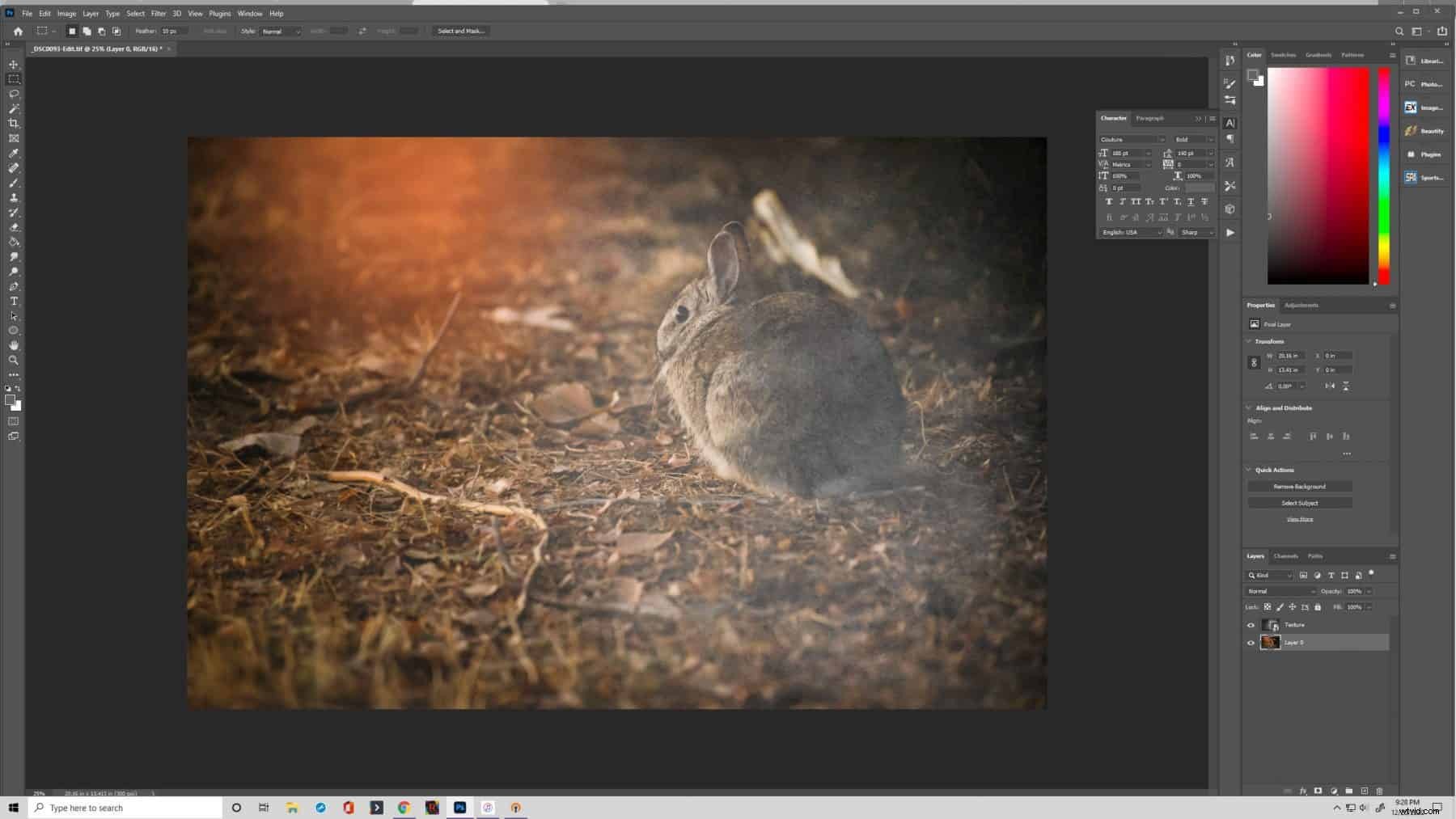
Notice the background is now automatically renamed to “Layer 0” and the padlock symbol has disappeared.
Step 3: Unlock Other Layers
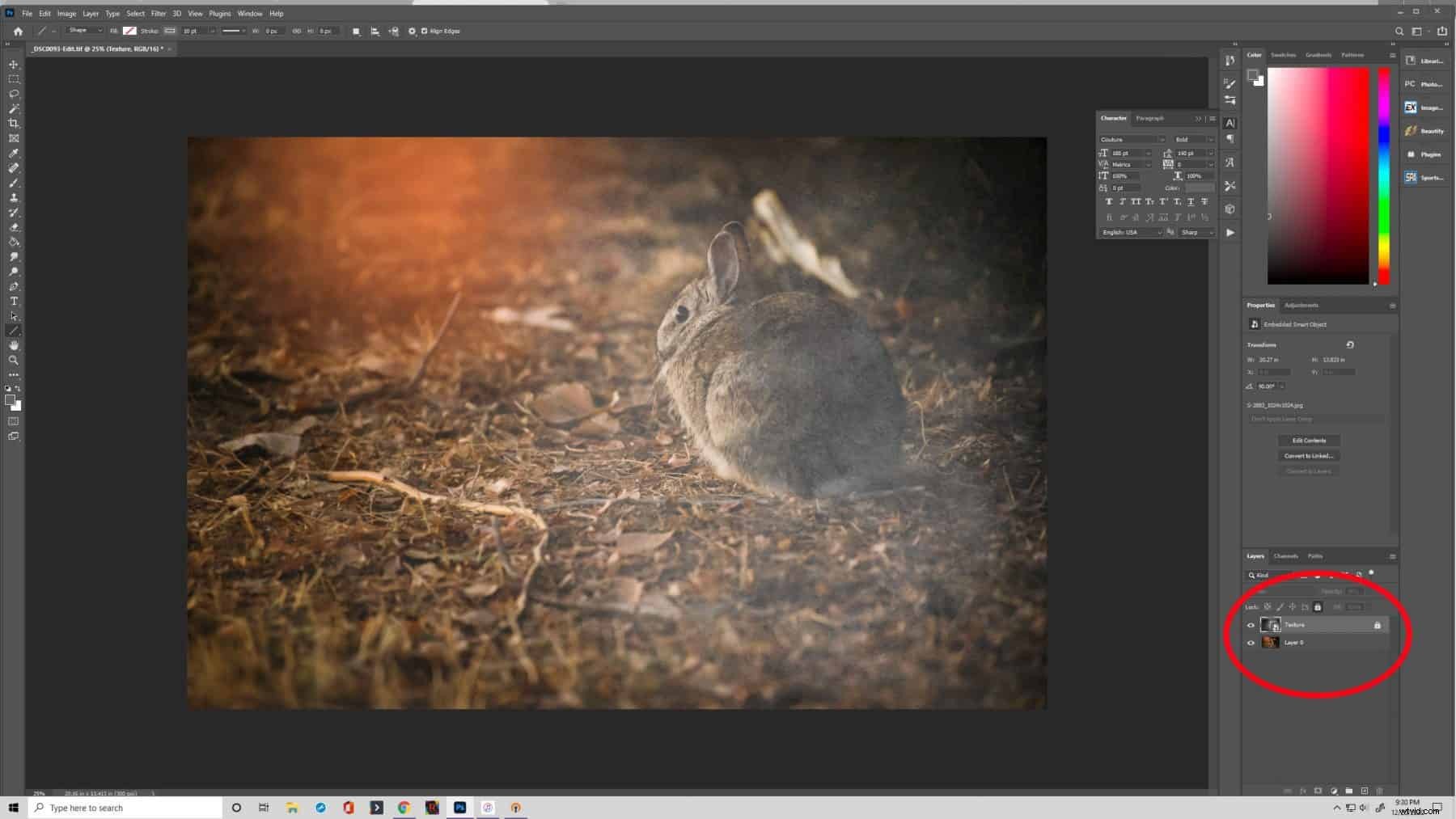
If other layers in your project are locked, follow the same procedure as above. Simply click the lock icon to the right or press the “/” key.
Step 4: Lock a Layer
If you want to lock a layer, you’ll need to highlight it in the layers panel. Right above the layer names, you’ll see “Lock:” and several symbols. Those are the lock options. Choose the one that you need and it will protect the layer accordingly. The padlock icon now appears.
Locking layers is a safeguard against accidentally altering or destroying your work. It is fast and simple to use. So try this feature to protect your edits, texts, or other elements of your project!