
High‑quality wallpapers instantly refresh your device’s look, whether it’s a phone, PC, or laptop. Windows 11 offers powerful tools to personalize your background, but many users are unsure of the exact steps. This guide walks you through every method to set a desktop or lock‑screen wallpaper, and introduces the top websites for downloading stunning images.
In this article
Part 1. Changing Your Windows 11 Desktop Wallpaper
Personalizing your desktop is simple once you know the right approach. Below are four reliable ways to set a new background.
1. Using the Settings App
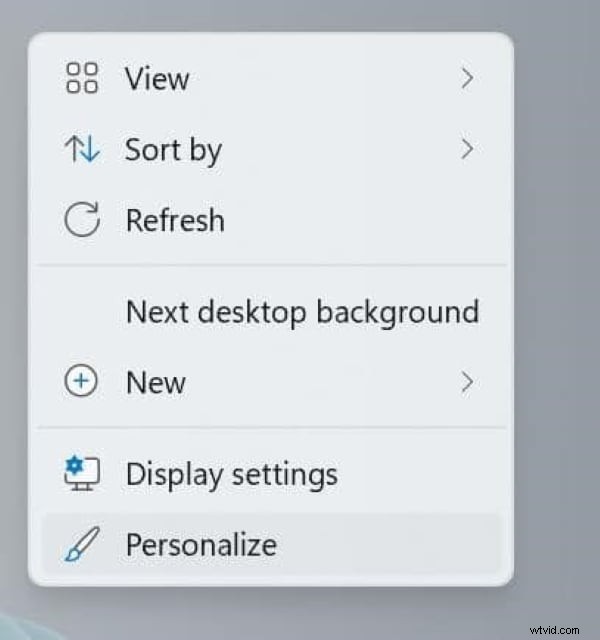
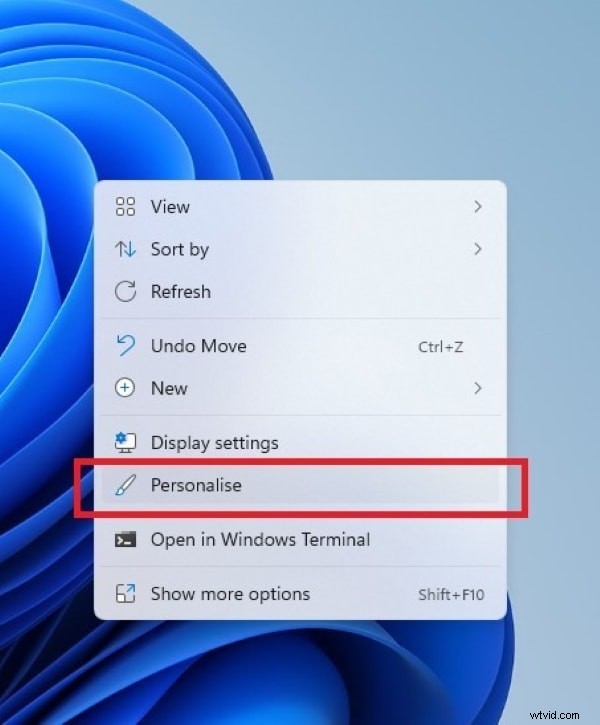
Right‑click any empty area on the desktop, select Personalize, then click Background on the right side of the Settings window.
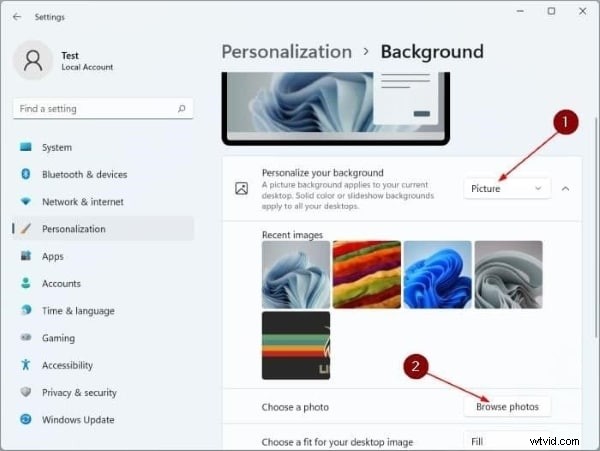
From the drop‑down menu, choose Picture. You can then pick an image from the Recent Images list or click Browse Photos to select a file from your computer.
2. Setting Wallpaper via File Explorer
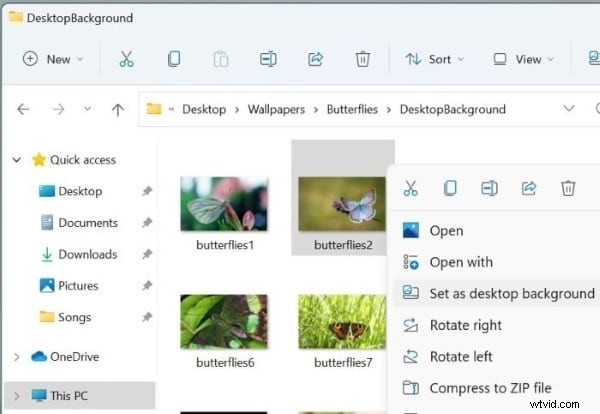
Navigate to the folder containing your desired image. Right‑click the file and select Set as desktop background from the context menu.
3. Alternative File Explorer Method
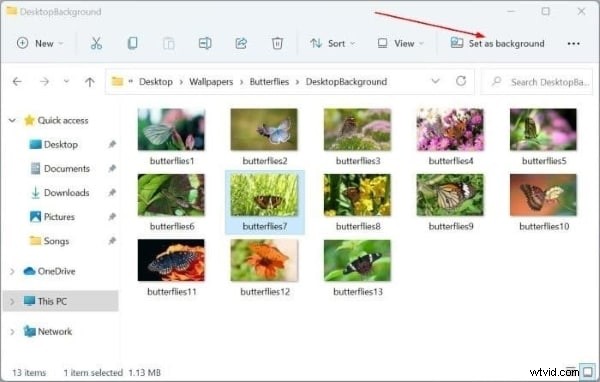
In the image’s folder, click the picture to reveal the Set as Background option in the toolbar. Click it to apply the image as your wallpaper.
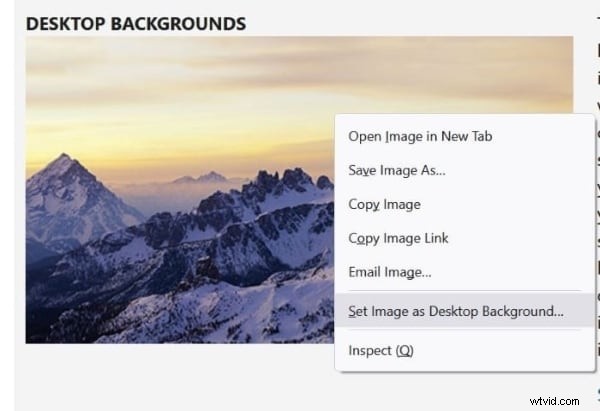
4. Using a Web Browser (Firefox Only)
Firefox (v91 and newer) lets you set an image directly from a web page. Right‑click the picture, then choose Set Image as Desktop Background.
Part 2. Customizing Your Windows 11 Lock Screen
To personalize the lock screen, follow these steps:
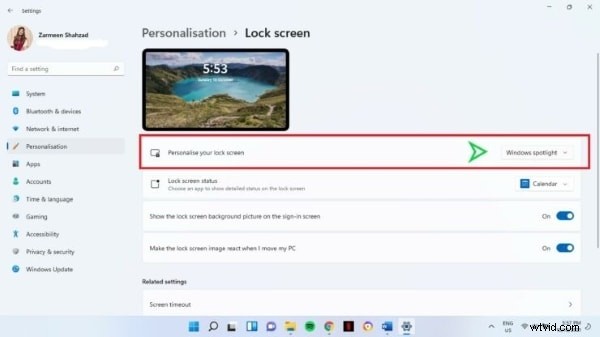
1. Right‑click the desktop and open Personalize → Lock Screen.
2. From the Personalize Your Lock Screen drop‑down, choose a background. Options include Windows Spotlight (Microsoft‑curated images), Slideshow (rotating images from a folder you specify), or Browse Photos (a single image).
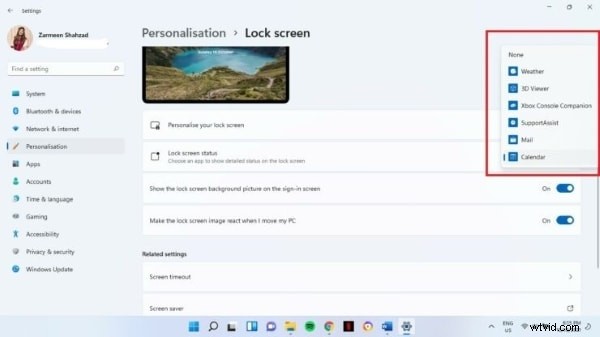
3. Optional: Set Lock Screen Status to display notifications from your preferred apps.
Part 3. Five Trusted Sites for Windows 11 Wallpaper Downloads
Finding the right wallpaper is just as important as setting it. Below are five reputable platforms offering high‑resolution images tailored for Windows 11.
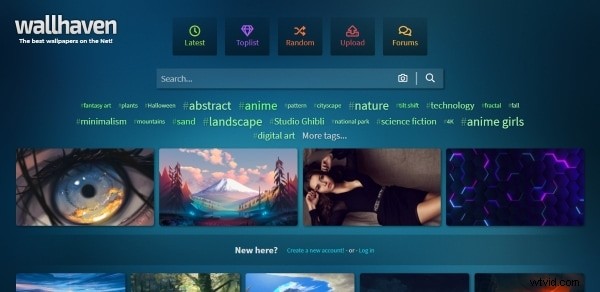
1. WallHaven
WallHaven hosts a vast collection of high‑quality wallpapers. Use the search bar or the camera icon to find images similar to a picture you already own.
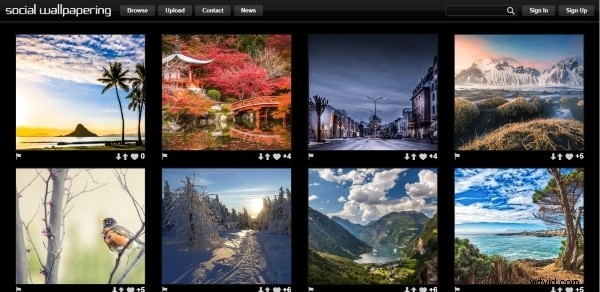
2. Social Wallpapering
Social Wallpapering is a long‑standing community of users sharing diverse wallpapers. Search or browse categories to locate the perfect background.
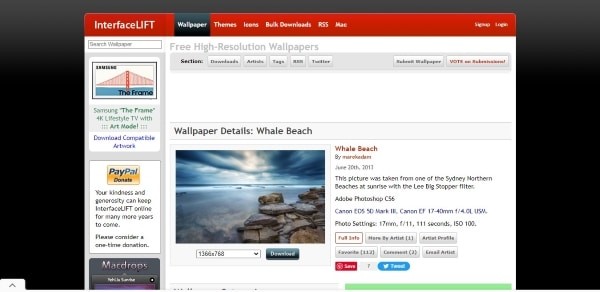
3. InterfaceLIFT
InterfaceLIFT automatically detects your screen resolution and suggests wallpapers that fit perfectly. You can also download alternate sizes if needed.
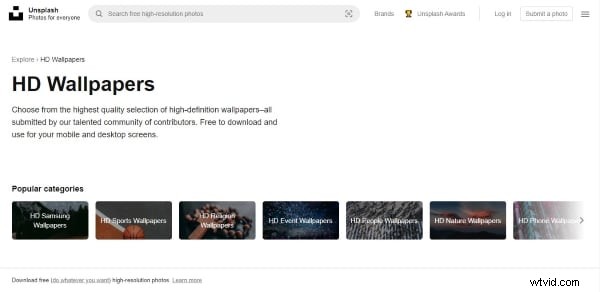
4. Unsplash Wallpapers
Unsplash offers an extensive library of royalty‑free, high‑resolution images. Their dedicated wallpaper section includes plenty of 4K options suitable for Windows 11.
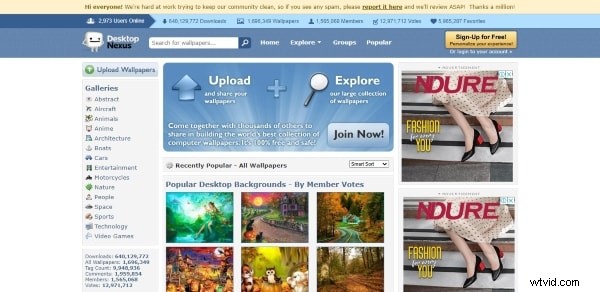
5. Desktop Nexus
Desktop Nexus categorizes wallpapers by community groups and tags, making it easy to find themes that match your style.
Final Thoughts
With the steps above, you now have multiple options to refresh your Windows 11 desktop and lock screen. Whether you prefer a single image, a rotating slideshow, or an image sourced from a trusted community, customizing your visual experience is straightforward.
As an added bonus, if you’re interested in creative projects, consider exploring Filmora by Wondershare, a user‑friendly video editor that runs smoothly on Windows 11. It offers a rich library of effects, titles, transitions, and tutorials, making it an excellent tool for both beginners and seasoned creators.
Versatile Video Editor – Wondershare Filmora
- Easy‑to‑use interface with powerful editing capabilities
- Hundreds of effects, titles, and transitions available
- Comprehensive tutorials from the official channel to help you master the software