
Ultimate Guide to Freeze Frames in After Effects: Techniques & Alternatives
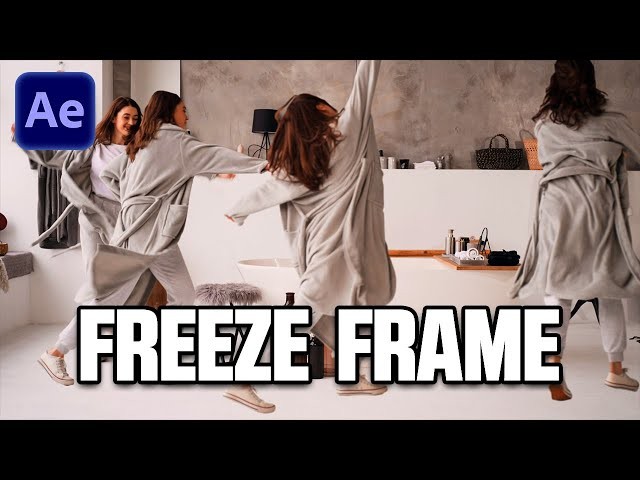
Freeze frames—static snapshots extracted from a moving sequence—add drama, focus, and suspense to any video. Whether you’re a seasoned motion designer or just starting out, mastering this technique can elevate the storytelling power of your footage.
What You’ll Learn
- Four proven methods to create freeze frames in After Effects.
- How to apply motion blur, masks, and other effects for a polished look.
- Step‑by‑step guidance for beginners.
- Why and how to switch to Wondershare Filmora for a lighter workflow.
Getting Started with Freeze Frames in After Effects
Freeze frames are perfect for emphasizing a pivotal moment—think a goal in sports, an intense facial expression, or a dramatic pause before the climax. After Effects gives you the flexibility to animate, layer, and enhance these stills in endless ways.
While the process is straightforward, it can still feel intimidating for newcomers. With a few clicks, you can create a high‑impact freeze frame and then refine it with opacity adjustments, motion blur, or creative effects.
Pros
- Multiple techniques for holding a frame.
- Rich library of built‑in effects.
- Industry‑standard workflow and extensive plugin ecosystem.
- Advanced compositing and animation tools.
- Seamless integration with other Adobe Creative Cloud apps.
Cons
- Steep learning curve for beginners.
- High CPU and RAM demands.
- Can lag on older machines.
- Time‑consuming for complex projects.
Creative Ways to Add Freeze Frames in After Effects
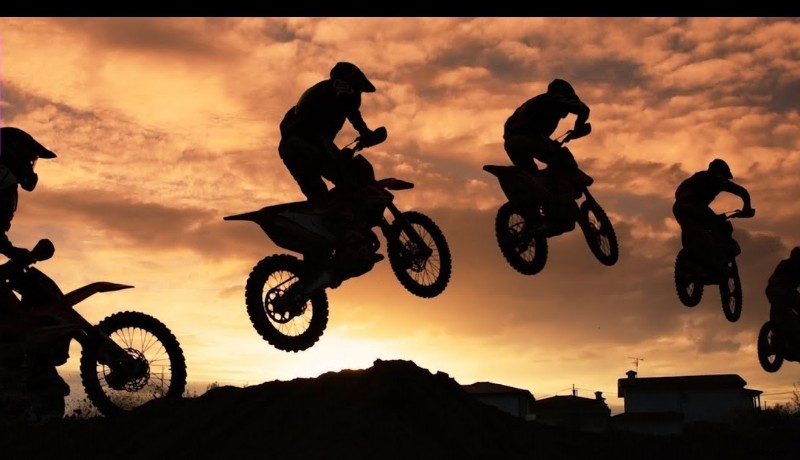
Below are four distinct workflows—each suitable for different skill levels and project needs.
Way 1: The Basic Method
- Open After Effects and choose Composition > New Composition from Footage.
- Drag your clip to the timeline.
- Move the Current Time Indicator to the frame you wish to freeze.
- Navigate to Composition > Save Frame As > File to export the still image.
- Import the PNG/JPG back into your project and place it on a new layer.
- Adjust duration, apply effects, or animate opacity as desired.
Way 2: With Time Remapping
- Create a new composition from your footage.
- Locate the desired frame and pause the preview.
- Press Ctrl+Shift+D (Windows) or Cmd+Shift+D (Mac) to split the layer.
- Right‑click the split segment, choose Time > Freeze Frame.
- Drag the freeze segment to set its length.
- Add any additional effects, then export via File > Export.
Way 3: Using Masks and Effects
- Freeze a frame by selecting Time > Freeze Frame on the layer.
- Choose the Pen Tool from the toolbar.
- Draw a mask around the area you want to isolate.
- Adjust the mask’s feather, expansion, and opacity to blend seamlessly.
- Optional: Add color correction or stylized effects.
- Export the finished composition.
Way 4: Adding Motion Blur
- Follow the steps in Way 3 to create a masked freeze frame.
- Toggle the Motion Blur checkbox on the layer.
- Fine‑tune the Opacity and add any remaining effects.
- Render the sequence for a smooth, blurred transition.
Alternative Tool: Wondershare Filmora
If After Effects feels heavy or your hardware is limited, Filmora offers a lightweight, beginner‑friendly platform for creating professional freeze frames.
- Fast video stabilization with minimal distortion.
- Extensive library of effects, stickers, and AI tools.
- Cross‑platform support: Windows, macOS, iOS, Android.
- Intuitive interface that reduces setup time.

How to Add Freeze Frames in Filmora
- Open Filmora and start a new project.
- Import your footage and drag it to the timeline.
- Move the playhead to the frame you want to freeze.
- Right‑click the clip, select Speed > Add Freeze Frame.
- Adjust the duration by dragging the freeze segment’s edges.
- Add titles, stickers, or effects via the left panel.
- Use the AI Portrait Cutout tool to remove backgrounds if needed.
- Apply additional enhancements—stabilization, motion tracking, filters.
- Export or share directly to YouTube, TikTok, or Vimeo.
Conclusion
Freeze frames, when executed thoughtfully, can transform ordinary footage into a compelling narrative device. After Effects provides granular control for advanced users, while Filmora offers a streamlined alternative for quick, high‑quality results. Choose the tool that matches your skill level and hardware, and let your videos command the viewer’s attention.