
While the quality of footage really matters, you can bring it to life during post-production on your mobile phone. However, to get that viral video perfection, you must pick the right tool with the right features. Because the truth is, great editing can make or break a video’s chances of standing out online.
That’s where you have the Mivi video editor as your best companion. This beginner-friendly app contains everything needed to create trendy music videos effortlessly. The editing features it has are just perfect for social media creators.
For more advanced options, we also have an alternative tool that works best for professionals. Continue reading to find out.
….
In this article
- Mivi Video App Overview for Viral Music Videos
- Step-by-Step Guide to Creating Trending Music Videos Using Mivi Video Maker
- Wondershare Filmora: The Perfect Alternative to Mivi for Music Videos
- Mivi Vs. Filmora - Which is the Best?
Part 1. Mivi Video App Overview for Viral Music Videos
Mivi video app is a free and easy-to-use video editing app that allows you to create trendy music videos. For those struggling to find a straightforward yet effective editing tool, downloading the Mivi APK is a great solution to get started. You can create quick and well-polished video content with this app in a matter of minutes.
It offers a lot of outstanding features, like:
- Art templates:They convert images into visually stunning creations.
- Face swap video templates: These add a fun twist to your already-created videos.
- Video templates: You can choose from a variety of video templates already synced with beats.
You just need to play around with the basic editing tools like filters, adjustments, and music which can be done even with a little editing experience.
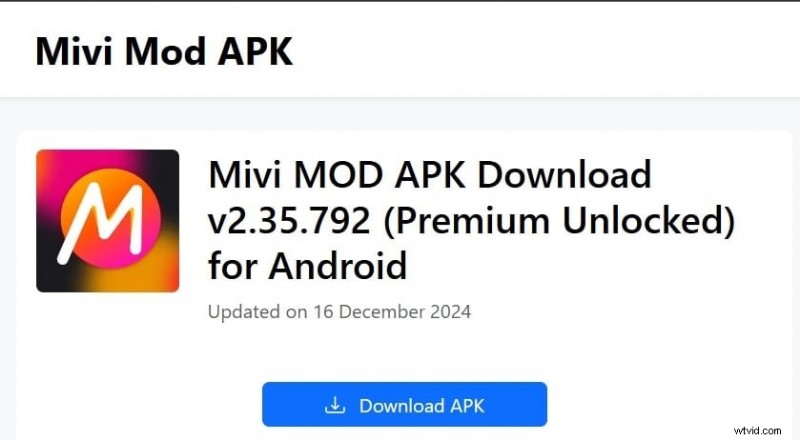
It’s really easy to get Mivi APK Mod download and get started with editing videos.
Part 2. Mivi Video Maker:Step-by-Step Guide to Creating Trending Music Videos
Creating a music video using Mivi is simple and fun, especially when your footage is all set. or an even better experience, consider the Mivi APK download to export videos without a watermark. This version also unlocks access to an even wider selection of templates,
Let us go through all the steps to make a perfect music video with a Mivi video maker.
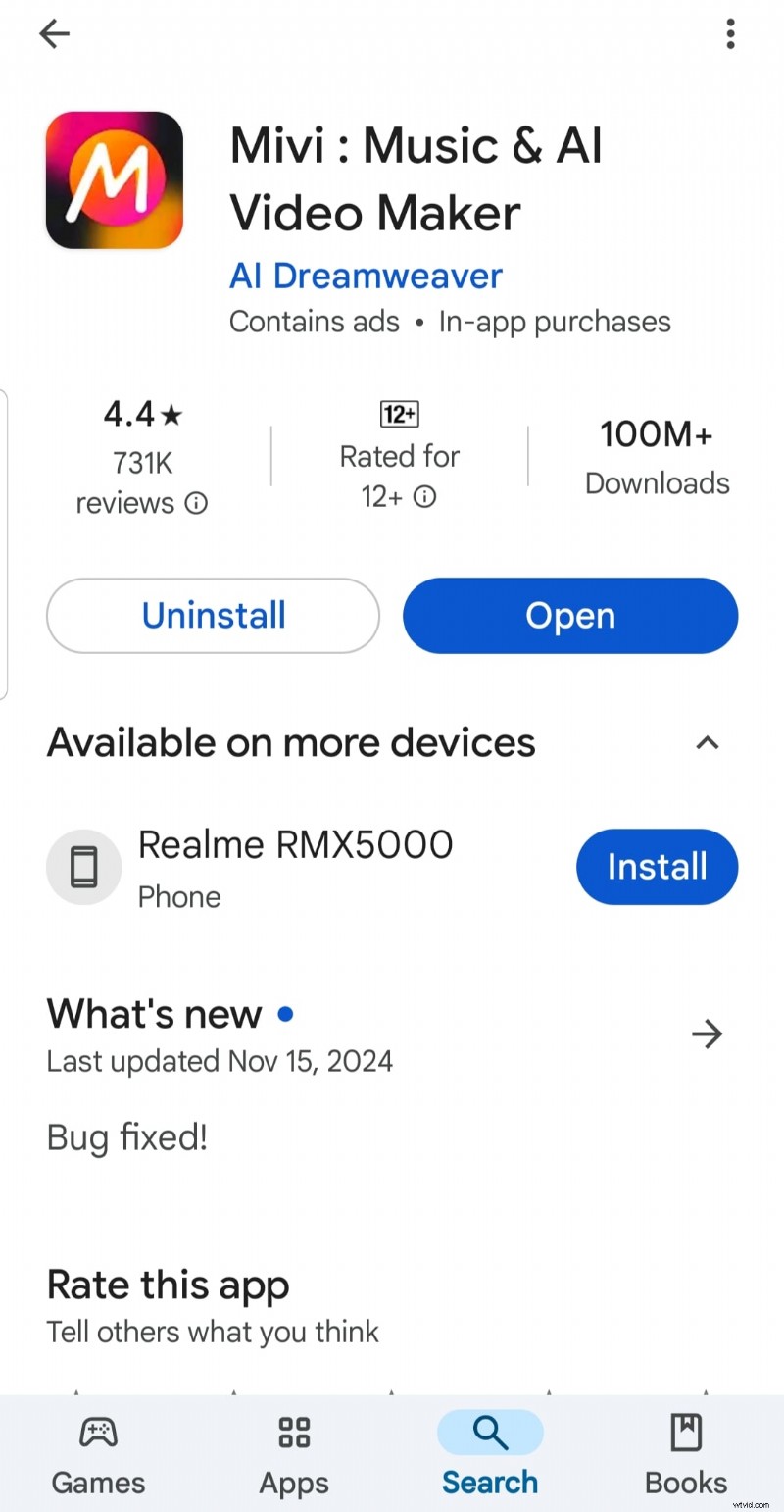
Step 1: Install and Launch MiviFirst things first, download the Mivi app from the App Store or Google Play Store. After installing, open the app and sign up. This is necessary to ensure you can save your work and access all the available features.
 Step 2: Upload Your Footage or Choose Photos
Once inside the app, you can start your project by selecting photos or videos from your device.
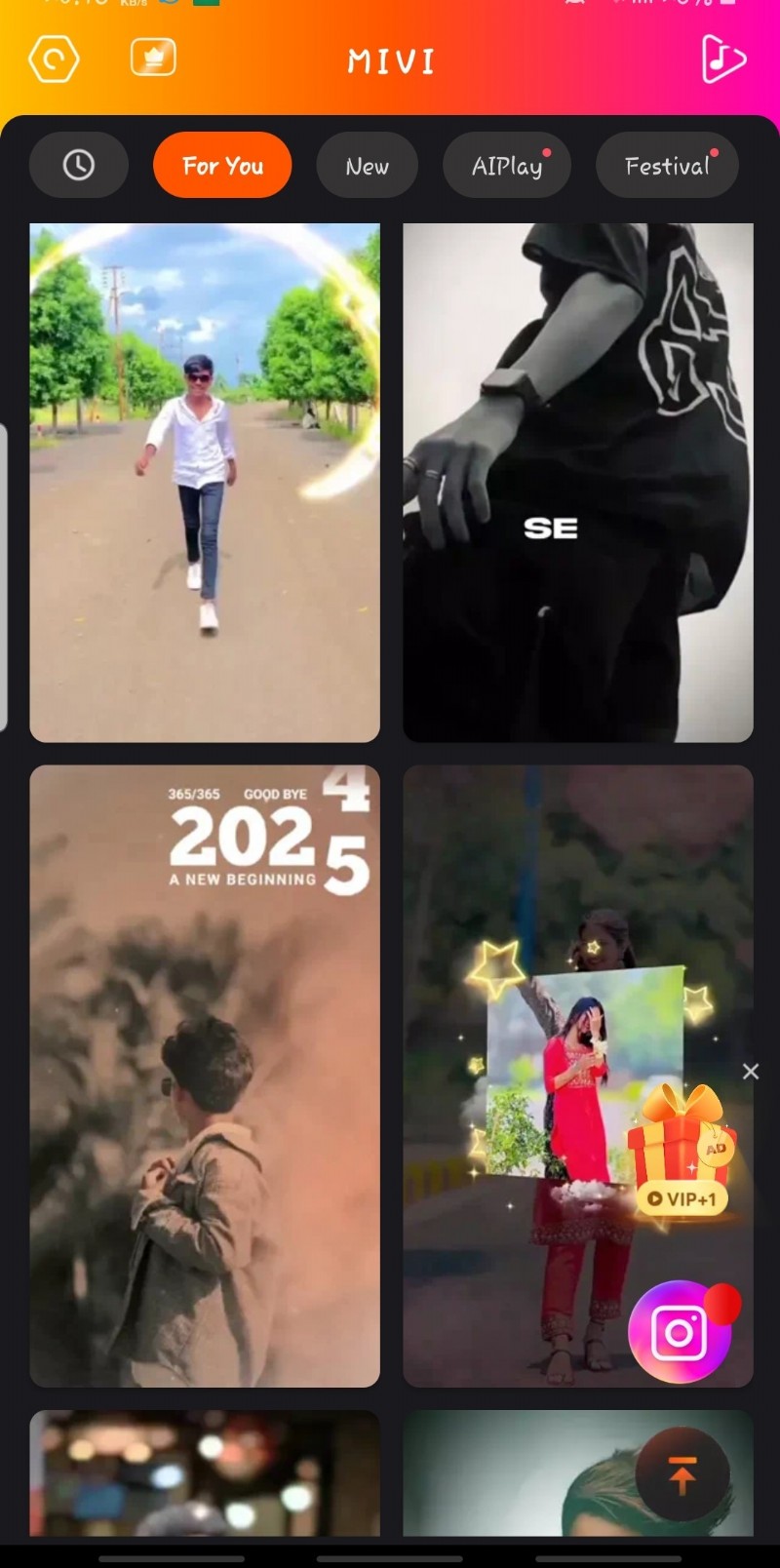
Step 3: Choose a Template or Start from ScratchHere’s to the fun part: Mivi video editor online offers many creative templates designed to match different themes and moods. You can easily browse and pick one that fits your vision, or you can start from scratch for complete customization. Up to you!
Note: You can even access VIP templates by watching a quick advertisement video.
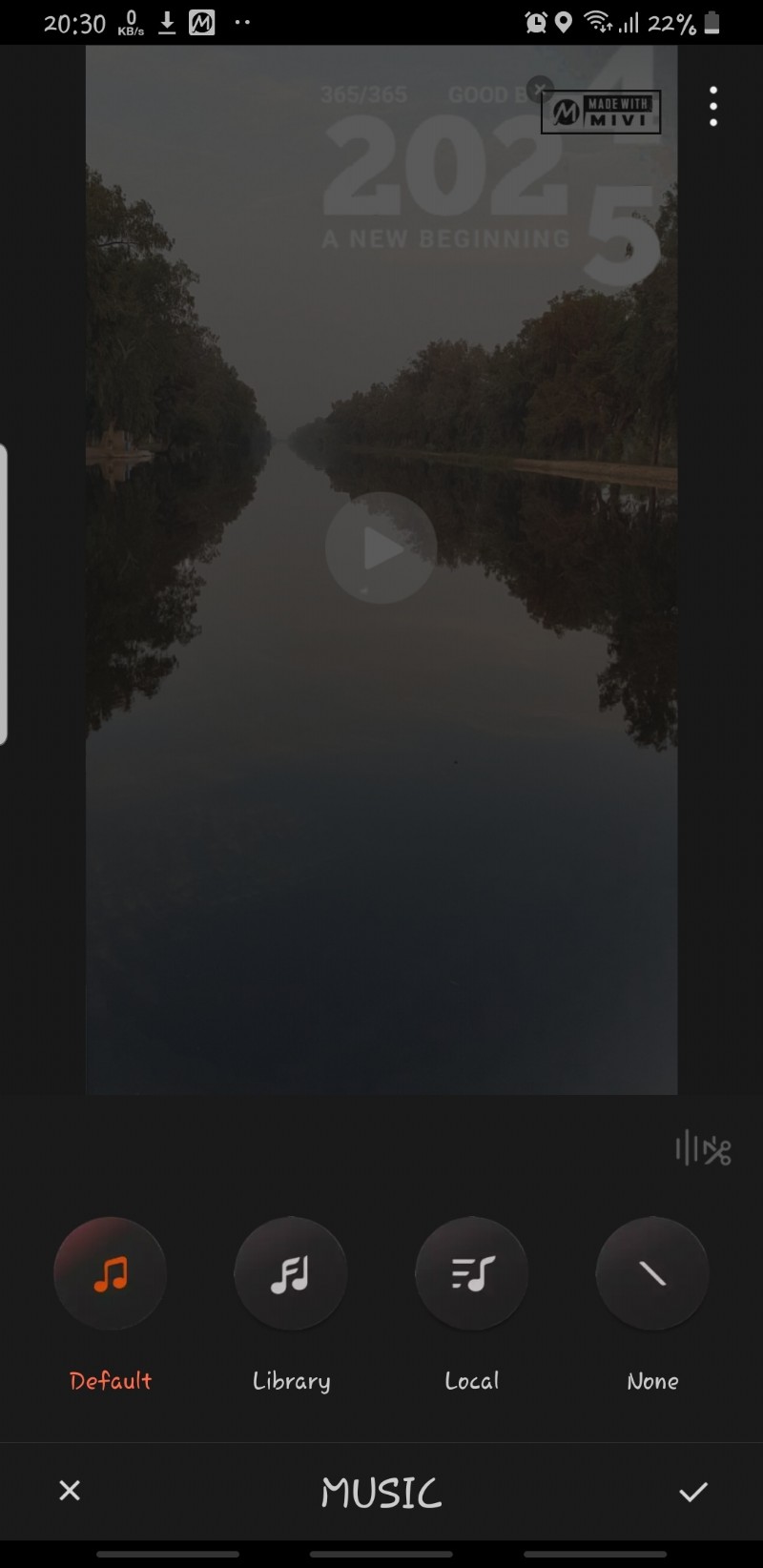
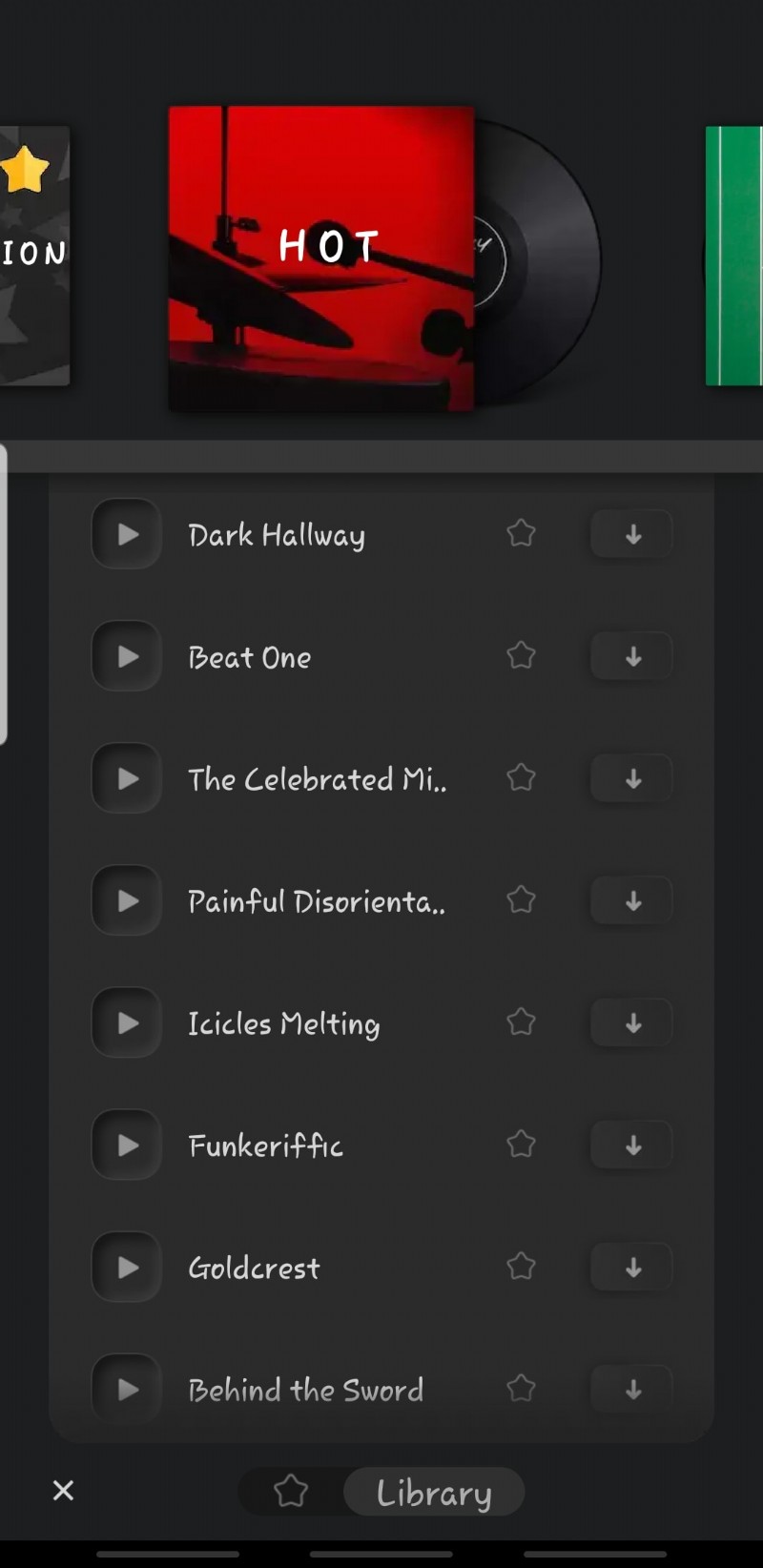
 Step 4: Add the Music
Once you have all the footage in place, select a track from Mivi’s music library or upload your own. Music sets the tone for your video, so make sure you choose something that aligns well with the theme.
 Step 5: Sync Visuals to Beats
Mivi has an auto-sync feature that makes it easier to sync visuals to music beats. That said, you can rely on the feature for transitions, effects, and ensuring footage changes align perfectly with the rhythm of the song.
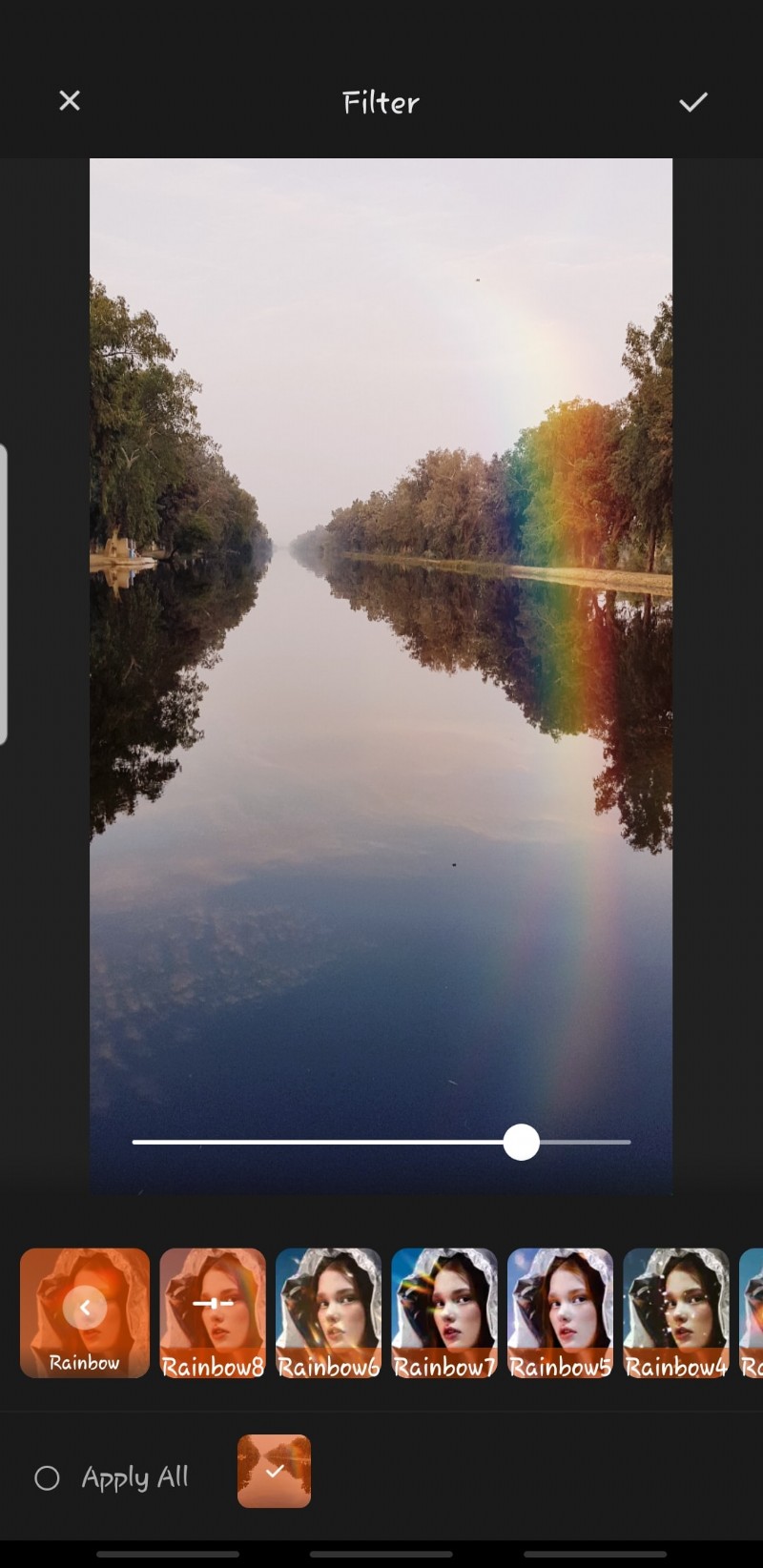
Step 6: Apply FiltersMivi features some amazing filters and visual effects that give more polished look to your videos. Experiment with different effects and go with the one that looks perfect to you.
 Step 7: Review and Finalize the Video
Don’t forget to watch your video from start to finish before exporting. Adjust anything that don’t feel right. This is your chance to fine-tune everything.
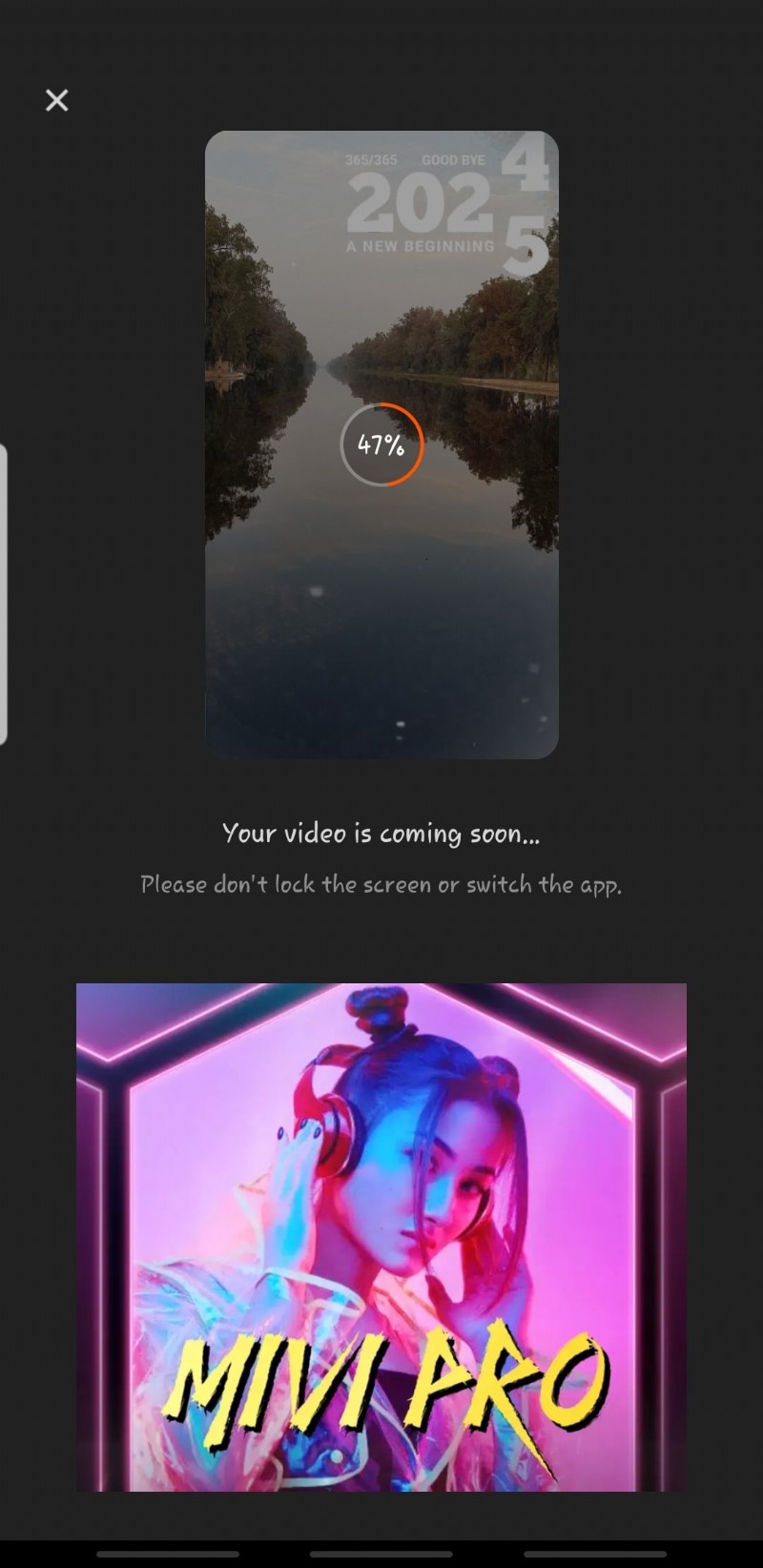
Step 8: Export without a Watermark and Share on Social Media PlatformsOnce satisfied, export your video in high quality. If you want to download Mivi without a watermark, you need to get the premium version. Finally, share your video on platforms like Instagram, TikTok, or YouTube to wow your audience.
Part 3. Wondershare Filmora: The Perfect Alternative to Mivi Video App
Music lyrical video maker Mivi is not the only option for making trending videos. You also have Wondershare Filmora, which easily surpasses Mivi in many ways. Filmora’s versatility sets it apart. Its advanced editing tools ensure your skill level does not limit you and get to experience everything from transitions to custom effects, and more. Filmora offers both a user-friendly interface and outstanding features, thus a one-stop solution for all your video editing needs.
The best part about Filmora is its availability on both desktop and mobile platforms. While you can create more advanced and professional-level cinematic videos on the desktop version, the mobile app is perfect for those who want to edit on the go.
Here’s why Filmora is a good option:
- Audio Editing Options: Filmora has all the advanced audio features you have been looking for, like noise removal and voiceover, which Mivi lacks.
- Customizable Watermark (with Subscription):Both apps remove watermarks in their premium versions, but Filmora gives an additional benefit of customizing watermark.
- Export Quality Options: Filmora allows exporting in HD and 4K resolutions and offers different FPS options, too. This works great for platforms like YouTube.
- Templates and Effects:Mivi video editor focuses only on a particular type of trendy templates. While Filmora offers both trendy and cinematic options that's a plus if you want to add that storytelling element.
- AI Features: Fillmora’s AI features take your editing experience to the next level. It offers AI Portrait for removing backgrounds in one click, auto-reframe for social media formats, smart effects like motion tracking, and a lot more. The result? You have a faster workflow and can be more creative.
Now, let us have a look at the step-by-step guide to understand how to create a viral music video on Filmora Mobile App better than Mivi video editor.
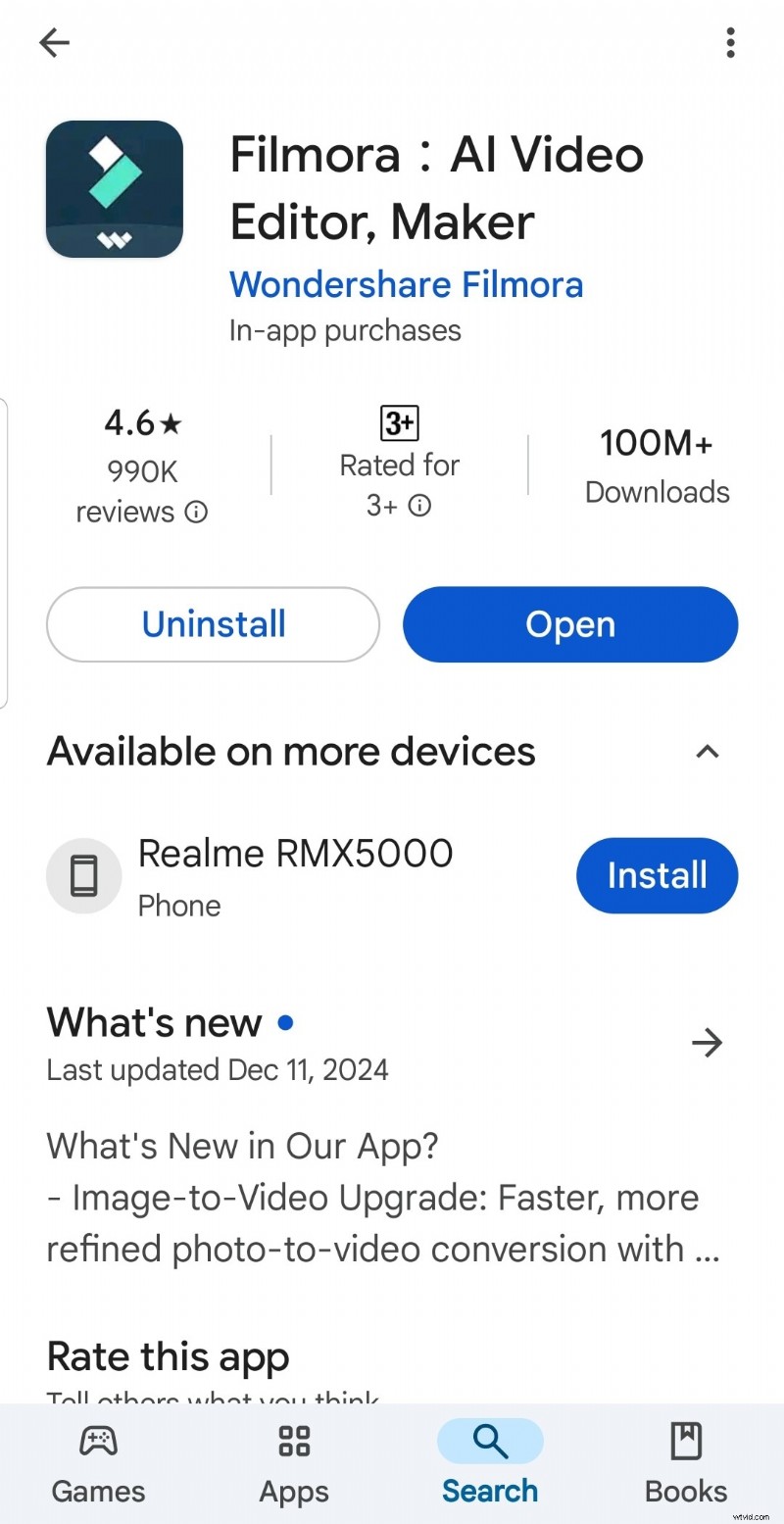
Step 1: Install and Launch FilmoraDownload Filmora from the Play Store or Apple Store. Once installed, open the program and choose a project aspect ratio (e.g., 16:9 for YouTube or 9:16 for TikTok).


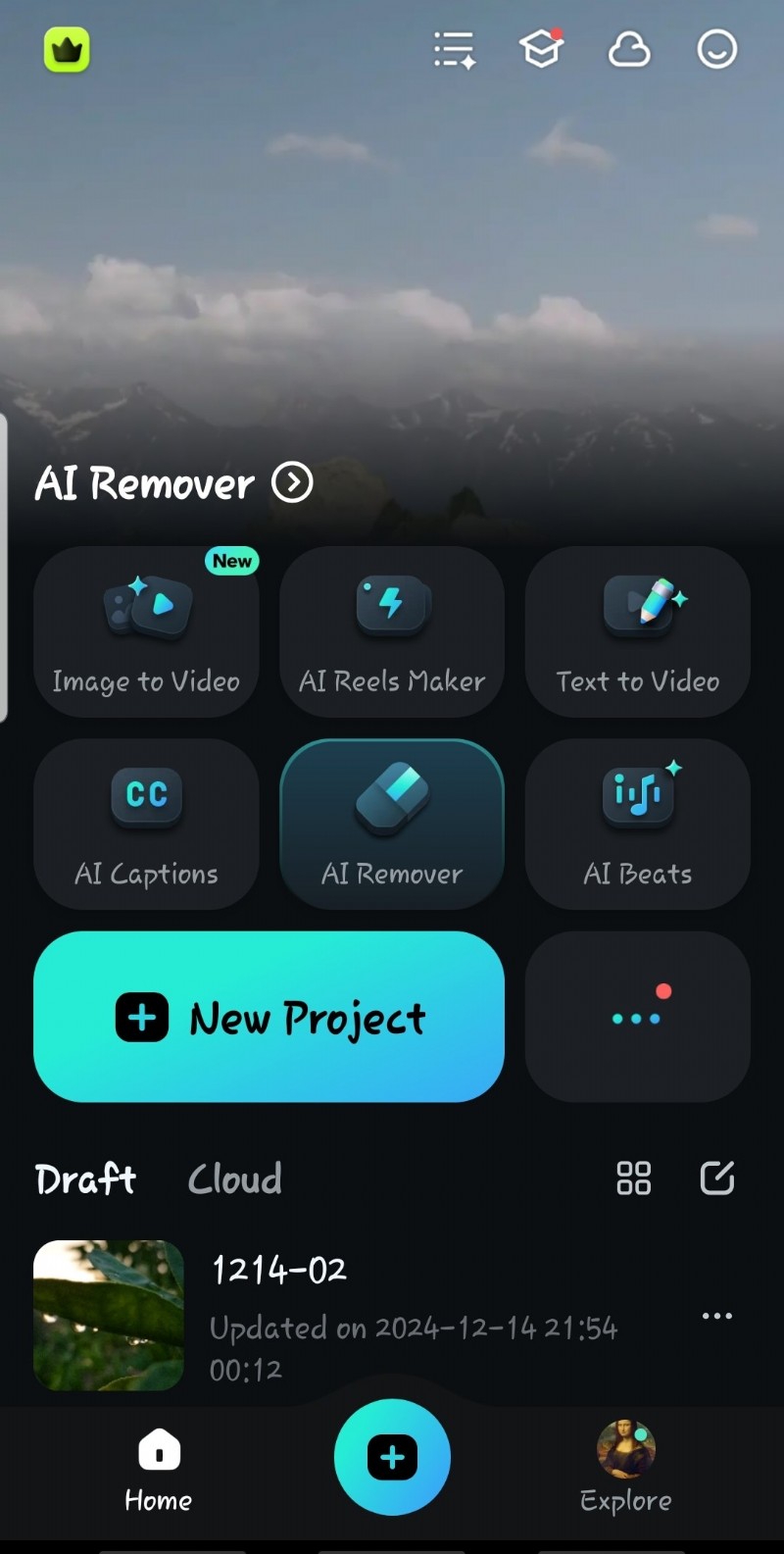
Click on New Project to upload your video clips, photos, and audio files. Filmora supports various file formats, so it’s easier for various needs.
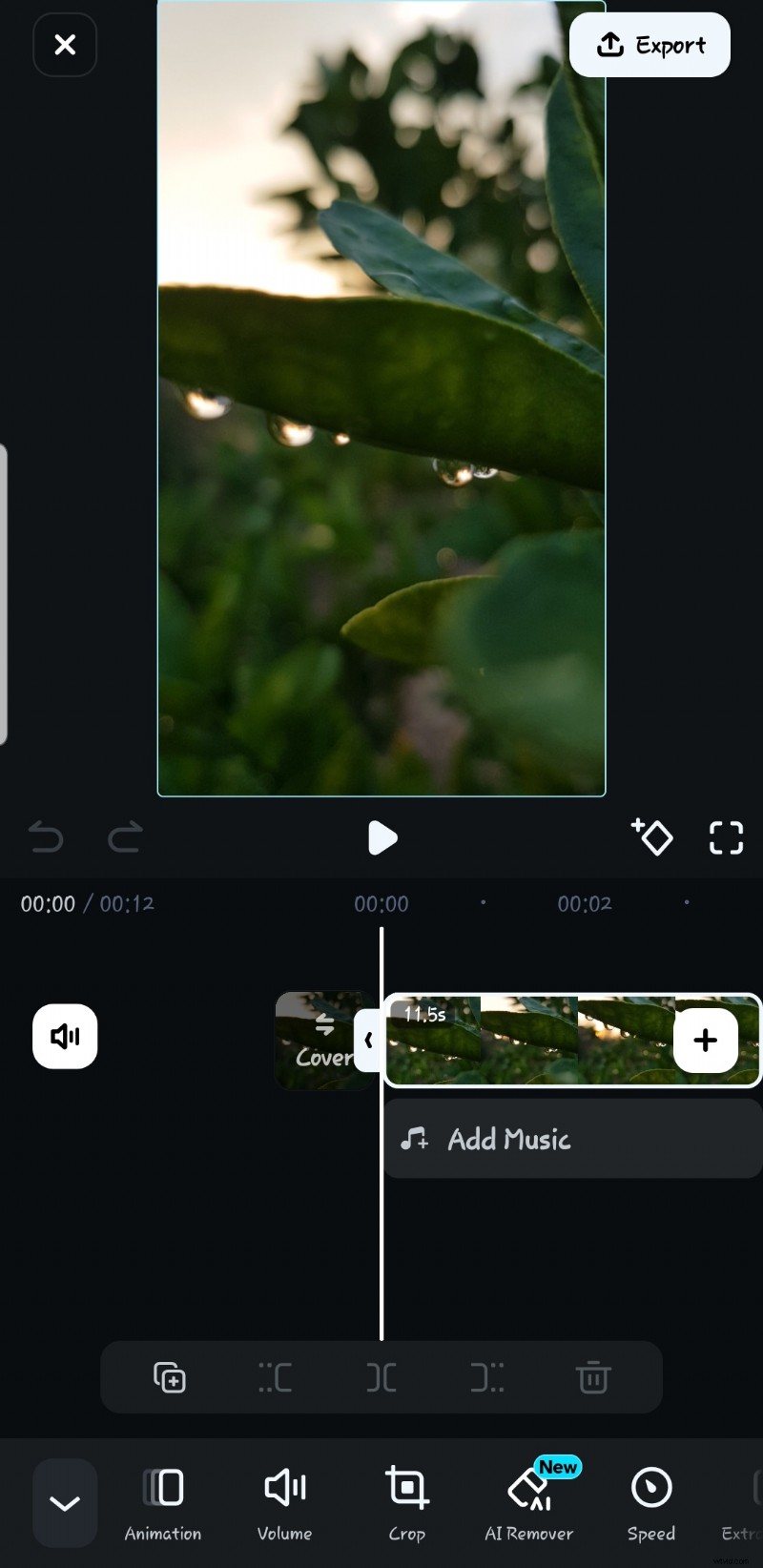
 Step 3: Trim, Split, and Arrange Clips
Filmora offers different features to trim unwanted parts, split long clips, or rearrange footage to create a smooth sequence. You can use these features to set the foundation of your music video.
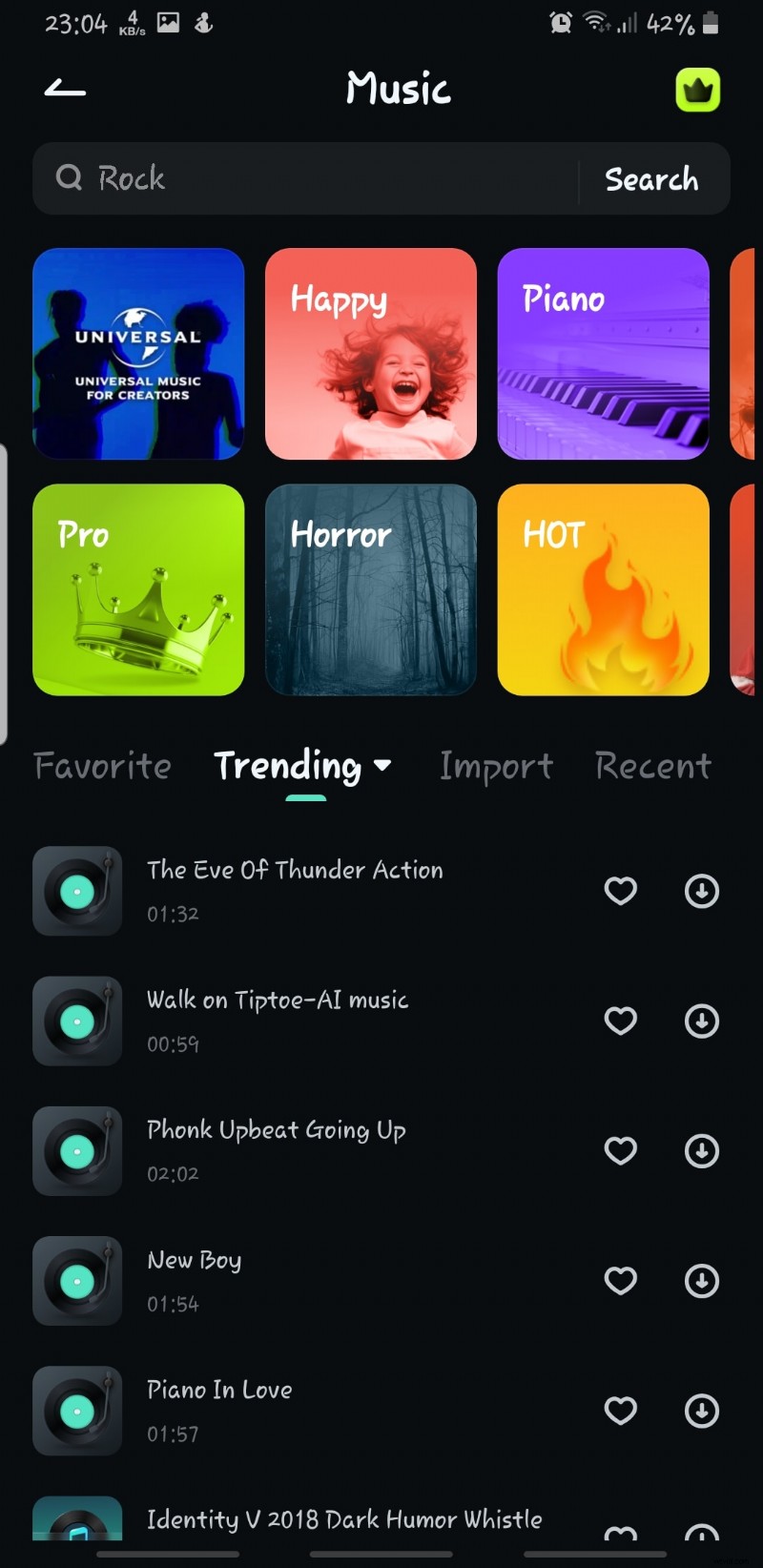
 Step 4: Add a Music Track
After that, import your music file or use one from Filmora’s built-in royalty-free music library. Simply select any of the available tracks and align it with your clips.
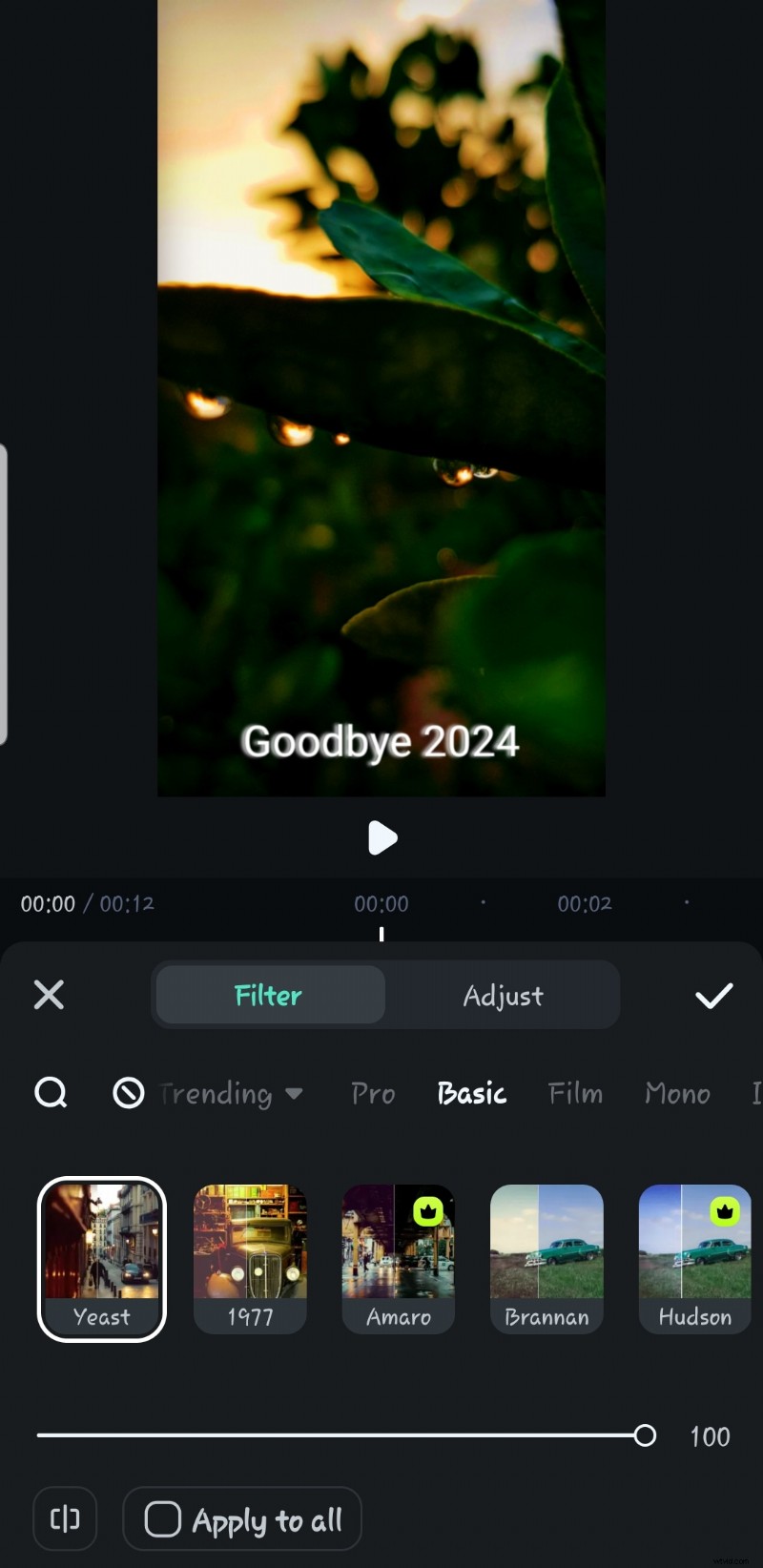
 Step 5: Apply Filters and Adjust Colors
You can step up your visual game with professional filters and color grading tools available on Filmora. You have the option to adjust contrast, saturation, and brightness to get that perfect tone.
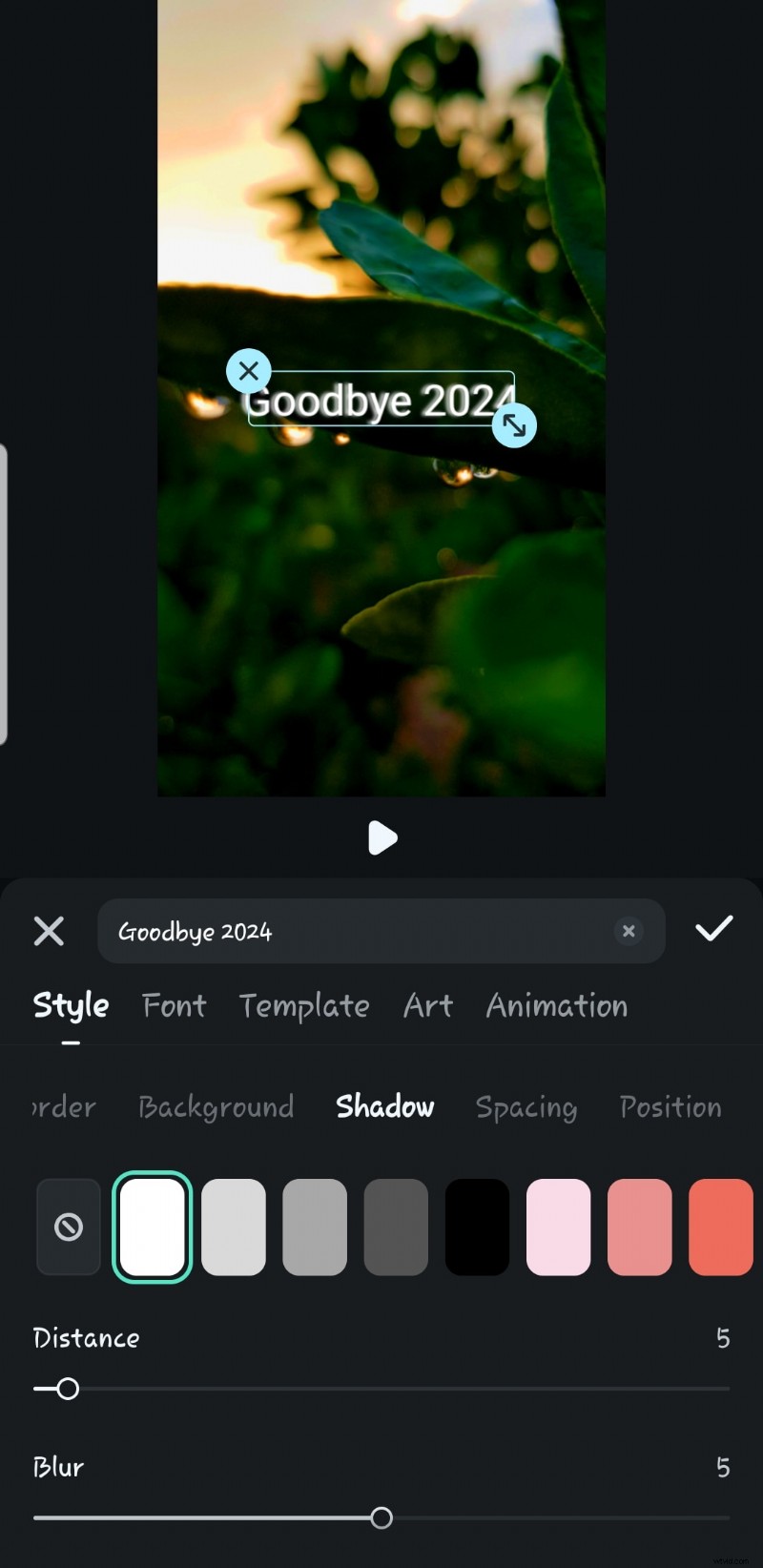
 Step 6: Add Text and Lyrical Effects
Lots of available fonts, styles, art, animations, and templates make it easier to add lyrics to match the song. The options are endless, and it’s up to you how you utilize them.
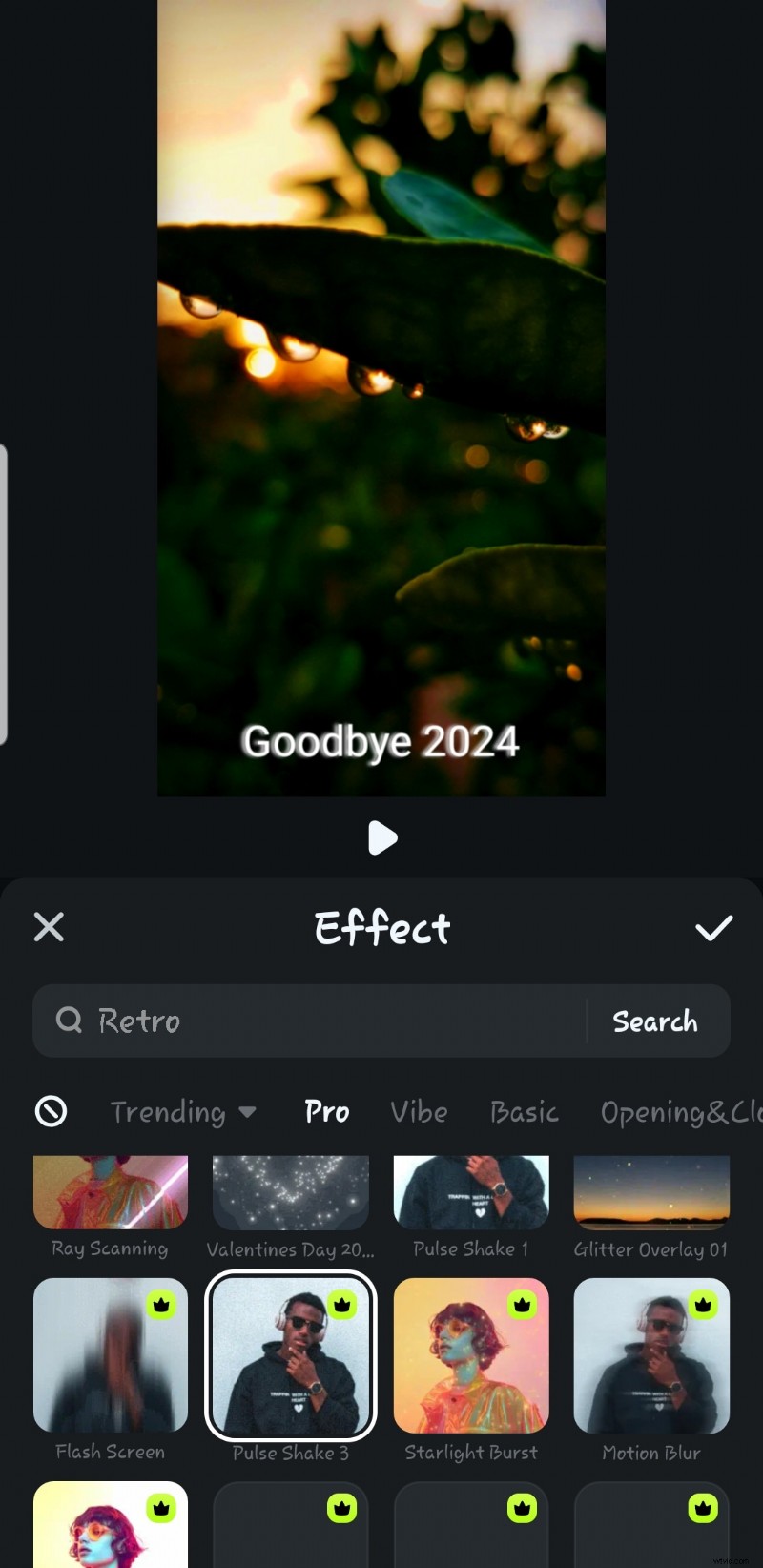
 Step 7: Transitions and Effects
Next, maintain the flow of your video by adding transitions between clips. The best part? Filmora offers also kind of special effects, including Glitch, Split Screens, and Overlays, that can give that cinematic look to your masterpiece.
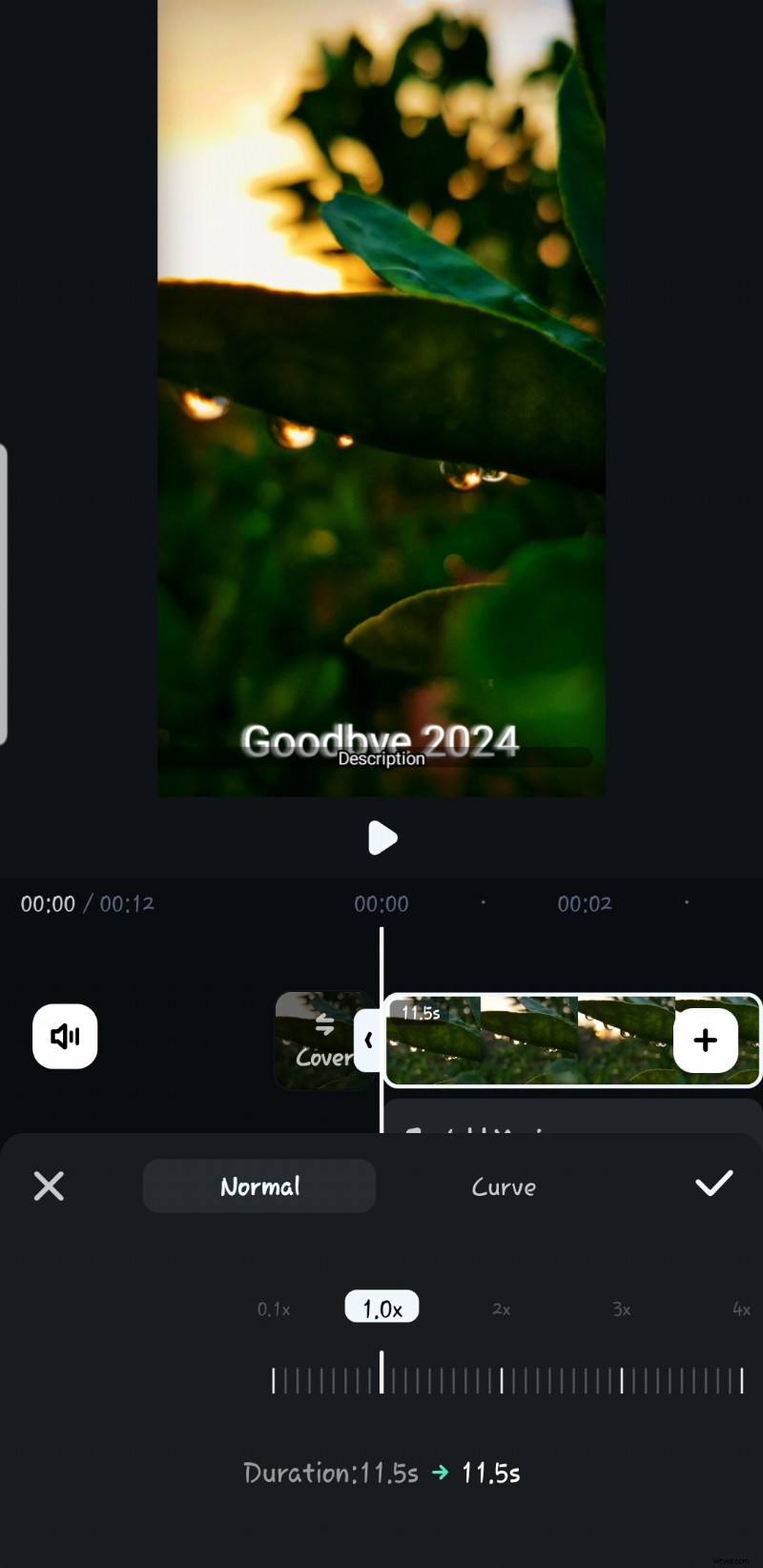
 Step 8: Adjust Speed and Slow Motion
Use Filmora’s speed-adjusting option to create that drama. You can bring focus to certain visuals and emphasize beats with slow motion or speed ramping.
 Step 9: Add Final Touches
Now, review the entire video to fine-tune details like audio levels, clip alignment, or anything else you changed. Ensure the output looks really professional.
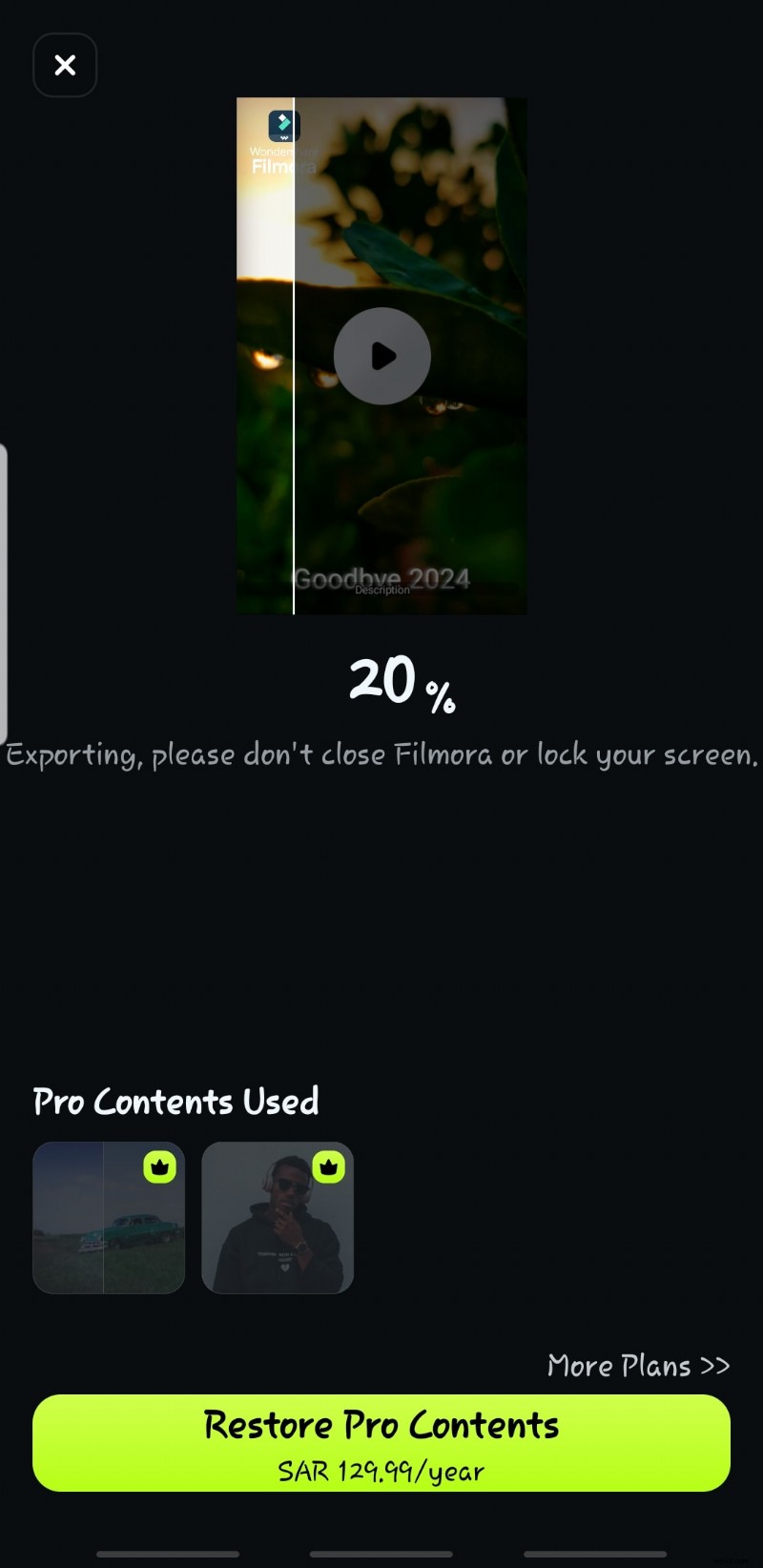
Step 10: Export and Share Your VideoRemove, add, or customize your watermark with Filmora’s Premium version. Next, export your video in the desired resolution and format. Filmora supports HD and 4K outputs, and you can directly upload your project to platforms like YouTube.
Part 4: Mivi vs. Filmora - A Side-by-Side Comparison
Mivi video editor and Wondershare Filmora have clear differences as each caters to a different audience with its features.
One major advantage Filmora holds is its desktop version that provides advanced editing tools for professional-level projects, in addition to its mobile app. Mivi, on the other hand, is solely a mobile app, which limits its functionality to quick and casual editing.
Here’s a side-by-side comparison of both to help you pick the best tool according to your needs.
| Feature | Mivi Video Editor | Filmora Video Editor |
| Platform Availability | Available on Mobile apps only (iOS and Android). | Both desktop (Windows/Mac) and mobile versions are available. |
| Templates | Offers a lot of pre-designed templates for quick video creation. | Includes advanced templates for professional video editing. |
| Special Effects | Allows basic clip adjustments and features visual effects. | Features advanced effects, motion tracking, green screen editing, and keyframe animations. |
| Audio Editing | Has basic audio editing features. | Advanced audio editing tools, like noise reduction. |
| Watermark Removal | Requires a premium subscription to export videos without a watermark. | Watermark-free exports and customizable watermarks available with the premium version. |
| Export Options | Simple export options for social media platforms like Instagram, TikTok, and YouTube. | Offers multiple resolution, FPS, and format options, including HD and 4K exports. |
| Pricing | Affordable subscription plans for casual creators. | Plans more suited for professional-level editing needs. |

Note:We recommend Filmora desktop version since there are more advanced features for video creation!
Conclusion
Mivi video editorhas really made creating viral music videos a piece of cake for beginners. It has a straightforward user interface, a variety of templates of all kinds and many fun features. It will be your go-to app for making eye-catching content quickly for your social media.
But there’s also a game changer in town; Filmora, which is making its way to the peak with some top-notch editing and AI features. Having both the desktop and mobile versions, it’s really easy to create versatile videos, no matter whether you are a beginner or a professional creator.
So, why wait? Download Filmora today and enjoy the endless editing features it offers!