
Are you tired of rendering After Effects projects just to preview them in Premiere Pro? Adobe Dynamic Link bridges the two applications in real time, eliminating export and re‑import cycles.
By keeping both programs connected, any tweak you make in After Effects updates instantly on your Premiere timeline—saving hours and reducing the risk of version mismatches.
For newcomers or users on lower‑spec hardware, we’ll also outline a streamlined alternative that delivers professional results with fewer steps.
1. How Dynamic Link Works
Dynamic Link is Adobe’s native solution for synchronising Premiere Pro and After Effects. Instead of exporting a clip from After Effects and re‑importing it into Premiere, the two applications share the same composition file.
When you link a clip, Premiere can play it in real time; any changes you save in After Effects are reflected automatically in Premiere.
There are two primary ways to use the feature:
- Replace with After Effects Composition – Sends a selected Premiere clip to After Effects, creating a new linked composition.
- Import After Effects Composition – Brings an existing AE project into Premiere and treats it like a standard clip.
Both methods maintain the live connection, so any save in AE updates Premiere without further exporting.
2. Key Use Cases
Dynamic Link shines when you need real‑time updates for complex tasks. Here are three common scenarios:
2.1 Motion Graphics & Titles
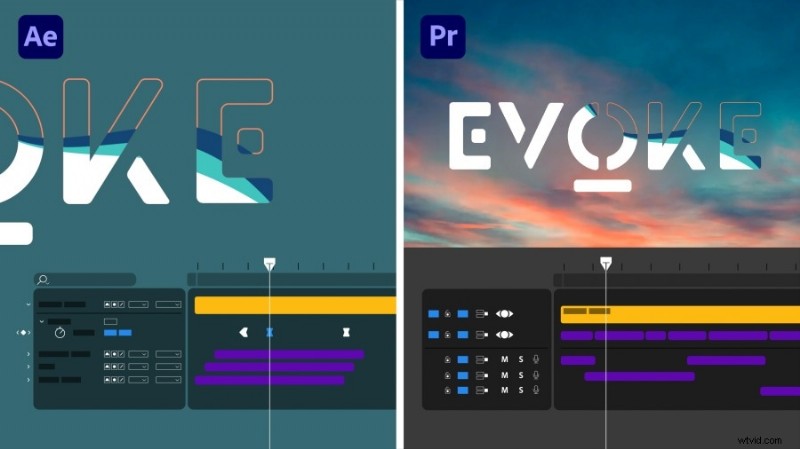
After Effects excels at animation. Create kinetic typography, lower thirds, or animated graphics, and see them appear instantly in Premiere.
Tip: Use the Essential Graphics panel for titles you expect to edit frequently—this lets you modify text directly in Premiere without reopening AE.
2.2 Visual Effects & Compositing
For green‑screen work, motion tracking, or particle effects, AE offers finer control than Premiere. Dynamic Link keeps your edits live while you build the VFX.
Tip: Pre‑compose heavy layers in AE. If playback lags, use Premiere’s Render & Replace to create a temporary video file for smoother editing.
2.3 Audio & Video Synchronization
Align visual elements to a beat or audio cue is often easier in AE. With Dynamic Link, any timing adjustment stays locked when you return to Premiere.
Tip: Enable the audio clip before linking, or import the audio separately into AE and add markers to keep everything in sync.
3. Step‑by‑Step Workflow
Follow these steps to set up a seamless Dynamic Link connection:
Step 1 – Prepare Your Projects
- Open or create your Premiere and After Effects projects.
- Keep both in the same folder structure to avoid broken links.
- Confirm that the software versions are compatible (same major release).
Step 2 – Create a New Linked Composition from Premiere
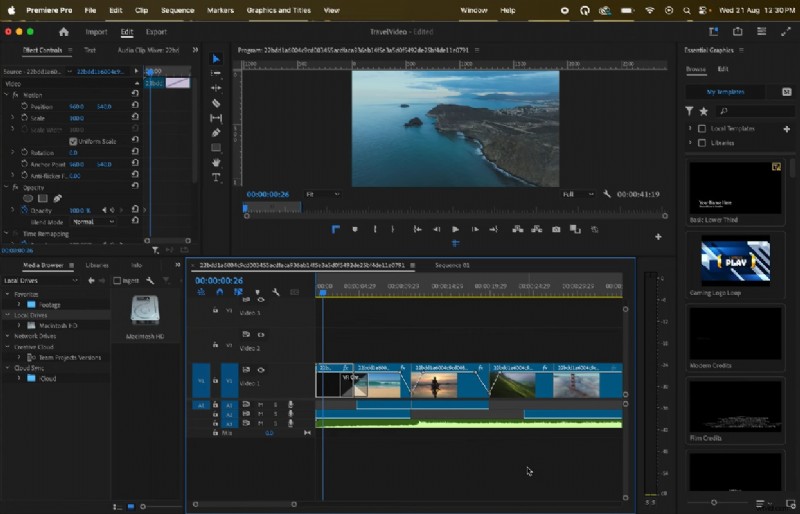
- Select the clip you want to edit in AE.
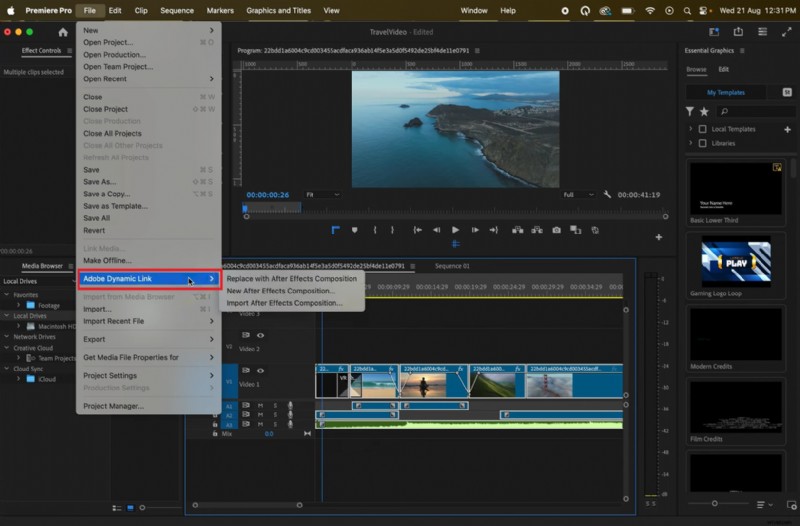
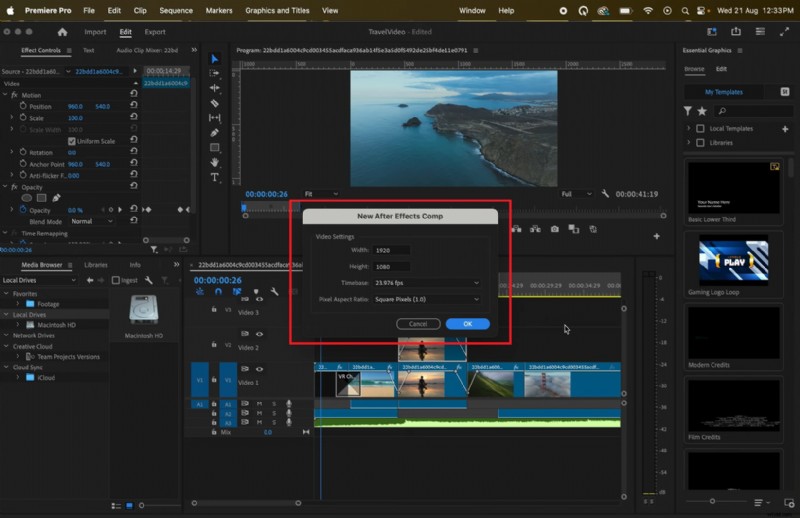
- Right‑click and choose “Replace with After Effects Composition” (or File > Adobe Dynamic Link > Create New After Effects Composition).
- Save the AE project or choose an existing one, then name the new composition.
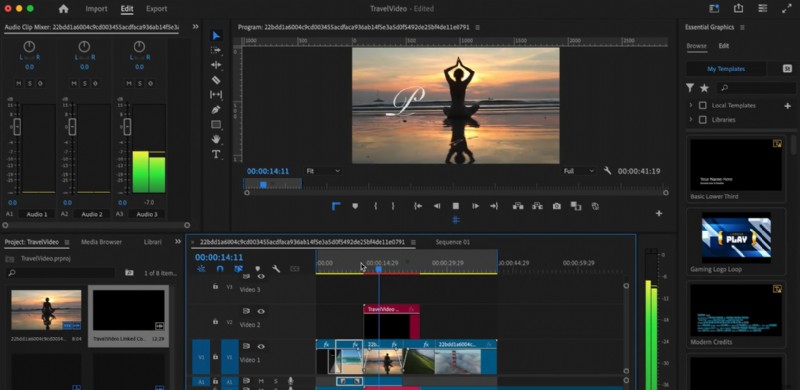
- Premiere will display a placeholder clip that is linked to the AE composition.
Step 3 – Import an Existing After Effects Composition
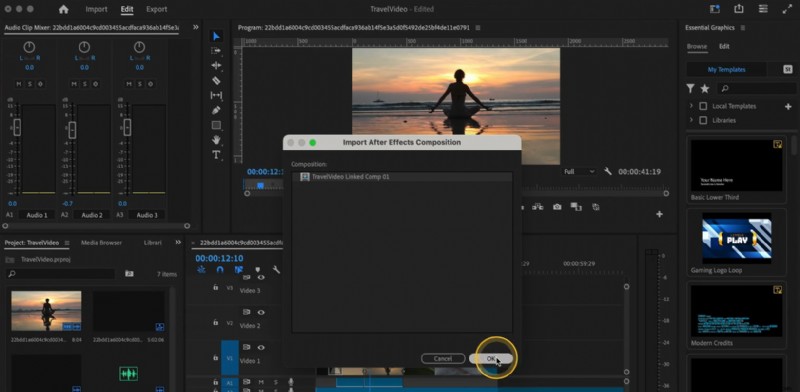
- File > Adobe Dynamic Link > Import After Effects Composition.
- Open your .aep file, select the desired composition.
- The composition appears in Premiere’s Project panel and can be dragged onto the timeline.
Step 4 – Edit & Update the Linked Composition
- Right‑click the linked clip in Premiere and choose “Edit Original” to open AE.
- Make your changes (effects, animation, layers).
- Save the AE project; Premiere will automatically refresh the linked clip.
4. Filmora – A Lightweight Alternative
Dynamic Link can be demanding on hardware and may overwhelm editors new to the Adobe ecosystem. Wondershare Filmora offers a single‑app solution that delivers many of the same capabilities without the complexity.

Motion Graphics & Built‑in Titles
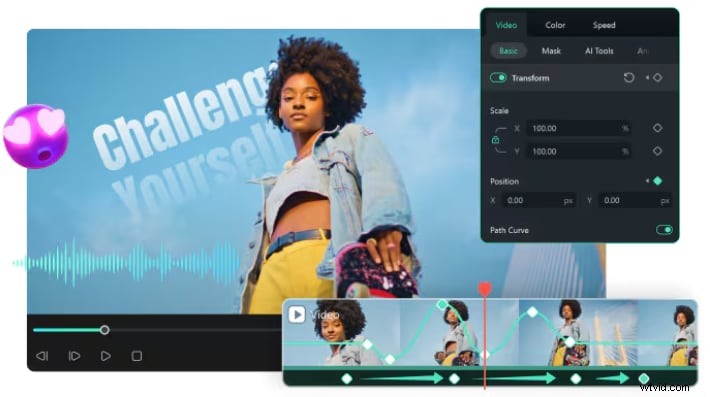
Filmora’s library of customizable titles, lower thirds, and animated graphics can be dragged directly onto the timeline, saving time compared to creating animations in AE.
✅ Dynamic Link vs. Filmora: Drag‑and‑drop templates maintain a professional look without the need for separate composition files.
Keyframing & AI‑Powered VFX
Apply keyframes to any parameter and leverage AI tools such as background removal, motion tracking, and stylized filters—all within one interface.
✅ Dynamic Link vs. Filmora: Eliminates complex AE compositions, making advanced effects accessible to users with a gentle learning curve.
Audio Beat Detection
Filmora automatically detects beats in your music, marking them on the timeline to streamline synchronization of clips, transitions, or effects.
✅ Dynamic Link vs. Filmora: Handles beat‑based editing in a single app, avoiding manual audio sync work in AE.

Filmora – AI Video Editing App & Software Best tool for making videos anywhere for all creators! Your Perfect First Video Edit Starts Here – No Experience Needed
5. Best Practices & Optimization
Keep your workflow efficient and avoid common pitfalls with these proven strategies:
5.1 Stay Organized
Maintain consistent folder structures for Premiere and AE projects. Refrain from moving or renaming media mid‑project to prevent links from breaking.
5.2 Match Software Versions
Always use the same major version of Premiere Pro and After Effects. Even minor version differences can cause playback issues.
5.3 Optimize Playback
Reduce the playback resolution to ½ or ¼ when working with complex compositions to lower system load without affecting final export quality.
5.4 Use Render & Replace Strategically
When linked compositions cause lag, render and replace them within Premiere. This creates a temporary video file for smoother editing while still allowing you to return to the live composition if needed.
5.5 Manage Cache & Memory
Regularly clear media cache and free up memory in both Premiere and AE to prevent crashes during heavy editing.
6. Troubleshooting & Common Issues
Below is a quick reference for frequent problems and their fixes:
| Issue | Solution |
| Offline Compositions | Ensure the AE project file remains in its original location. If moved, use Premiere’s Link Media feature to reconnect. |
| Lag or Interrupted Playback | Lower playback resolution or render & replace heavy compositions. |
| Missing Audio | Enable audio in the AE composition and layers, then save to update the link. |
| Version Mismatch Errors | Install matching versions of Premiere Pro and After Effects. |
| Random Crashes or Freezes | Clear cache, reduce background processes, update GPU drivers, and consider splitting large projects into smaller AE compositions. |
Conclusion
Adobe Dynamic Link empowers editors to create motion graphics, visual effects, and audio‑visual sync in real time, saving countless hours and ensuring a seamless workflow across Premiere Pro and After Effects. By following best practices—keeping projects organized, matching software versions, and optimizing playback—you can maximize performance and stability.
For those who prioritize speed, simplicity, or are working on less powerful machines, Filmora offers an all‑in‑one alternative with built‑in templates, AI‑powered VFX, and intuitive audio tools, delivering professional results without the overhead of a dual‑application workflow.